
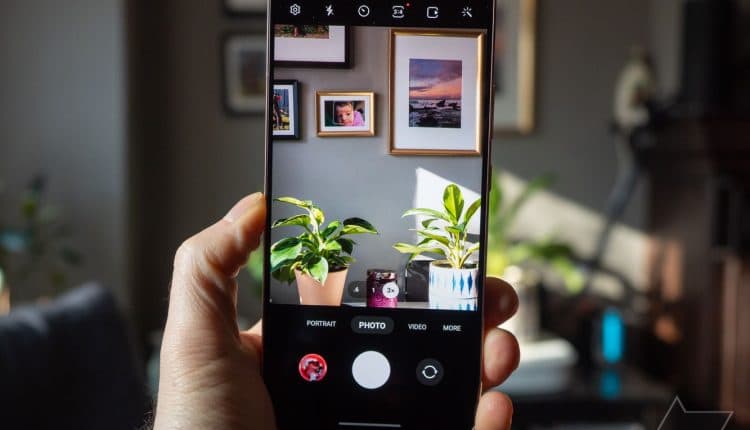
19 quick tips for stunning photos you must try
Related Posts
A phone’s photo-taking and editing capabilities are one of the biggest device differentiators in 2023. People expect smartphones to take great photos and want to edit them on the device. Since Google makes Pixel phones and Google Photos, many would assume they are the industry leader in this category. However, Samsung phones also have great camera hardware and great pro features that land them on our list of the best Android phones right next to Google Pixel phones.
While Google Photos might be the most popular Android gallery app, Samsung Gallery is a sneakily good alternative. At first glance, Samsung Gallery might seem weaker than Google Photos. However, a closer look will reveal features that rival or outdo Google’s. Here are some tips and tricks to make your photos the best they can be using the Samsung Gallery app.
Experiment with Samsung Gallery Labs
New features are always in the works, and Samsung lets you try them early if you desire. These features are accessed through Gallery Lab, which is enabled using a method similar to Developer Mode in the Android operating system.
-
Open the
Samsung Gallery
app. -
Tap the
overflow menu
(three lines) in the lower-right corner. -
Select
Settings
. -
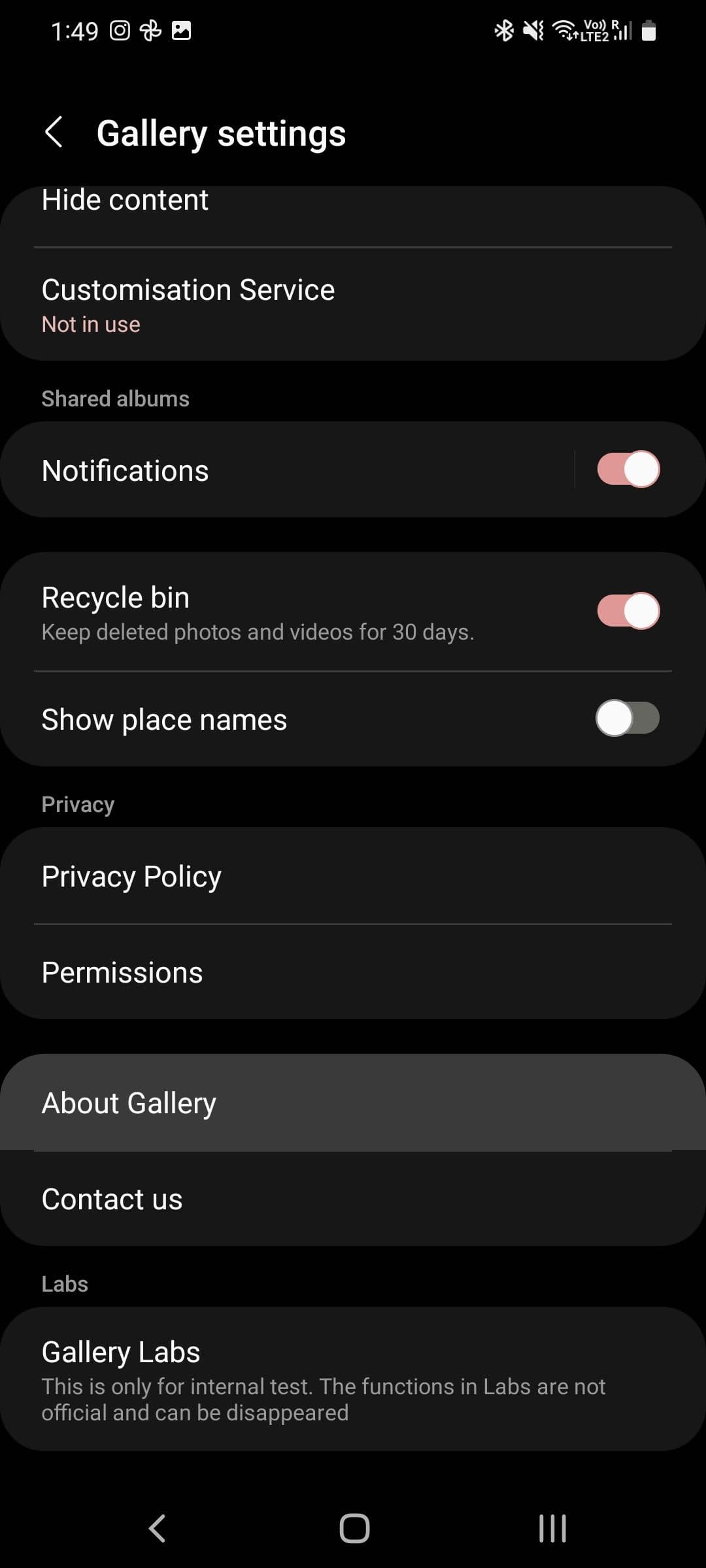
Scroll down and tap
About Gallery
.
-
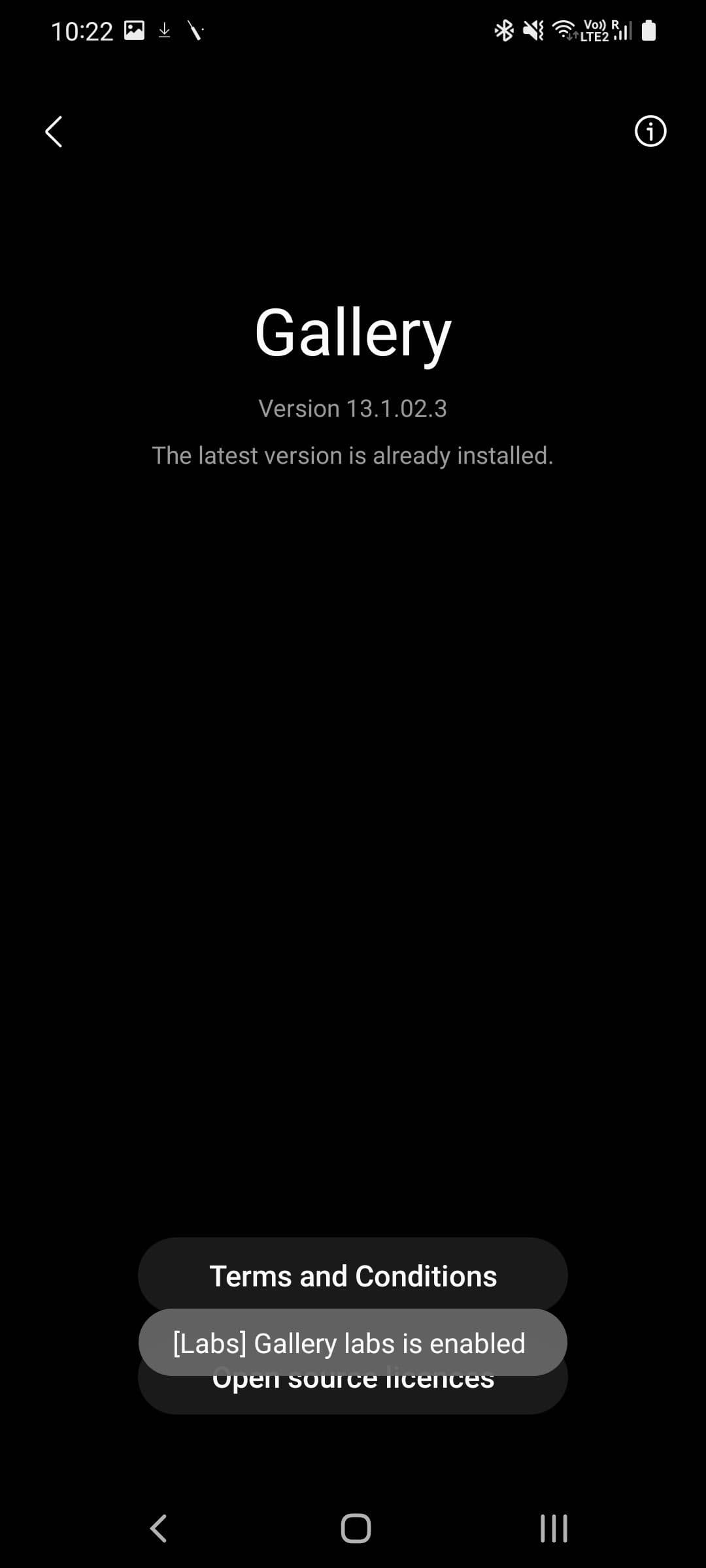
Repeatedly tap the
Version number
(under the word “Gallery”) until you see a notification saying that Gallery Labs has been enabled.-
You may see notifications that have
-1
or
-3
tacked onto the end. This means you need to click the version number that many more times for Gallery Labs to be enabled.
-
You may see notifications that have
-
Tap the
Back
button to go back to
Gallery settings
. -
Scroll to the bottom of the list, and tap the new
Gallery Labs
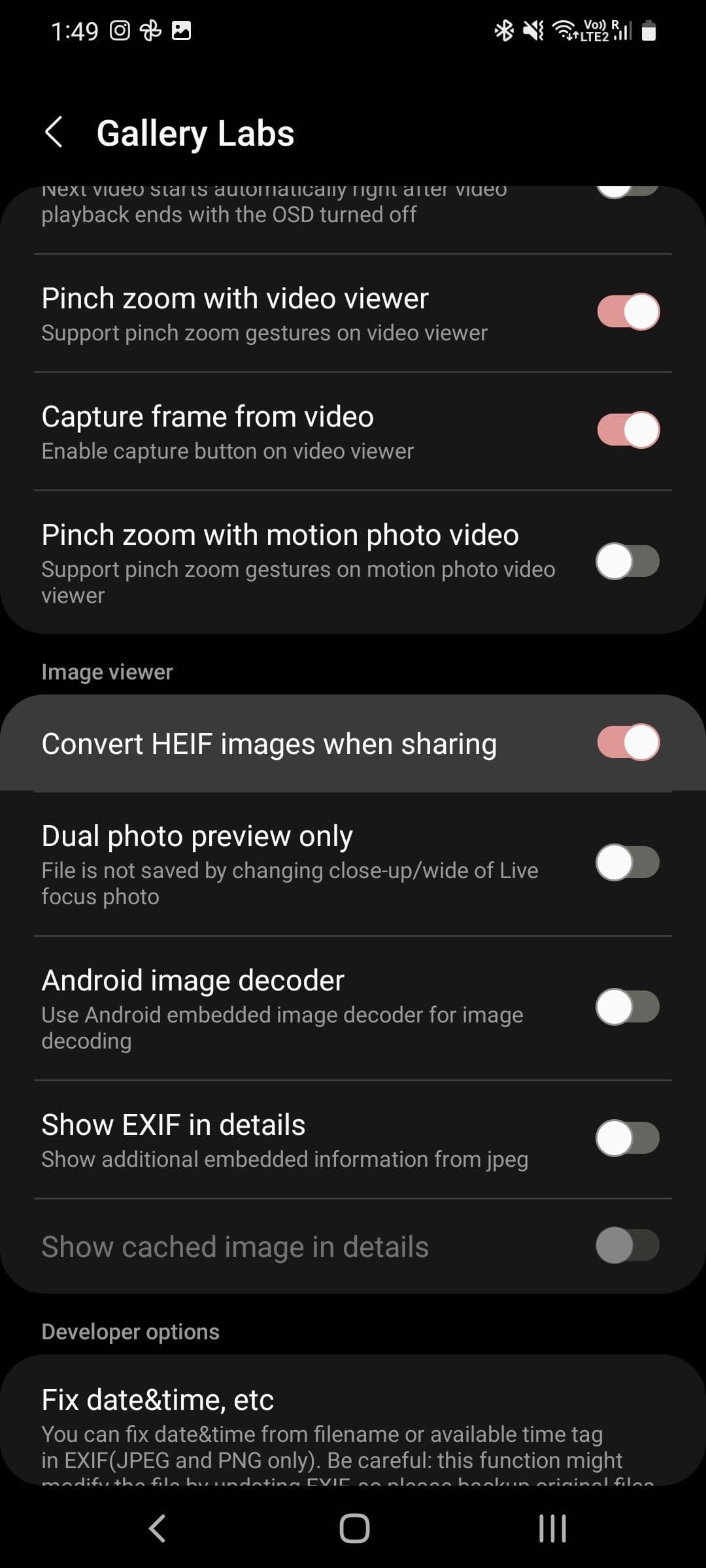
option. You’ll find the experimental and upcoming new features in the Gallery app.
Secure your private photos
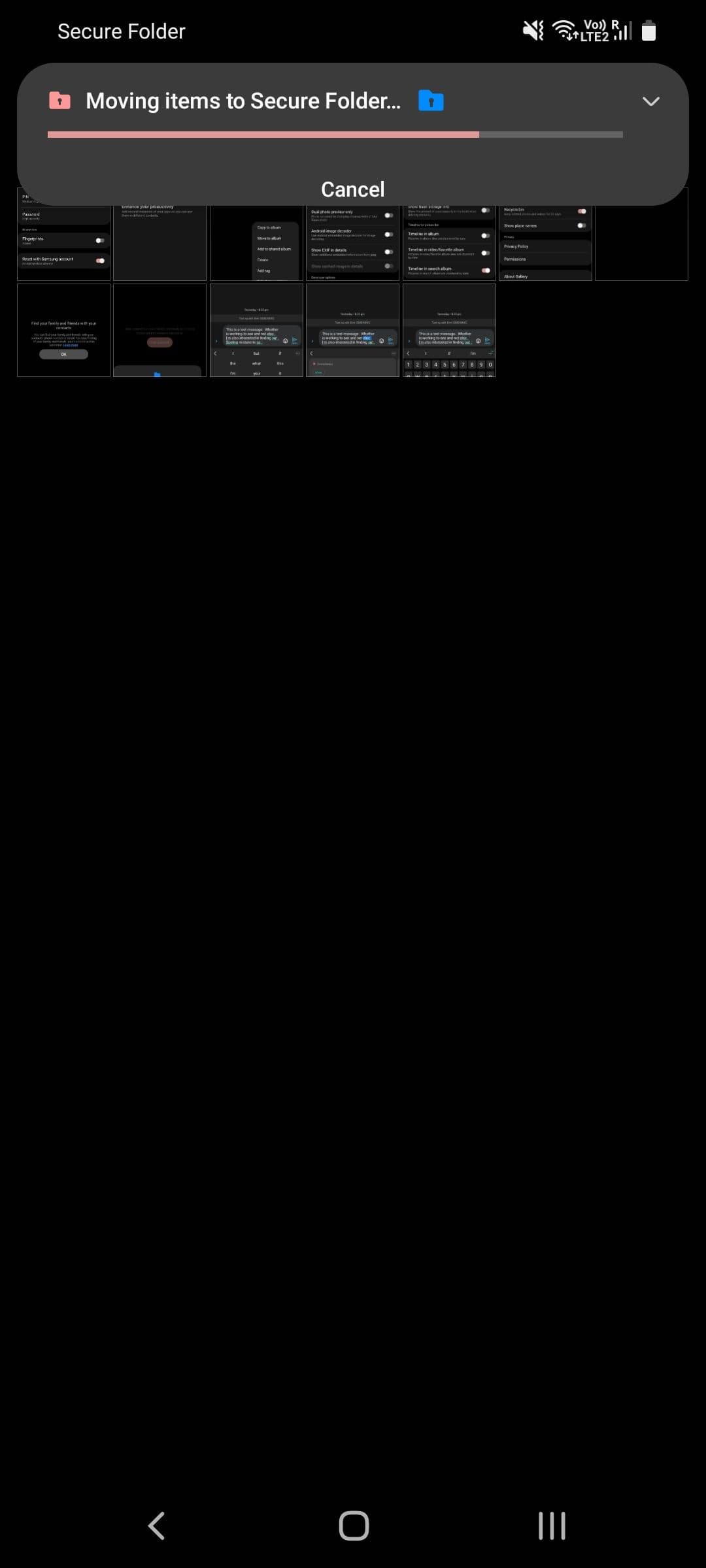
Many people have photos with sensitive information that they want to hide from prying eyes. Samsung Gallery allows you to do so through Samsung Secure Folder, which is easy to set up and keeps your data in a safe and encrypted format.
-
Open the
Samsung Gallery
app. - Select the photos, videos, and albums to move to your Secure Folder.
-
Tap the
More
button at the bottom. -
Select the
Move to
Secure folder
option.
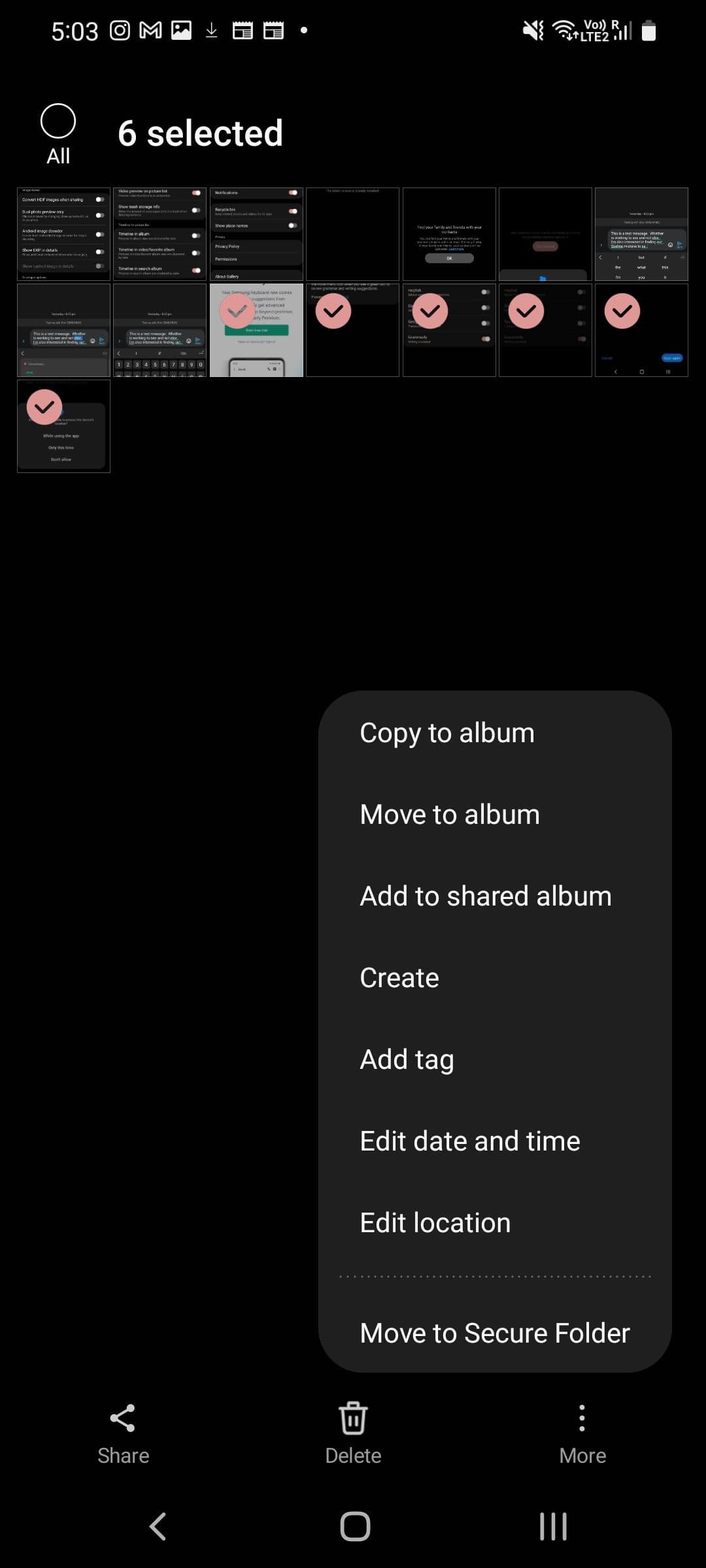

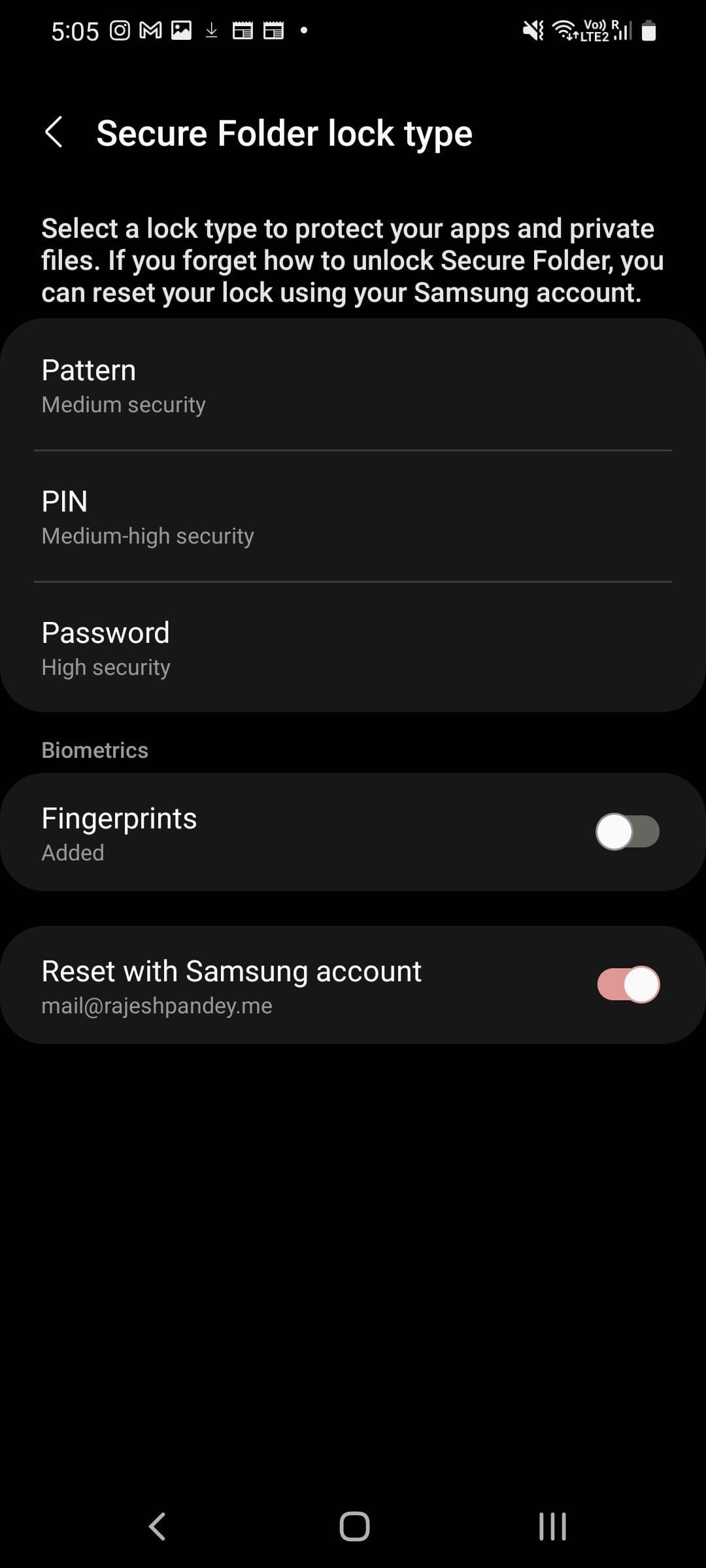
When you use your Secure Folder for the first time, you must set it up by granting it the necessary permissions and creating a password, pattern, or PIN lock. You can open your Secure Folder from your phone’s app drawer to access your hidden photos and videos.
Try Samsung’s Magic Eraser alternative
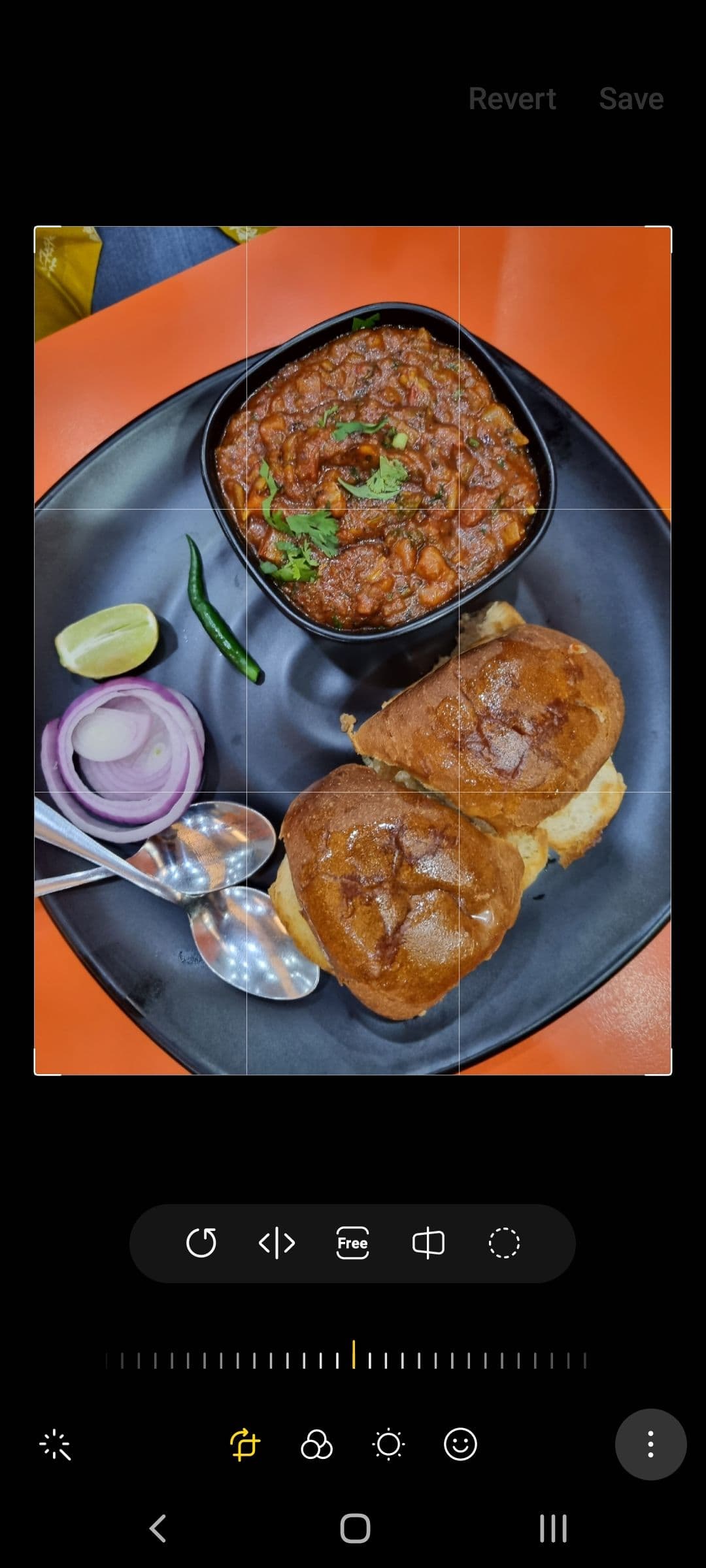
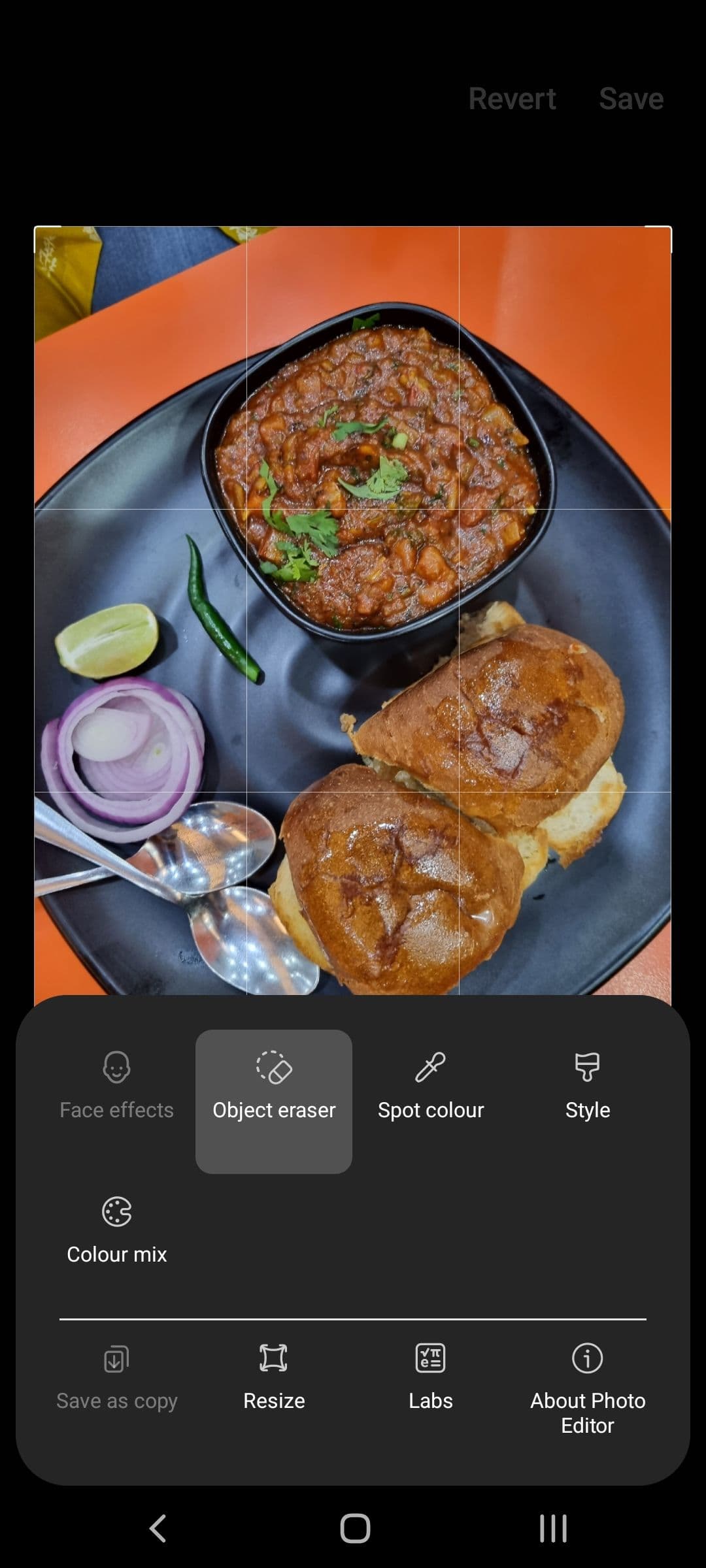
Often when we take photos, they show people or items that we’d be happy to remove. For a long time, this was only possible if you knew how to use a photo editing app such as Adobe Photoshop. Google brought this to the masses through its Magic Eraser feature, which was a Pixel-exclusive feature until it was recently opened to Google One subscribers. Even though it’s not as well known, Samsung released a similar feature with the S21 series of phones in Samsung Gallery dubbed Object Eraser.
-
In
Samsung Gallery
,
open the photo you want to remove an object from. -
Tap the
Pencil
icon in the toolbar. -
Tap the
three dots
in the lower-right corner. -
Select the
Object eraser
option. -
Tap or draw a
border
around the object you want to remove from the photo. -
Select the appropriate icons to erase
shadows
and
reflections
.
-
Tap
Erase
to see the results. -
If the object is not erased satisfactorily on the first try, repeat steps 5 and 6.
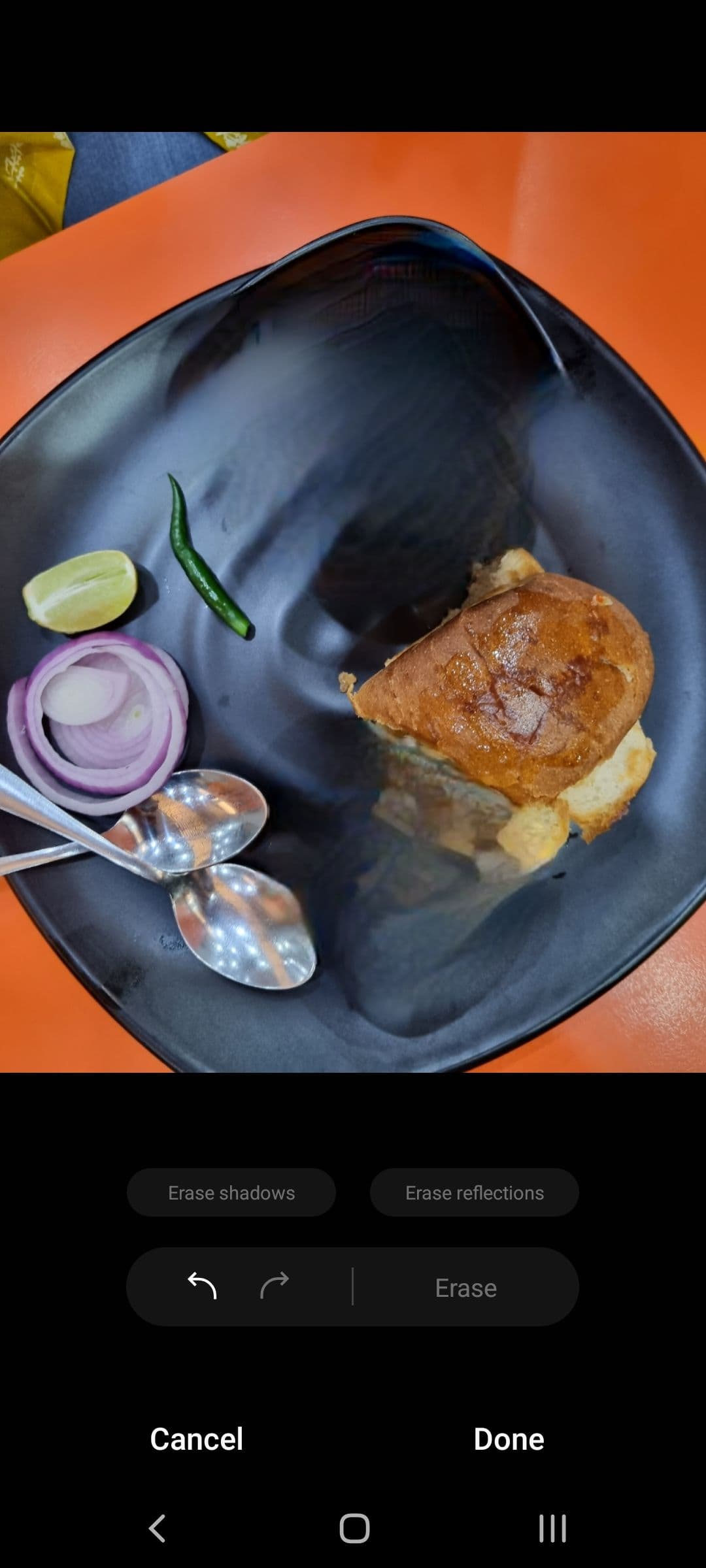
If you’re not fond of Samsung’s object removal implementation, there are plenty of other Magic Eraser alternatives you can try.
Give your black-and-white photos a pop of color
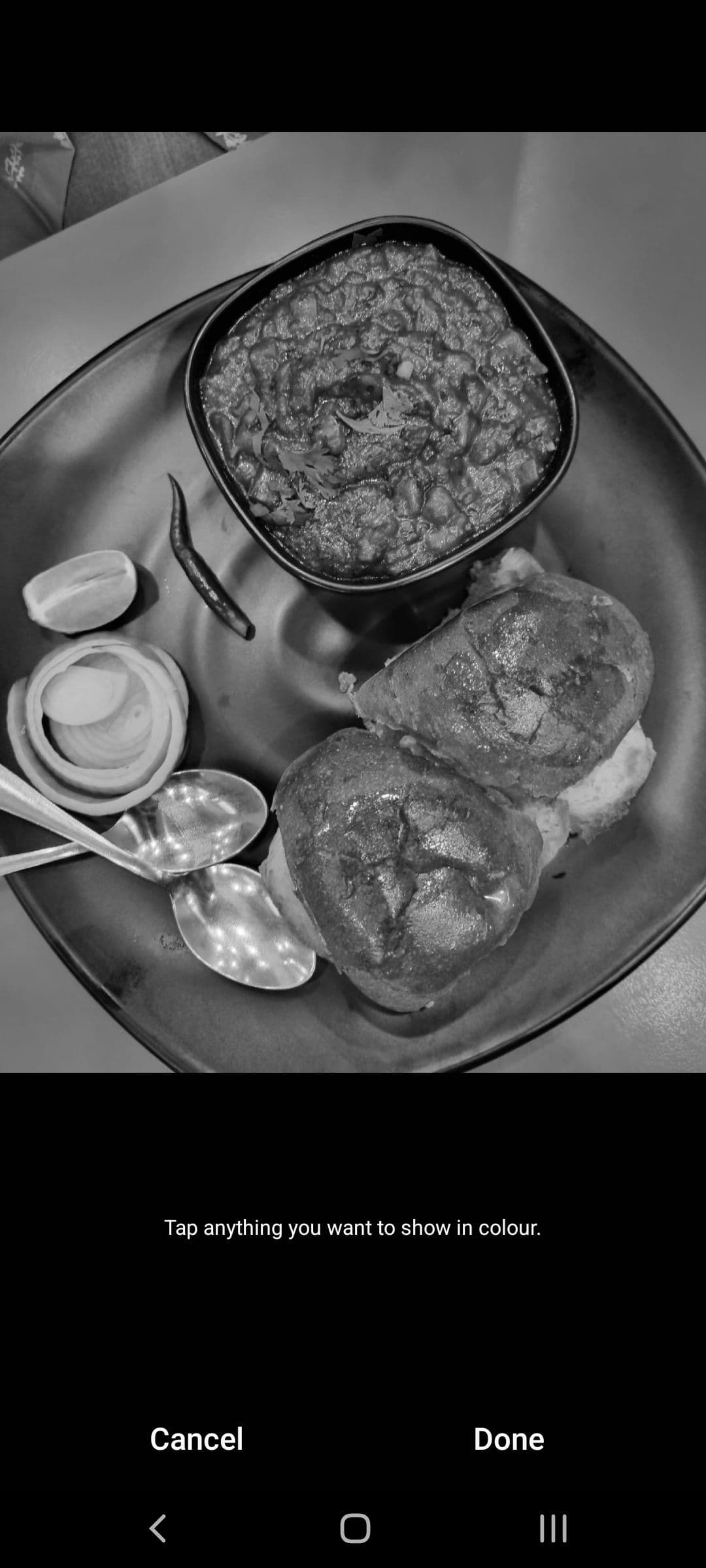
Another great editing tool Samsung includes in its Gallery app is spot color. This feature lets you make your photos black and white while keeping certain parts of the image colorized.
-
Open a photo in the
Samsung Gallery
app. -
Tap the
Pencil
icon at the bottom of the screen. -
Tap the
three-dot
option in the lower-right corner. -
Select the
Spot color
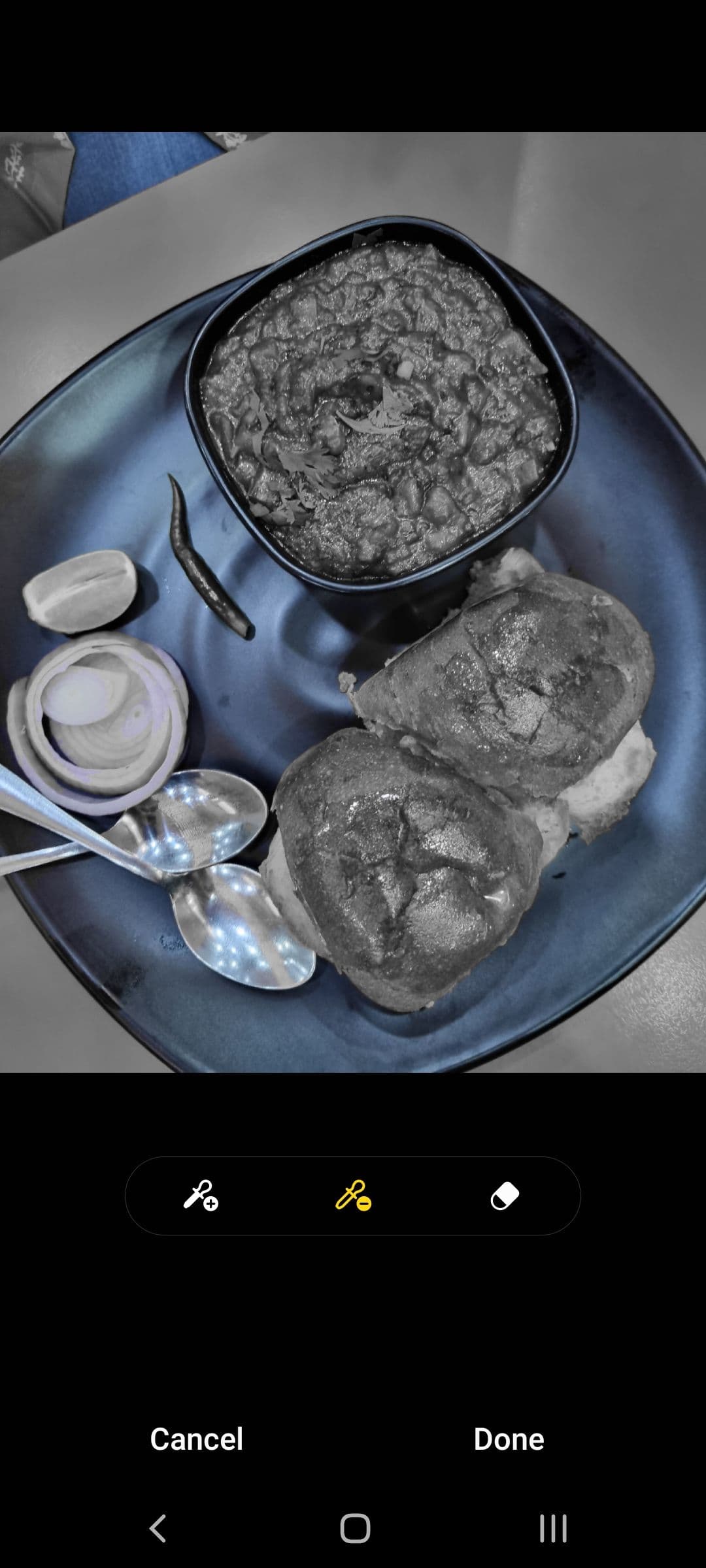
option to convert the photo into black and white. - Tap an object or element that you want to colorize. Any object or subject of the same color in the photo is also colorized.
-
Use the
Remove color
or
Erase color
options to remove color from unwanted items in the photo.
-
Tap
Done
to apply your changes. -
Select
Save
in the upper-right corner to save the photo with the edits you made.
Selecting
Save
in the upper-right corner saves these edits over the original photo. To save the edits as a copy of the photo, go to
More options
>
Save as copy
.
View and edit Exif data
Every photo you take on your smartphone is saved in the Exif (Exchangeable image file) format. This format includes data such as date and time, location, size, and more, which Samsung Gallery allows you to edit.
-
Open a photo or video and
swipe up
to view the Exif data. -
To edit Exif details, tap
Edit
in the upper-right corner of the details. - Tap the data you want to change and edit it.
-
Select
Save
when done.


Hide albums in Samsung Gallery
New folders of photos, whether you or an app creates them, show up as a new album in Samsung Gallery by default. Samsung allows you to hide albums and folders to keep your Gallery app uncluttered.
-
Open the
Samsung Gallery
app. -
Go to the
Albums
tab. -
Tap the
three-dot menu
in the upper-right corner. -
Tap
Select albums to show
. - Deselect the albums and folders you want to hide. Some folders, such as Camera and Screenshots, cannot be hidden.
-
Tap
Done
.
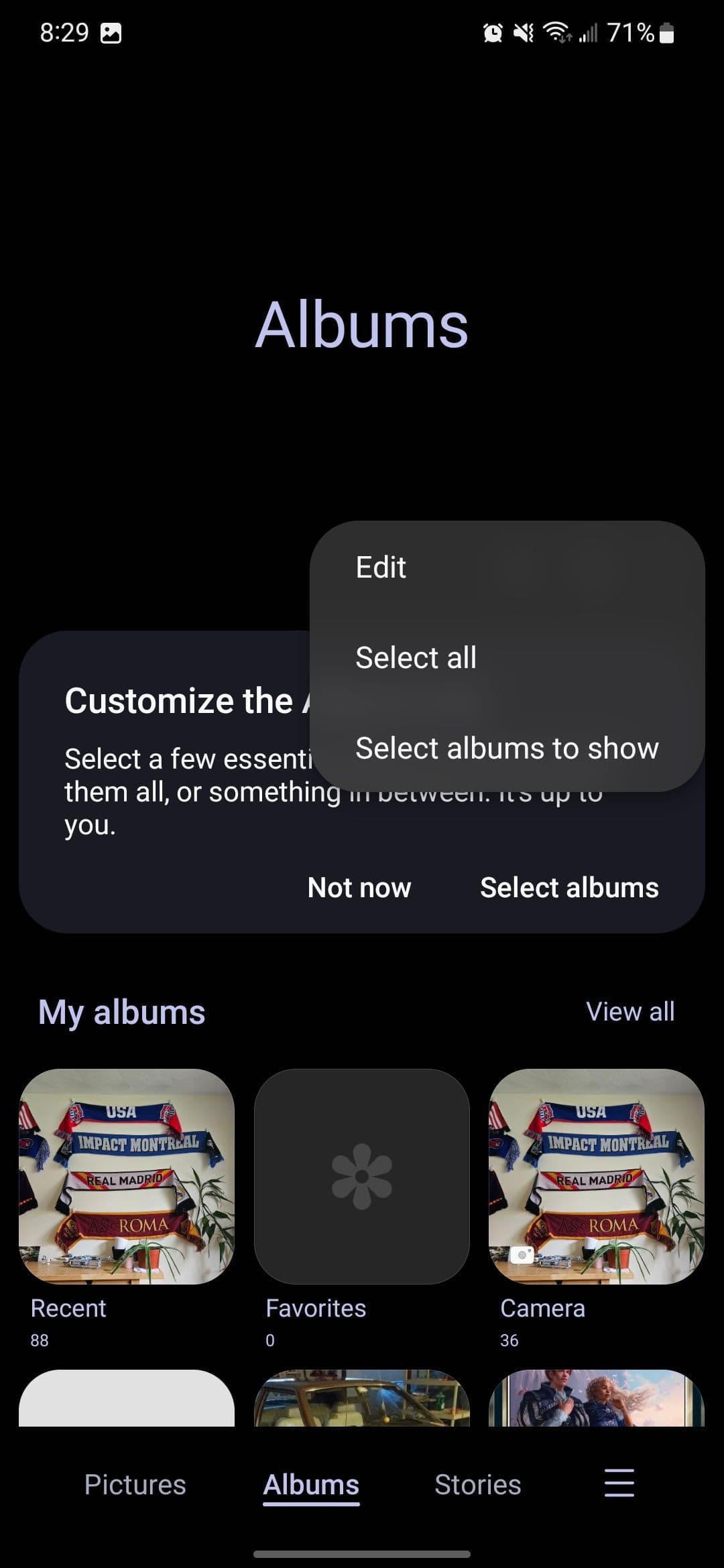
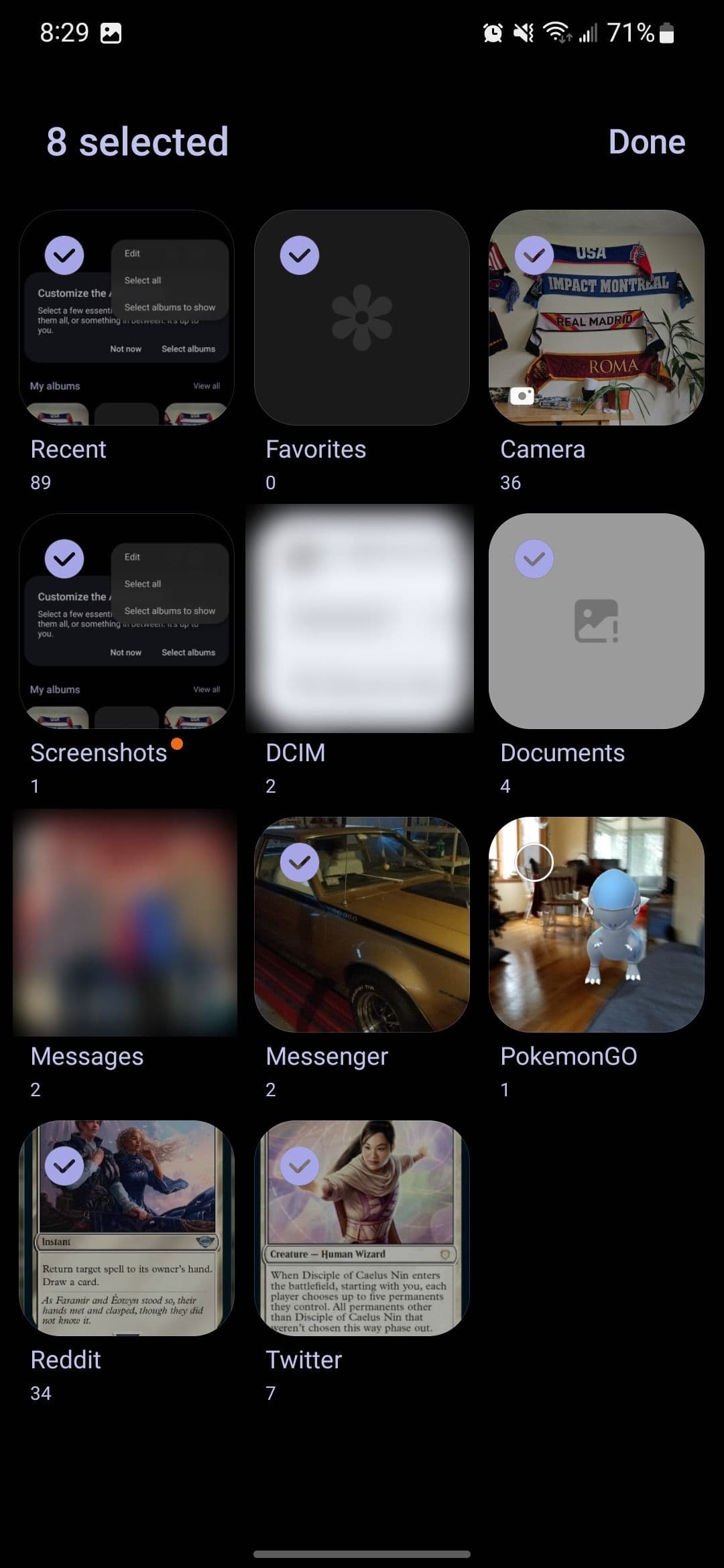
All the photos inside an album are also hidden from the gallery when you hide the album.
If you have multiple folders or albums in Samsung Gallery, you can move media files between them by dragging and dropping them.
-
Open the
Samsung Gallery
app. -
Go to the
Albums
tab. - Select the photos and videos you want to move and long-press one of them. This displays the list of available folders or albums in a sidebar on the left.
-
Drag and drop the items to the desired folder or album.

Sync Samsung Gallery with Microsoft OneDrive
As a part of its partnership with Microsoft, Samsung offers OneDrive integration in its Gallery app. If you’re a Microsoft 365 subscriber, you can use your 1TB of OneDrive space to back up your photos and videos.
-
Launch the
Samsung Gallery
app. -
Tap the
three dashes
in the lower-right corner. -
Tap
Settings
. -
Select
Sync with OneDrive
. -
Tap
Continue
. -
Enable, install, or launch the
Microsoft OneDrive
app to sign in to your Microsoft account. -
Agree to the terms and conditions and then tap
Connect
. - Link your Samsung and Microsoft accounts. You must be signed in to your Samsung account on your phone.
-
Log in with your Microsoft account.
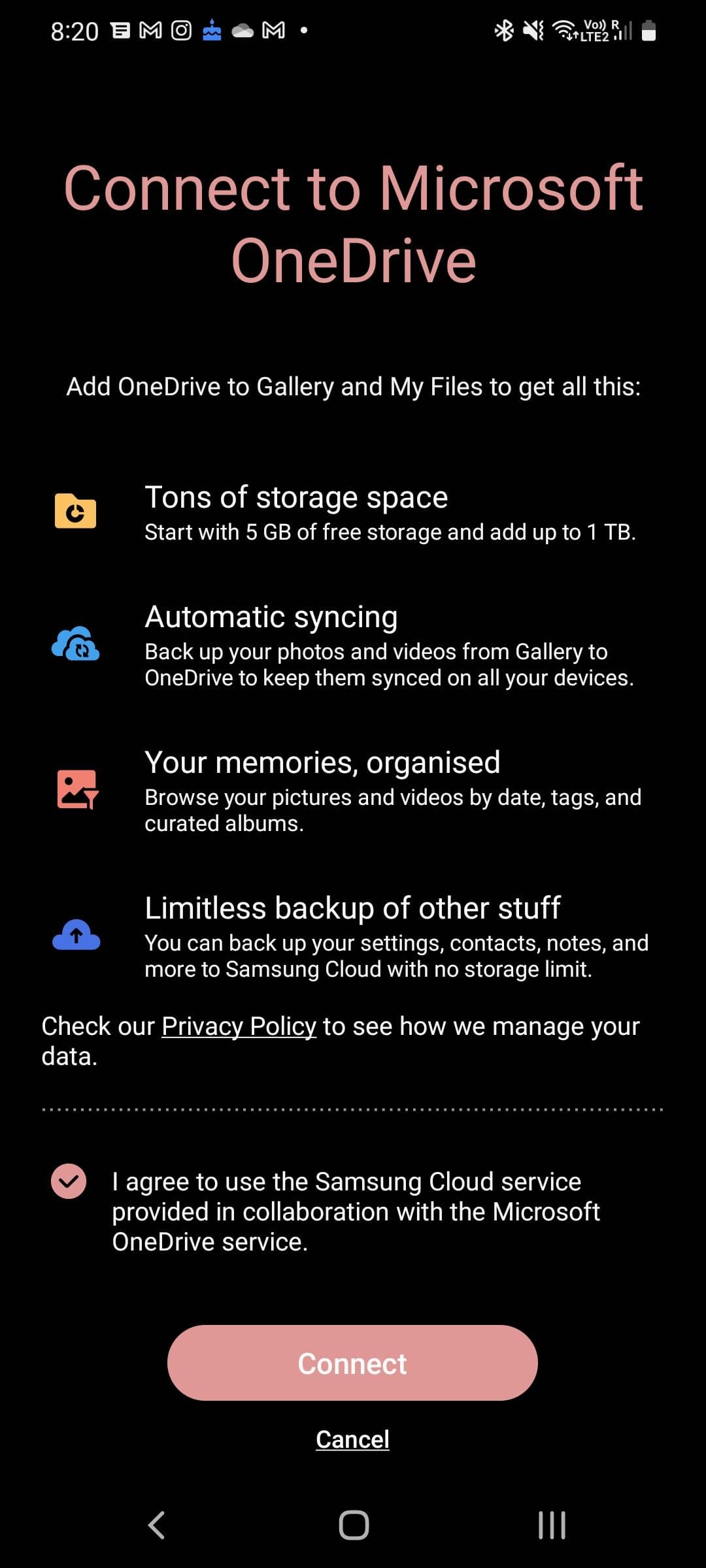
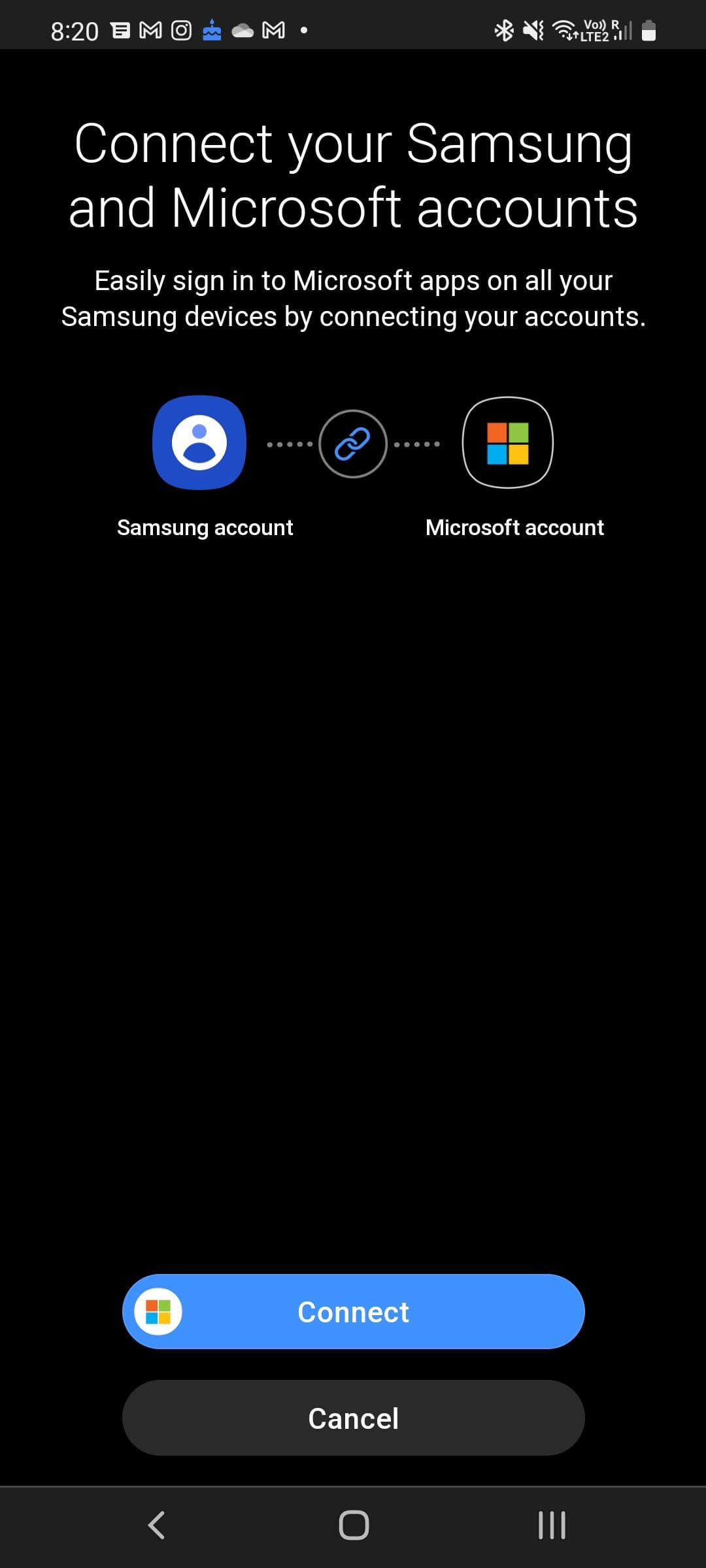
Once this is completed, the photos and videos in your Gallery are automatically backed up and organized in OneDrive. You can search through your photos and videos in OneDrive using dates, tags, or other criteria.
Recover deleted photos and videos
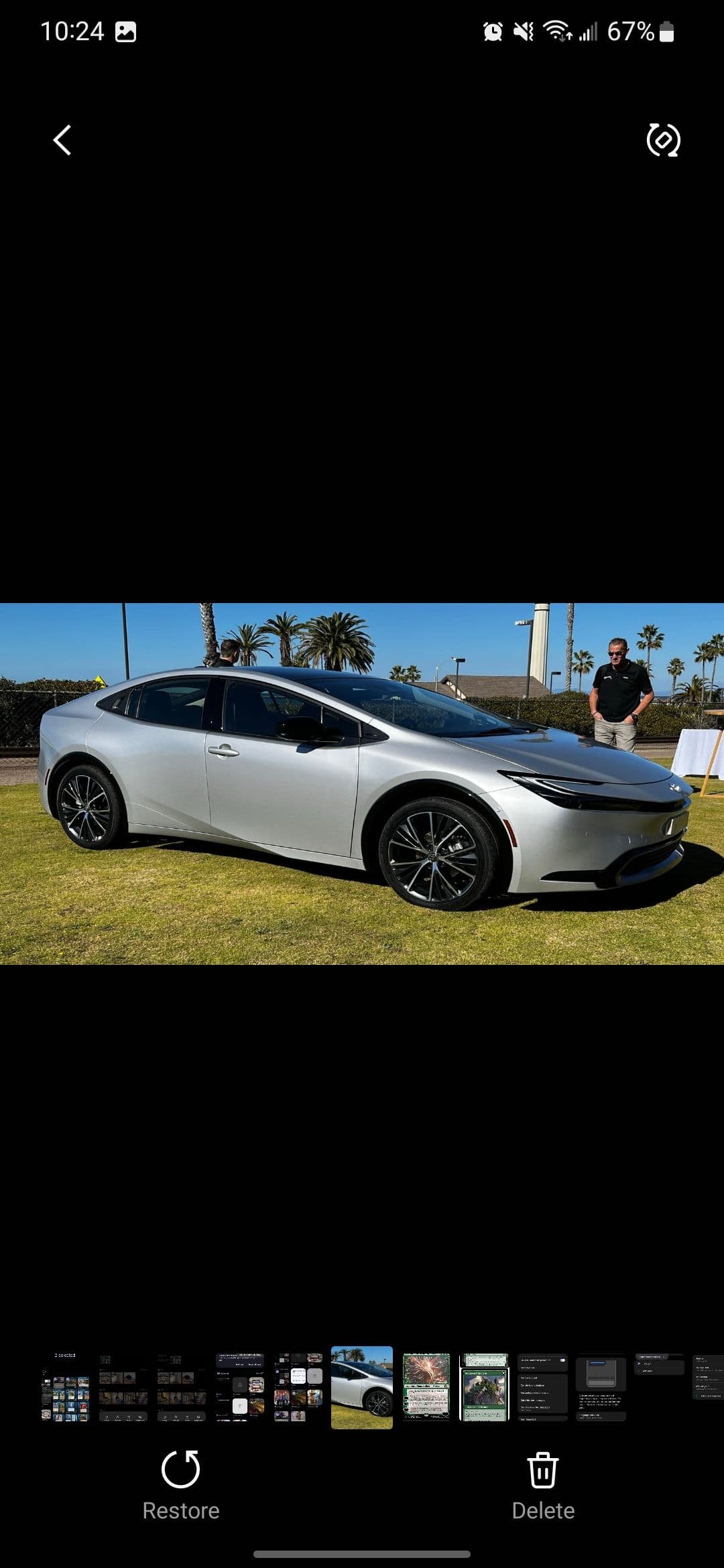
Did you accidentally delete a photo or video from your Samsung phone? Samsung’s got you covered with their recycle bin-like functionality in their Gallery app, which gives you up to 30 days to restore your deleted media files.
-
Open the
Samsung Gallery
app. -
In the lower-right corner, tap the
three lines
. -
Tap
Trash
to see the deleted photos and videos from the last 30 days. -
Open a picture or video and tap the
Restore
icon to move it back to your gallery. -
To restore multiple items, tap
Edit
at the top, select the items, and then tap
Restore
at the bottom.

Add portrait effect to photos
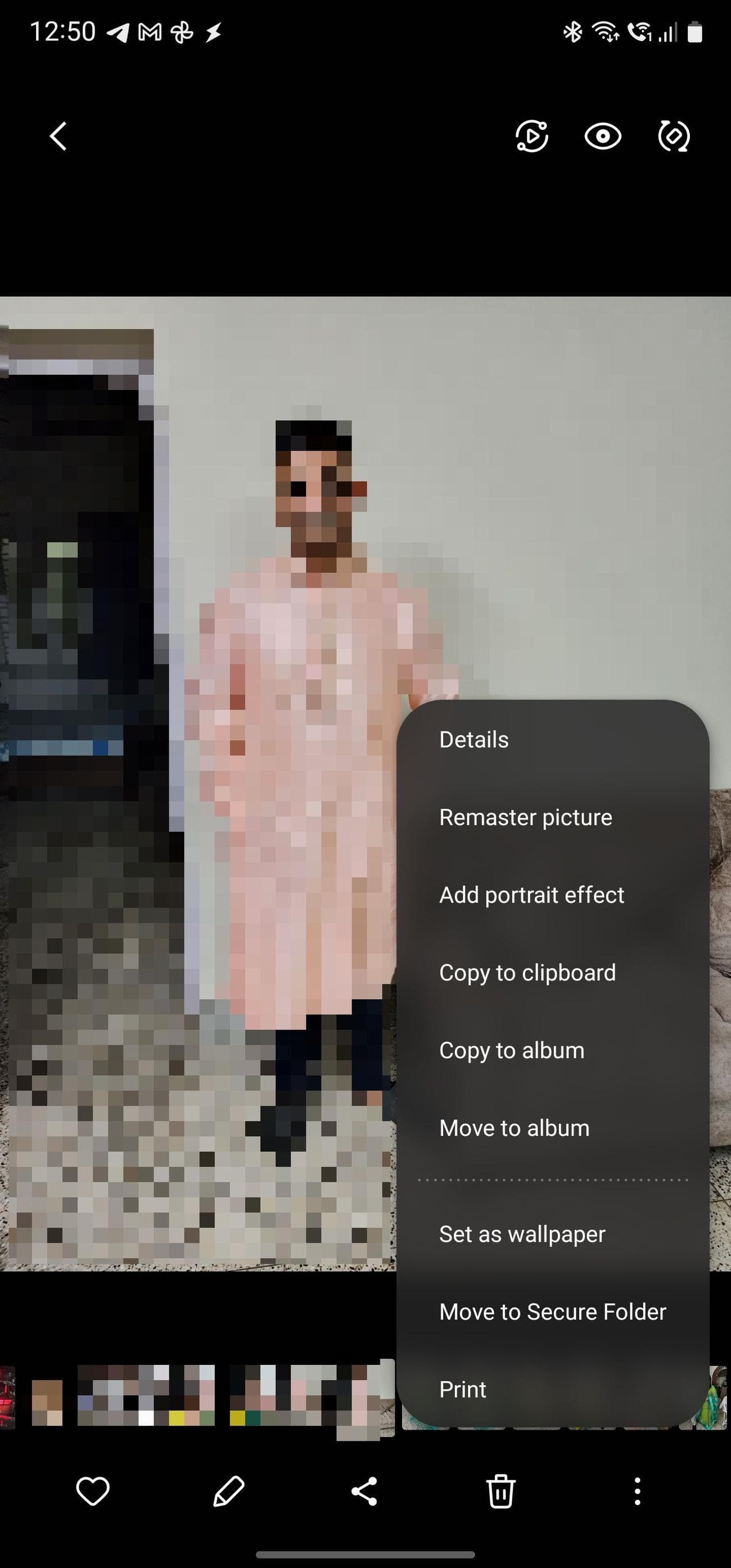
With Samsung Gallery, you can add a portrait effect to photos after you’ve taken a photo. This feature works best with selfies, and your mileage may vary. Nonetheless, this is a handy option to have.
-
Open a photo in the
Samsung Gallery
app. -
In the lower-right corner, select the
three dots
. -
Select the
Add portrait effect
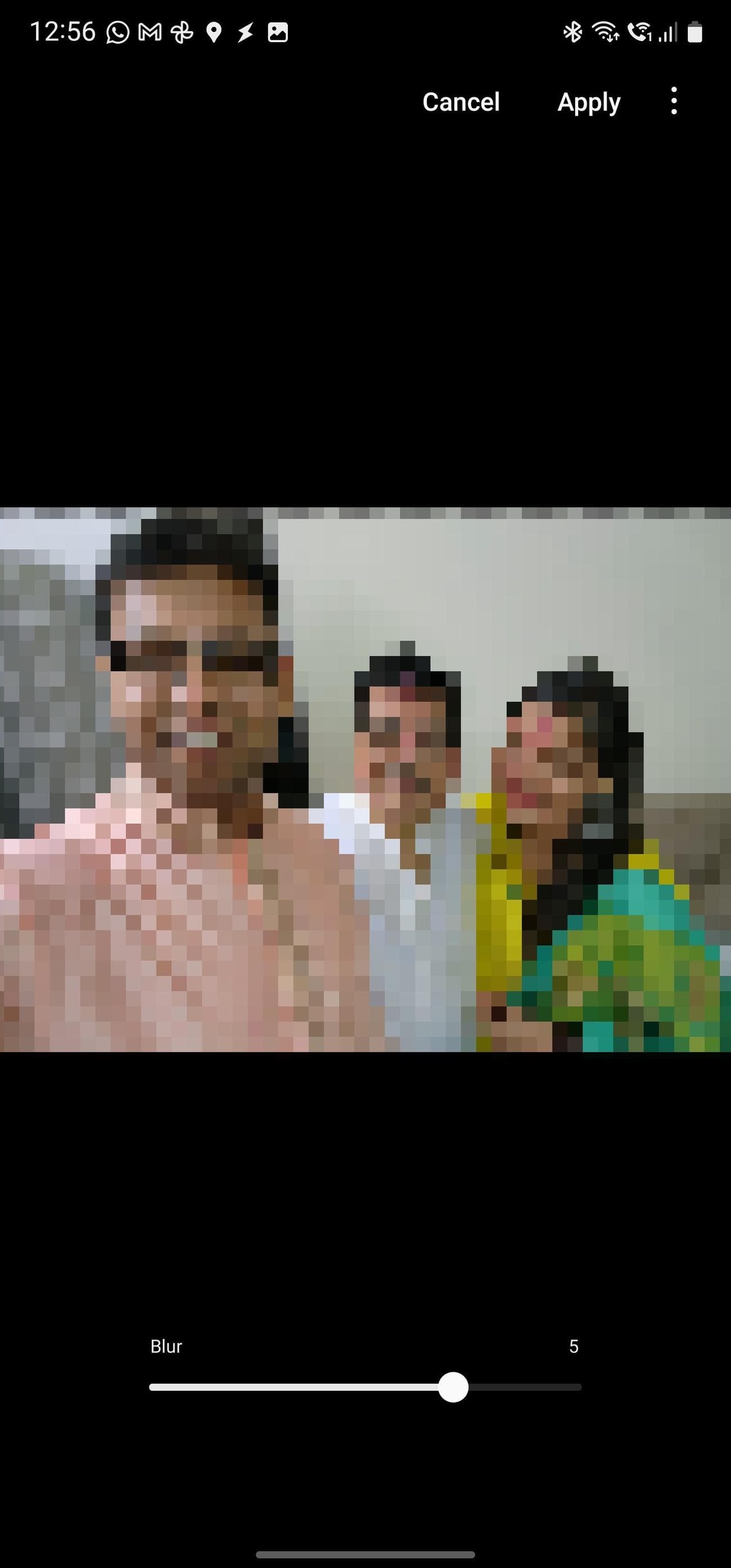
option. Samsung Gallery analyzes the photo and automatically adds the blur effect. -
Use the
slider
to adjust the blur intensity.
-
Tap
Apply
to save the changes. Alternatively, keep the original photo unmodified using the
Save as copy
option from the three-dot menu in the upper-right corner.
Remaster your photos
Unhappy with how a photo turned out? Do you want your next profile picture to really pop? If so, the remaster option in Samsung Gallery is for you. Here’s how to remaster your photo:
-
Select a photo in the
Samsung Gallery
app. -
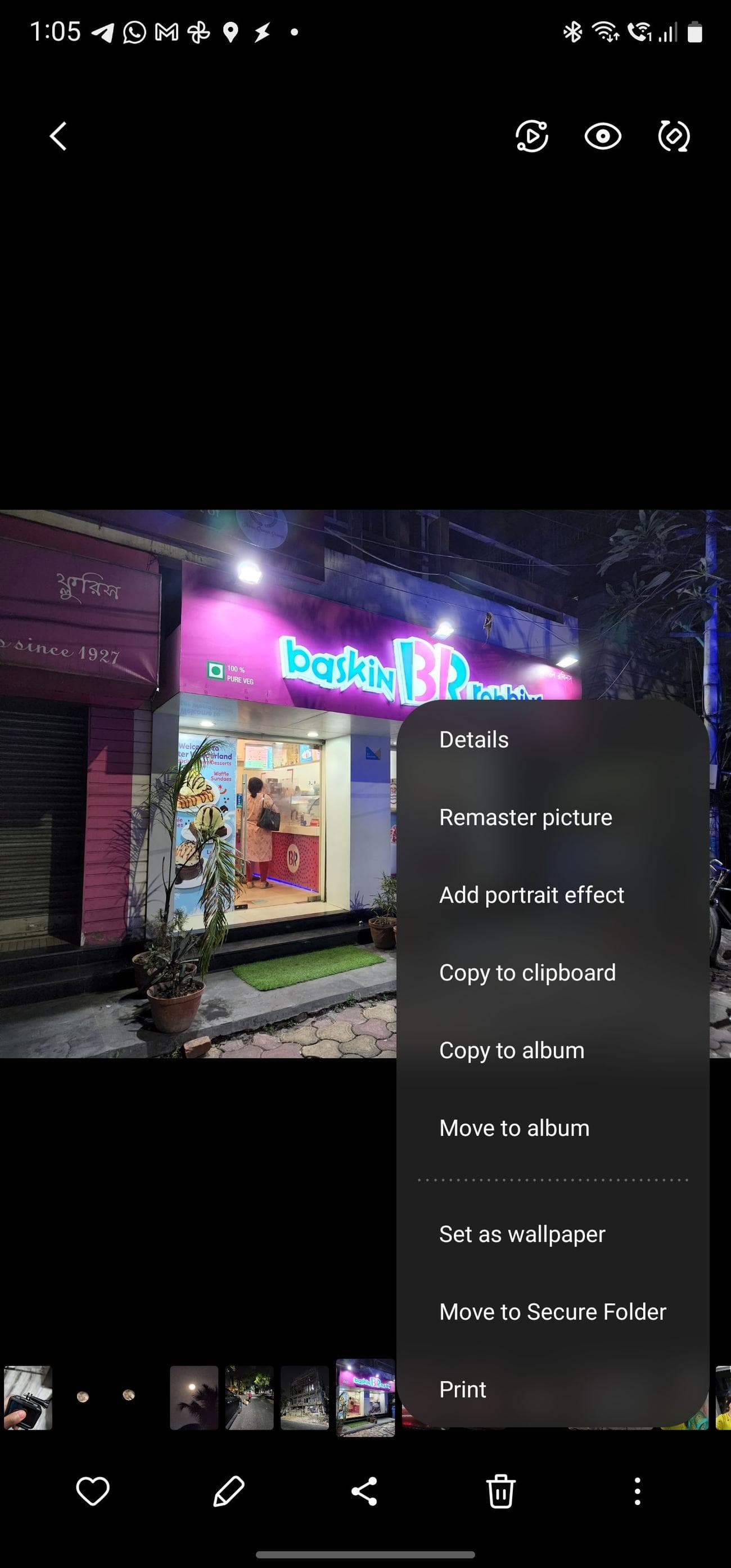
Tap the
three dots
in the lower-right corner. -
Select the
Remaster picture
option. The photo is analyzed, and a before/after is shown so that you can make out the differences. You can slide a divider back and forth to see the changes.
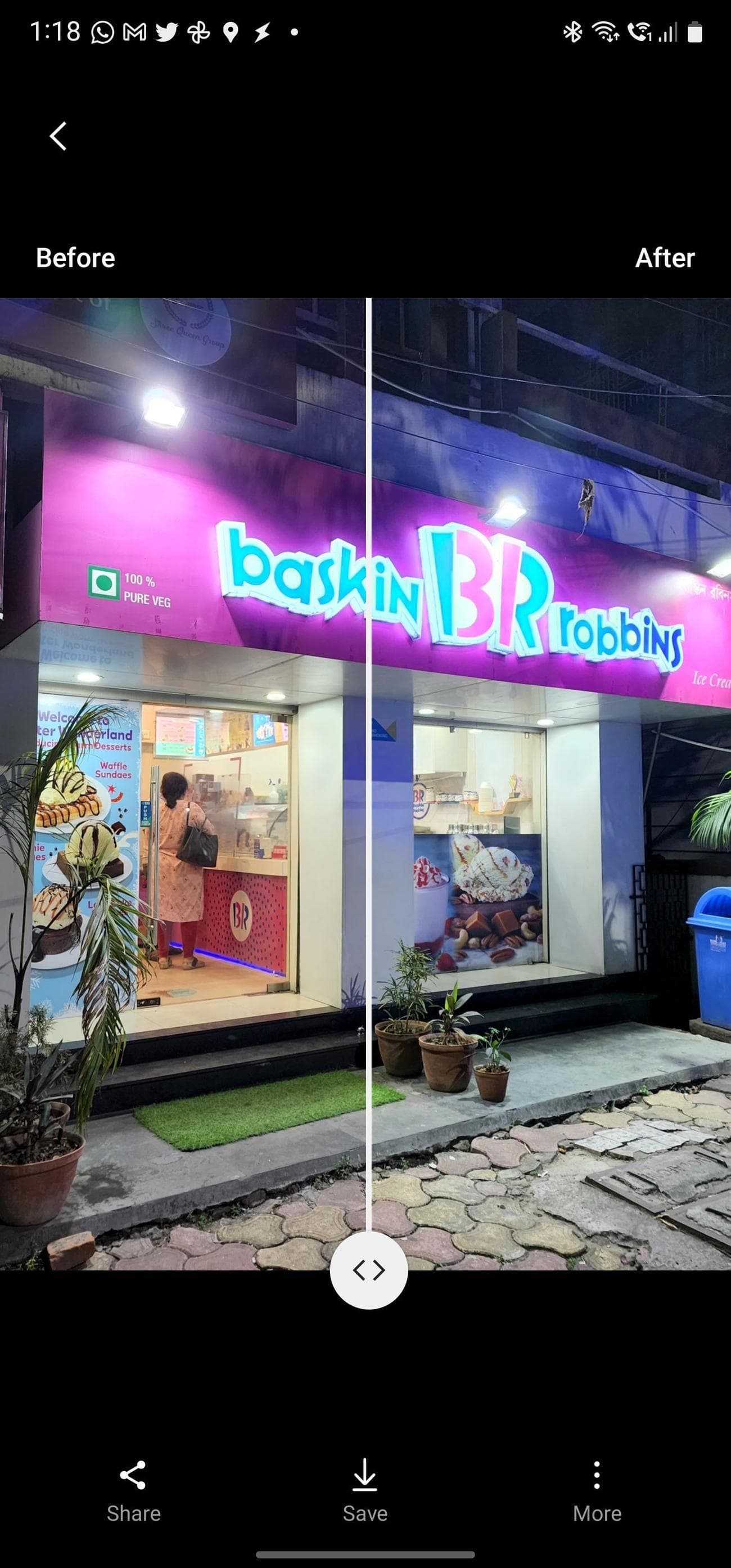
-
If you like the changes, tap
Save
. You can save the edited photo as a separate copy by tapping
More
and selecting the
Save as copy
option. Tap the
back
button to discard the changes.
Set a photo as your custom wallpaper
You can use Samsung Gallery to set any photo as your phone’s homescreen, lock screen, call background, or Always-On Display wallpaper.
-
Open the
Samsung Gallery app
, and open the photo you want to set as your wallpaper. -
Tap on the
three dots
at the bottom of the screen. -
Select the
Set as wallpaper
option. -
Choose where you want to set the wallpaper: Home screen, Lock screen, Always On Display, Call background, or watch face.
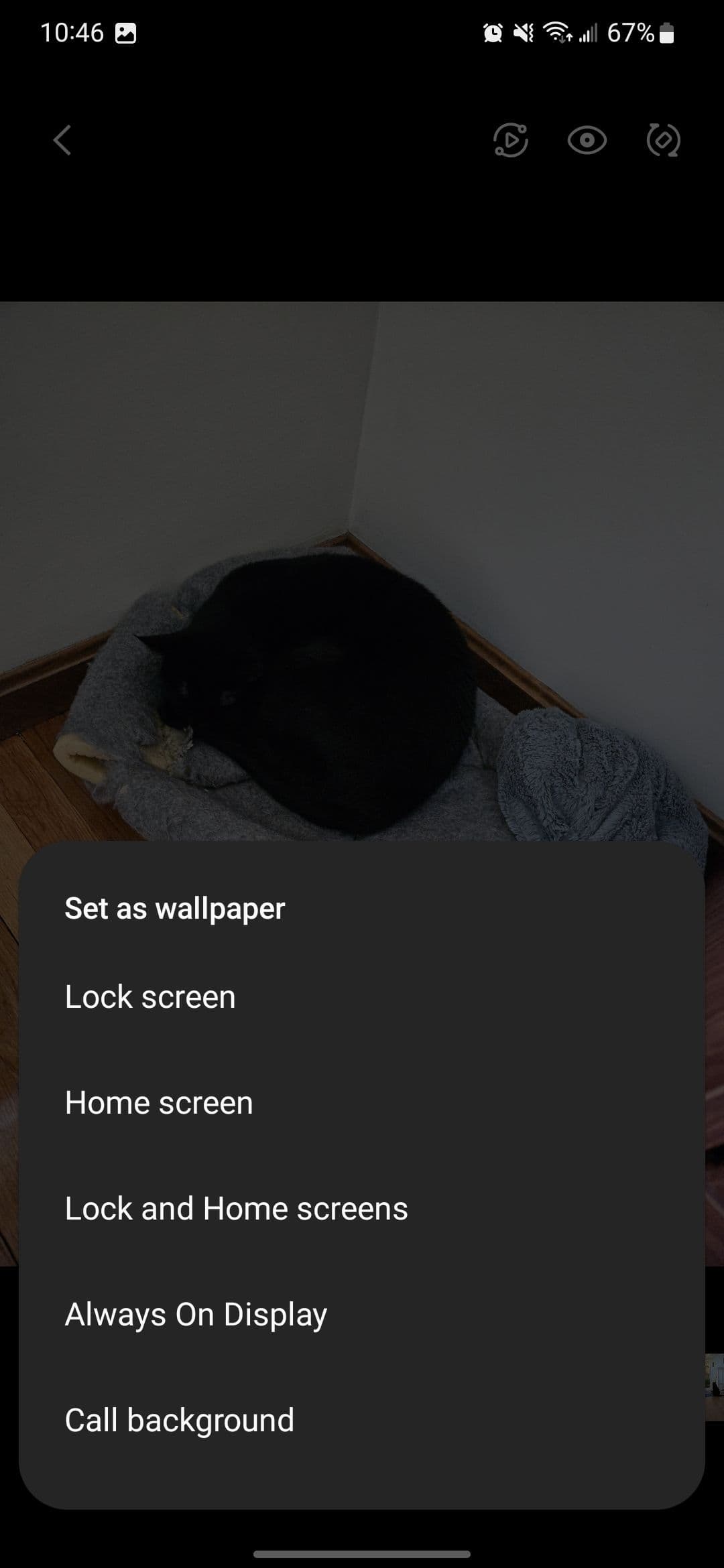
- Depending on the option you choose, a preview may be shown where you can adjust the crop of the photo.
- Confirm your action when done.
Bixby Vision
Even though Bixby isn’t quite as useful as Google Assistant, it’s still useful for some things. One of those things is Bixby Vision, which works similarly to Google Lens and can be used to identify items or text in your photos.
-
Open a photo in the
Samsung Gallery
app. -
Tap the
Bixby Vision
icon shaped like an eye in the upper-right corner of your screen. - Bixby scans the photo to find text or subjects.
- If text is detected in the photo, you can copy, translate, or search for it on the web.
-
View similar images on Pinterest by tapping the
Find
icon at the bottom.
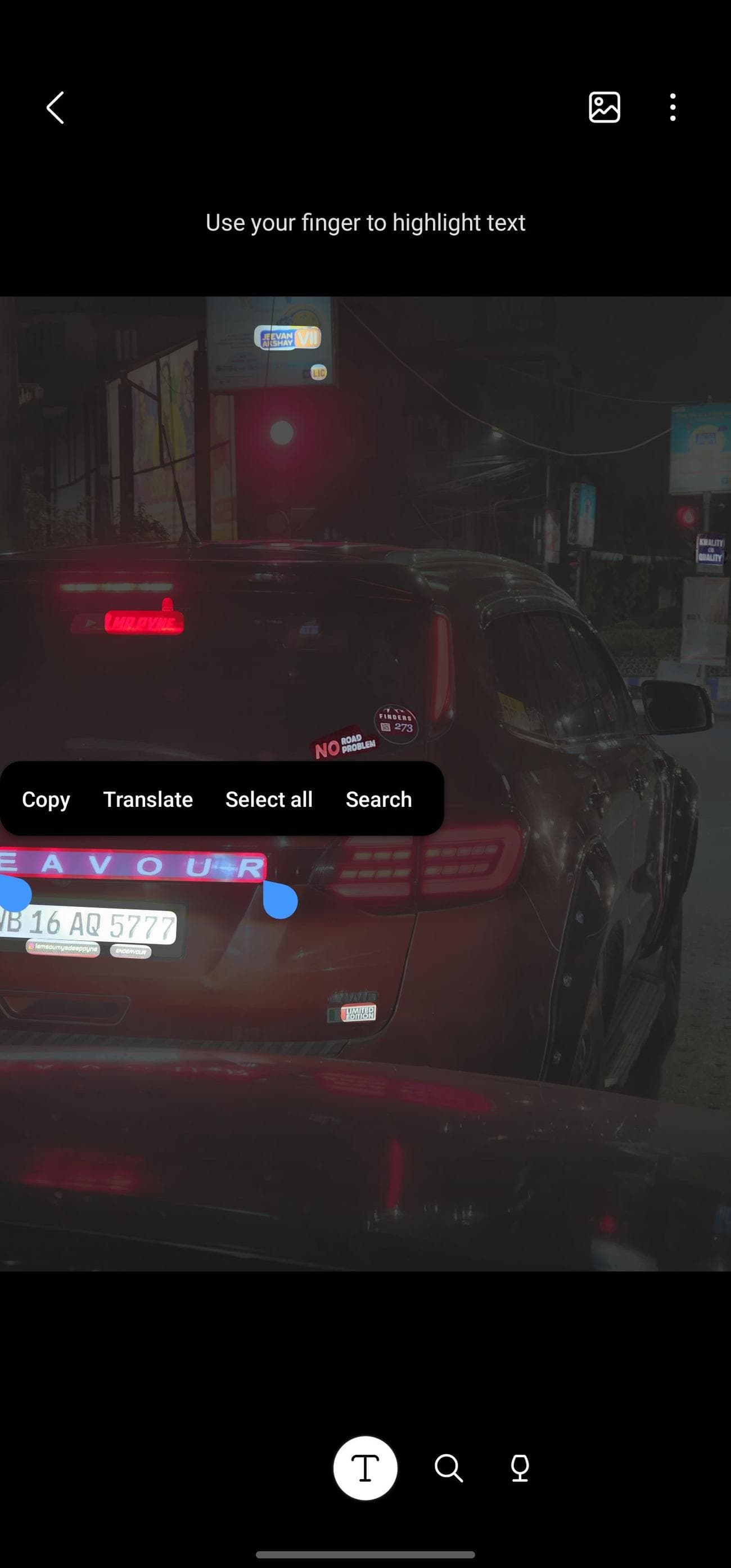
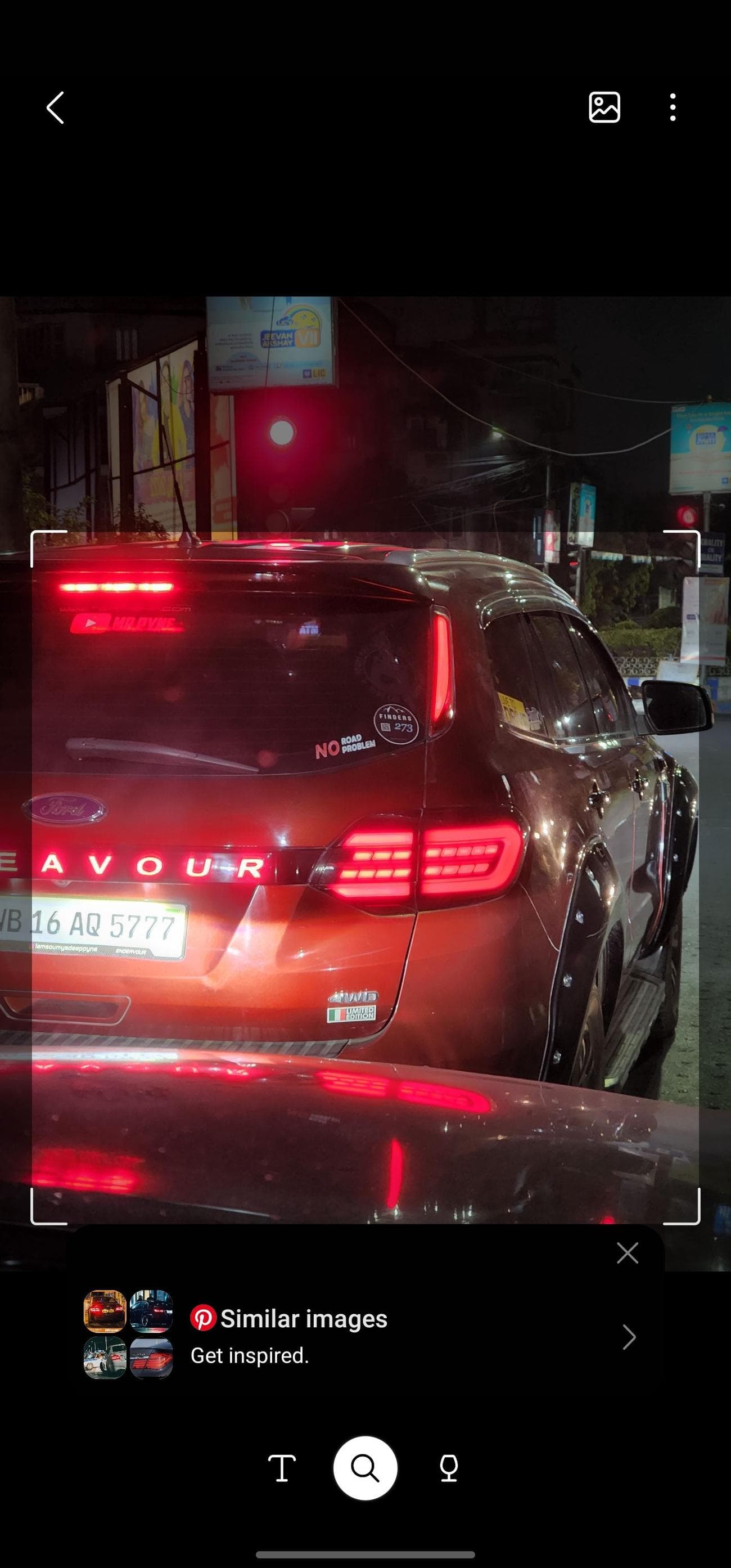
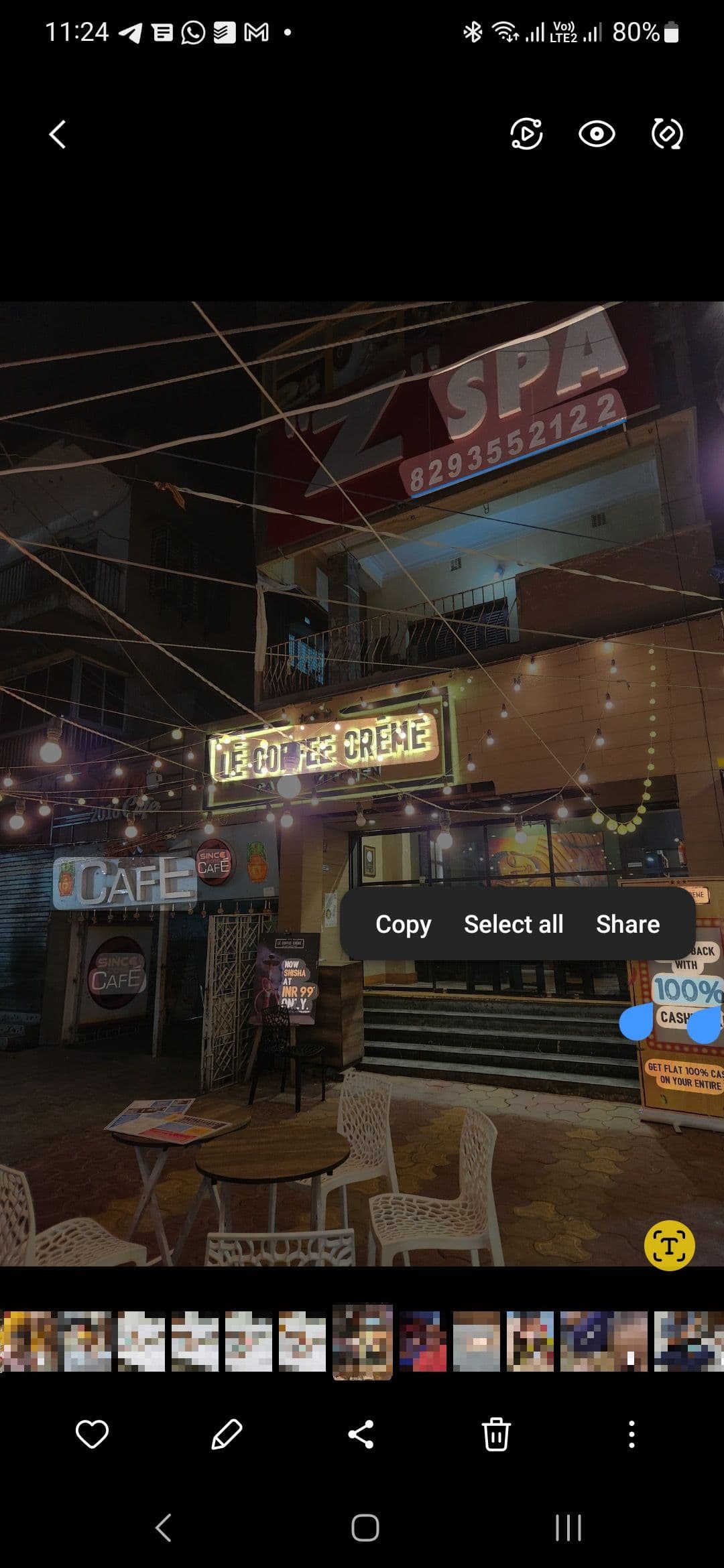
To use text found in a photo:
-
If text is recognized, a
T
icon appears in the lower-left corner. Tap it to highlight the text in an image that you can copy.


- Tap the text you want to copy.
-
Select the
Copy
,
Select All
, or
Share
option from the pop-up menu. Depending on the content you select, you’ll see a contextual option to call a number or navigate to the address.
Let Samsung Gallery analyze your photos and make suggestions
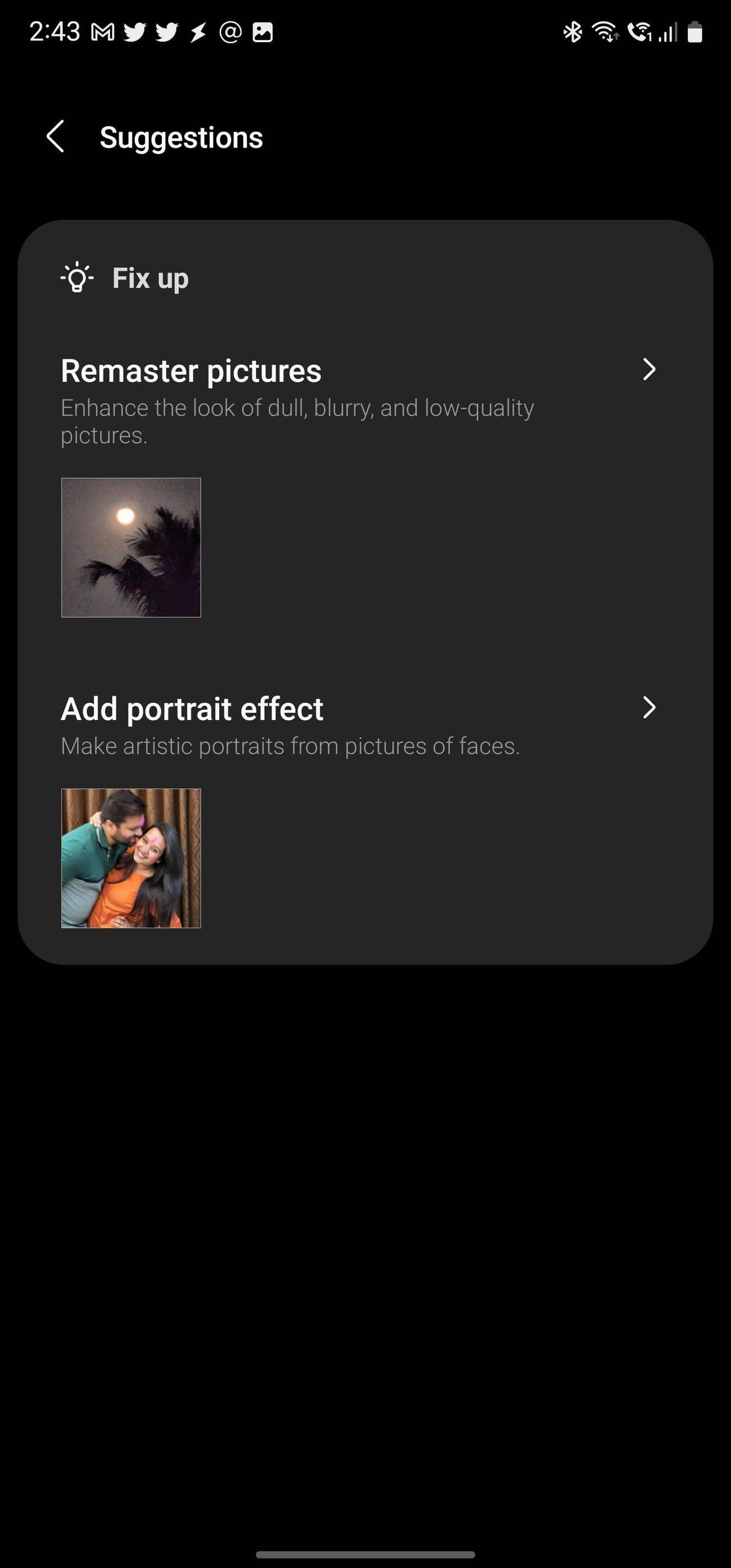
A large part of taking great photos on a smartphone is the processing that takes place after you take the photo. This usually gives a good photo, but running it through an improvement process again can often make it better. Samsung included a photo analysis feature in the Gallery app to help make your photos the best they can be. This analysis also helps you save space on your device by suggesting photos to remove from your device.
-
Open the
Samsung Gallery
app. -
Tap the
menu
button located in the lower-right corner. -
Select
Suggestions
to display recommendations for photos on your phone. -
Tap a suggestion to read more about the recommended changes. A before and after comparison is shown for comparison purposes.

-
Tap
Save
if you like the changes. You can also share the edited photo or remove the changes.
View a photo in landscape without rotating your phone
Want to quickly view a photo in landscape mode in the Samsung Gallery app? You don’t need to enable auto-rotate. When viewing a photo, tap the
Rotate
button in the upper-right corner to switch to landscape view or vice versa. This allows you to view landscape photos properly without changing your device settings.
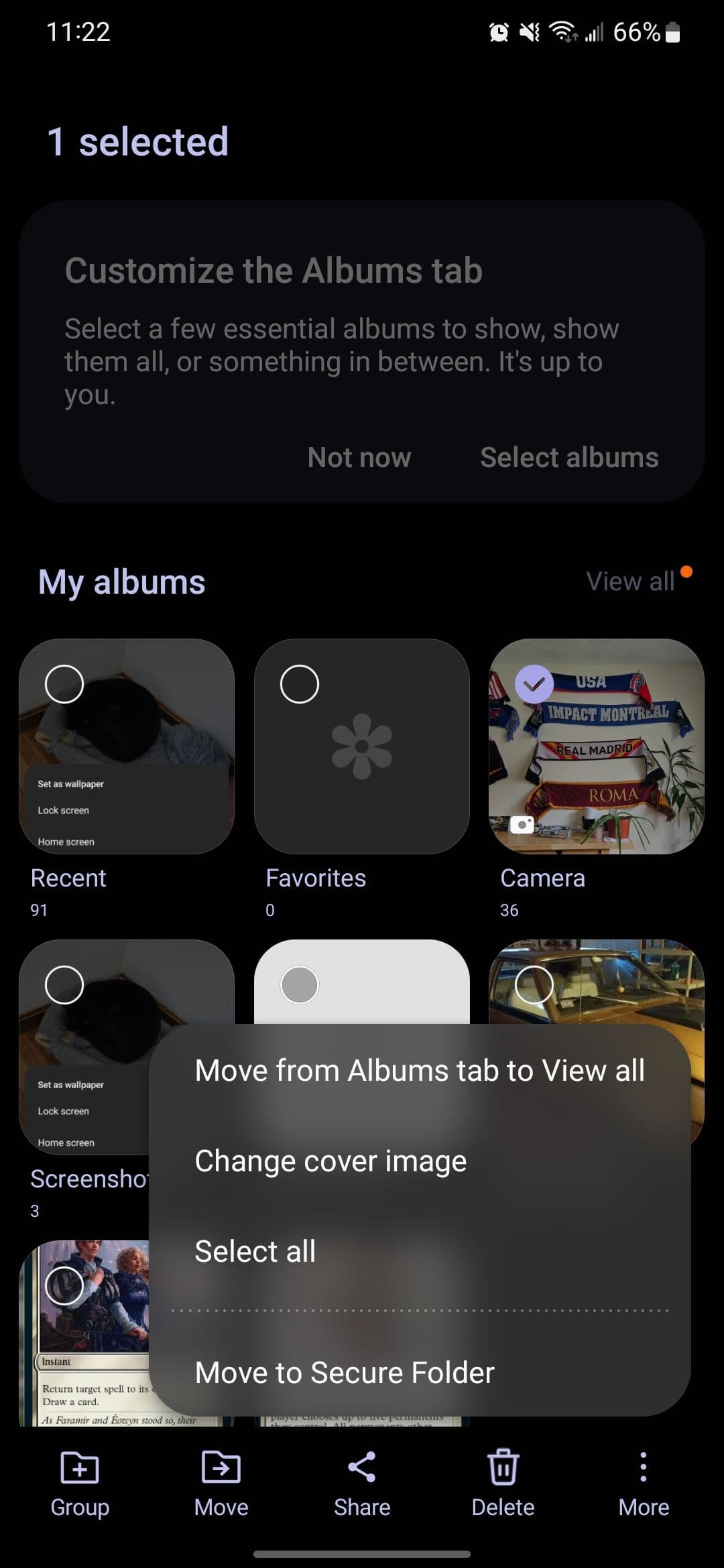
Change an album’s cover image
Don’t like the image that represents an album? You can change it to a photo you prefer.
-
Go to the
Album
tab in the
Samsung Gallery
app. - Long-press the album whose cover image you want to change.
-
Tap
More
from the menu bar at the bottom. -
Select the
Change cover image
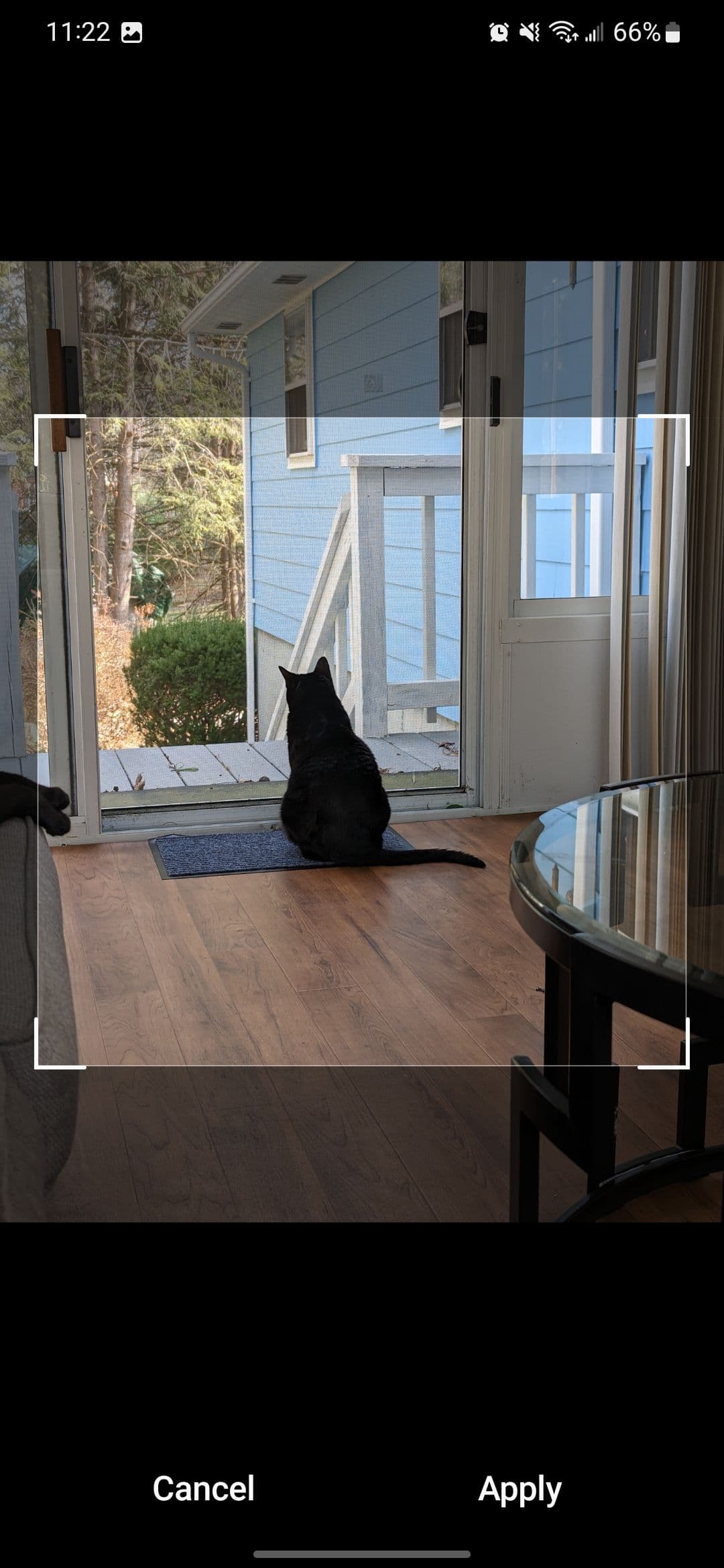
option. - Select the photo from the album you want to set as the cover image.
-
Tap
Apply
.
Create a highlight reel
Want to create a quick highlight reel of a holiday album for sharing with your friends or family? Similar to Google Photos, the Samsung Gallery app can create short videos of the best photos and videos in an album. All you need to do is create it.
-
Open the
Samsung Gallery
app, and move to the
Albums
tab. - Open the album you want to create a highlight reel for.
-
Tap the
three-dot menu
in the upper-right corner. -
Select
Create
. -
Tap
Highlight reel
.

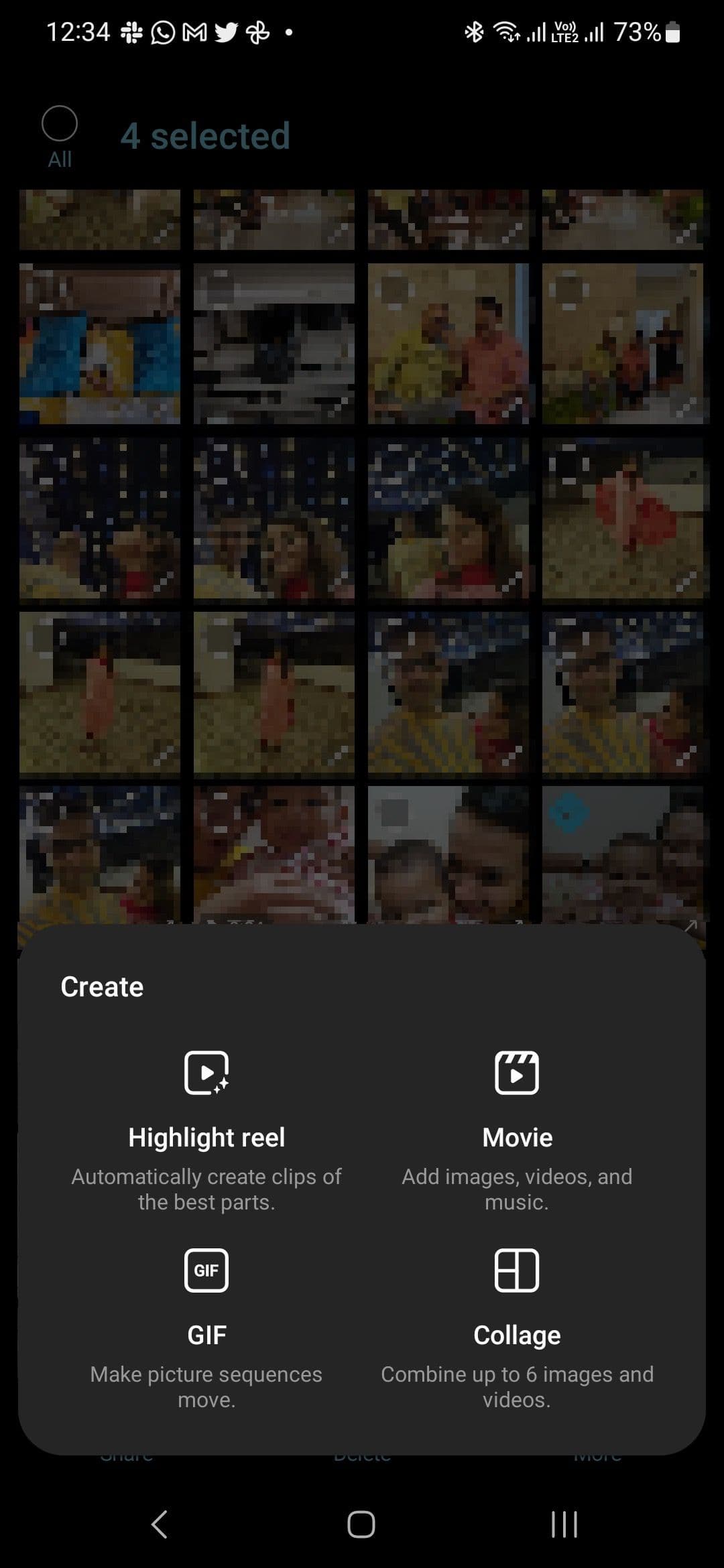
- Select the photos and videos you want to add to the highlight reel.
-
Confirm your selection by tapping the
Highlight reel
button at the bottom.
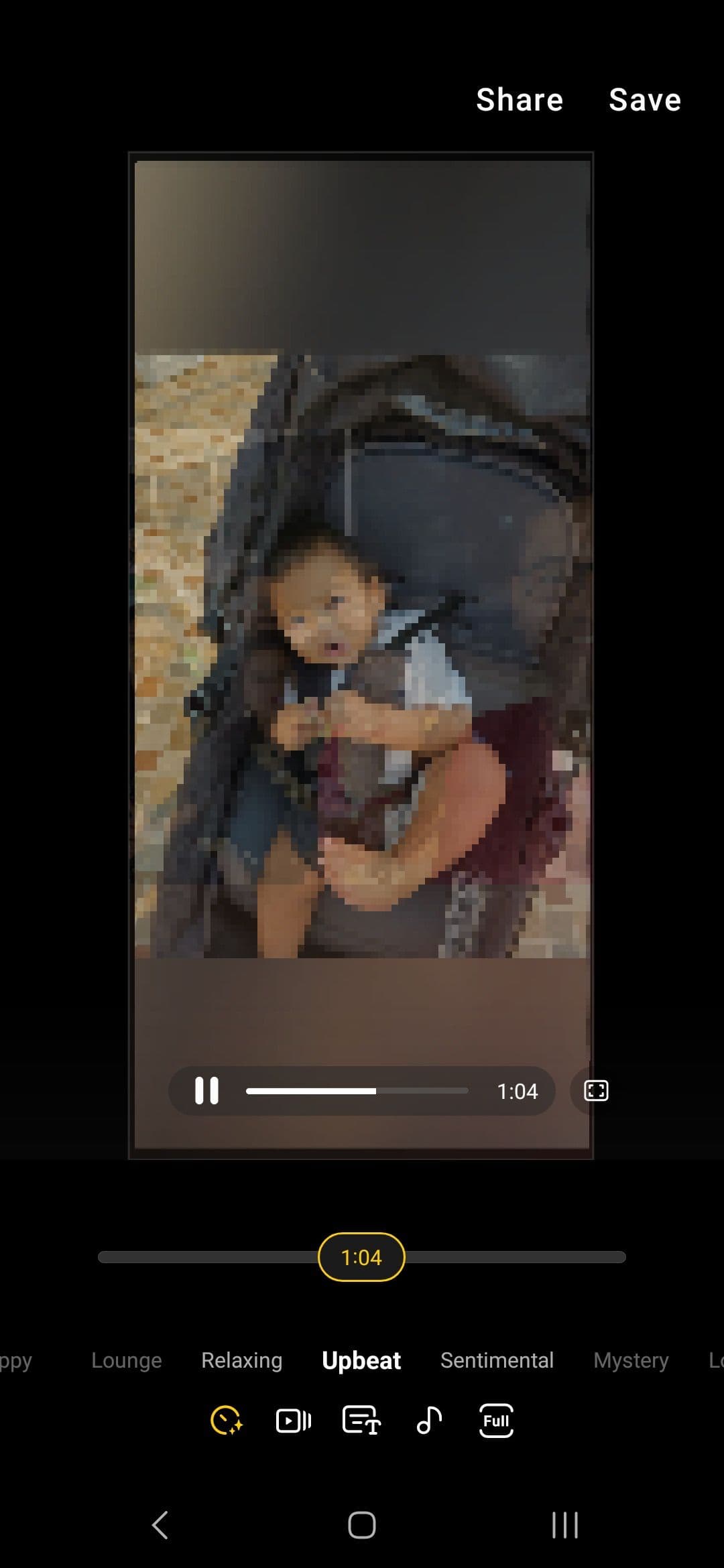
The Samsung Gallery app creates a highlight reel with background music. You can edit the music, tweak the video’s light, add various effects, and more before saving it.
Create a GIF
You can also create a GIF of burst photos using the Create tool in the Samsung Gallery app.
-
Open the
Samsung Gallery
app. - Long-press and select the photos you want to create a GIF of.
-
Tap the
three-dot menu
at the bottom. -
Select
Create
from the menu. -
Select
GIF
from the options.
The Samsung Gallery app creates and displays a GIF from the photos and videos you selected. Before saving, you can edit the GIF to speed up the transition, add stickers, doodle, and more.
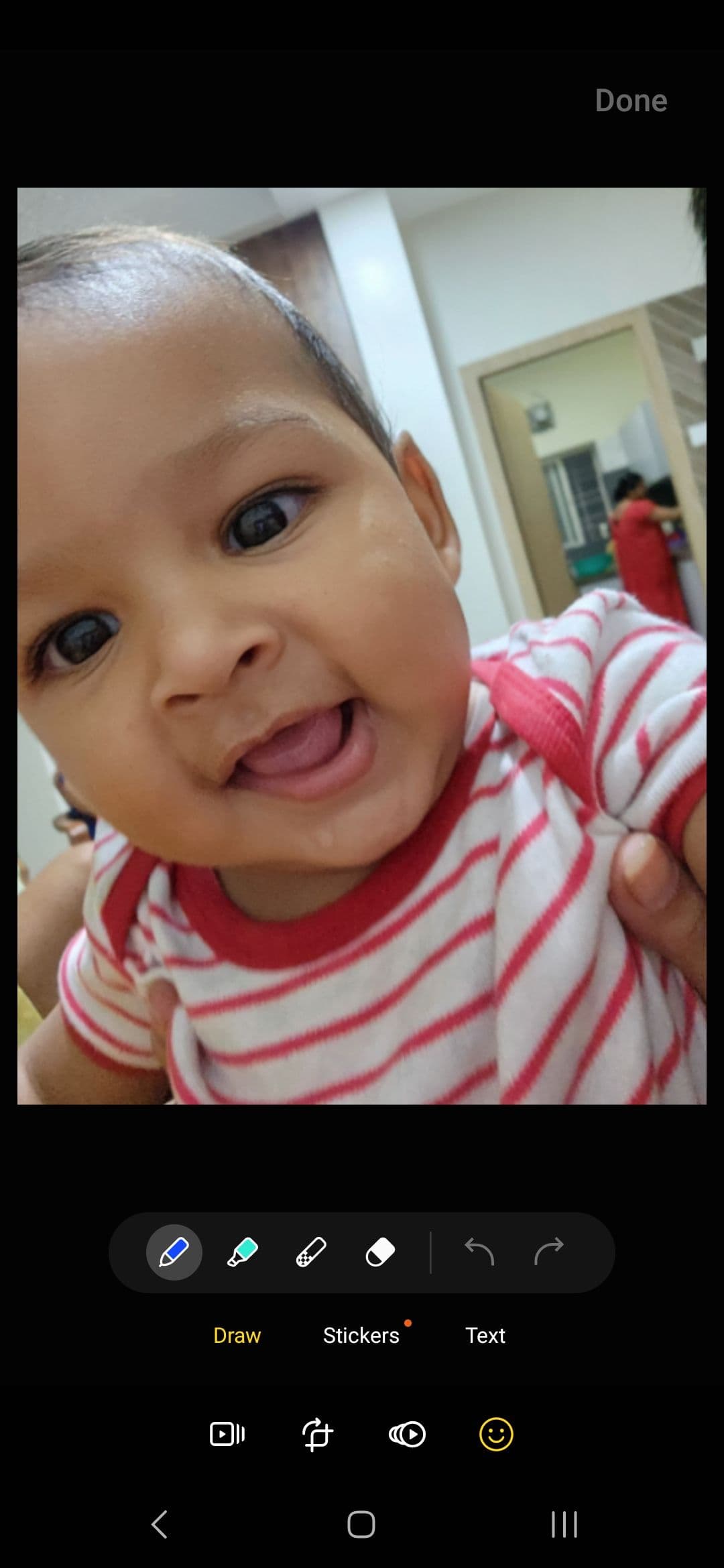
Add stickers to make your photos more fun
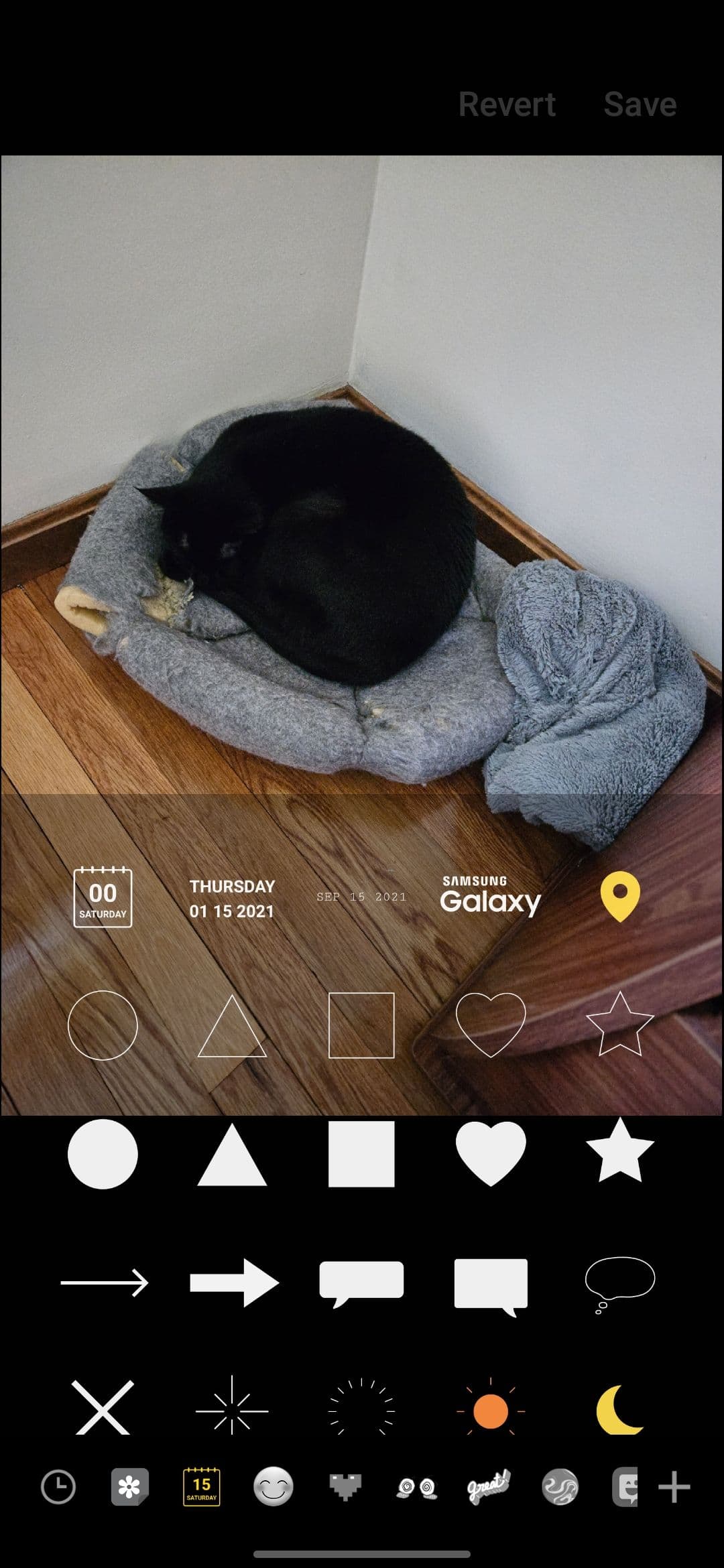
Everyone loves stickers, and you can add them to your digital photos.
-
Launch the
Samsung Gallery
app and open a photo. -
Tap the
pencil
icon at the bottom. -
Select the
smiley face
icon.
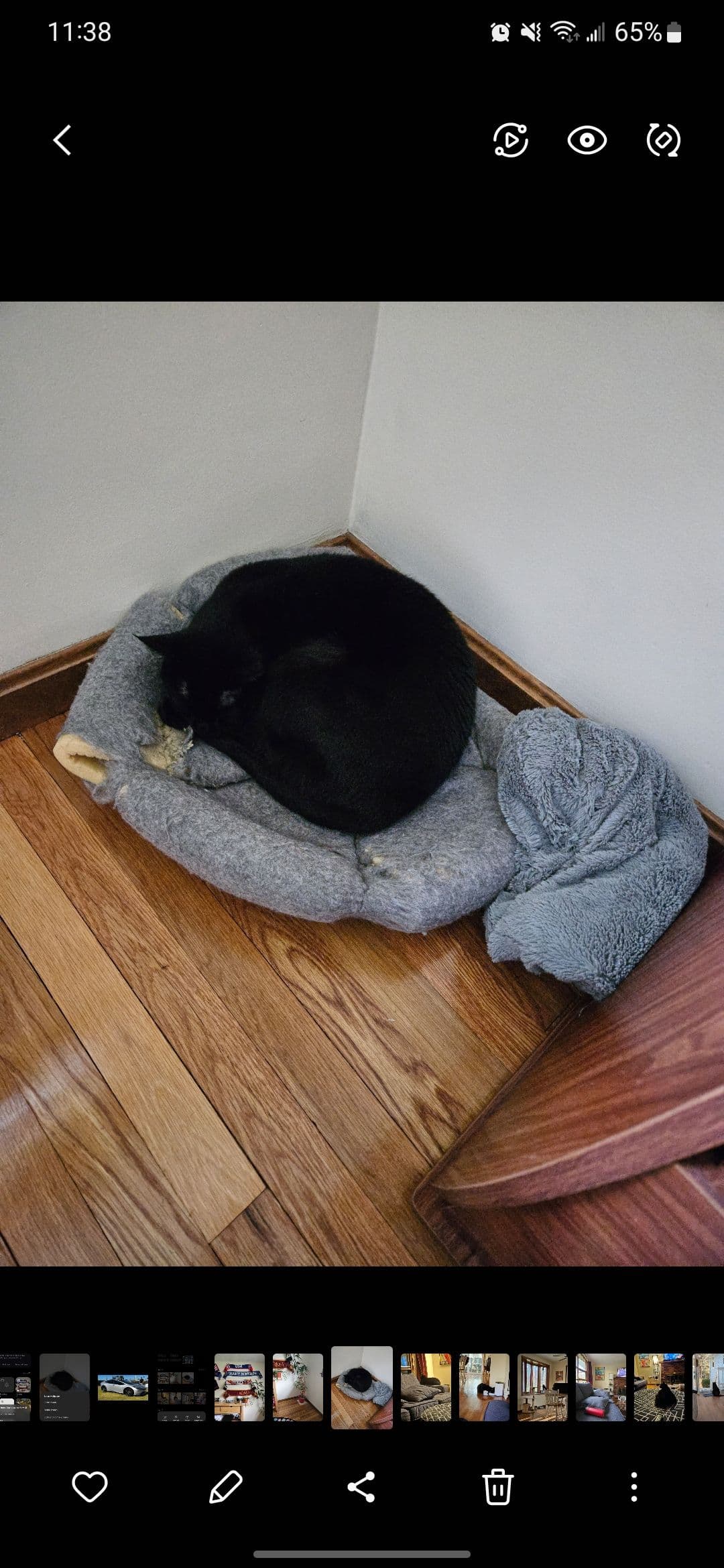

-
Choose the
Stickers
option. A list of stickers appears. - Tap a sticker to add it to the photo. You can resize, flip, copy, or delete it from the photo.
-
When you’re done editing, tap the
Save
button in the upper-right corner to overwrite the original photo. Tap the
three dots
in the lower-right corner and tap
Save as copy
to save a copy of the photo. To cancel the changes, tap
Revert
at the top.

Managing your photos shouldn’t be a chore
Samsung Gallery is a great app for managing your photos. It has several options to help you organize your photos and make them look even better. Even though Samsung Gallery works well, Google Photos is available in more places and has more automatic features for any user.
