
How to set up and use Live Transcribe on your Android phone
Related Posts
In the last few years, Google has focused on populating Android’s accessibility suite. Features like Switch Access and Live Captions have proved extremely useful for everyone, especially people with disabilities. However, out of all these features, Live Transcribe is one of the best features in the suite. Whether you use a Google Pixel or a top Samsung phone, read along to learn how to enable Live Transcribe and tailor it according to your needs.
What is Google Live Transcribe?
Live Transcribe is an app/feature in Google’s Accessibility suite that uses Google’s speech recognition to display words on a smartphone screen, making it easier for people with a hearing impairment to engage in a conversation. You can also use it to get a real-time transcription of a conversation.
The built-in algorithm identifies the sounds and lets you know what’s happening around you (such as birds chirping or the wind whistling). Live Transcribe was created in partnership with Gallaudet University, a premier university for deaf people.
How to enable Live Transcribe on a Google Pixel
Live Transcribe is baked into the Android Accessibility settings in Google Pixel devices (Pixel 3 and above) and most modern Android phones. Although, if your device doesn’t have it, you can install the standalone Live Transcribe app from the Google Play Store on devices running Android 6.0 and above. Here’s how to use it:
-
Go to the
Settings
app. -
Scroll down and tap
Accessibility
. -
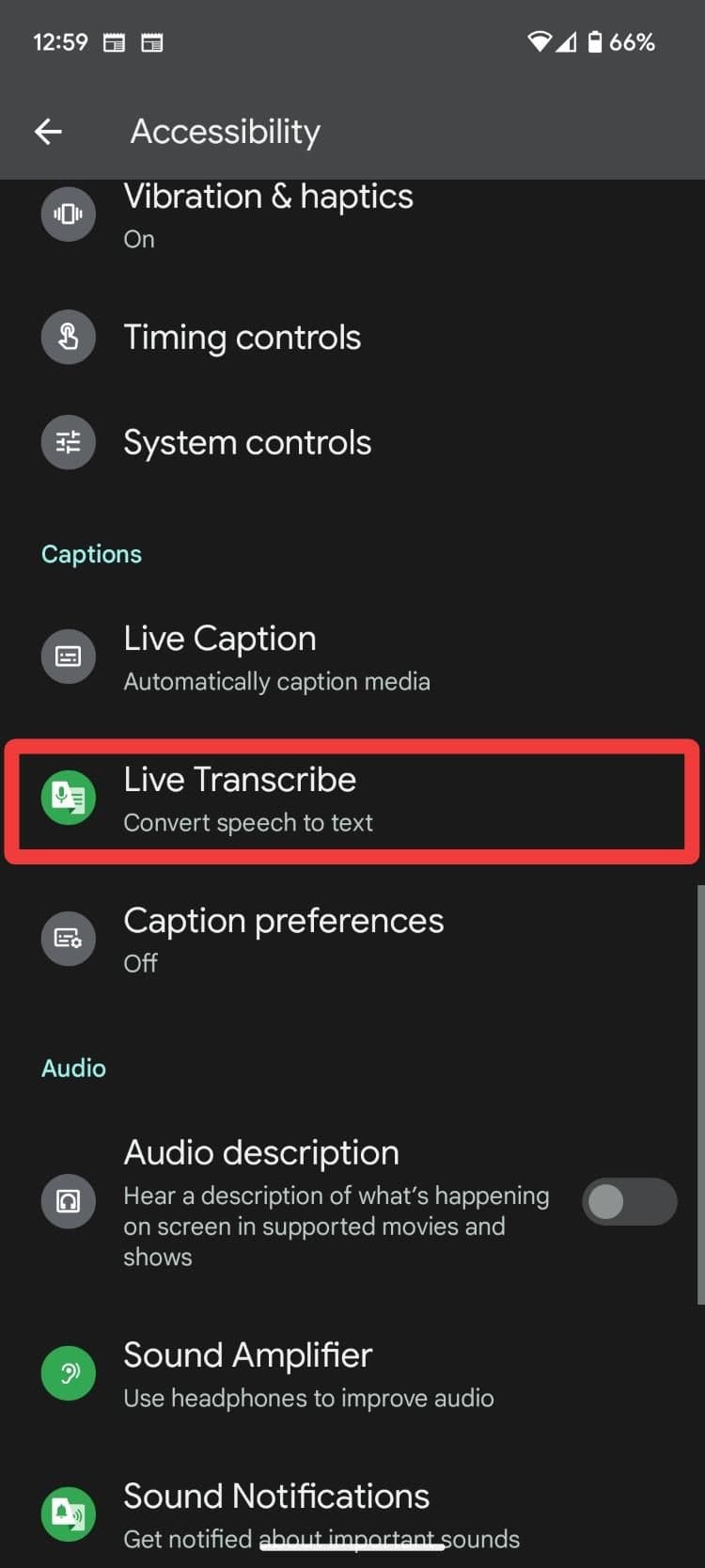
Scroll down to the
Captions
section and tap
Live Transcribe
.
-
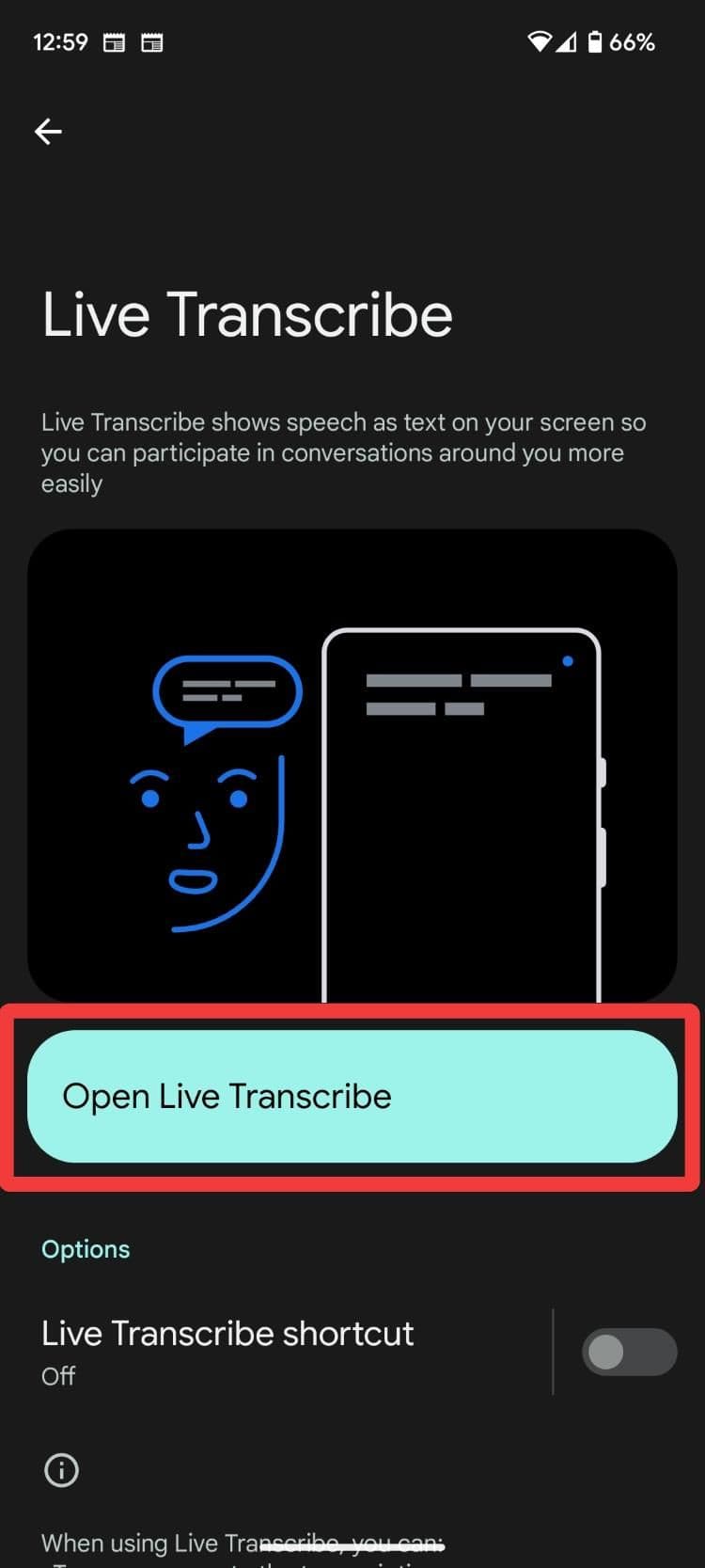
Tap
Open Live Transcribe
to start reading what’s happening around you.
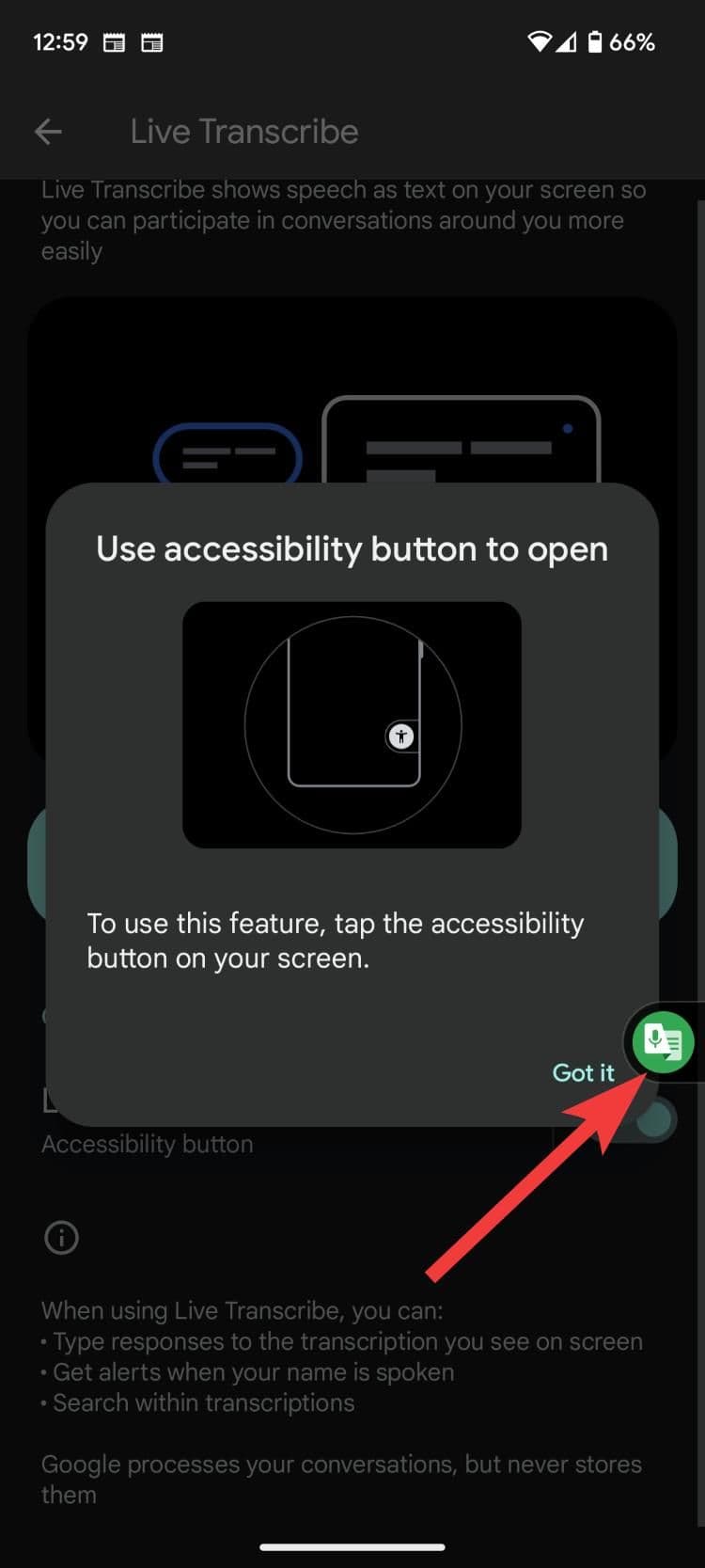
You can also turn on the Live Transcribe shortcut. It brings up a floating icon that gives you access to Live Transcribe from anywhere.
Enable Live Transcribe on a Samsung phone
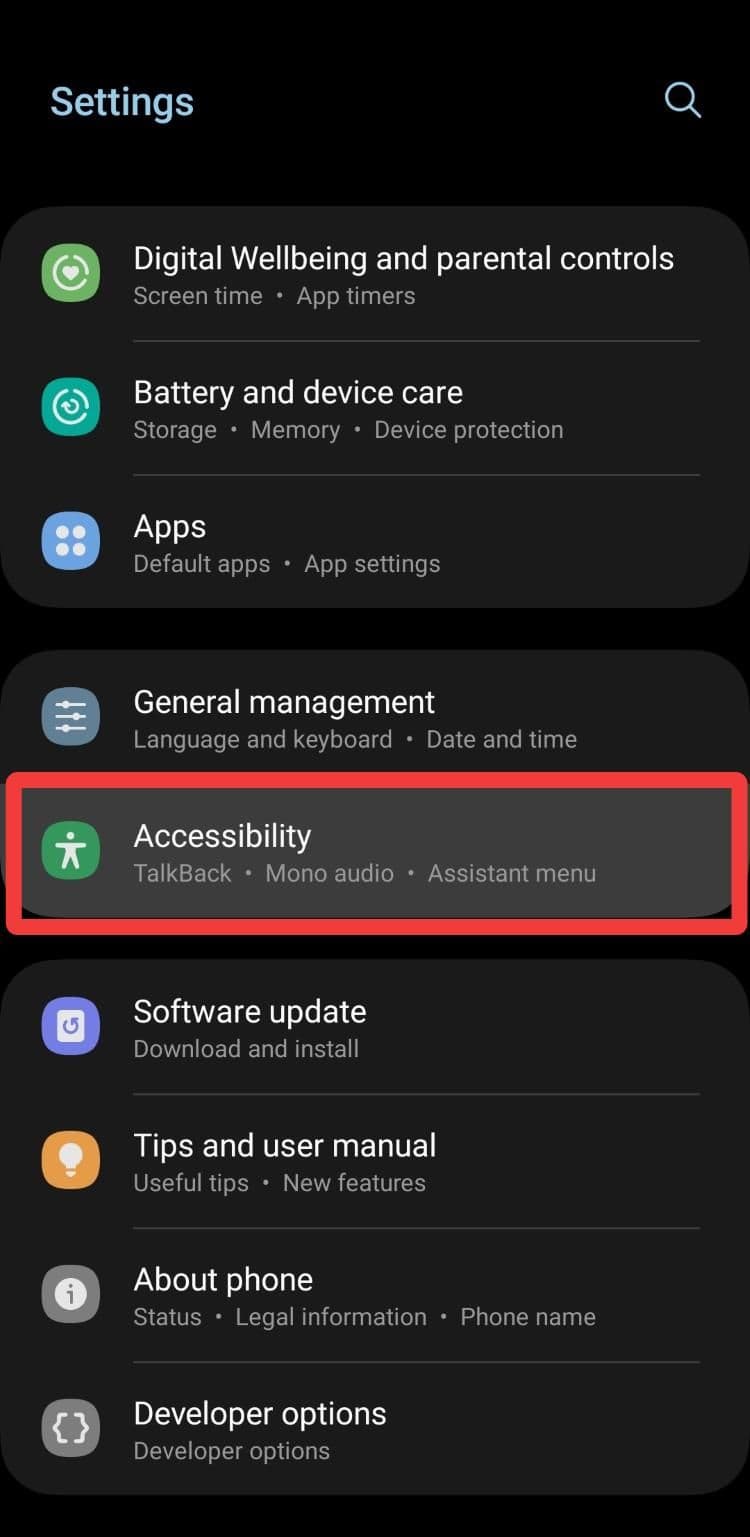
If your Samsung Galaxy device is relatively modern, it probably has the feature built-in. Here’s how to turn on Live Transcribe on a Samsung device:
-
Go to your device’s
Settings
app. -
Scroll down and tap
Accessibility
.
-
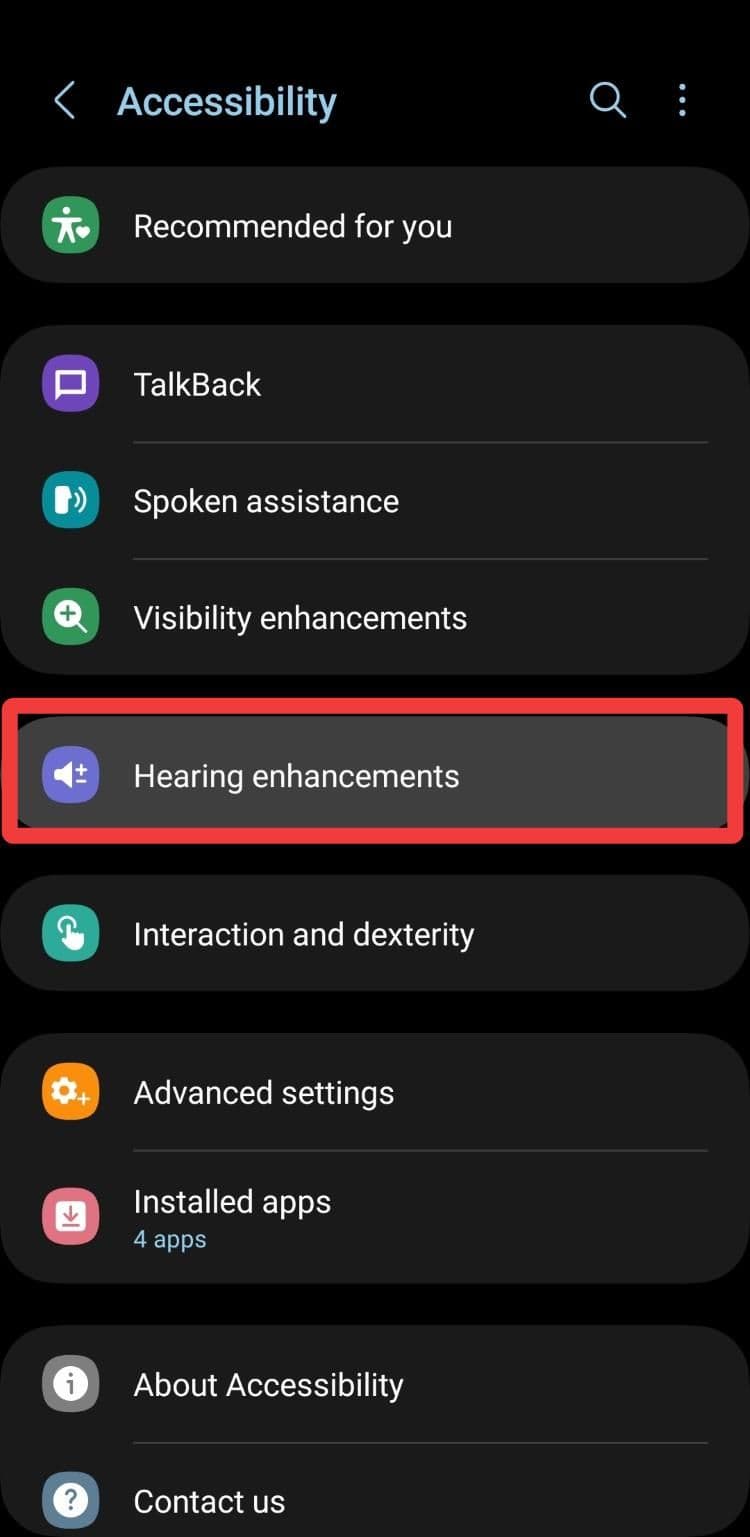
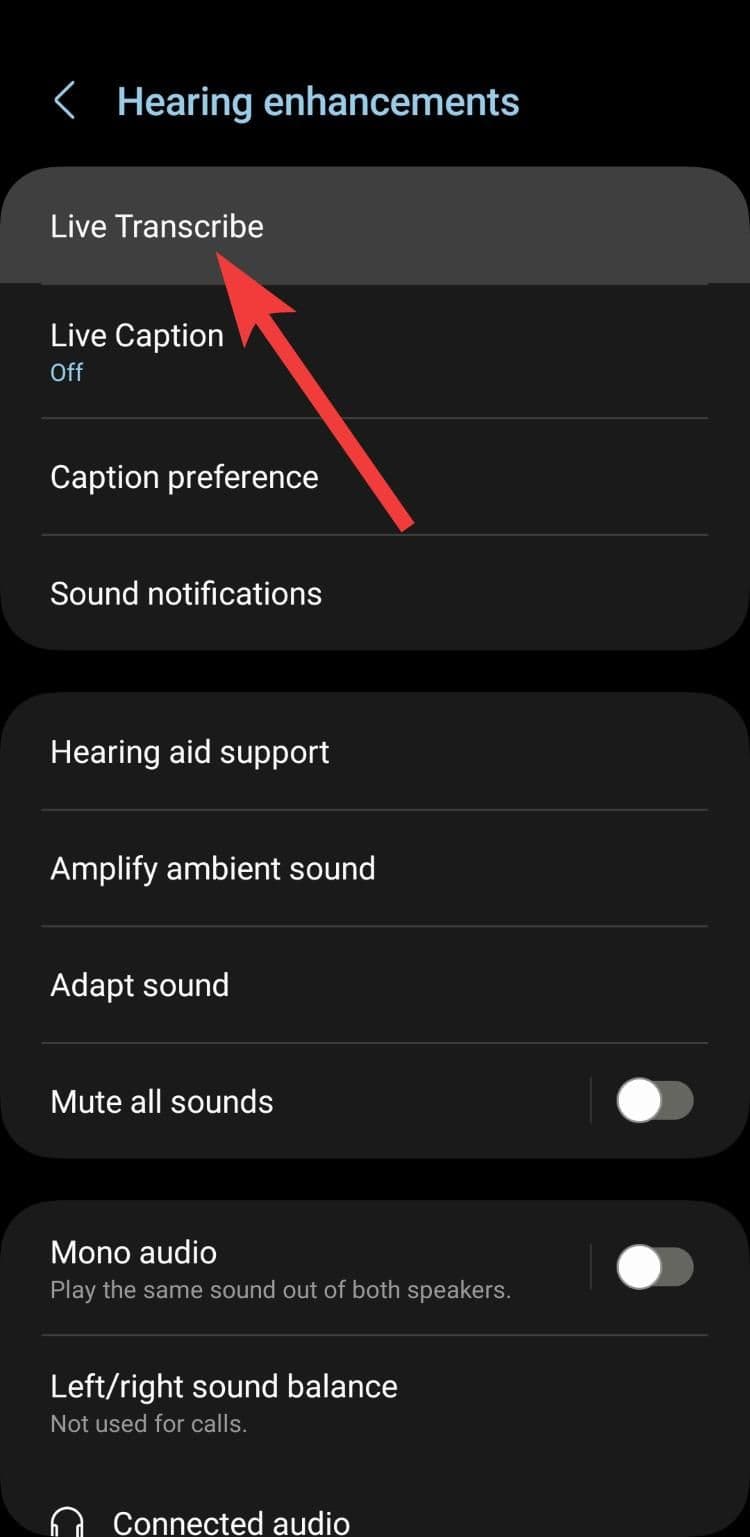
Tap
Hearing enhancements
>
Live Transcribe
.
-
Tap
Open Live Transcribe
to start the feature. -
Toggle on the
Live Transcribe shortcut
to bring up a floating icon of the app.
If you use the three-button navigation on your Samsung device, the Accessibility button containing the Live Transcribe shortcut appears in the lower-right corner.
How to use Live Transcribe on other Android devices
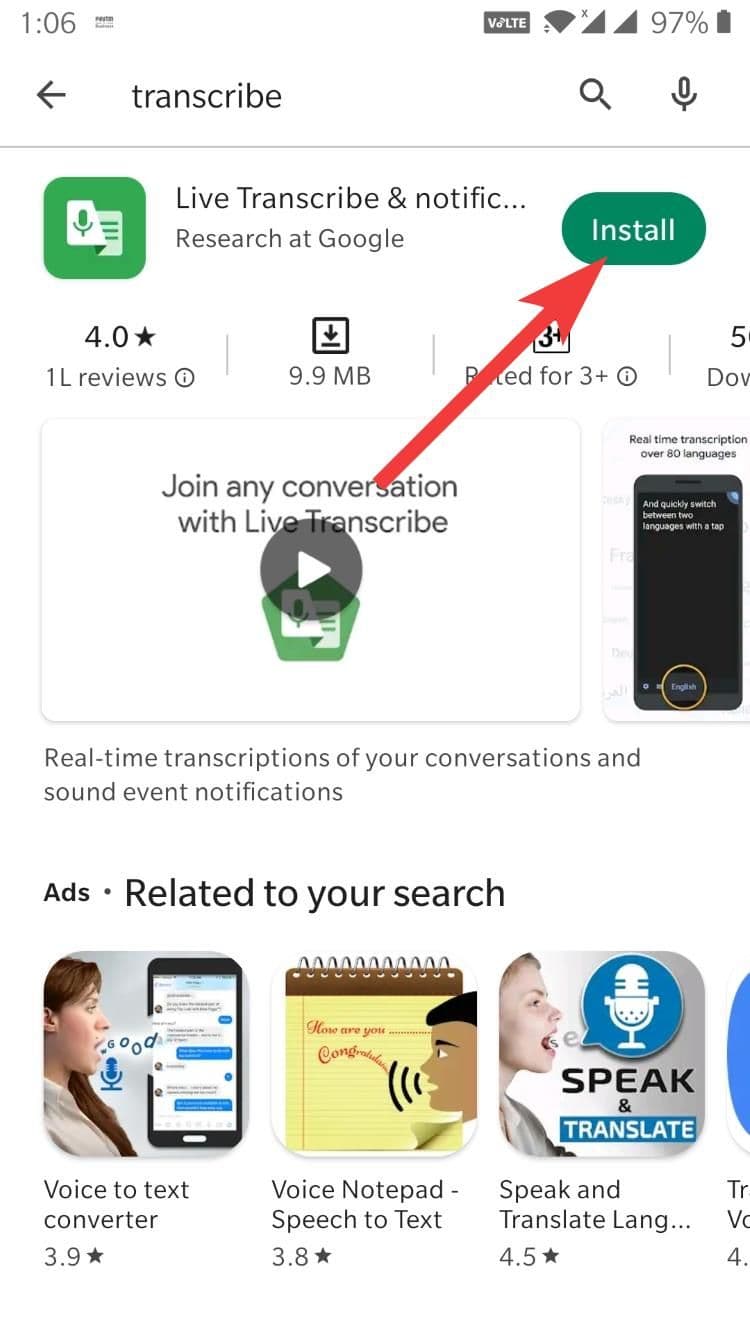
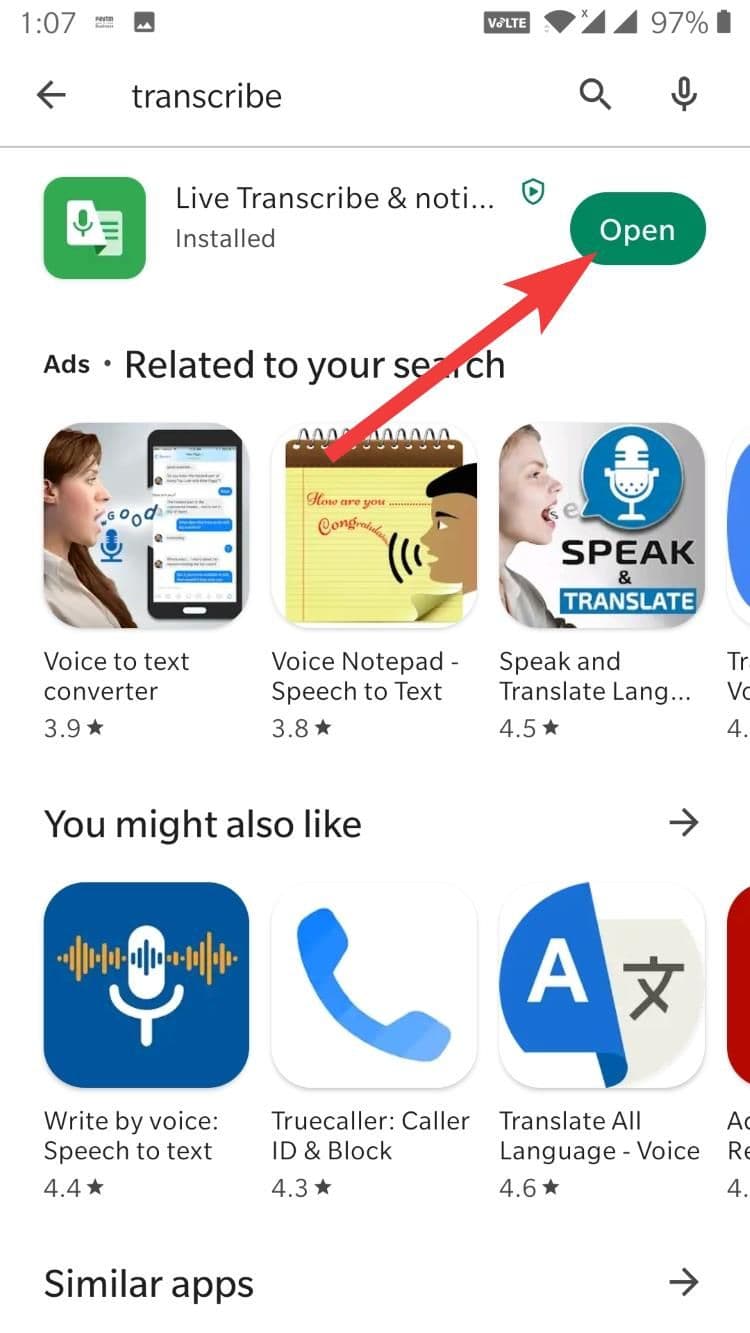
If the app isn’t installed on your Android device, here’s how to download and install it.
-
Go to the
Play Store
page for
Live Transcribe & Sound Notifications
. -
Click
Install
. -
Once done, open
the app.
-
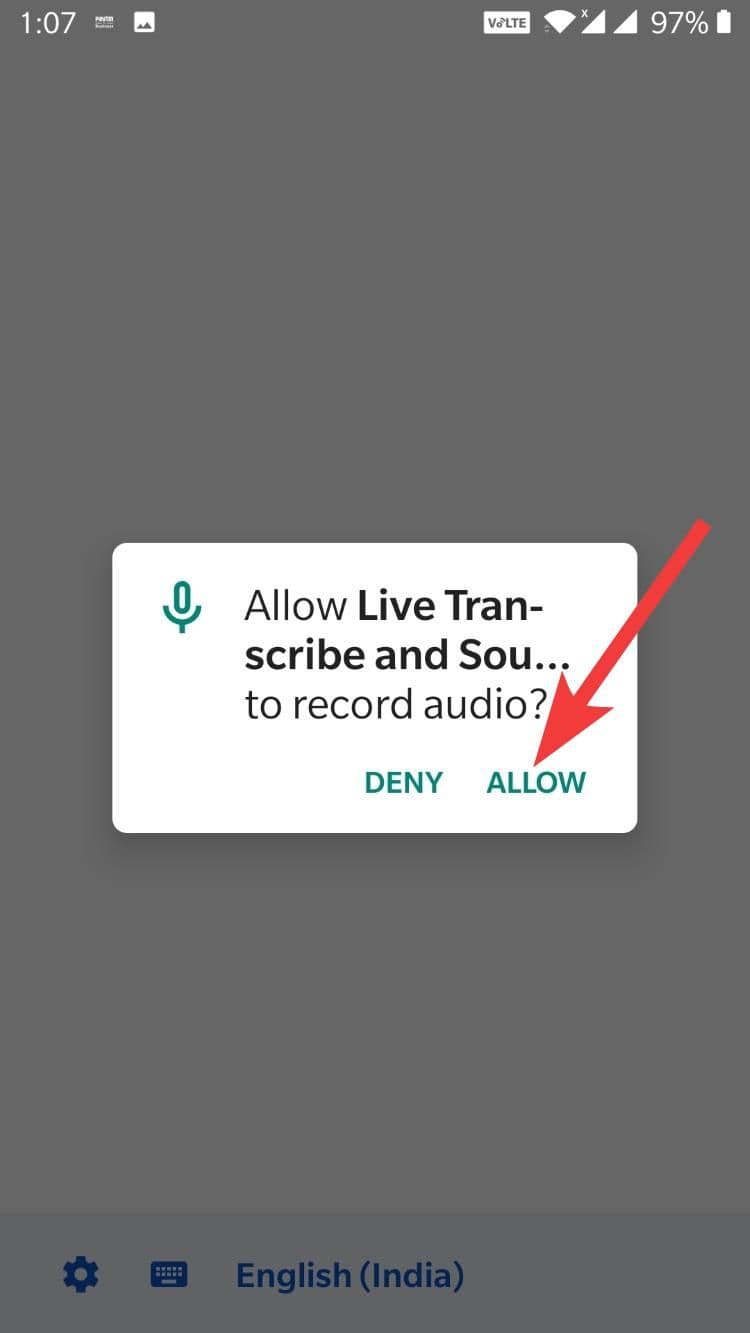
Grant the microphone permission, and start using it.
How does Live Transcribe work?
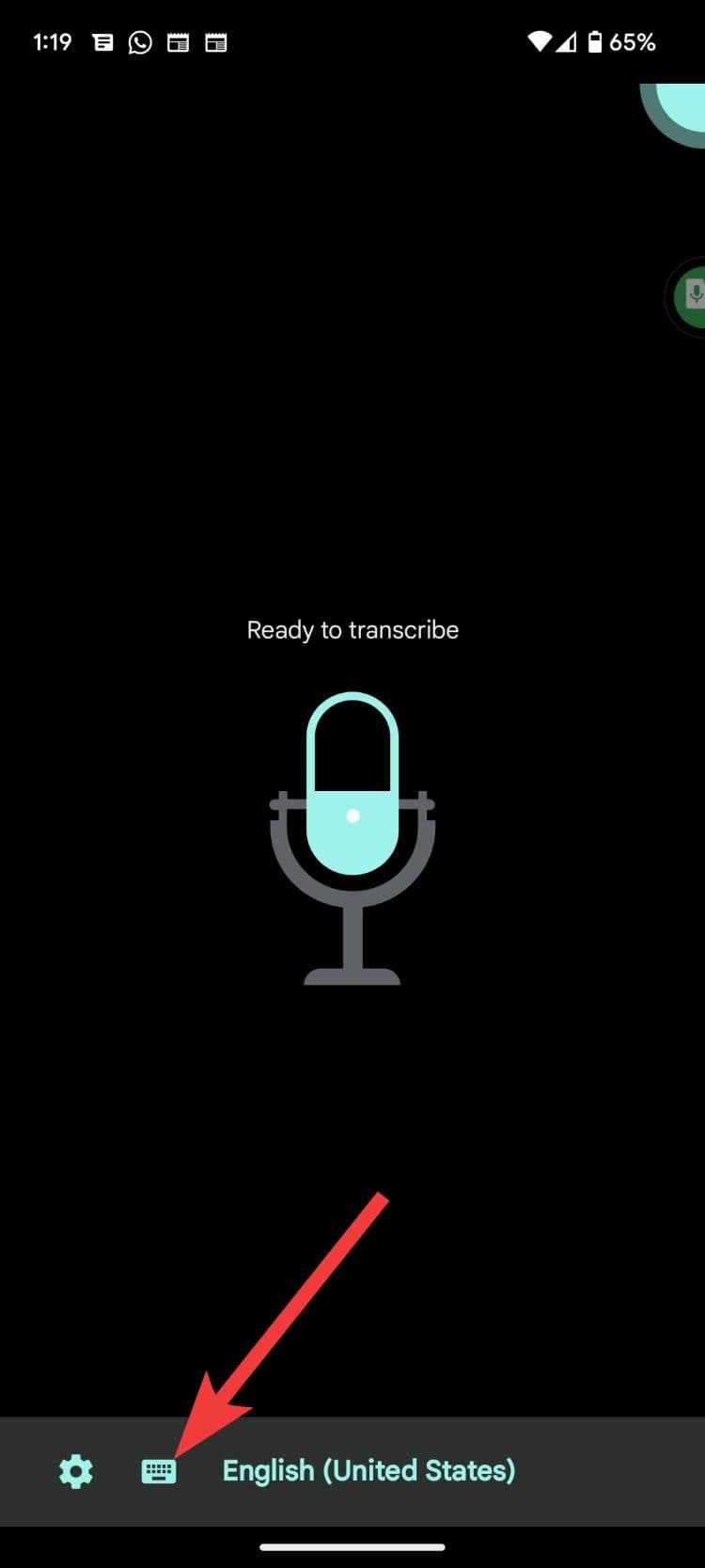
Live Transcribe automatically captures any speech in the selected language. You can tell it’s ready when you see “Ready to transcribe.” Hold your phone near the speaker, and it picks up what they’re saying with solid accuracy.
Diction is essential. The results may not be 100% accurate if the speaker speaks softly or has a neurological condition that affects speech. People who live with conditions that impact speech should check out
Google’s Project Relate
. This project helps people with speech impairments communicate and interact with others using Google Assistant.
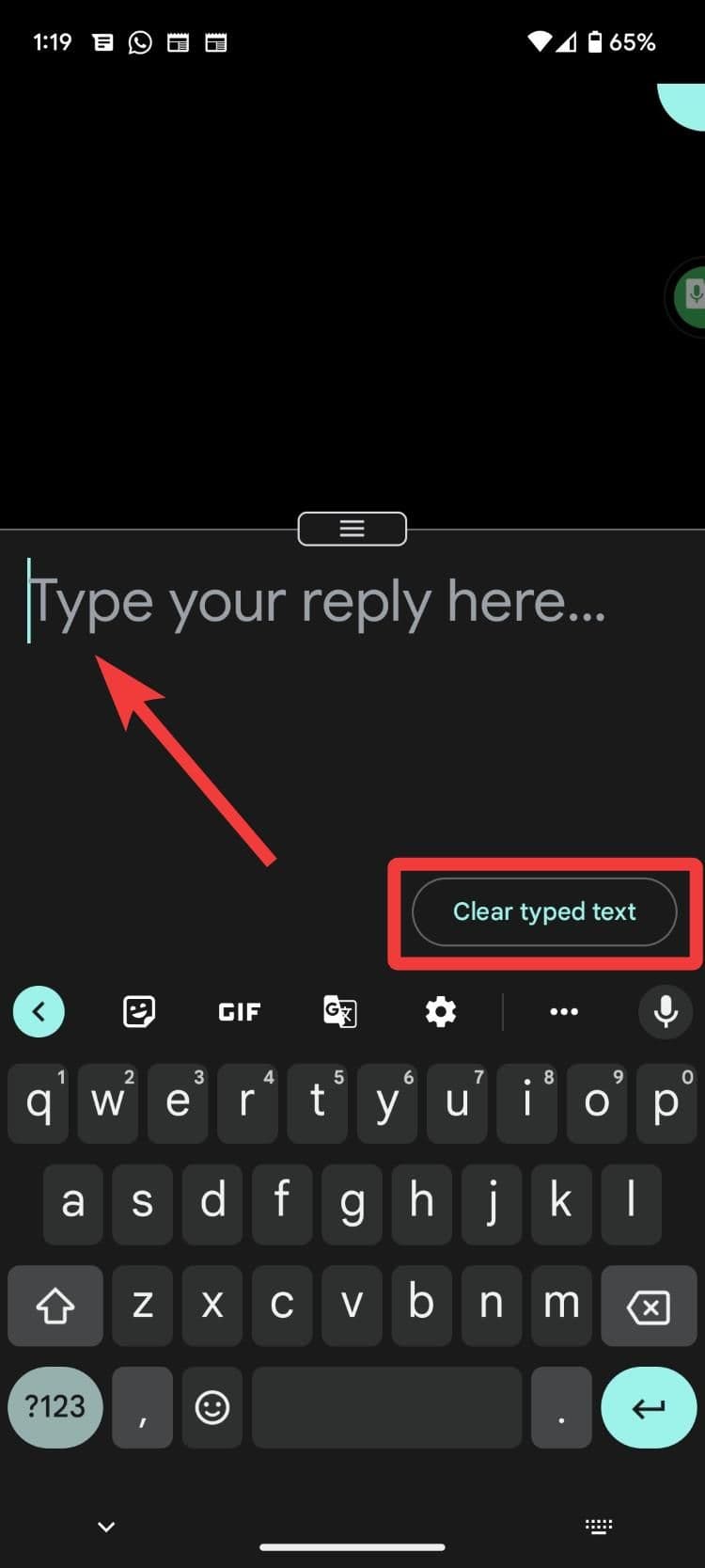
If you want to respond via text to a conversation, tap the
keyboard
icon at the bottom of the screen. A text window appears, and you can type your reply. The text replies are not added to the transcription. You must clear the text every time you want to respond.
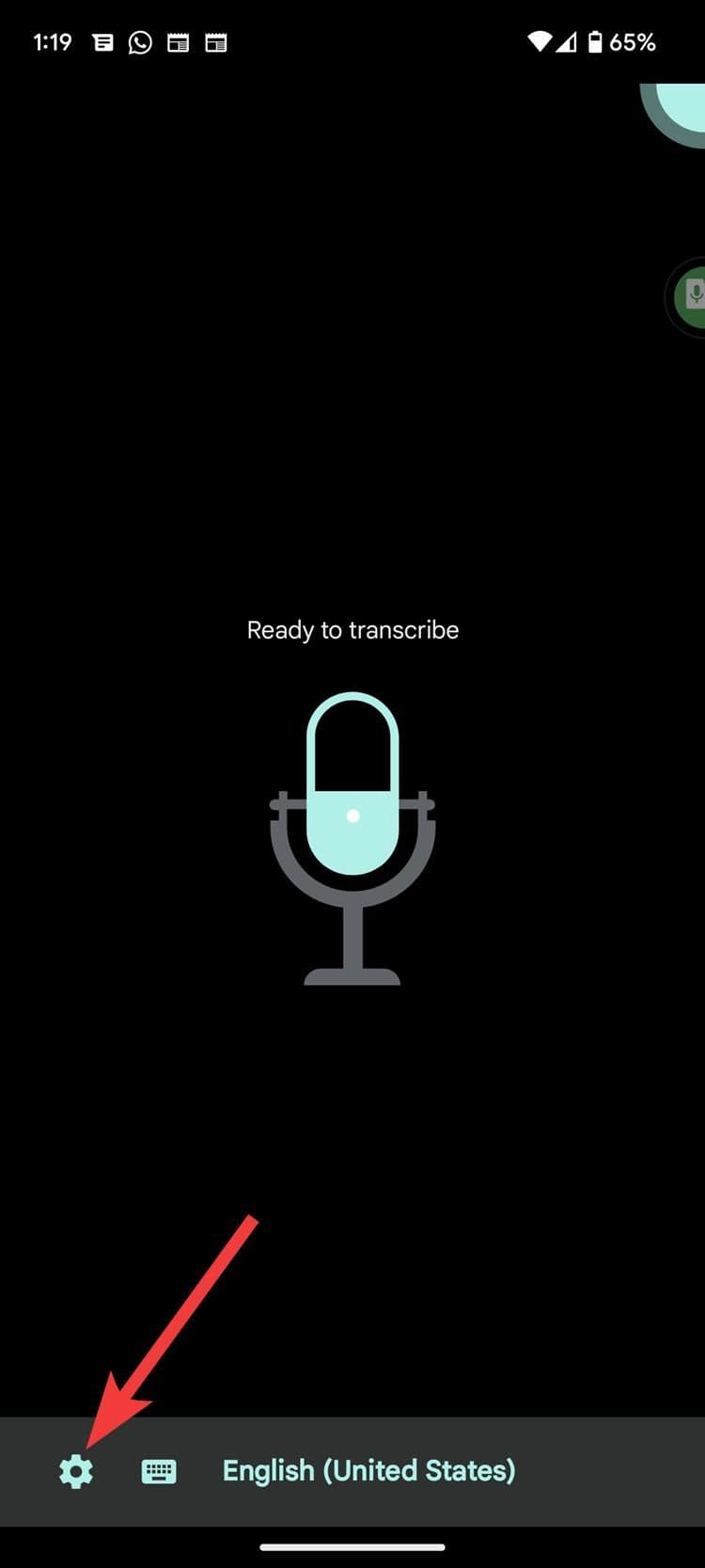
Tap the
gear icon
in the lower-left corner to find something specific in a transcription. A submenu appears, and you can use the search bar at the top of it to search for anything in the transcription.
Here are some things you may want to customize according to your needs.
Set primary and secondary languages for Live Transcribe
There are 80 languages available on Live Transcribe (including local dialects for some of the more prominent languages). You can choose a primary language and a secondary one. To change the language settings:
-
Tap the
gear
icon in the lower-left corner of the app. -
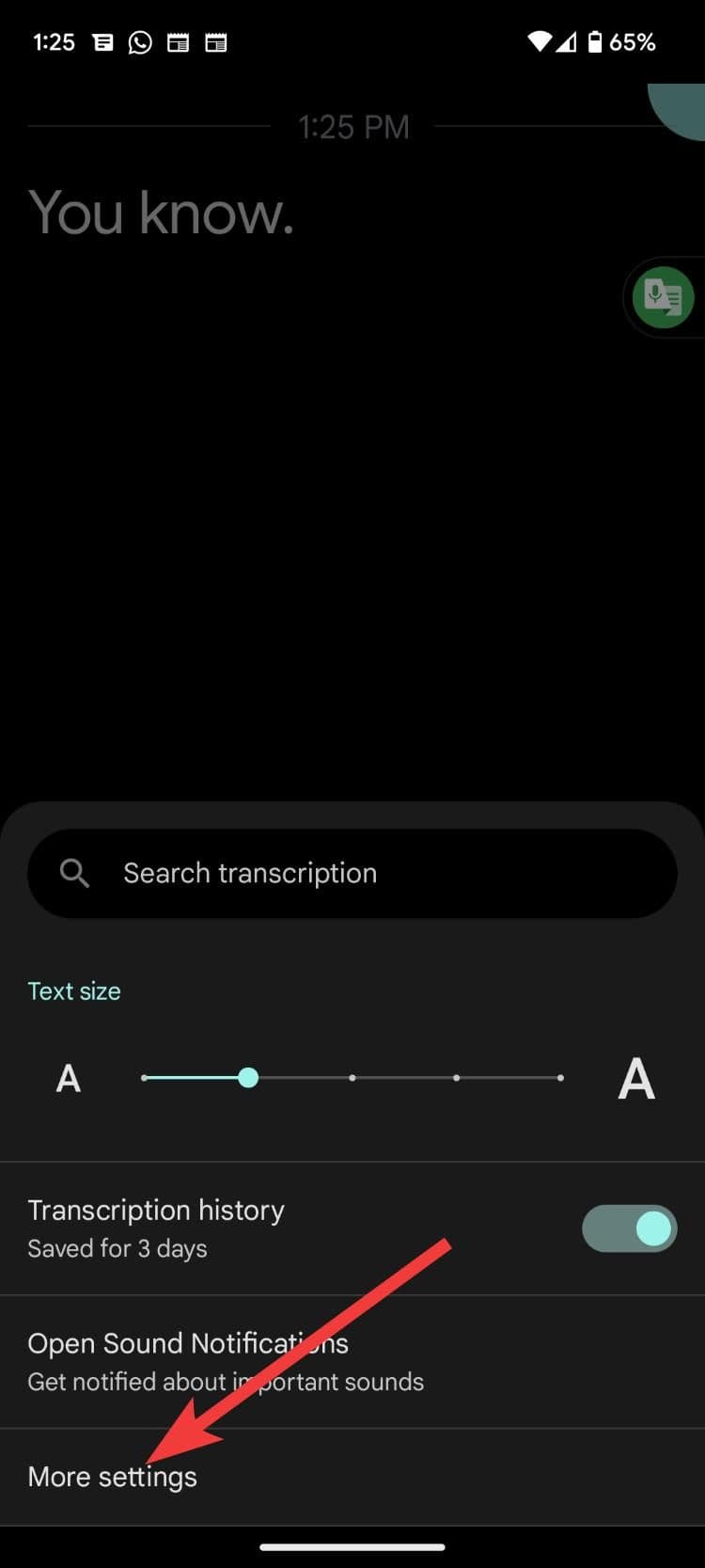
Click
More settings
on the submenu that appears.
-
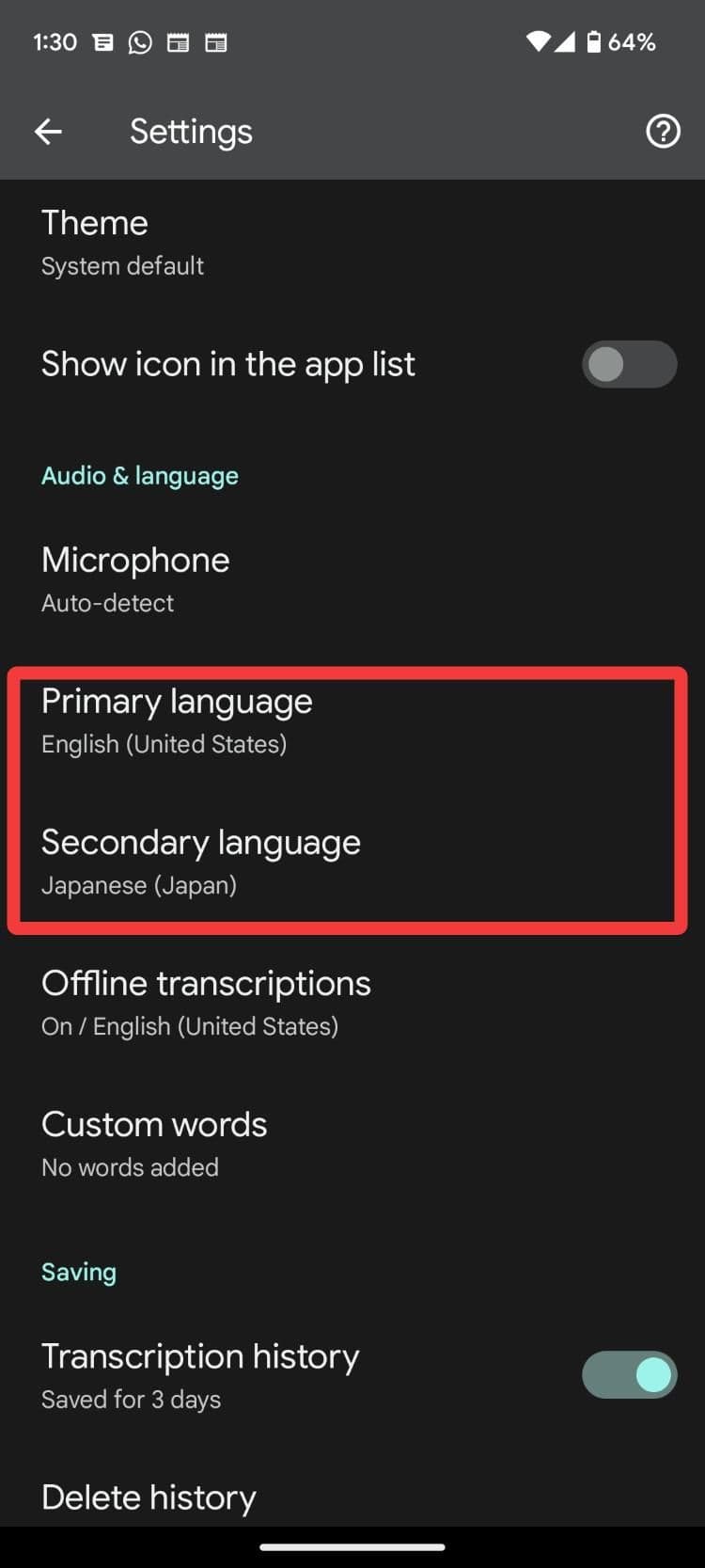
Select a
Primary
or
Secondary language
, depending on which you want to change.
-
Scroll through the list and select
the language you want to use.
You can quickly switch between your primary and secondary language on the app’s homescreen by tapping the language at the bottom of the screen.
How to use Live Transcribe offline
You can use Live Transcribe without an internet connection. The selection is limited at the moment, but most of the predominant languages are downloadable.
Offline feature only works on Android phones with at least 6GB RAM and on all Pixel phones.
-
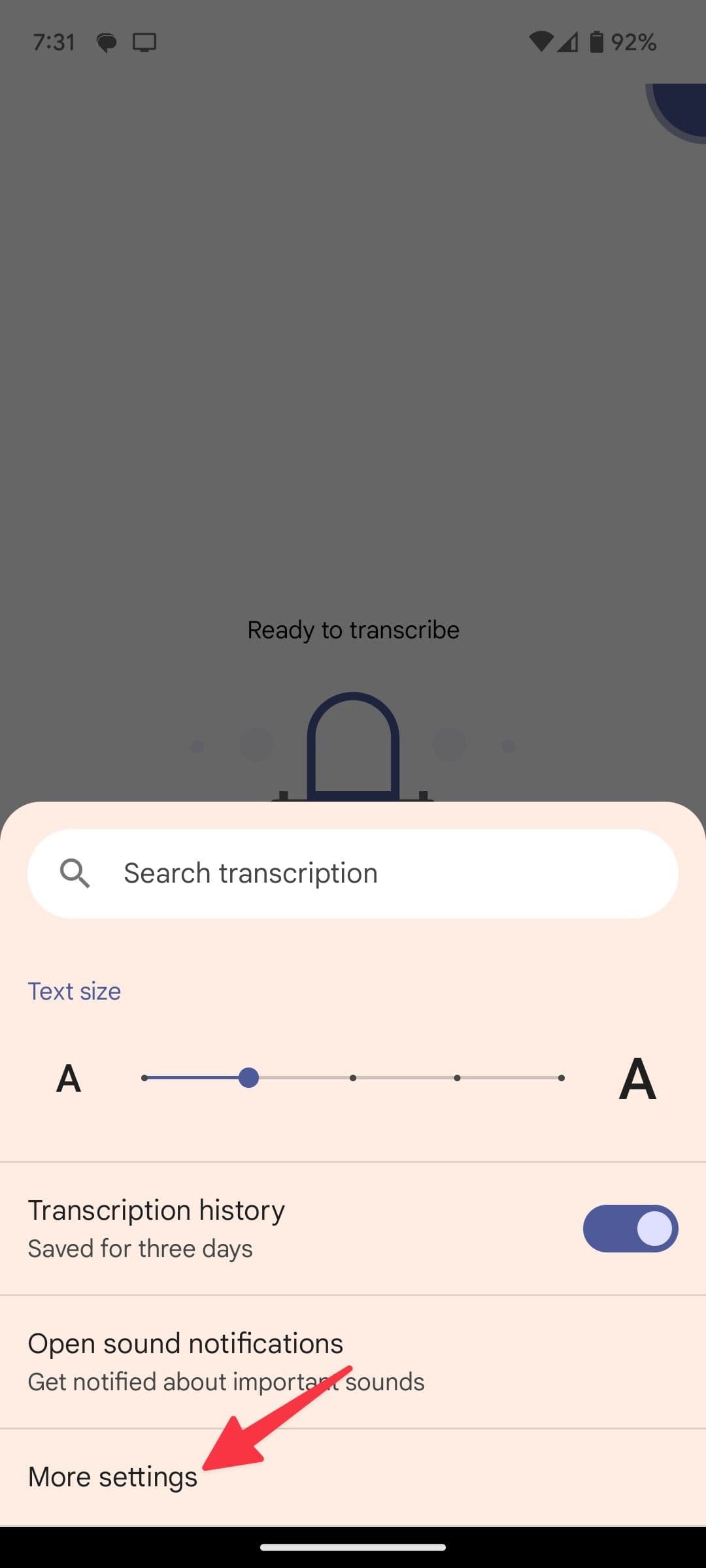
Open
More settings
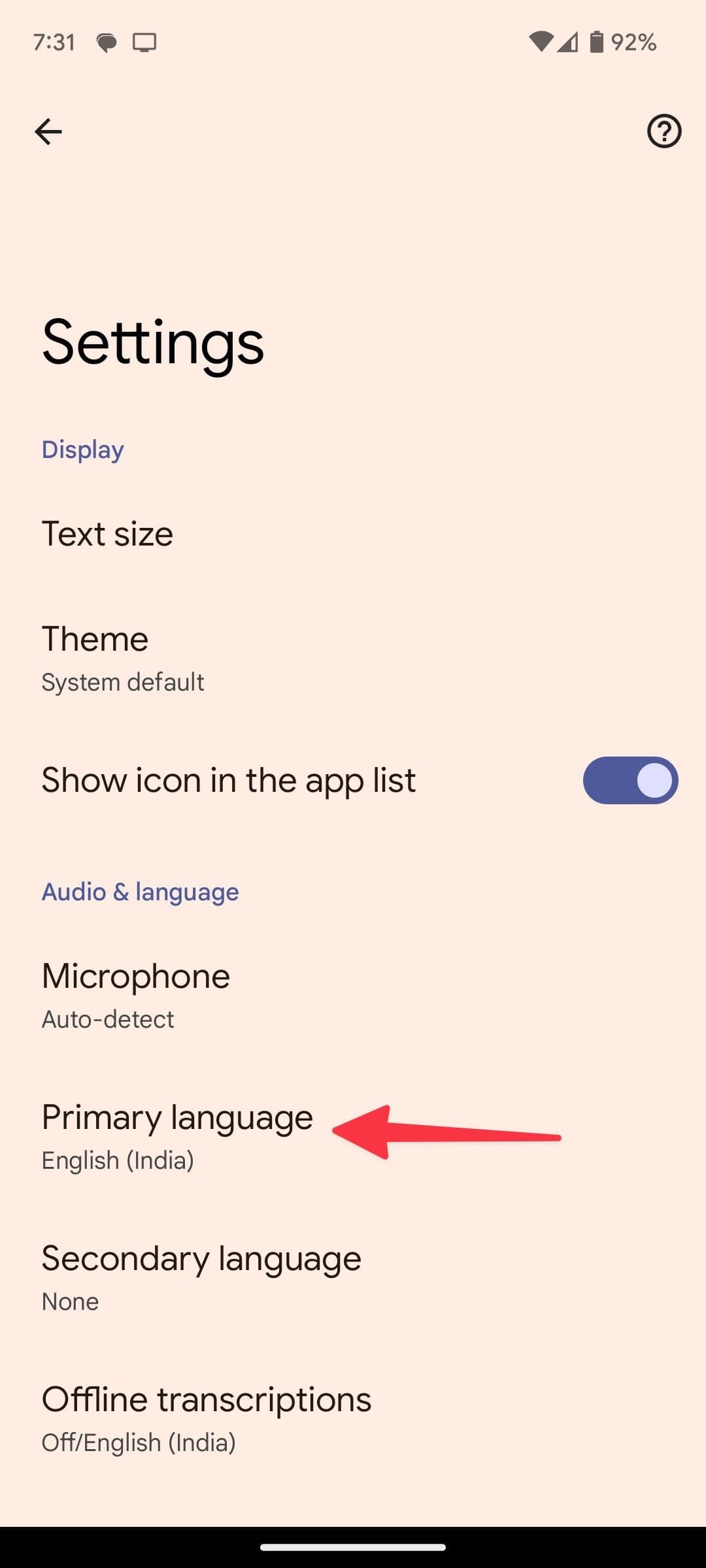
in Live Transcribe (check the steps above). -
Select
Primary language
-
Look for a
download icon
beside a language. Tap it to download the language for offline use. A checkmark beside the language confirms the offline status.
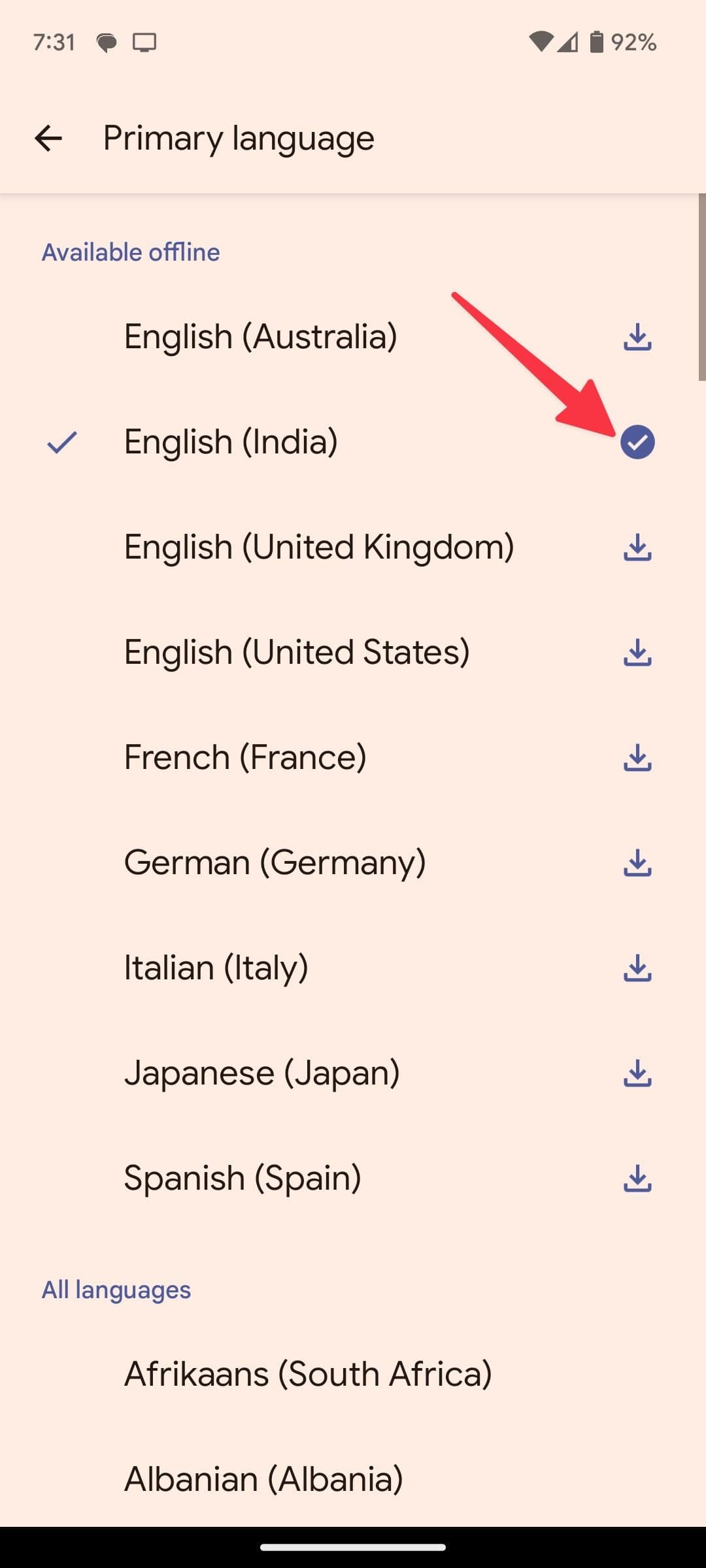
If you don’t see a download symbol, the language isn’t available for you to download.
How to add custom words in Live Transcribe
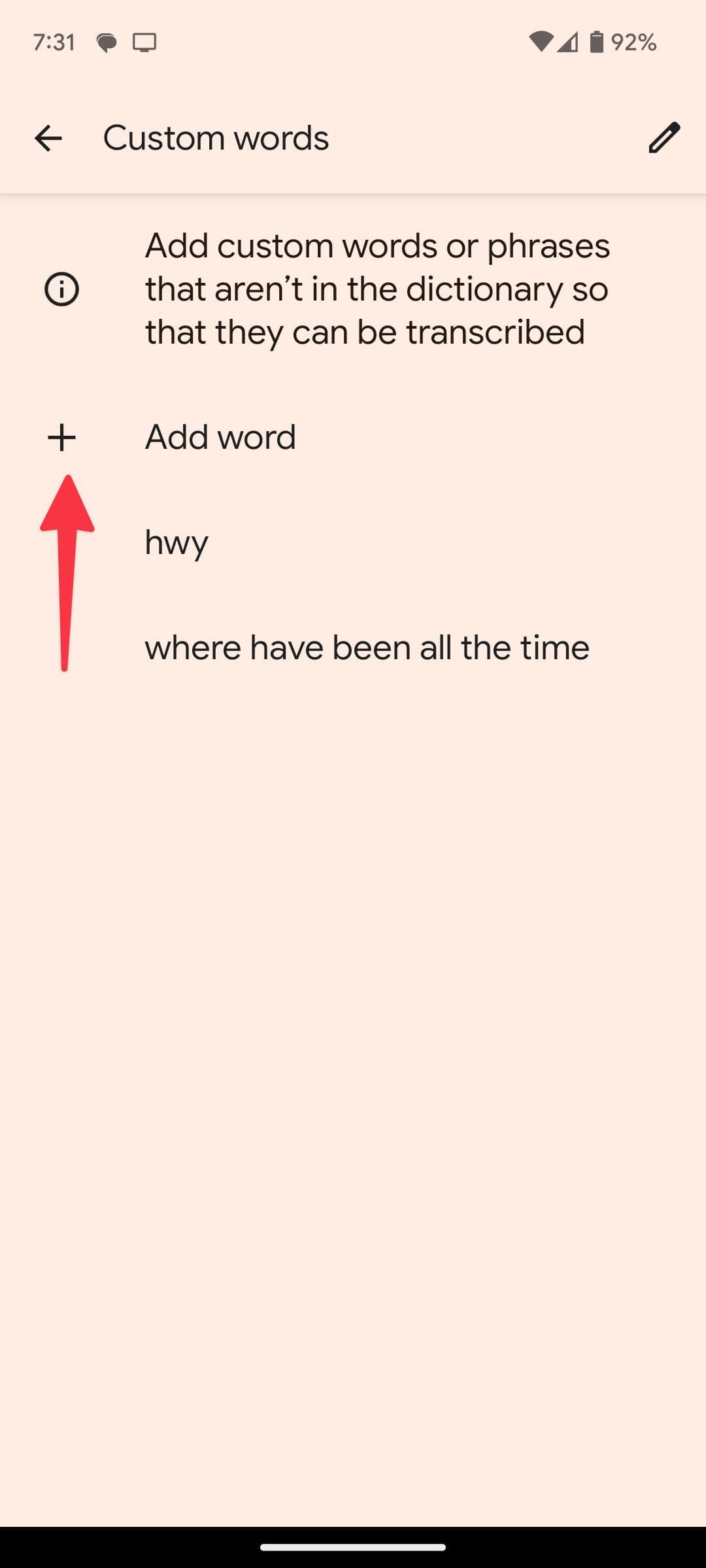
You can create custom words in Live Transcribe to avoid typing frequent words and phrases. We highly recommend setting them up to improve productivity during conversations.
-
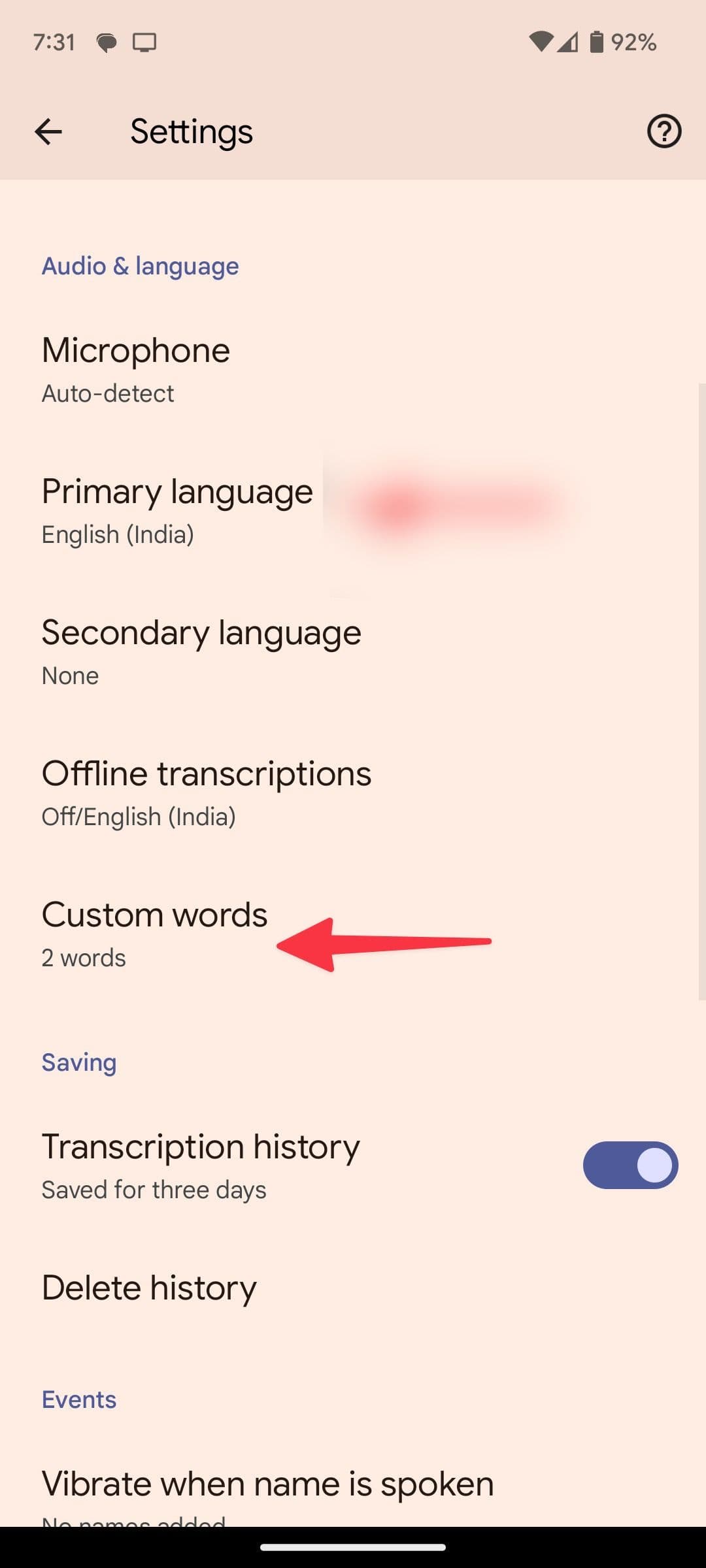
Open
More Settings
in Live Transcribe. -
Scroll to
Custom Words
. - Add custom words or phrases that aren’t in the dictionary.
-
You can delete custom words from the edit menu at the top.
How to manage Live Transcribe history
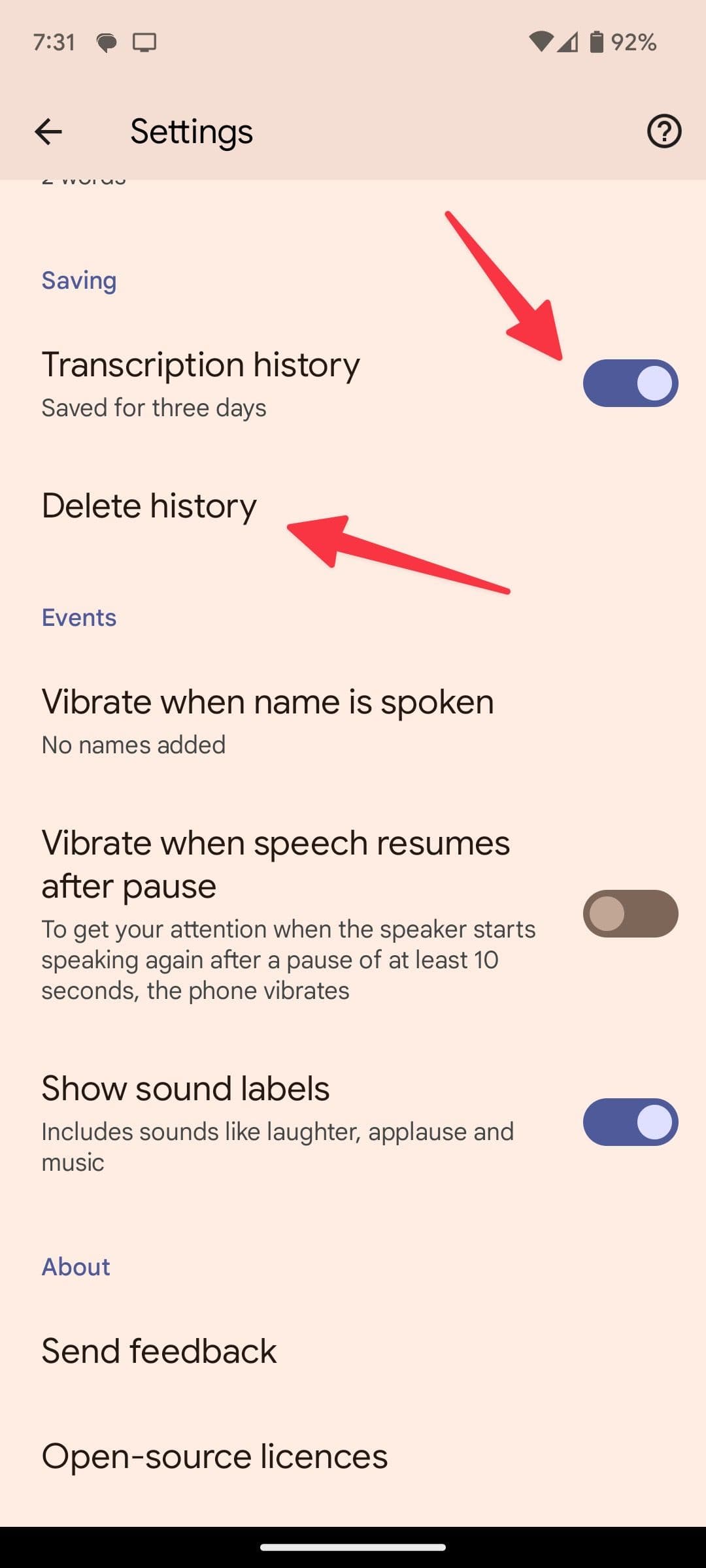
Google saves Live Transcribe history for three days by default. You can disable the option to auto-delete history after 24 hours. You can also delete your current history. Here’s how you can access it.
-
Go to
More Settings
in Live Transcribe. -
Scroll to
Saving
and
disable the
Transcription history
toggle. The app now auto-deletes the history after 24 hours.
How to pause transcription for easier reading
Sometimes, it can be difficult to catch up on live transcription. You can enable the hold button that pauses transcription.
-
Open Live Transcribe and go to
More Settings
(check the steps above). -
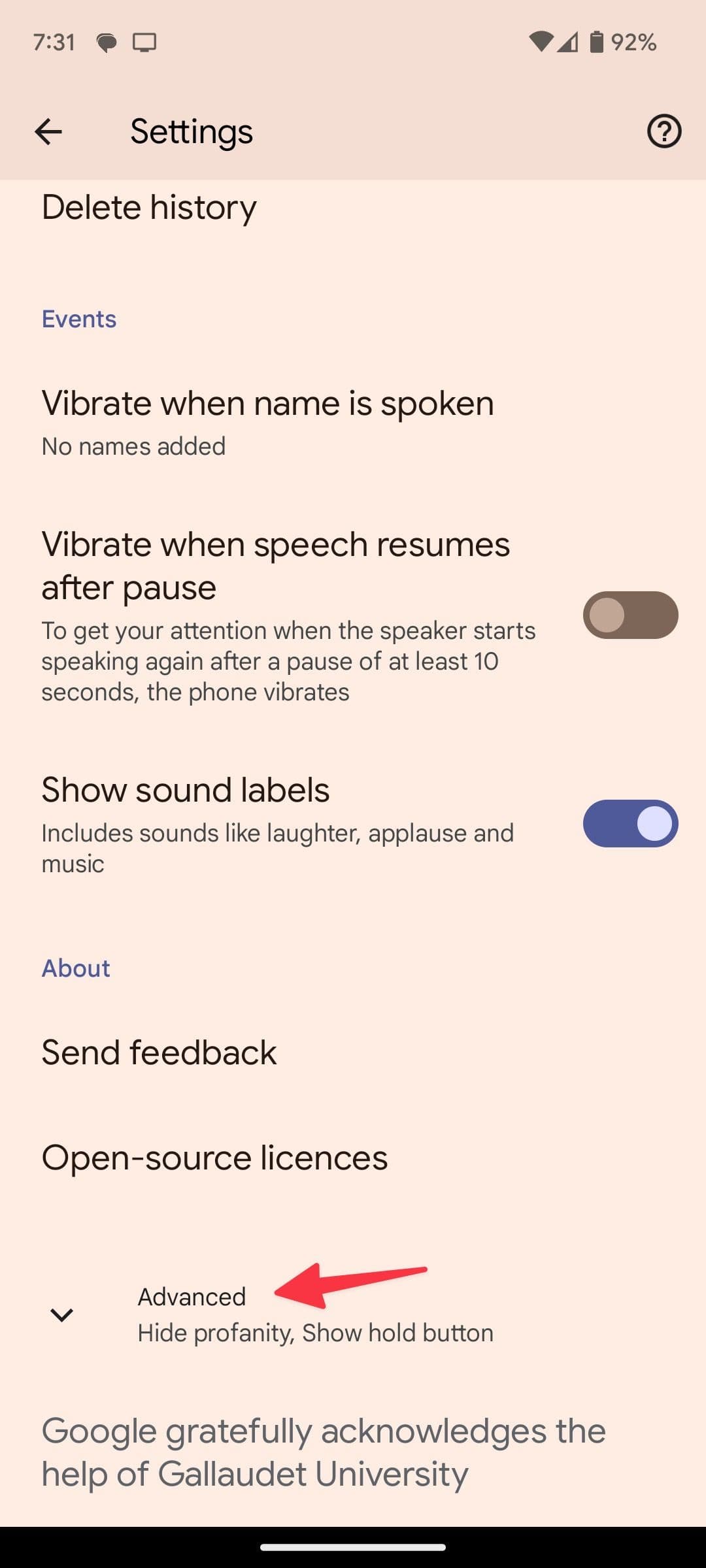
Scroll down and expand
Advanced
.
-
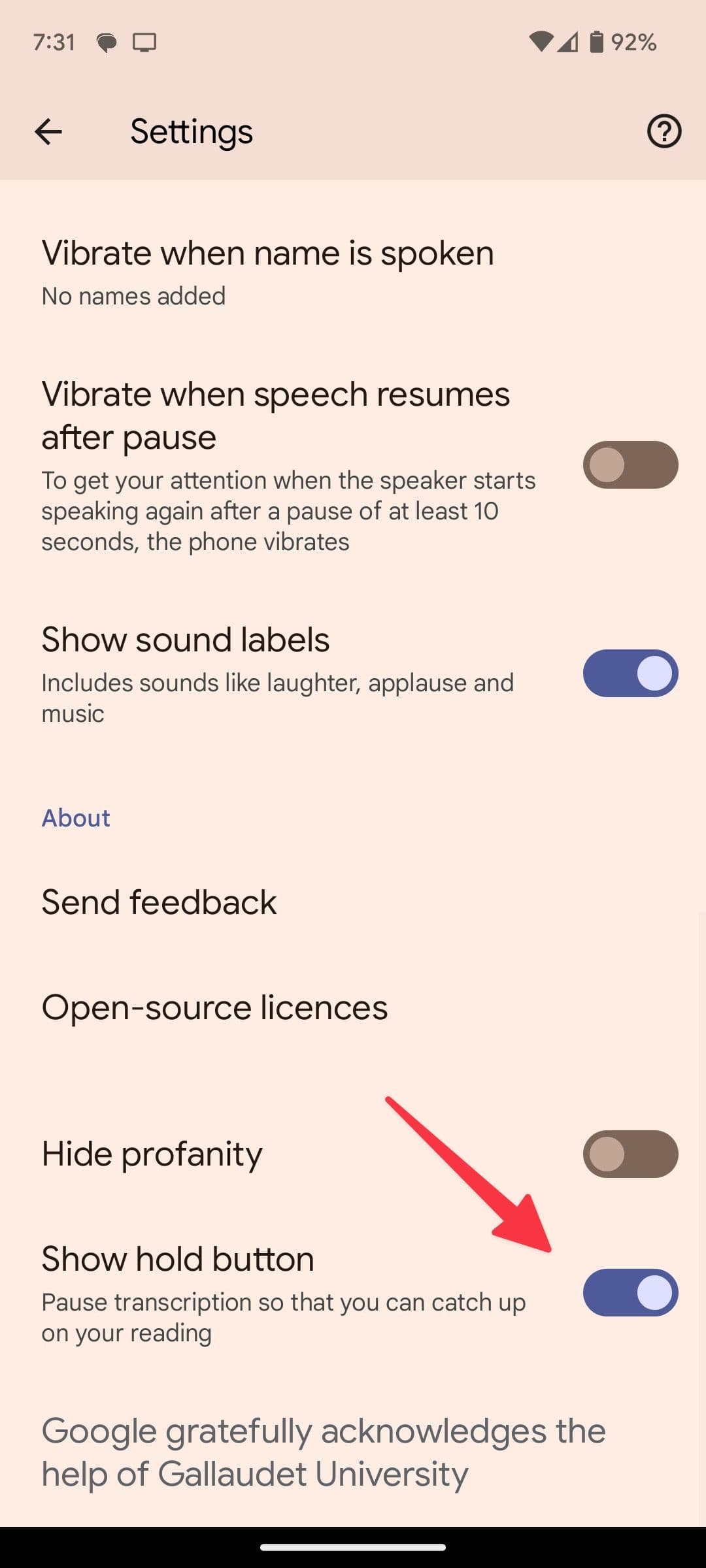
Enable the
Show hold button
toggle. -
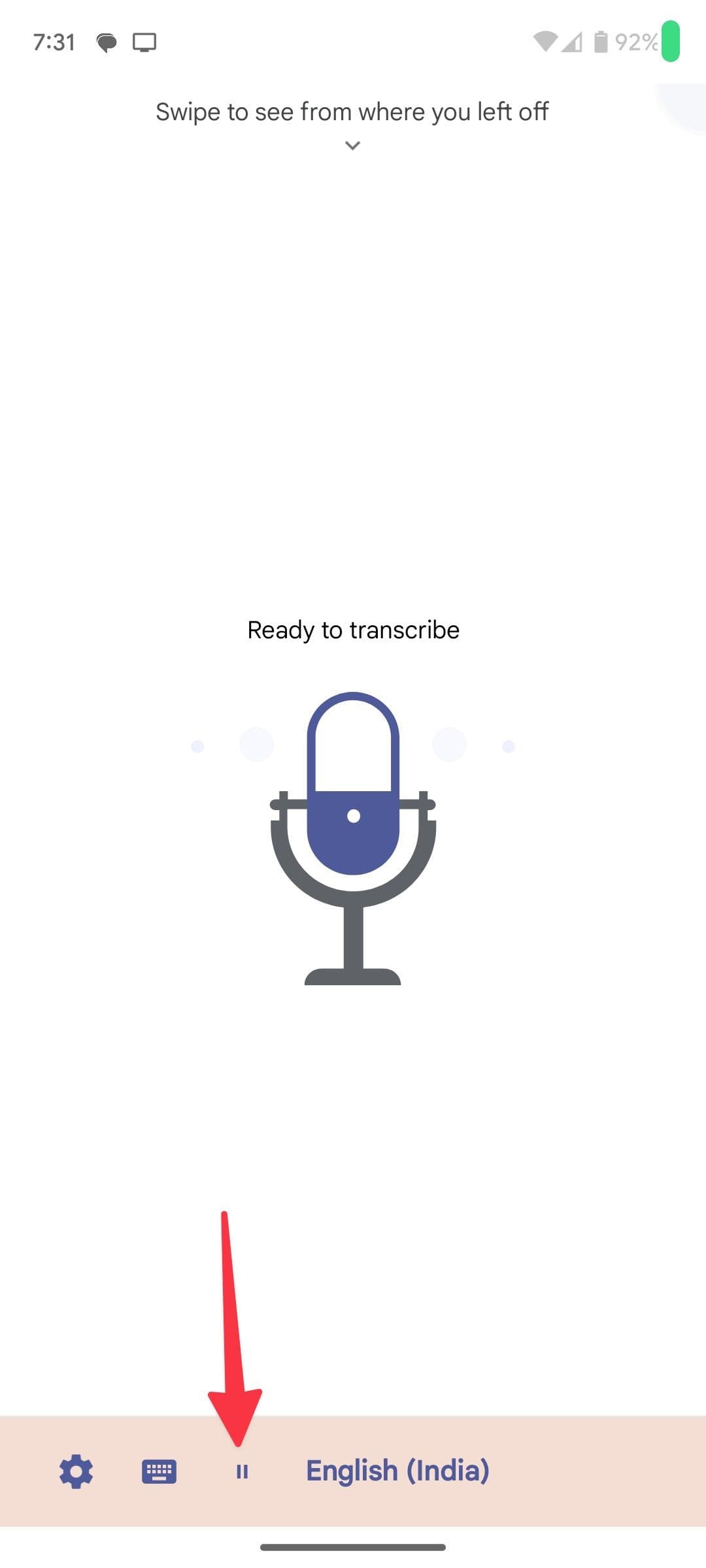
Return to the main screen and check for a small
pause button
at the bottom. It pauses the live transcription so that you can catch up on your reading.
Get the most out of Live Transcribe settings
There are a variety of other settings that can be adjusted in Live Transcribe. You can access these through the gear icon and the More settings option. Here’s a breakdown of most of them and what you can change:
-
Text size
: Adjust the text size of the transcription for easy reading. -
Open Sound Notifications
:
Live Transcribe picks up important sounds, like the doorbell or the phone ringing. You can manage these sounds and see when they occur in these settings. -
Theme
: Adjust between light, dark, or the system default mode. -
Transcribe offline
: Toggle on to transcribe without an internet connection. You need to download the desired language to use this feature. -
Delete history
:
Delete transcription history sooner by selecting this option. -
Vibrate when name is spoken
: Add your name and other peoples’ names to this section so that the phone vibrates when it detects that name while transcribing. -
Vibrate when speech resumes after pause
:
The phone vibrates if speaking resumes after a pause greater than 10 seconds. -
Show sound labels
:
The transcription shows audio descriptions like laughter and applause, similar to closed captioning.
Use an external microphone in Live Transcribe
Adding an external microphone lets your phone pick up more sounds from your surroundings. Adding one for use in Live Transcribe is simple.
- Plug in an external microphone to your phone.
-
Tap the
gear
icon and tap
More settings
.
-
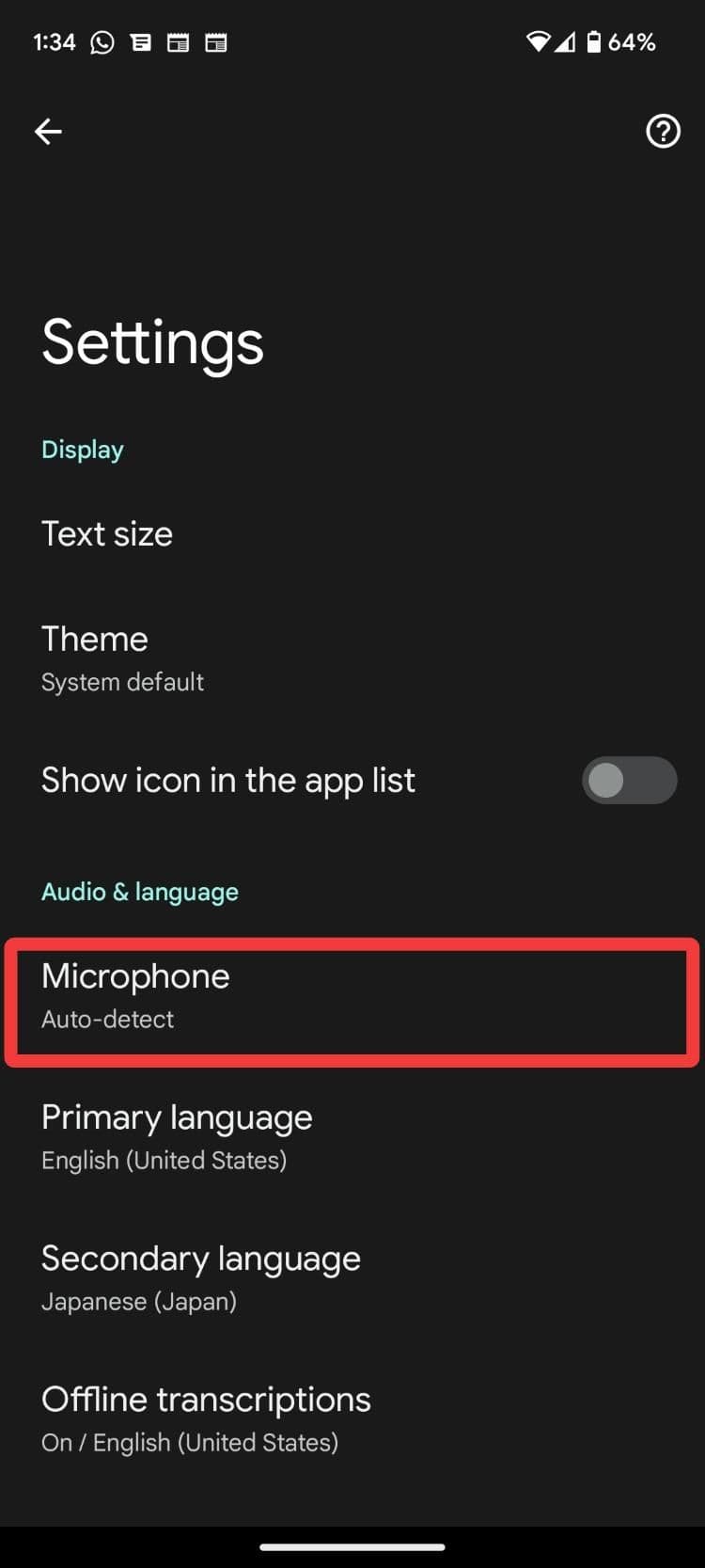
Under
Audio & language
, select
microphone
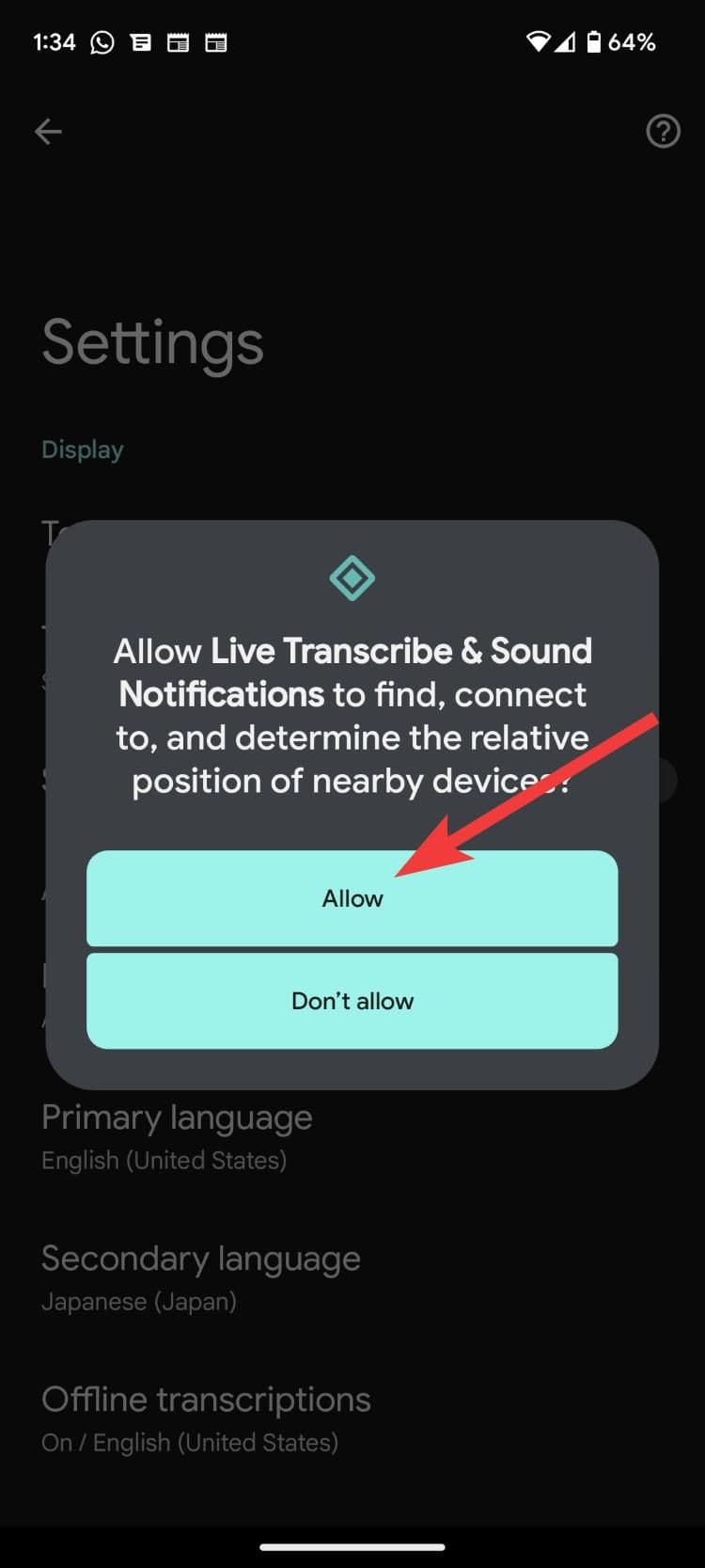
. -
Allow the permission.
-
Tap the microphone you want to use.
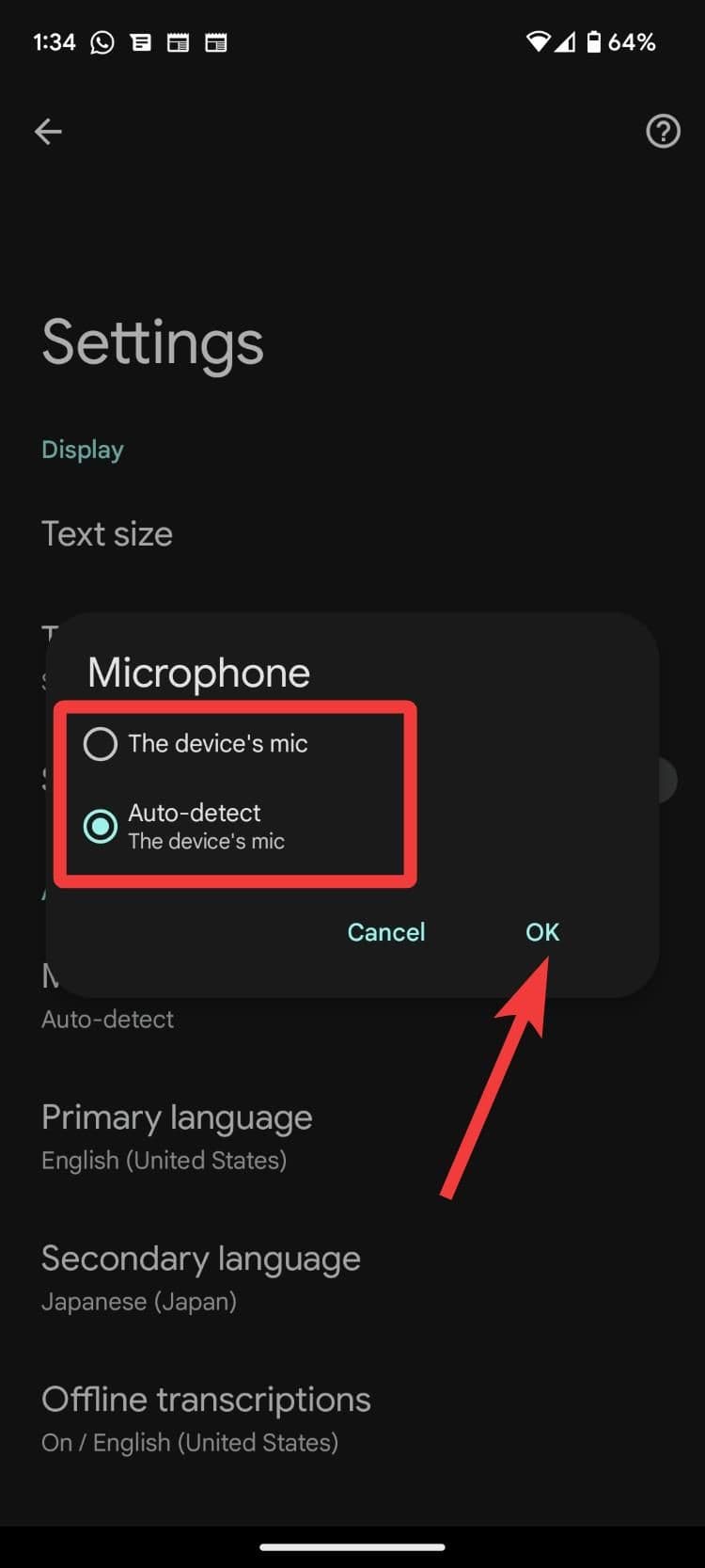
You may see two options: a phone mic and an external microphone. By default, Auto-detect is enabled.
Enable the Live Transcribe icon in the app drawer
Do you frequently use Live Transcribe on your Android phone? You should enable the app icon in the app list for easy access.
-
Head to
More Settings
in Live Transcribe (check the steps above). -
Enable the
Show icon in the app list
toggle.
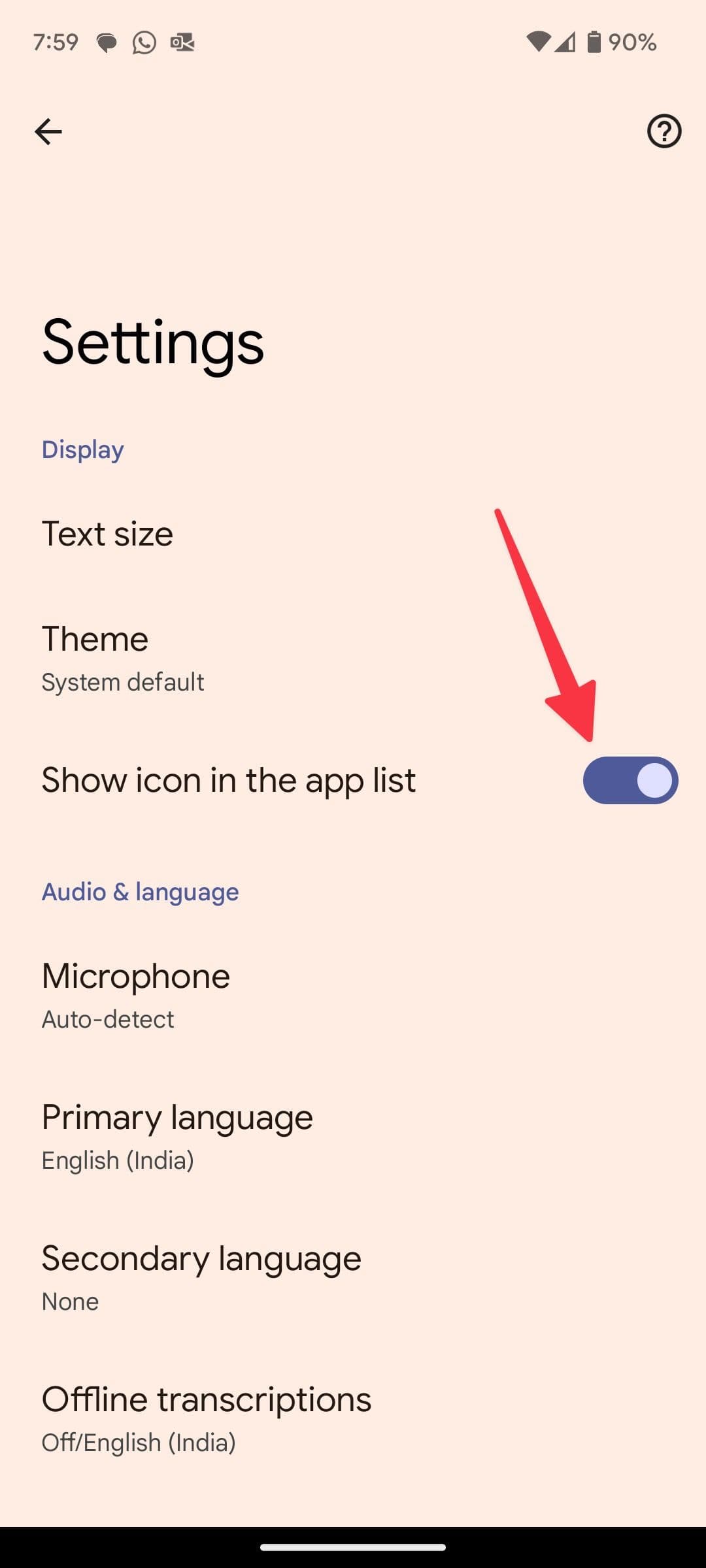
Now, Live Transcribe is just a tap away on your Android phone’s homescreen. So far, we have talked about using Google’s Live Transcribe on Android. What about iOS and desktop systems? Let’s talk about them.
Can you use Live Transcribe on a Mac or PC?
There isn’t an official Live Transcribe app on Windows or Mac. You could install Live Transcribe on Windows using the Windows Subsystem for Android or any Android emulator on Windows and macOS. However, the last time we checked, the app refused to work on WSA and an emulator (BlueStacks). The app also refused to work on a Chromebook.
There aren’t a lot of free alternatives for Mac. Most transcription apps on the App Store are meant for iOS and iPadOS, and only a few can be installed on macOS. Also, most Android apps won’t let you sign in unless you use the
WSAGAScript
, which installs Windows Subsystem for Android with Google Services.
Otter: Transcribe Voice Notes
Otter
records, transcribes, and stores meetings. It can also transcribe in real-time and store notes (supports English only). If you are hearing impaired and attend many meetings, you’ll catch two birds with one net using Otter.
Although the free version only gives you about 300 minutes of transcription time per month, the Pro subscription gives you 1,200 minutes and better transcription accuracy. Otter has monthly and yearly subscription plans, which cost $17 and $100, respectively.
The app is available on Android, iOS, and iPadOS, but you can use the web app on macOS and PC. If you own an M1 MacBook, try installing and running the iPadOS app.
Dictation – Speech to text
Dictation
is a free app that supports over 40 languages and has no cap on the number of minutes you can transcribe. While the free version shows ads, you can purchase the Pro version to remove them.
It’s available across all devices in the Apple ecosystem, including macOS. There’s a
Dictation app on the Windows store
and a web app
Dictation.io
. They’re from different developers but work pretty well.
Transcribe – Speech to Text
Transcribe
is a paid Live Transcribe alternative for macOS. You get 15 minutes of free trial upon signing up, after which you’ll need to sign up for the Pro subscription. Monthly and yearly Transcribe subscriptions cost $13 and $100, respectively.
Free Live Transcript
Free Live Transcript
is a simple free, and open source web app. The app uses Chrome’s and Safari’s Web Speech Recognition API specification to generate transcripts, so you can use it on a Mac and a PC.
The app allows you to toggle between caps and small letters, edit your sentences on the go, and copy the transcript. It’s not as feature-rich as Live Transcribe and only supports transcription in English, but it gets the job done.
Can you use Live Transcribe on iOS?
Google hasn’t released Live Transcribe on iOS yet, but a few alternatives, albeit paid ones, can get the job done. A few of them are the ones listed above:
Live Transcribe holds the ability to transform lives
Most people might think of Live Transcribe as just another accessibility feature. Still, it has plenty of use cases for deaf people, people with a mental illness, or people who forget things often and might want to record conversations to refer to later.
Although Apple has been at the forefront of accessible and assistive tech for years, Google has made some serious strides in the last few years. If the Live Transcribe app refuses to open, try the Google Voice Recorder app. It records sounds, detects the speech, and converts it into a transcript.
