How to easily install the Android 14 Beta on your Pixel
The Android 14 Beta Program is currently underway, with a few more releases full of fun, testing, and discovering ahead of us. It will still be a bit of time until Android 14 goes live in stable, but you don’t have to wait if you have a
Google
Pixel phone. There is an easy way to install the Android 14 Beta on your phone that feels almost like getting a regular system update, but we’ll also walk you through the manual installation process. If you have another great Android phone that isn’t a
Google Pixel
phone, you might have to wait a little longer.
The Android 14 Beta may not be explicitly meant for developers. This is still pre-release software that can break in unexpected ways. You can generally safely install the betas on your “daily driver” device. However, everything may not always work as intended. You might have to opt out of the program, meaning you must set up your phone again.
What is the Android 14 Beta?
Android 14 went into testing in February 2023 with the Developer Preview 1, which is meant to help developers get their
apps
ready for the stable launch later this year. It already offers a glimpse of a few new features. Still, the company offers more interesting features and design changes in the beta program, with Beta 1 released in April 2023 and a new one following every month.
Upgrading to Android 14 makes you eligible for over-the-air (OTA) updates. That means you don’t have to install the next few updates on your phone.
What devices are eligible for the Android 14 Beta?
As with previous Android releases, only a limited number of devices are compatible with the beta. You can test it out on an emulator as part of Android Studio or flash it on a Pixel phone if you have a recent one. Note that the Pixel 4a isn’t supported, unlike its close relative, the Pixel 4a 5G. Here’s the full list of supported devices:
- Pixel 7a
- Pixel 7 and 7 Pro
- Pixel 6a
- Pixel 6 & 6 Pro
- Pixel 5a
- Pixel 5
- Pixel 4a 5G
Google opened the beta and developer preview programs to more phones. Still, we recommend only installing it on these devices if you’re a developer who needs Android 14 to get your apps ready. In our testing, we found Android 14 to feel very unfinished on other handsets.
- iQOO 11
- Lenovo Tab Extreme
- Nothing Phone 1
-
OnePlus
11 - Oppo Find N2 Flip
- Realme GT2 Pro
- Tecno Camon 20 Series
- Vivo X90 Pro
- Xiaomi 13 Pro
- Xiaomi 13
- Xiaomi 12
The route to install these phones is different for each of these phones. Google links to
the respective instructions on its beta website
.
How to install the Android 14 Beta
Android 14 went into testing in February 2023, with a handful of Developer Previews before transitioning to a public beta for broader testing in April. There are four beta releases of Android 14 until the final stable build, expected to come sometime after July 2023.
When it comes to open beta releases, Google encourages more users than just developers to test the new versions of Android. If you’re interested, opt into the Android Beta Program and have your phone automatically install an OTA update. It works like the monthly OTA update you’re probably used to getting already, except it installs the latest Android 14 Beta instead.
To install the Android 14 Beta on your Pixel device, do the following:
-
Visit the
Android Beta Program
page on a mobile or desktop web browser. - Log in to your Google account if prompted.
-
Click the
View eligible devices
button to go to your Pixel device list. -
Click the
Opt in
button under the Pixel phone you want to install the Android 14 Beta. -
Scroll through the terms and conditions page, then check the “
I agree to the terms of the beta program”
box. You can also check the other boxes to receive beta program updates via email, but it’s not required for installing the beta. -
Select the
Confirm and enroll
button to finish up here.
Now that your Pixel device has been signed up for the Android 14 Beta Program, you’ll receive an OTA update shortly. You can wait for the system notification or go to
Settings
>
System
>
System update
to check for the update. Once the Android 14 Beta OTA comes through, you can install it like a regular system update. When the installation process finishes, reboot your device when prompted. You can dive in from there and start testing the latest Android 14 Beta on your Pixel device.
Using the Android Beta Program is the fastest and easiest way to install the Android 14 Beta. We recommend most people go with this method since all you do is opt-in and install the OTA update without losing the data on your device.
Opt out of the Android 14 Beta Program when you’re finished testing
If you run into problems with Android 14, you might consider opting out of the Android Beta Program. Once you’ve opted in, Google assumes you want to keep getting QPR beta updates. If you want to stop receiving those, you need to opt out, but timing is of the essence. When you leave the beta program before Android 14 is live in stable, your device is wiped, and you lose all of its data when you return to the newest available public build. Keep this in mind, and back up your data.
When you want to return to the stable public release of Android 13, check out the following steps:
-
Visit the
Android Beta Program
page on a mobile or desktop web browser. - Log in to your primary Google account if needed.
-
Click the
View eligible devices
button to go to your Pixel device list. -
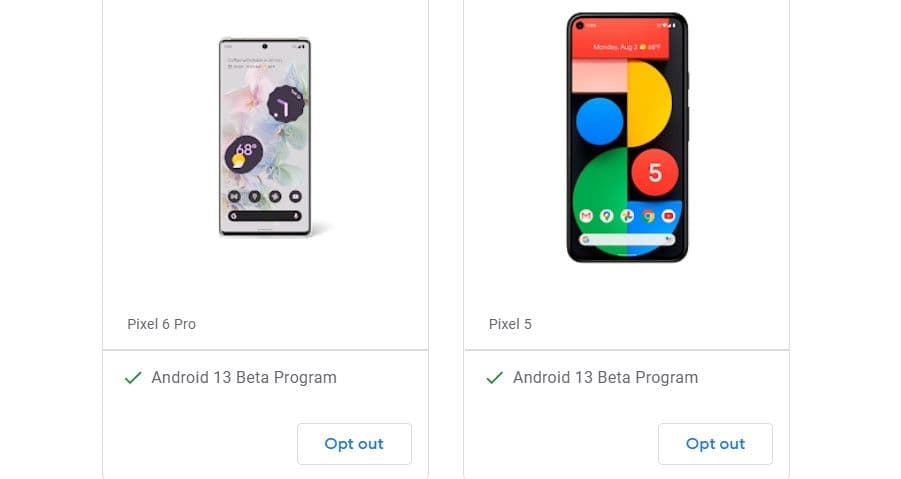
Click the
Opt out
button under the Pixel phone you want to remove from the Android 14 Beta Program. -
Read the
Opt out
message to understand what happens to your device afterward. - If you’re running an Android 14 beta, you get an automatic OTA update that wipes your device. It then installs the latest public build of Android 13 from there. Back up any data before moving on to avoid losing your files or information.
-
Click the
Leave beta
button to remove your Pixel device from the Android 14 Beta Program.
- Restore your device when required, and you’ll be running the stable public version of Android 13 from this point on.
How to manually flash or install the Android 14 Beta
If you don’t want to opt into the beta program, you can manually install the Android 14 Beta. To do so, prepare your computer and your phone. Your phone needs to communicate with your computer using its debugging mode, and your computer requires some extra software to send commands to your phone. After you’ve installed the beta, you will receive OTA updates like you would if you go for the route above. Here are the perquisites and all the steps you need to follow:
Before you begin, make sure you have the following:
- A computer running Linux, macOS, or Windows.
- A supported device for the Android 14 Beta, as listed above.
- A good cable to connect your computer (or phone with USB OTG) to your phone.
Set up Developer options on your phone
-
Enable the developer options by navigating to
System settings
>
About phone
and tapping the build number seven times. -
Navigate to the top level of the system settings and head to
System
>
Developer options.
-
Look for the
USB debugging
toggle and turn it on.
Using the OTA installation route
Install the current release of the
Nexus Tools
by following the instructions in the linked GitHub repository. This automatically installs the necessary ADB developer environment on your computer that allows you to install OTA files from your computer on your Android phone.
Using the Android Flash Tool route
Make sure you have a
supported web browser, such as Google Chrome or Microsoft Edge. The tool relies on
WebUSB
to connect your computer to your phone. It only works with a browser that offers this
feature
.
How to install Android 14 Beta using OTA files
Installing Android betas or developer previews using OTA files is generally the safest and easiest manual method, as it requires the least tinkering. Google offers the Android 14 OTA files on its Android Developers website, and the process is straightforward when you know your way around the terminal on your computer.
-
Download the Android 14 Beta for your device from
the Android Developers website
. - Connect your Android phone with your computer using a USB cable.
-
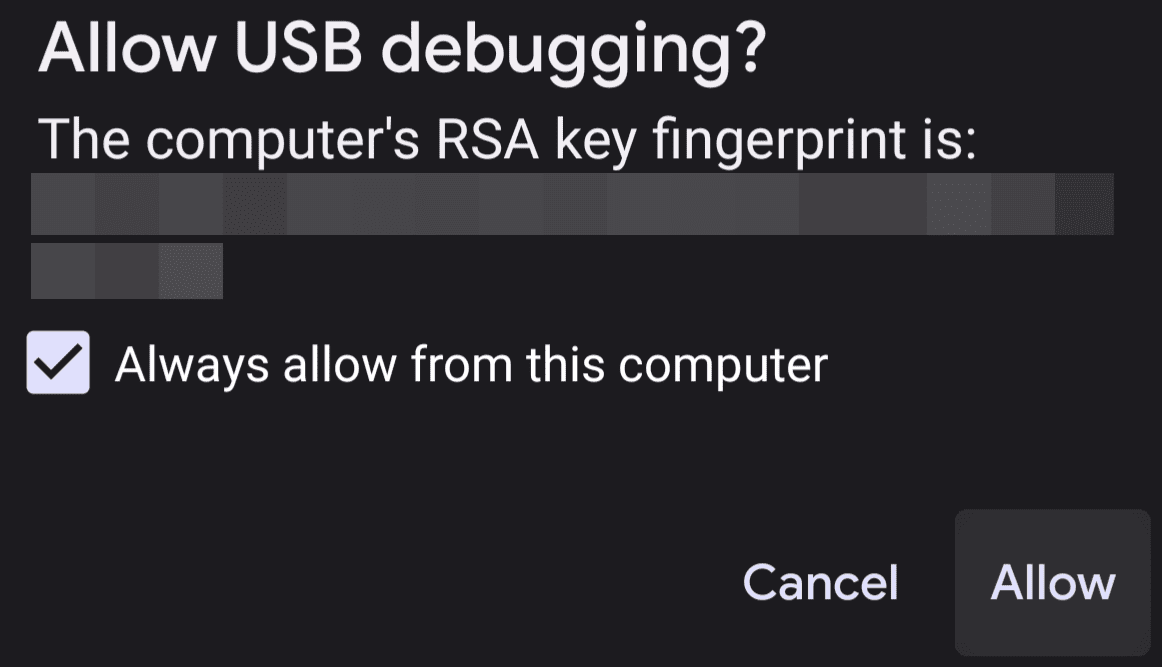
Authorize the USB debugging connection via the prompt that appears on your phone, and tick the
Always allow
checkbox.
-
On your computer, open the terminal and enter the following command:
adb reboot recovery
-
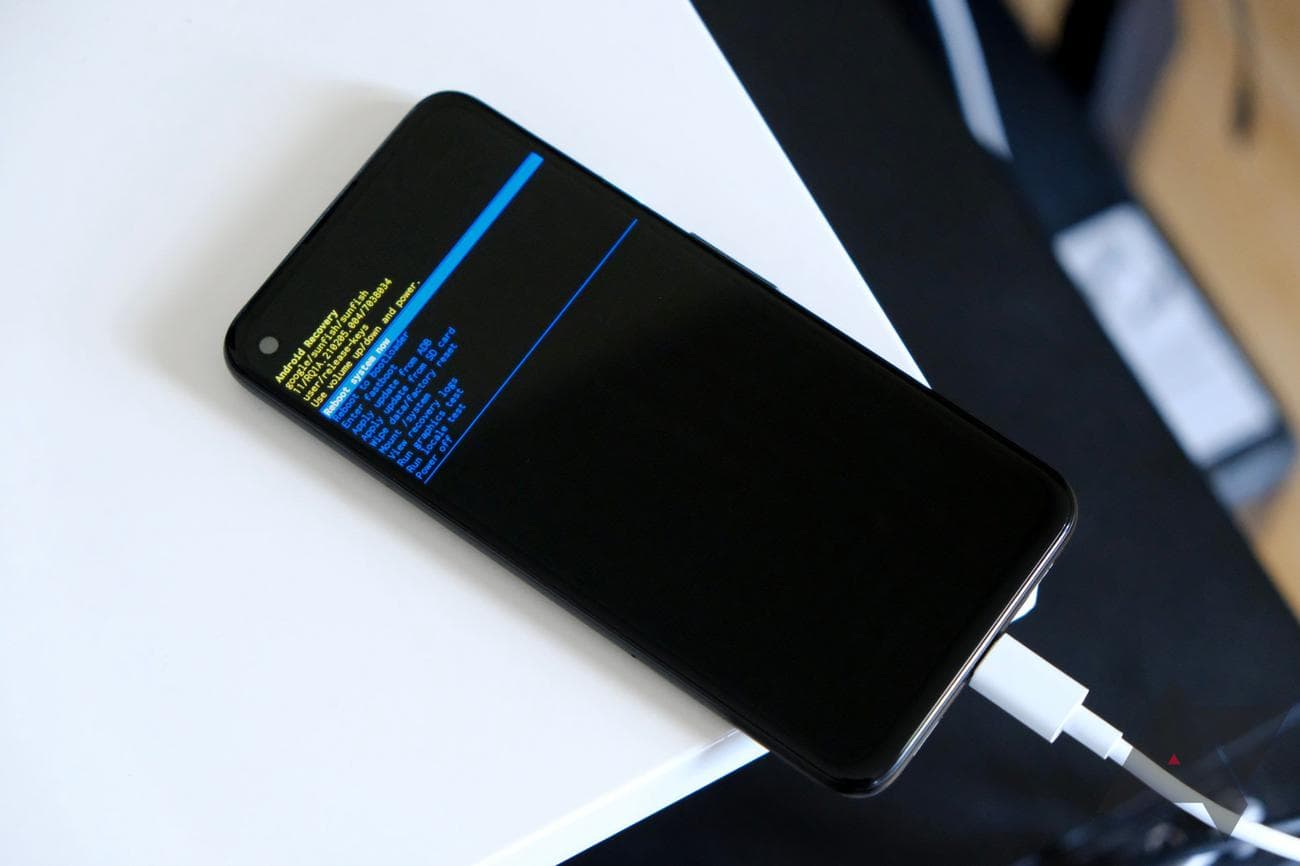
Your phone shows a screen with “No command” written on it. To ensure your phone is still properly connected, type or paste the following command and then press
Enter
:adb devices
- If your phone is connected correctly, this shows your device’s ID with “sideload” written next to it. This means your phone is ready to receive and install the OTA file you previously downloaded.
-
Enter the following command to install the OTA update, but replace
ota_file.zip
with the file that you downloaded in step 1:adb sideload ota_file.zip
You may have to include the full path, such as
C:UsersYourUserNameDownloadscheetah_beta-ota-upp1.230113.009-aac77d25.zip.
Next, wait for your phone and your computer to do their magic, and you’ll have the latest version of Android up and running on your phone.
How to install Android 14 Beta with the Android Flash Tool
Google has also made the Android 14 Beta available through the Android Flash Tool, which makes the manual installation process simple since you won’t need any tools for the installation. The tool has built-in steps and tips to guide you through the process, but we’ll go over the steps here to show you what it looks like. To install the latest Android 14 Beta using the Android Flash Tool, follow these steps:
If opting out of the beta program doesn’t work for you, you can use the same installation method below to install the stable version of Android 13 on eligible Pixel smartphones if you want to return. Instead of selecting the Android 14 Beta, you should look for the latest public builds and use that instead. Choosing which version to install is the only difference here. The rest of the instructions below are identical.
- Plug your Google Pixel into a USB port on your computer.
-
Visit the official
Android Flash Tool
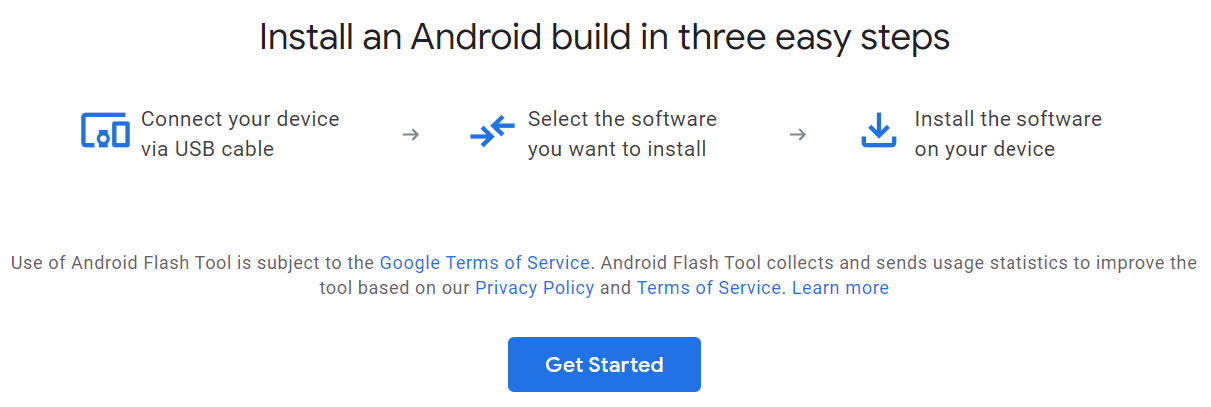
website on your computer and click the
Get Started
button.
-
Tap
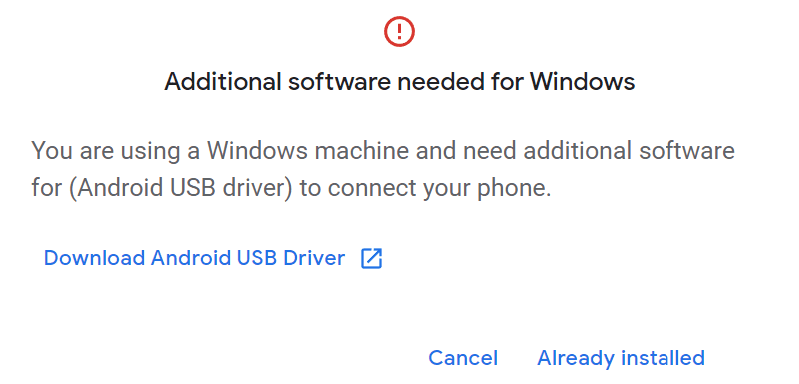
Download Android USB Driver
and follow the instructions if needed; otherwise, press
Already installed
to continue.
-
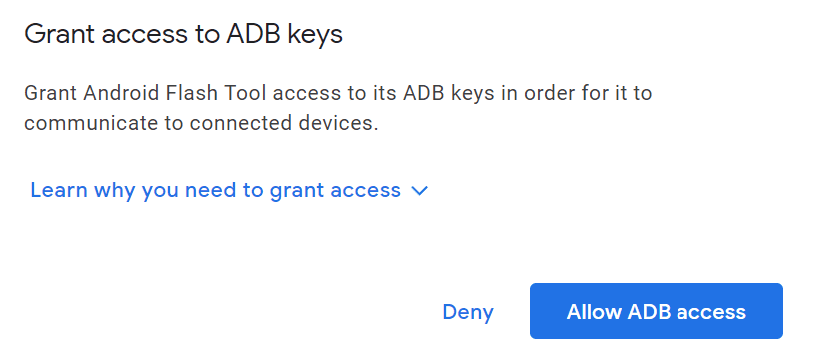
Click the
Allow ADB access
button so your computer and phone can share information bi-directionally.
-
On your Pixel phone, confirm the connection to your computer in the prompt by tapping
Allow
when required. You should also check the
Always allow
checkbox. -
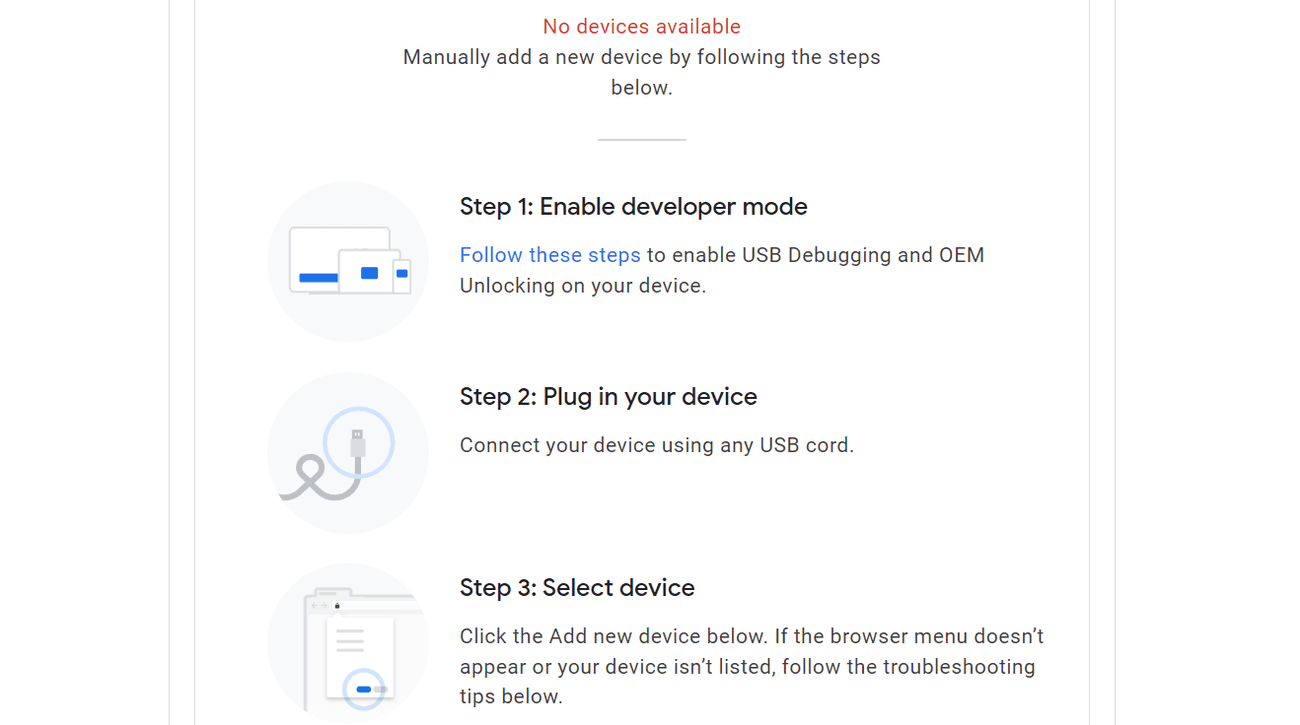
If you get the
No devices available
message on the Flash Tool, follow the on-screen steps to prepare your device for the installation. It also shows the
No devices available
message even if your device was prepared earlier. This is normal the first time around since you don’t have any Pixel devices set up with the tool.
-
Select the
Add new device
button once your device has been properly prepared. -
Select your Pixel in the menu popup, then click the
Connect
button.
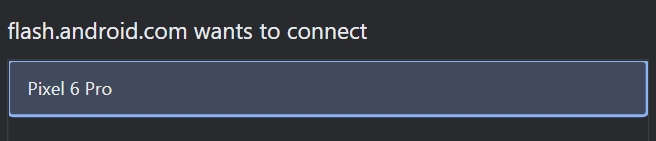
Now that your Pixel phone is connected to your computer, you can search for the specific build you want to install in the Android Flash Tool. You’ll find the Android 14 Beta under the
Popular builds
section.
Click the latest version to go to the overview screen for that build. If you want to install the latest public release for Android 13, select the
Back to Public
option, which installs the latest non-beta version of Android 13. By default, installing a preview build factory resets your device, relocks the bootloader, and replaces your previous system files with the new ones.
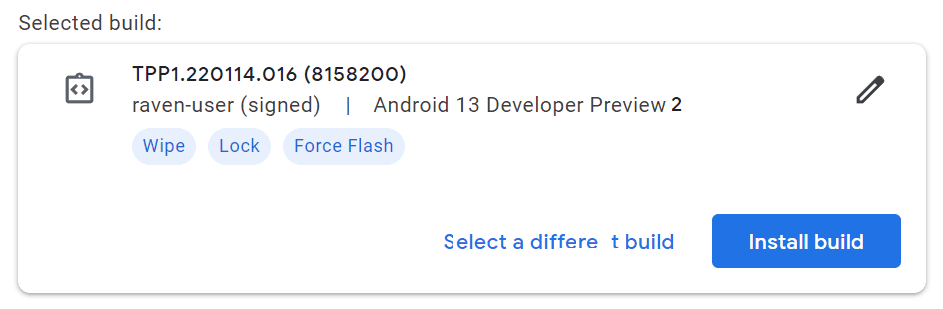
This is fine for most users, but you can also change these settings by pressing the
pencil icon
on the right. Hovering over the question mark for each option explains what it does, so you can disable or enable any of them as needed.
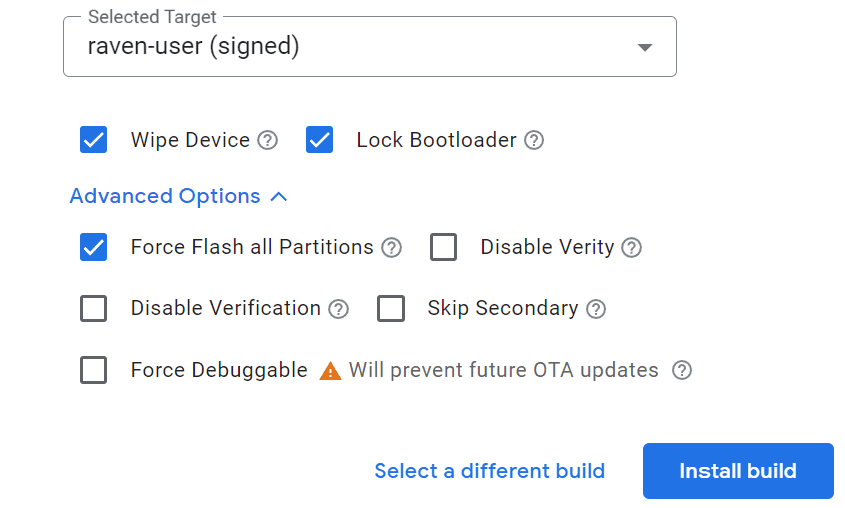
Once you’ve made your selections and are ready to install the Android 14 Beta, press the
Install build
button to begin the process. It takes some time to complete, so be patient while it works its magic. Once the installation is finished, your phone automatically reboots and brings you to the Pixel welcome screen. Once you complete the initial setup, you’re ready to test the shiny new preview build for Android 14.
We recommend the Android Flash Tool as the next best method. This is helpful for most users with its straightforward automated approach that requires minimal effort.
You can stay on Android 14 if you want or revert to stable Android 13 as needed
Once the Android 14 beta is installed, future releases are delivered like regular monthly updates, making it even easier to stay up to date. If you want to switch back to the stable Android 13 build, reverting to an older version of Android is a relatively simple process. However, you will lose all your data, so back up your files and apps so that you won’t lose anything.
To learn more about Android 14 in detail, check out the complete list of changes and features in our ultimate Android 14 guide.