The top 12 TIkTok problems and how to solve them
Related Posts
TikTok is the home of addictive and viral short videos. If you’ve yet succumb to its short-form videos, take a second to check out our TikTok guide to learn about the app. One of the things that makes the platform special is its For You Feed (FYF) shows you content you’d most likely enjoy, creating a personalized experience. It’s part of what glues people to their phones. But while you’re burning through its vast video library, TikTok uses your phone storage to store caches. The more they accumulate, the more they impact the app’s performance. You’ll experience crashes, lag, or audio problems more frequently.
Sometimes, a pesky app bug may be responsible for these malfunctions, or it could be that a server is down. Whatever the problem, following some basic troubleshooting steps should be enough to resolve it. If the app misbehaves, we identified the most reported TikTok issues and how to fix them on your Android tablets, phones, and
Apple
devices.
The 12 most commonly reported TikTok issues
TikTok relies on an internet connection for most of its operation, so you need a strong Wi-Fi reception to run it smoothly. A weak signal can cause the app to lag, crash, or corrupt the videos you upload. At the same time, junk files or faulty hardware can contribute to a malfunctioning app.
You could contact the TikTok support team to fix these problems, but they no longer have a live chat. Instead, they have a Help Center with article resources to help you learn more and navigate the platform easily. If you don’t have the time to go through all of them, use the list below to identify the issue you’re facing:
-
TikTok refuses to open
: When you tap the app icon, TikTok attempts to launch, then closes immediately. -
TikTok crashes
: This crash can happen while you’re running the app. Features or buttons become unresponsive, and you may see a pop-up message that “TikTok keeps stopping.” You can view the app info, close it, or send feedback about the crash to its developers. -
No internet connection error
:
TikTok displays a message at the top of your screen saying, “No internet connection. Connect to the internet and try again.” You can’t watch, upload, or interact with videos and most features until you resolve it. -
Duet sound doesn’t record
: TikTok mutes your video’s sound when you make a duet. This issue happens regardless of whether you’re using headphones or your device’s inbuilt mic. -
TikTok lags
: The app’s speed becomes slow, and normal processes that take seconds to do become longer. -
Videos aren’t saving
: When you download a video, it reaches 100% but doesn’t appear in your phone’s gallery. Other times, the download button is not visible. -
Likes and comments are invisible
: Every
feature
on the TikTok app appears to work, except you can’t see the likes and comments on all posts. -
Messages are blank
: The Inbox menu becomes blank, so you can’t view or send texts. -
Engagement drops significantly
: This issue is more evident to content creators with many followers. You’ll notice that engagement on your account is not as much as it usually is. -
Too many attempts. Try again later
: The error occurs when you log in to your account and fail with each attempt. TikTok only lets you try five times. -
Video quality reduces after uploading
: The image and sound are normal when you record a video. After posting it, the quality drops drastically. -
Beautify effect won’t remove
: By default, TikTok beautifies your face with contour, teeth whitening, and other makeup effects. This issue isn’t technical but can be annoying if you hate appearance alterations without your permission.
Once you’ve identified your TikTok issue, use the following steps to troubleshoot it.
Close or force stop TikTok
If you close
apps
on your phone, all their foreground processes end, such as notifications and videos playing while you had them open. This solution works if TikTok crashes or lags frequently. If you can’t get the app to open, force stop it.
Force stopping an app causes your device to end its foreground and background activity. The background activities include updates and ads that download or run even when you’ve closed the app or switched to another one. The process should cut off TikTok from the caches it stored on your device, resetting it to normalcy. However, you may lose unsent messages or video recordings in progress.
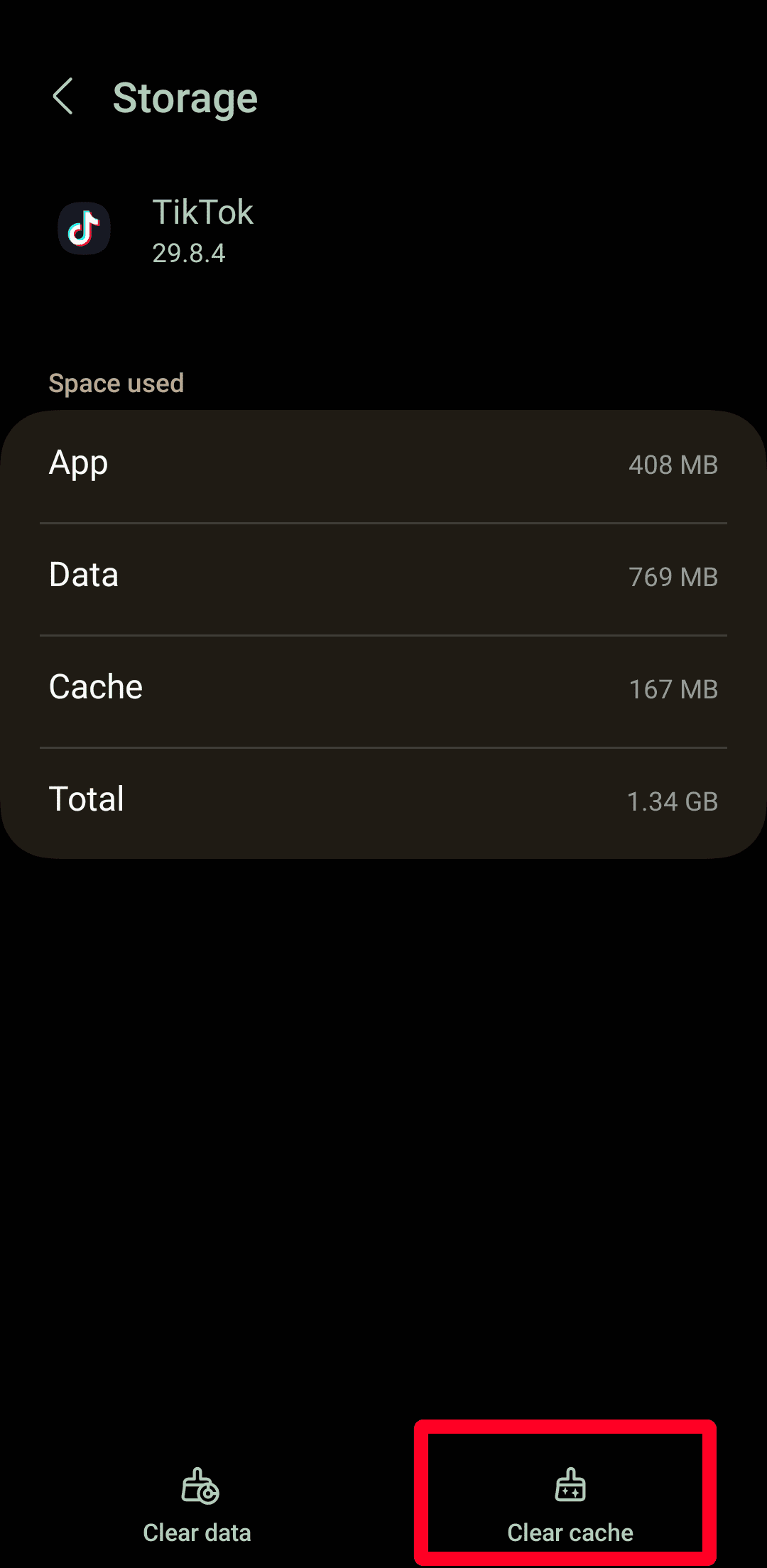
Clear cache and data
Caches are files that applications store on your device when you interact with them. This data allows them to load faster every time and allows you to access some content offline. When you watch a video on TikTok, the app records the activity and stores it in your device’s memory. The more videos you watch, the more storage caches consume, causing the app to freeze, glitch, or crash more frequently when it’s full.
Also, caches can become corrupt when they’re outdated. You should clear them to free storage and resolve any TikTok issues. Clearing an app’s cache is different from wiping the data. When you clear data, you’re erasing the cache and saved user information, as well as settings. This data isn’t gone permanently, and you can retrieve it when you log in to the app.
Check your internet connection
A weak network signal can impact your experience on TikTok. To refresh the connection, turn mobile data or airplane mode on and off. If you’re sharing your Wi-Fi connection with multiple people, it’s worth considering removing their devices until you’re done using the app. If that’s not possible, switch to a different network or use another device as a hotspot.
As a last resort, reset your network settings if the connection doesn’t improve. This solution causes you to lose all Wi-Fi, mobile data, and Bluetooth configurations. Should the problem persist, it may be that TikTok is down. You can check the platform’s uptime status with
Downdetector
. The website tells you how many people reported outages for applications within a day and the most common issues.
Use a VPN
Following the ban in many countries, you can’t use TikTok if you’re in an affected location. Use a VPN to hide your real-time whereabouts and IP address so that you can connect with TikTok’s servers where they work. You may be tempted to get a free one, but it’s not a safe option. Most VPN developers make money from running ads and selling user data (even though their Terms of Service may claim otherwise).
On the other hand, VPNs with subscriptions offer more security guarantees. Since you’re giving them your money to protect your online presence, they don’t share your data with third parties without your consent. If you’re not sure which one is best for you, we reviewed the best VPNs for your phone and computer.
Request videos from creators
TikTok has a feature that lets content creators turn off the download option for their videos. Once the block is active, the button is grayed out and you can’t save anything they post. For users under the age of 16 or private accounts, TikTok automatically disables downloads. Private accounts can remedy this issue by reverting to public mode, but the younger ones cannot remove the block for any reason.
So the problem is not you. It’s TikTok. There’s nothing you can do about it unless you slide into the creators’ DMs and ask them nicely to share the videos. If you want those videos, use a third-party downloader app. However, it’s not a solution we advise you to take because of privacy and security concerns.
While we can’t control what you do with your time on the internet, it’s important to stress the dangers of third-party downloader apps. All TikTok videos are subject to copyright laws, and using any other means to download them crosses a fine line into infringement. Before you download any videos, ensure you have the right to use them.
Log in to your TikTok account
When you use TikTok in a web browser without signing in, you can’t bookmark or like videos and view comments. You can see the comments on the mobile app, but you can’t like or bookmark videos. If you don’t have a TikTok account, create one in minutes. However, if you’re signed in and still can’t interact with posts, log out and enter your account again.
Another possible cause of the issue is keyword filters. Creators can choose words they don’t want to see in their comment section. If you post the comment, TikTok doesn’t display it. Also, you aren’t notified that the filter is active or know which words the creator blocked. You’ll have to use your intuition and remove vulgar words from your comment.
Review TikTok’s guidelines
If the engagement on your account is unusually low, TikTok may have shadowbanned you. A shadowban happens when the app blocks your account without notifying you. Your videos don’t appear on the FYF, hashtag feeds, under TikTok sounds, or in search results. Also, you stop receiving as many likes and comments or new followers as before.
While the argument about shadowbans being a real concept is ongoing, TikTok has stated that their algorithm can affect your visibility if you violate any policies. According to their
Accounts web page
:
Repeatedly posting content that is allowed on our platform but not eligible for the FYF may lead to the account and its content being harder to find in search.
If you’re not sure what you’re doing wrong on TikTok, review its community guidelines and reassess your content strategy to avoid being shadowbanned.
Enable app permissions
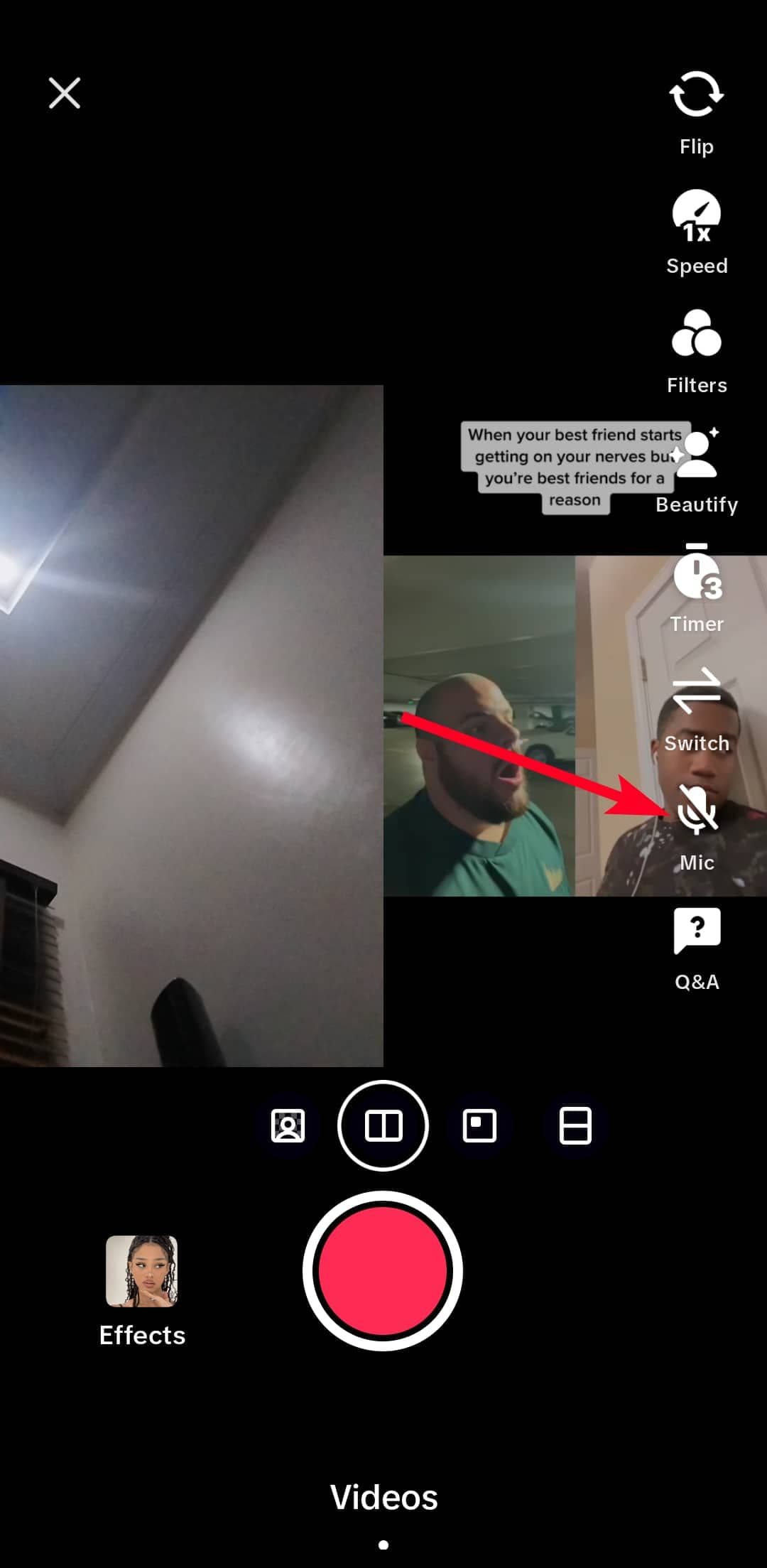
By default, TikTok mutes the microphone when you enter the duet mode. This setting isn’t noticeable right away, so you don’t hear any sound when you record. Ensure to turn it on before you make a recording. Otherwise, you’ll have to redo the whole thing.
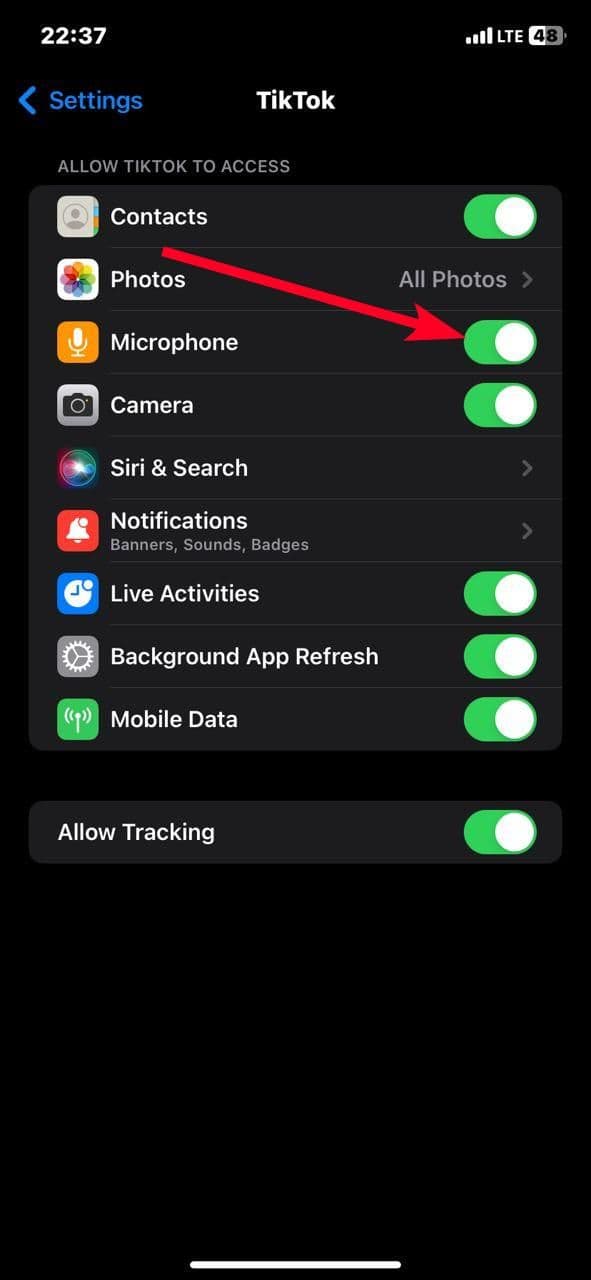
Also, check that TikTok has the permission to use the mic. If you don’t hear any sound on the app, you can correct that with the permission settings. Use the following steps to change the permission settings and turn on your mic on TikTok.
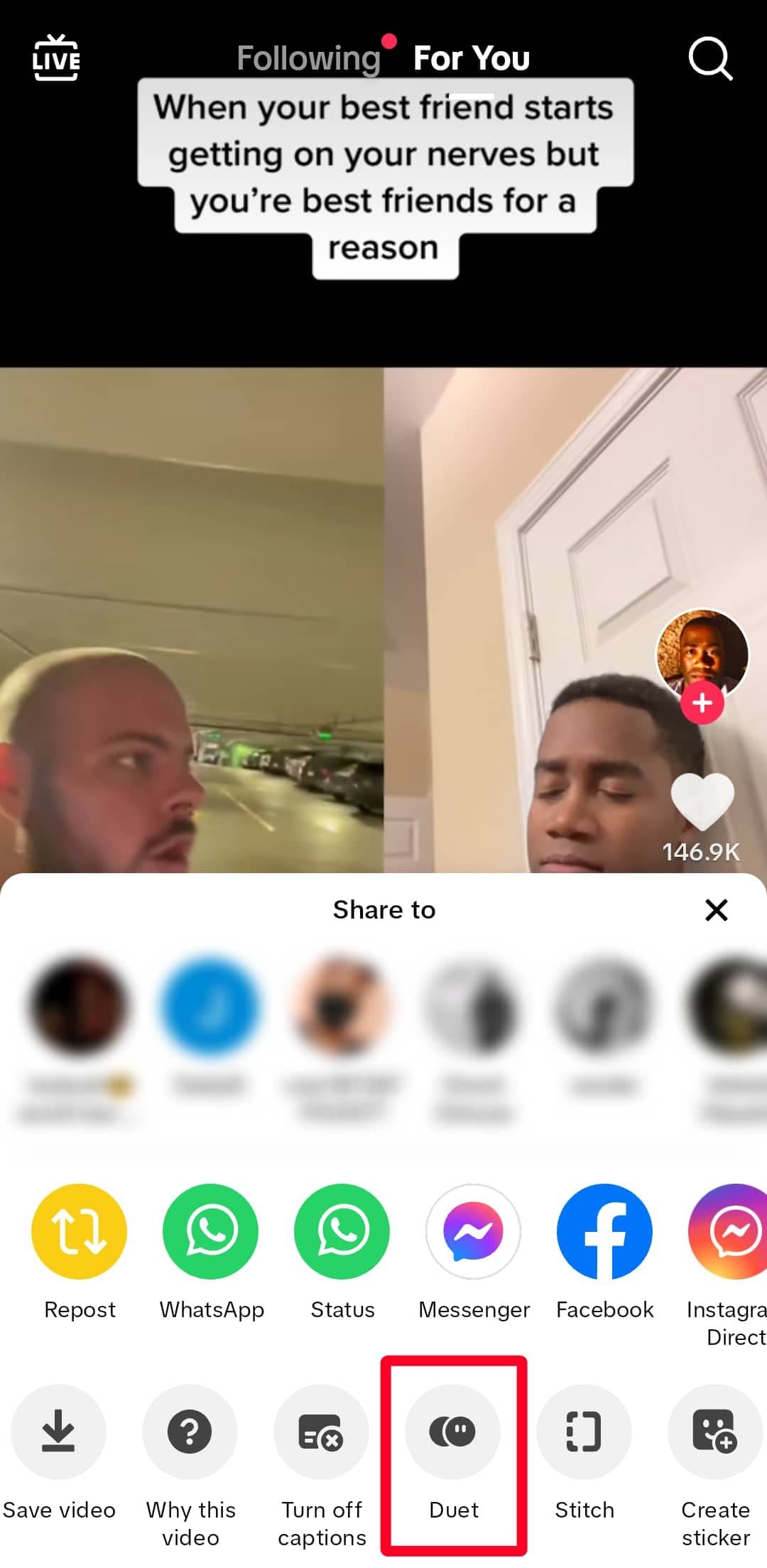
Turn on Duet mic on TikTok
-
Open
TikTok
. -
Tap the
share button
on a video you’d like to duet. -
Select the
Duet
option.

-
Tap the
microphone
on the right side of your screen to enable it.
Change TikTok’s permission settings on Android
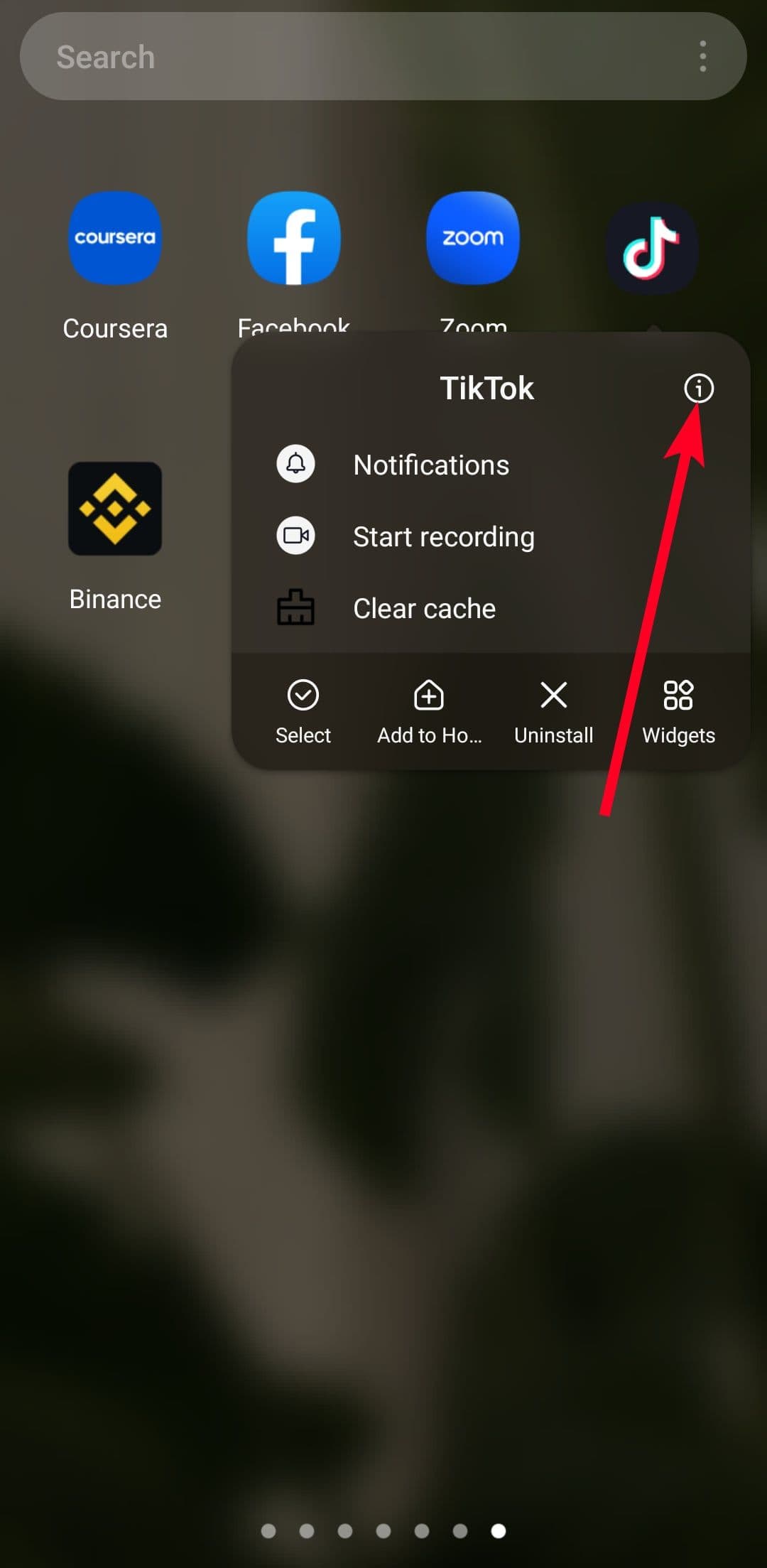
- From your app menu, long-press TikTok.
-
Tap the
app info icon
. -
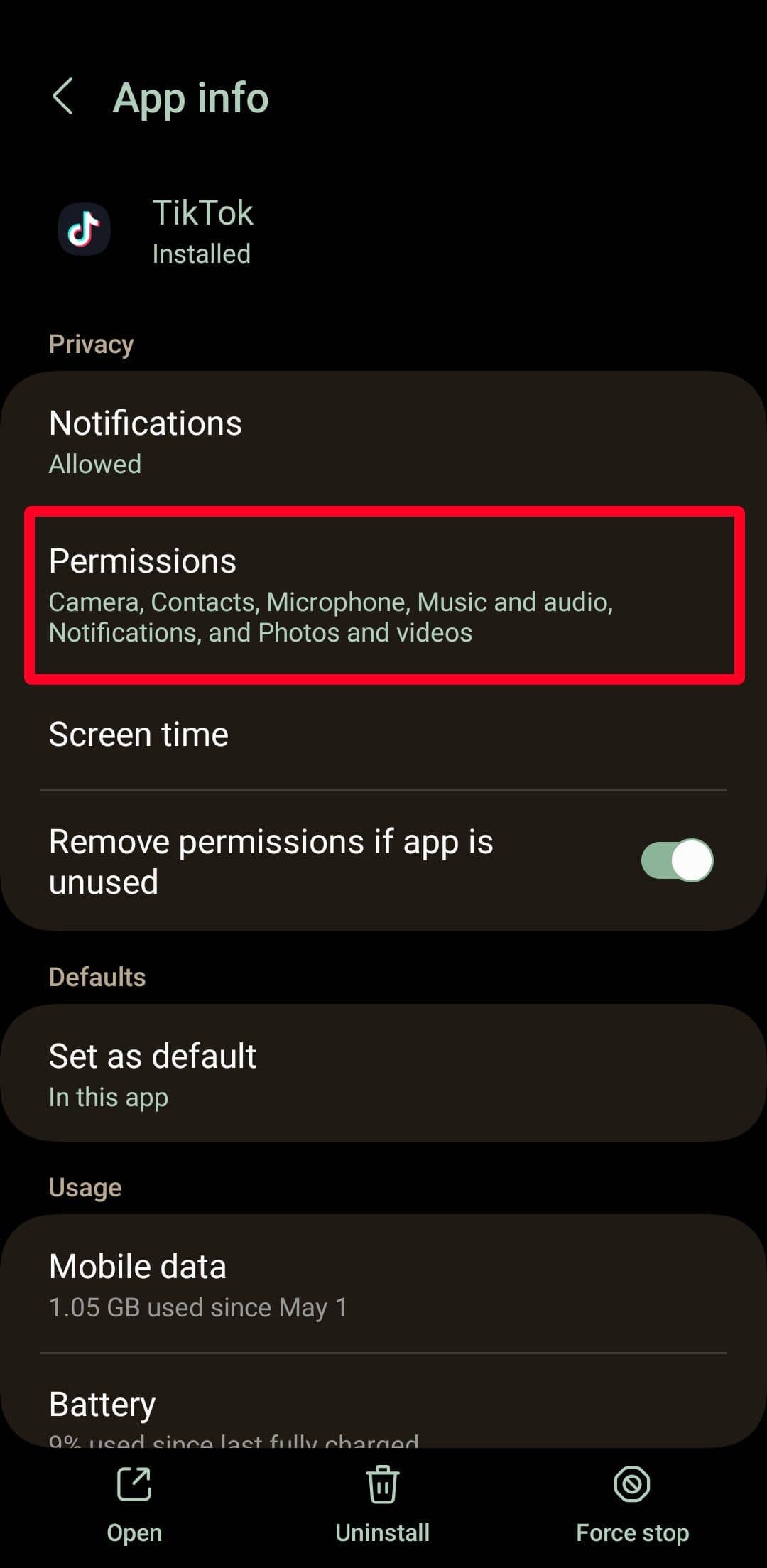
Tap
Permissions
.
-
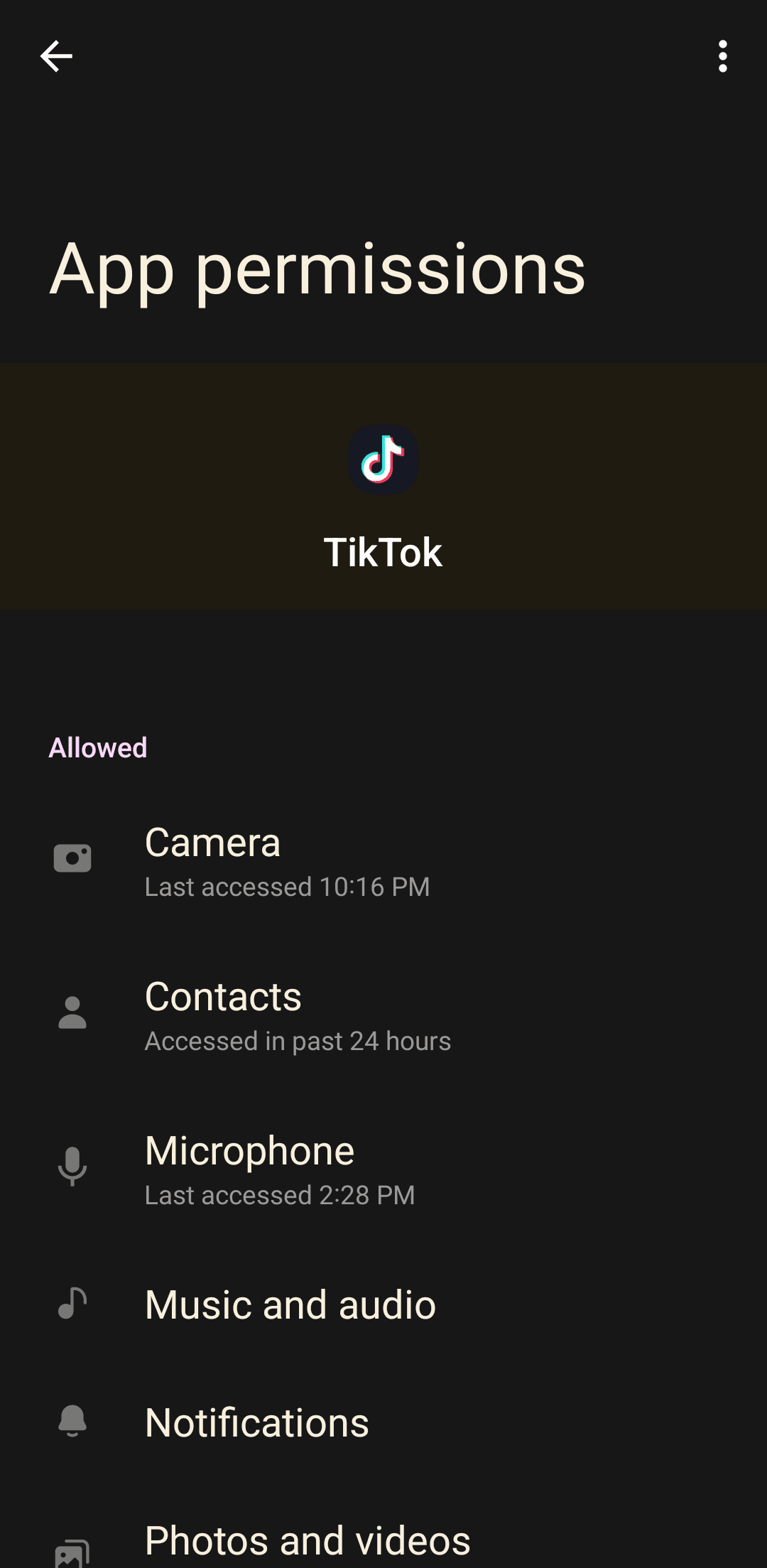
To make your voice recordings audible, select
Microphone
. Then tap
Allow only while using the app
. -
To make all sounds on the app audible, select
Music and audio
. Then select
Allow
.
Change TikTok’s permission settings on iOS
-
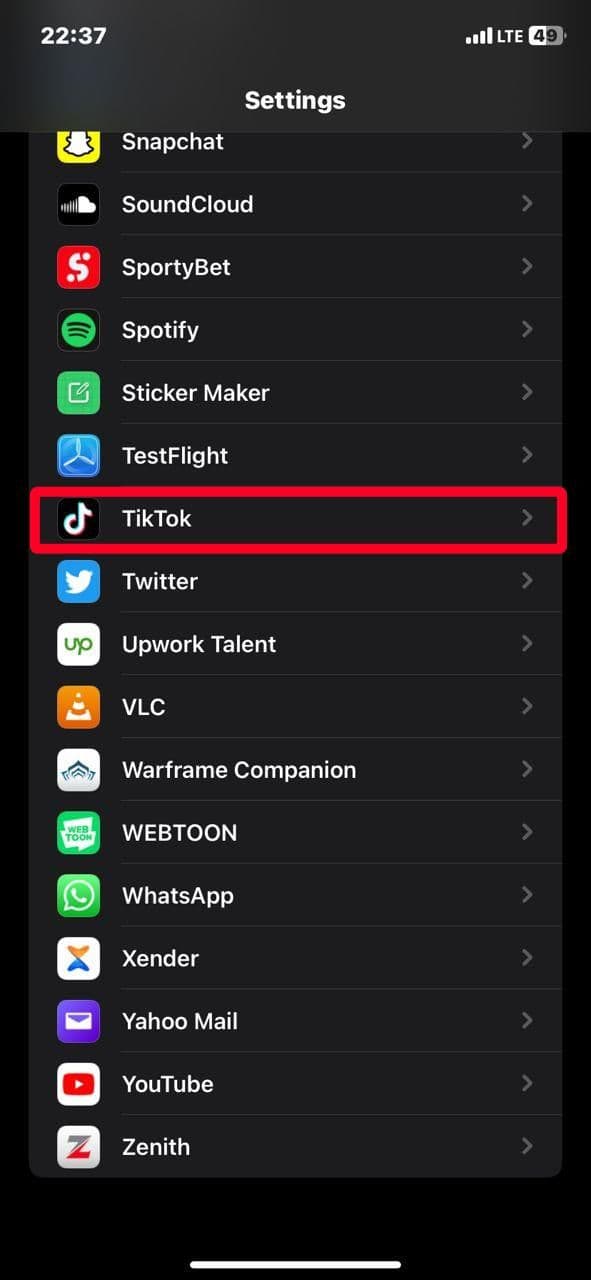
Go to
Settings
>
TikTok
. -
Ensure the
toggle switch
beside
Microphone
is turned on.
Remove filters
By default, TikTok applies a beauty enhancement effect to your face when you open the camera. Some people like it because it smoothens and brightens their appearances mildly, compared to others on the app that go overboard. Other people dislike it as it’s still a false representation of what they look like.
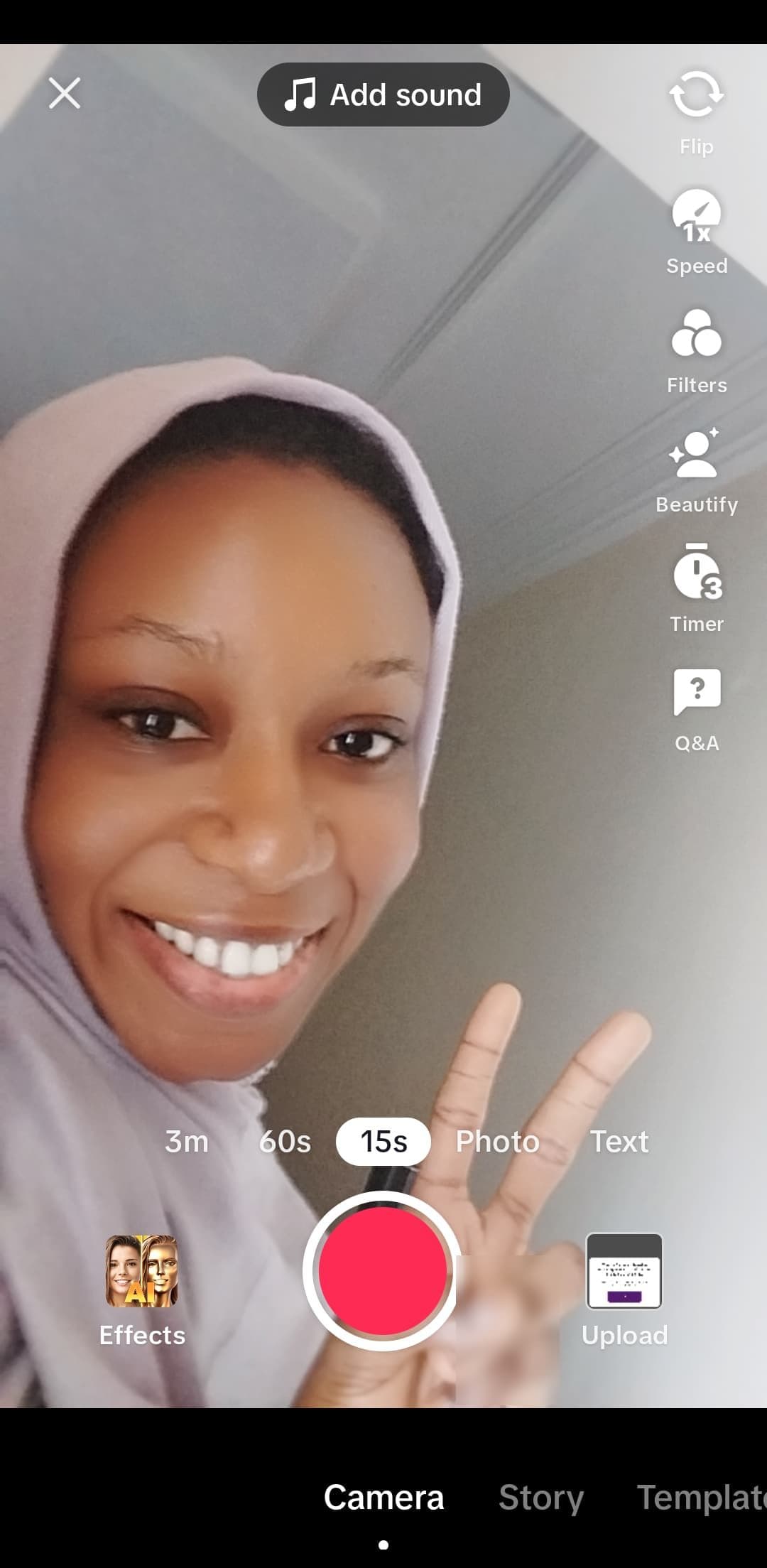
Beautify effect applied on female subject
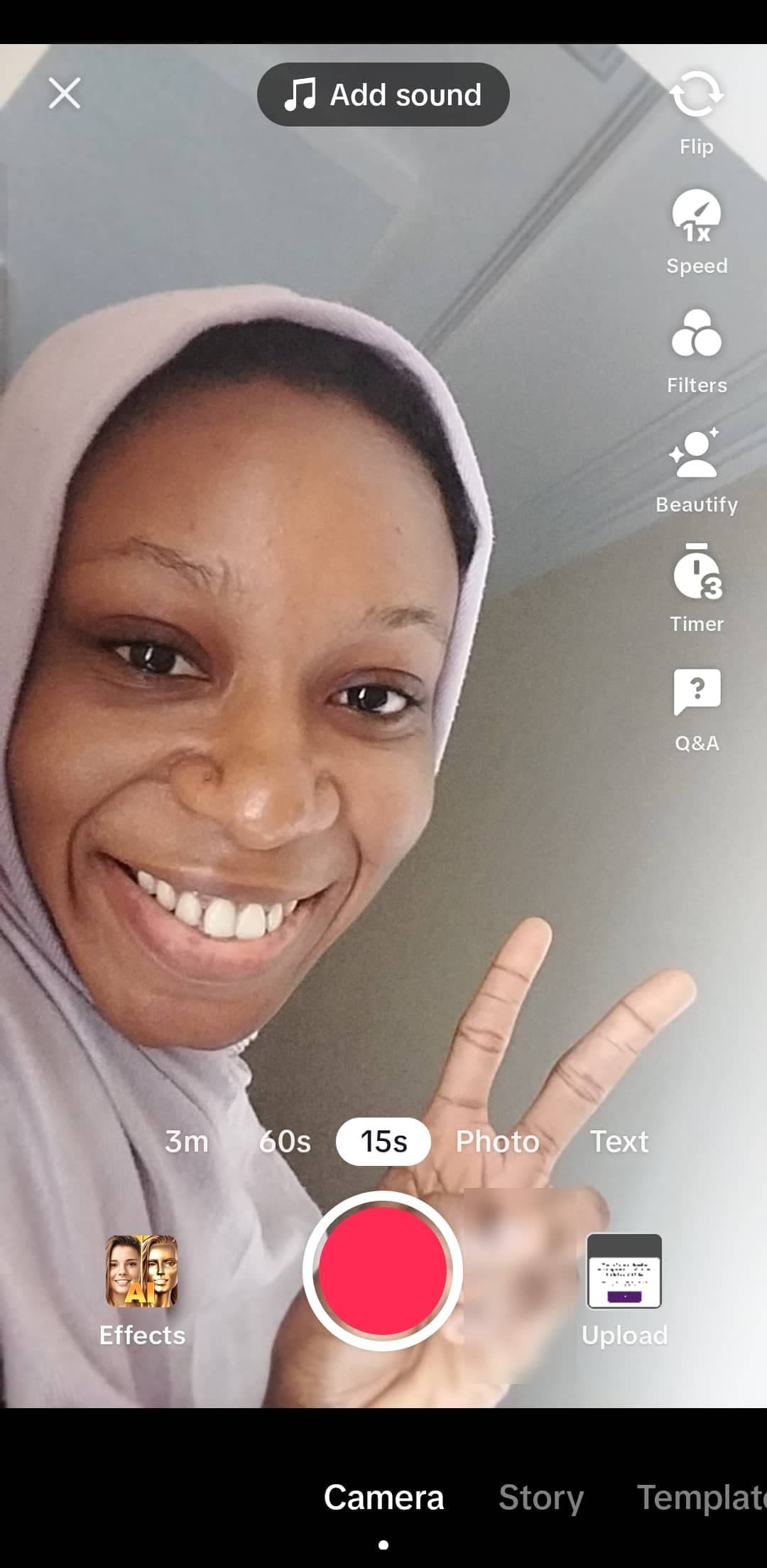
Female subject without Beautify effect
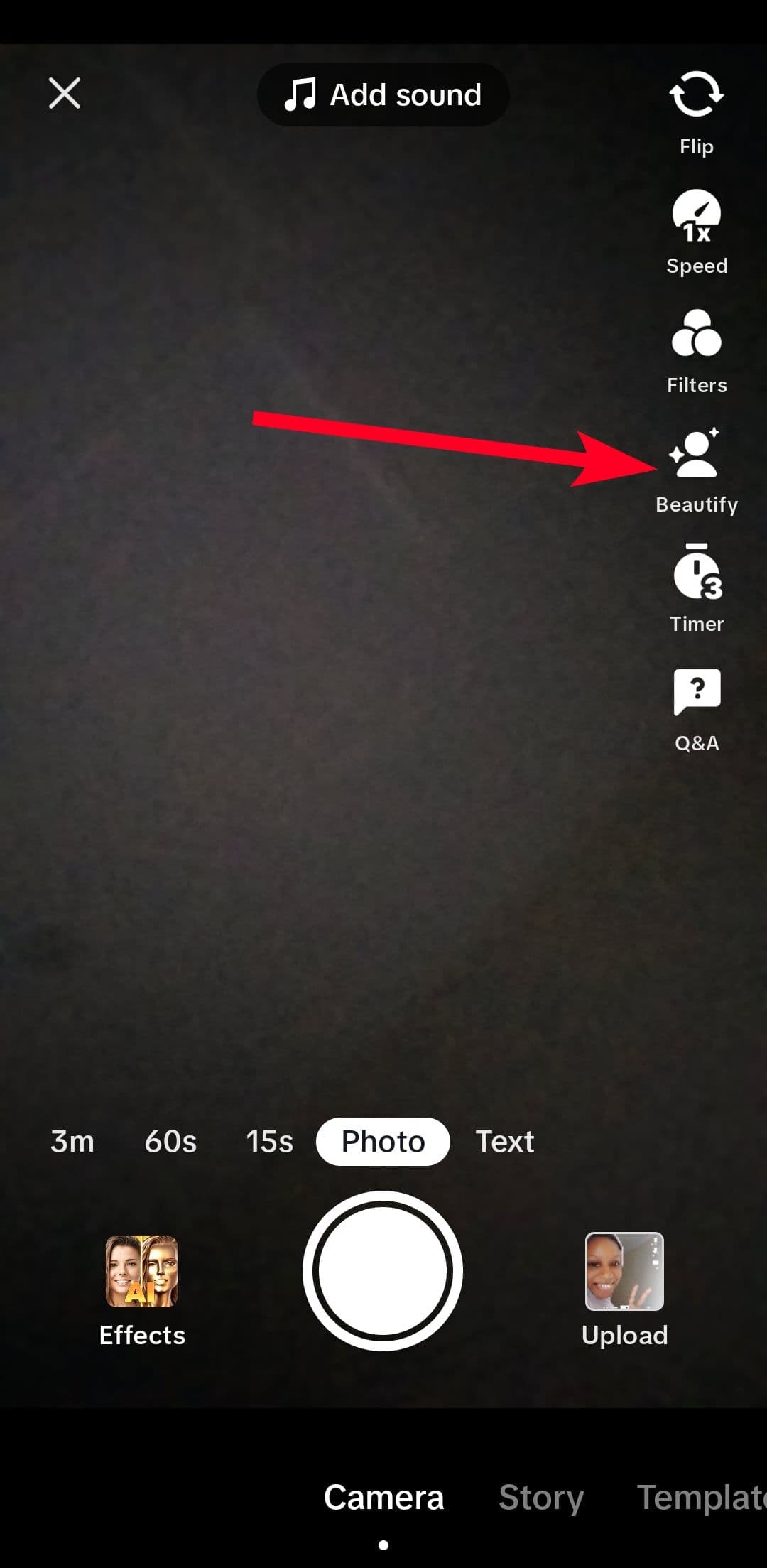
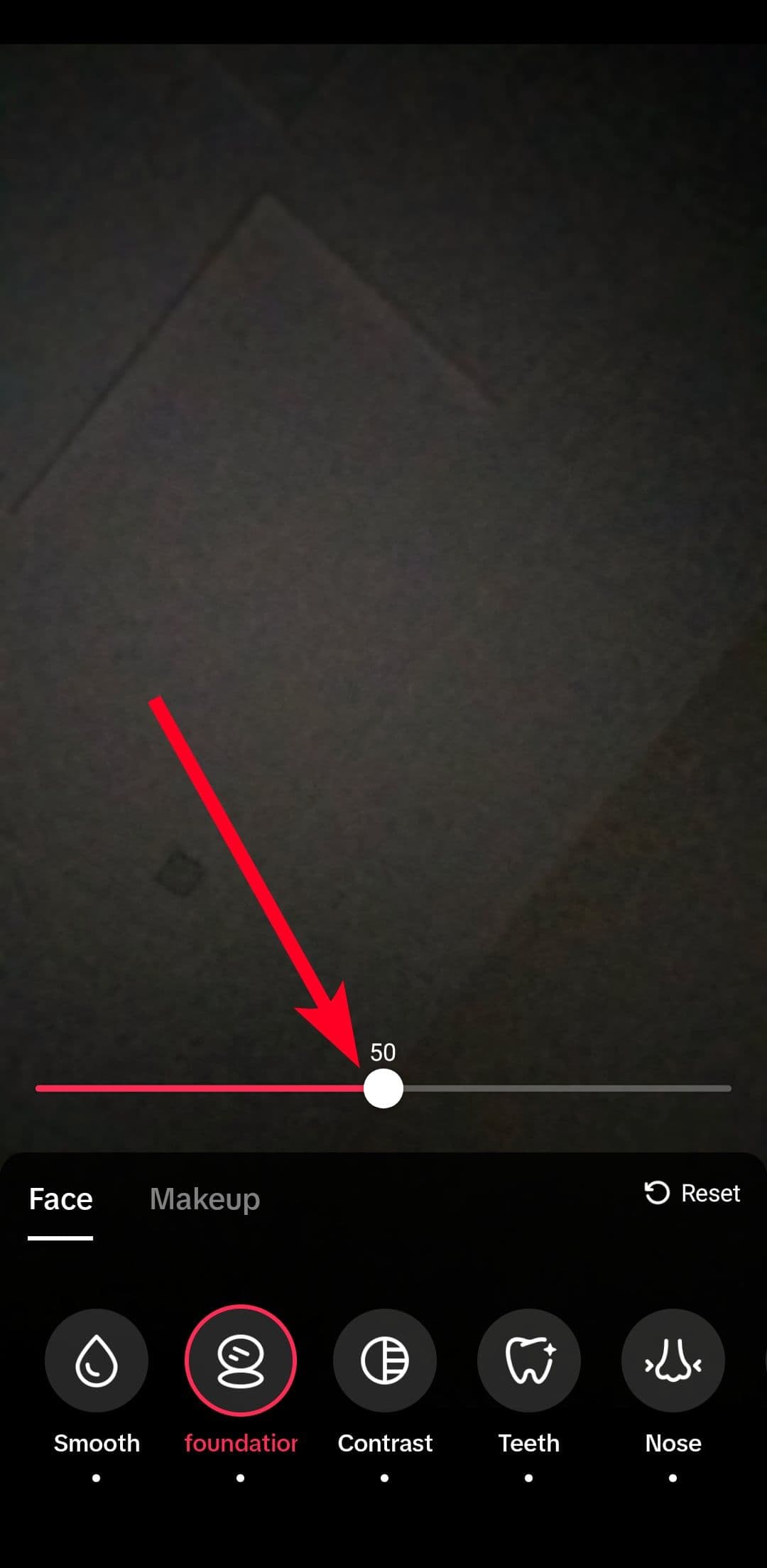
If you decide the effect is not for you, you can turn it off. Doing so may be tricky at first because it isn’t in the same tab as the other effects or filters. Use the following steps to get rid of it:
-
Open
TikTok
. -
Tap
Beautify
on the right side of your screen. - Select a beauty category and reduce its setting to zero (0). Repeat this step for every other category.
-
You’ll notice the effect disappearing with each setting you eliminate.
Disable the Noise reducer
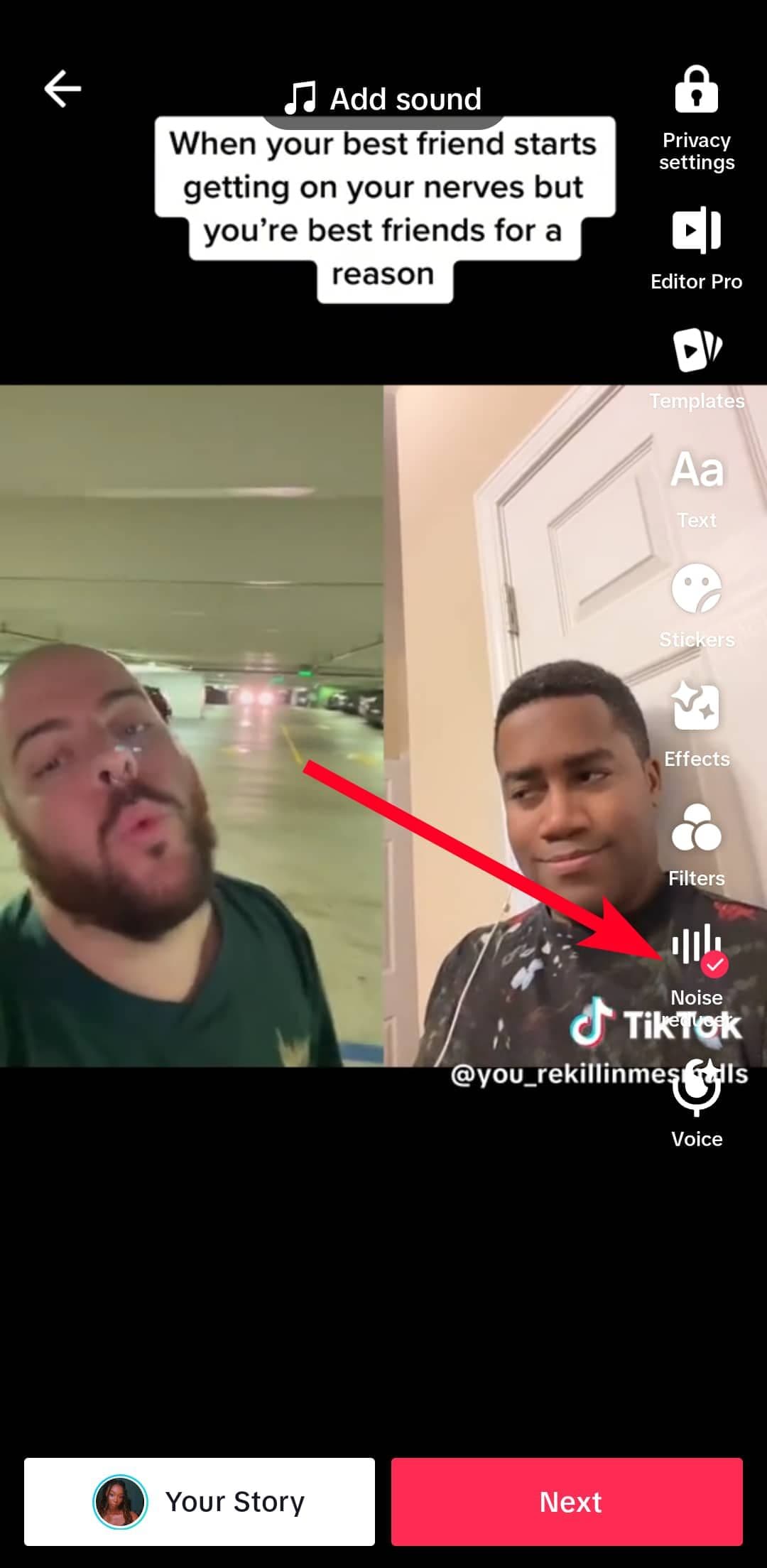
If the audio sounds muffled after uploading a video, turn off the Noise reducer feature the next time you record. The feature helps to eliminate annoying background sounds, but since artificial intelligence (AI) powers it, it can’t always differentiate human voices from noise. Hence, it reduces your vocals along with background sounds.
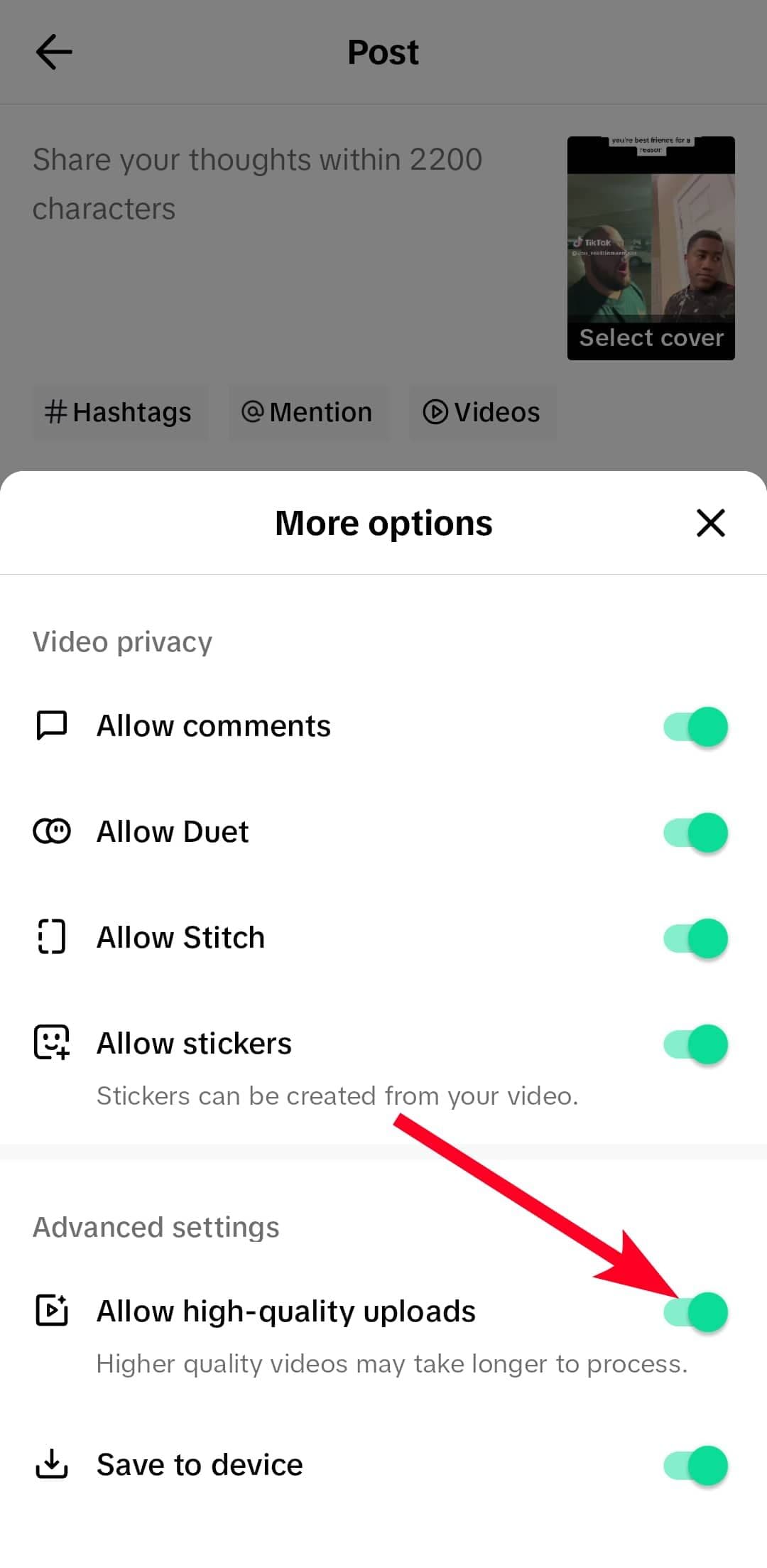
Also, allow high-quality uploads before posting a video. This feature ensures that TikTok doesn’t compress your video too much and preserves its quality. If you enabled data saver in the app’s settings menu, you may want to turn that off too. The feature compresses videos and images to limit how much bandwidth your device consumes when you watch or upload videos.
Use the following steps to adjust these settings on your device.
Disable the Noise reducer on TikTok
-
Open the
TikTok
app. -
Tap
+
to make a post.

- Record a video or upload one from your device’s gallery.
-
Tap
Noise reducer
to turn it off.
Allow high-quality uploads on TikTok
-
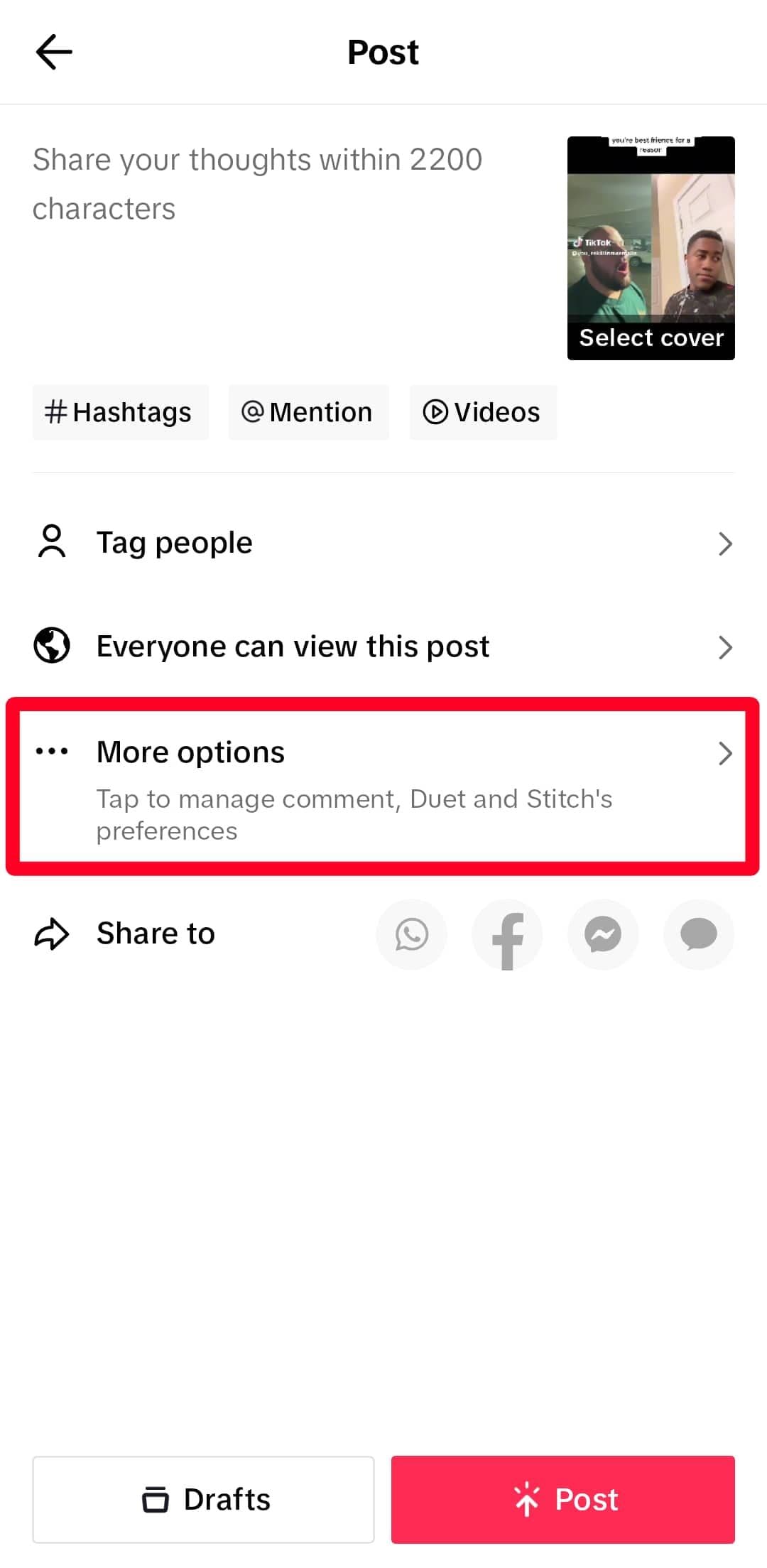
When you record a video with TikTok’s camera, tap
Next
to proceed to the
Post
page. -
Select
More options
. -
Tap the
toggle switch
beside
Allow high-quality uploads
.
Disable the Data saver on TikTok
-
Open
TikTok
. -
Tap
Profile
in the lower-right corner.

-
Tap the
menu icon
in the upper-right corner. -
Select
Settings & Privacy
.

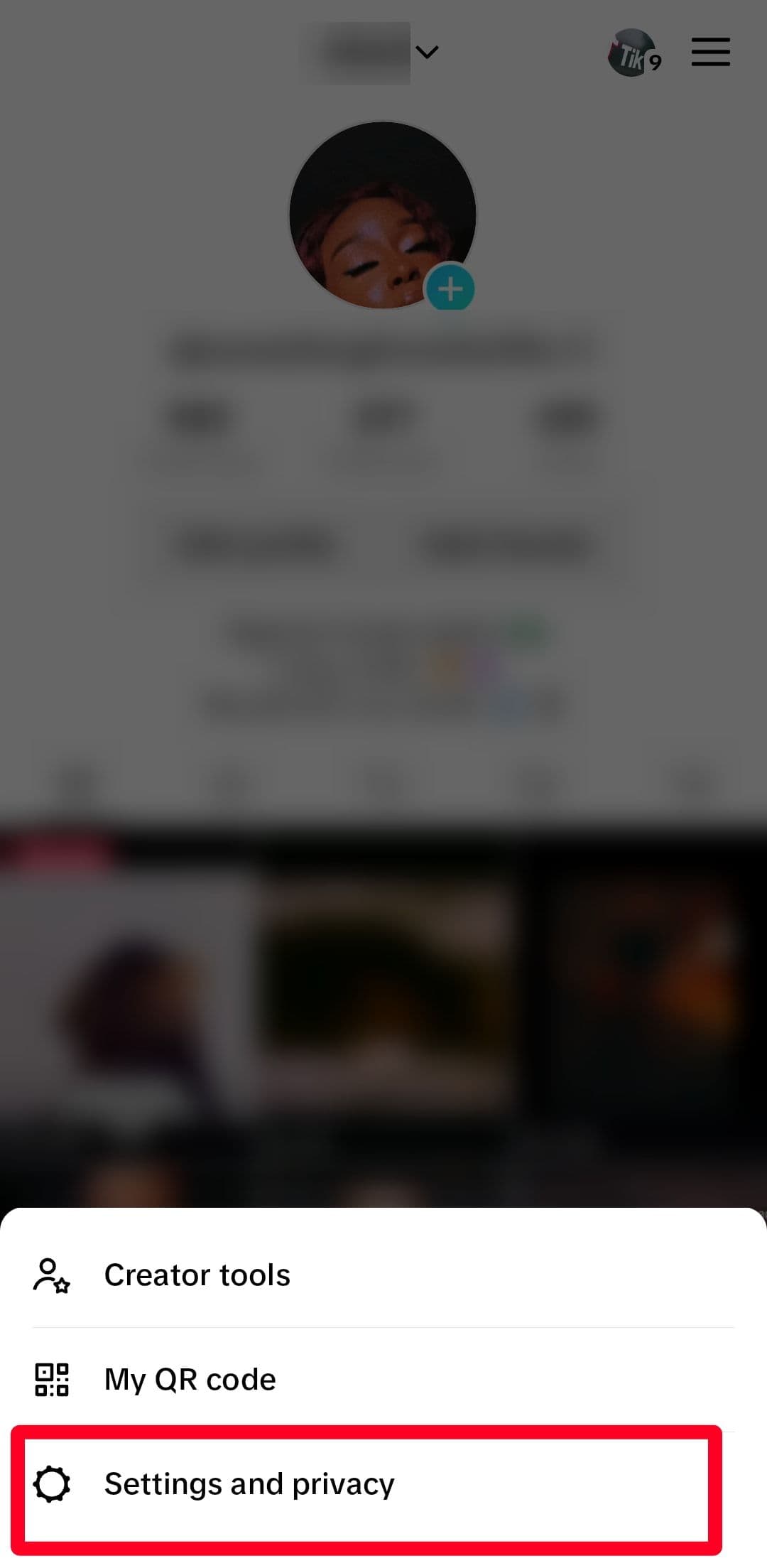
-
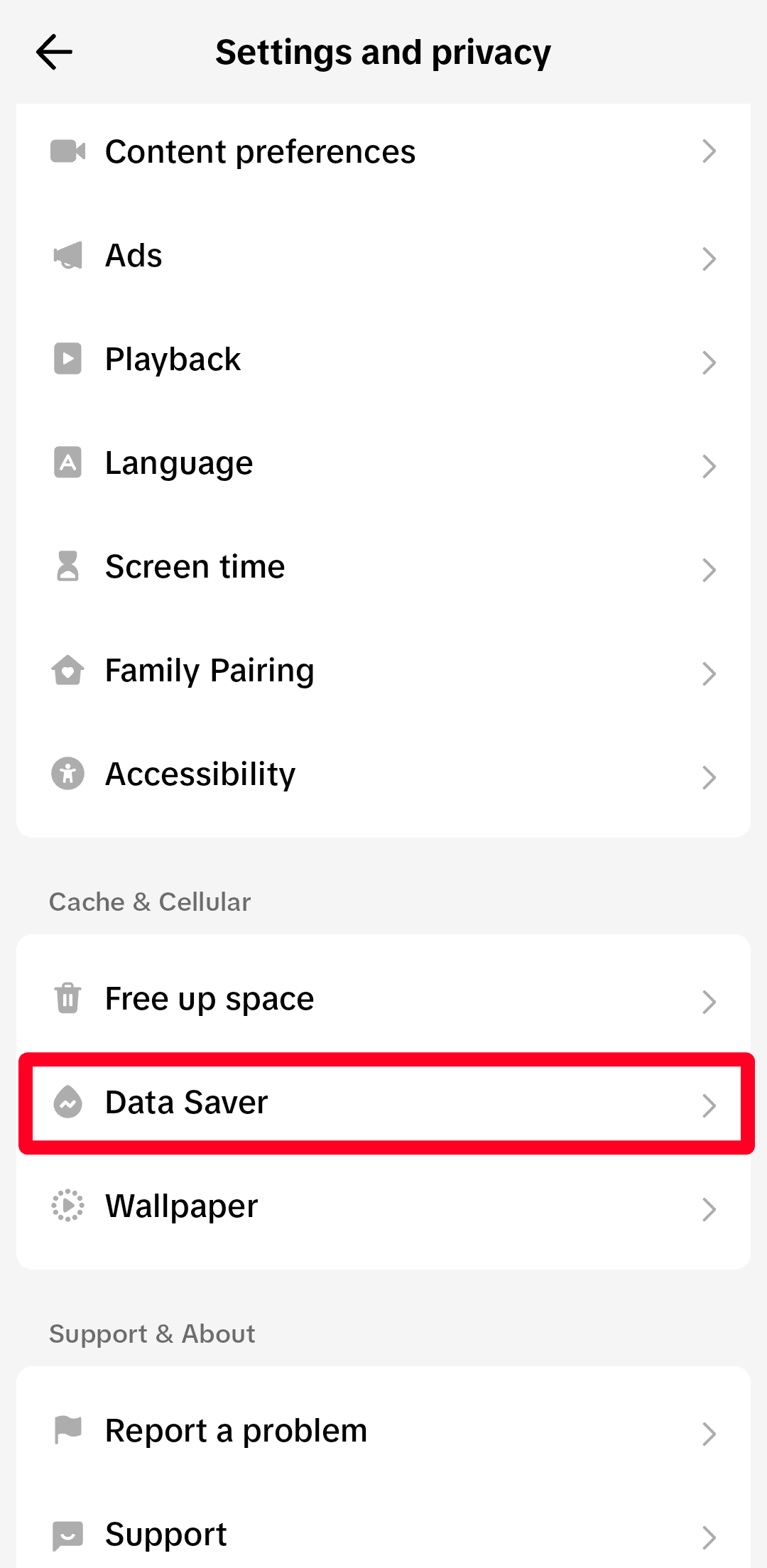
Scroll down and select
Data Saver
. -
Tap the
toggle switch
to deactivate it.
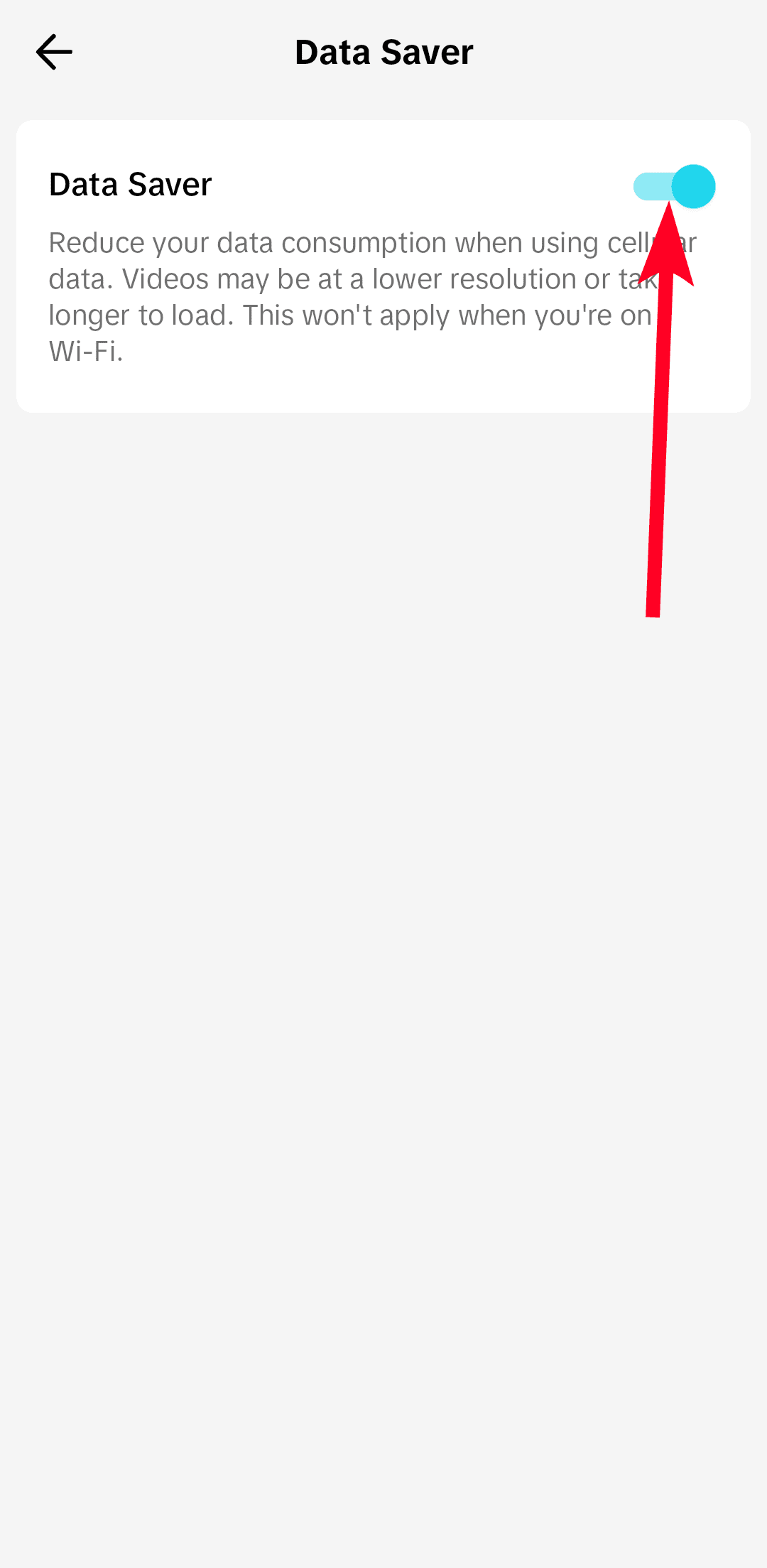
- Restart the app for the changes to take effect.
Update and reinstall TikTok
App Developers release regular updates with security enhancements, new features, and fixes for bugs. It’s a good idea to update TikTok to the latest version to enjoy these perks. You only see these changes instantly when you enable automatic updates in the
Google
Play Store. If that solution doesn’t work, uninstall the app.
When you delete TikTok, your device wipes every bit of its data. This way, you can reinstall and use it as a new app. The wiped data includes caches, permission settings, saved account details, and drafts. If you don’t want to lose your drafts, save them locally before deletion. Once it’s done, download the app again.
Wait for the problem to go away
This solution may sound counterproductive, but it works in certain situations. For example, if you exceed the maximum number of five login attempts, TikTok temporarily bans your IP address, putting you in a timeout.
During that period, you can’t access your account even if you use the website. There’s no precise time when the platform lifts the ban, so check in regularly. If you can’t wait it out, use a VPN or switch your Wi-Fi network to a different one.
TikTok may be more than you bargained for
TikTok is an entertaining platform to grow your presence. But it can be problematic, especially with strict policies keeping you on your toes. Technical issues aside, the app has raised concerns and criticisms regarding its security and privacy practices, leading to a widespread ban in several countries. In the U.S., Montana was the first to lead the train. Taiwan, Australia, and others are gradually following suit. It may be time to look into TikTok alternative apps if you value a safe online presence.