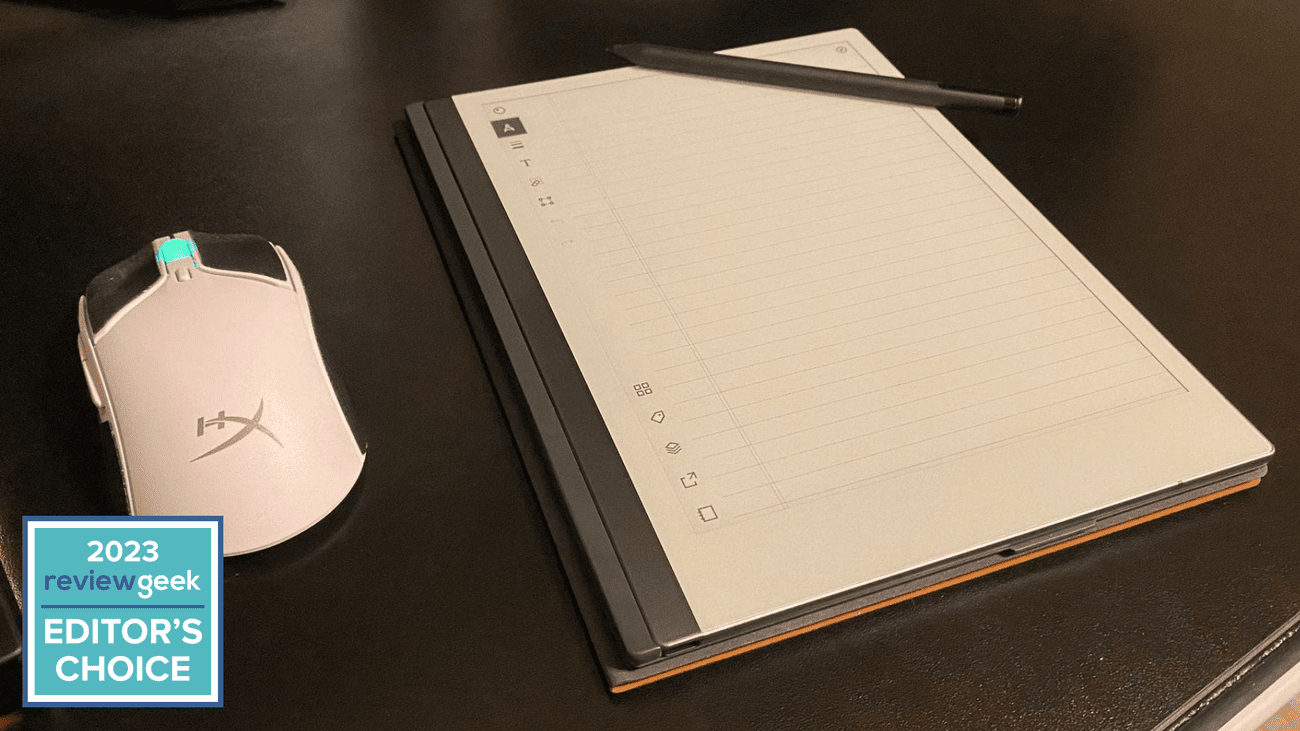
Say Goodbye to Paper Forever – Review Geek
Price:
Starting At
$279
Mark LoProto / Review Geek
The digital notebook is a novel concept intended to make note-taking, idea development, and collaborative efforts more efficient.
reMarkable 2
excels in all of those implementations and more, suffering mostly from occasional screen burning and a lack of backlight.
I’m always looking for new ways to simplify some aspects of my work. Before I started using reMarkable 2, I had notebooks for meeting notes and content ideas, scraps of paper and Post-its for reminders, a pad of paper for my daily schedule, and who knows what else crowding my workspace. I was skeptical that a paper tablet would be a suitable means of condensing everything, but there’s a lot to the simple-looking device, and I’m using it for things I didn’t even consider.
With onboard and cloud storage, an optional keyboard, folder management, email sharing, live presentation screen sharing, and note-to-text conversions, reMarkable 2 is surprisingly versatile. With a backlight, it really could be a “do anything anywhere” piece of hardware in the paper tablet space.
reMarkable 2’s biggest pitfall is that it’s not a device for everyone. There is a very niche audience that will make use of all its features, and even as much as I use it now, it took me a week or so of tinkering to make the most of it. Despite the low monthly cost, having some features locked behind a subscription will definitely sway some users.
Here’s What We Like
- Easy file management
- Screen and email sharing
- Responsive, crystal clear display
- Accurate note-to-text conversion
And What We Don’t
- No backlight
- Occasional screen burning
- Monthly fee for cloud access
Review Geek’s expert reviewers go hands-on with each product we review. We put every piece of hardware through hours of testing in the real world and run them through benchmarks in our lab. We never accept payment to endorse or review a product and never aggregate other people’s reviews. Read more >>
Display: Lightweight and Mostly Easy-to-Read
-
Screen size:
10.3 in (261 mm) -
Dimensions:
7.4 x 9.6 x .19 in (188 x 246 x 4.7 mm) -
Weight:
.89 lb (403.5 g)
Since it doesn’t need a ton of processing power or a fancy graphics chip, reMarkable 2 can achieve a comfortable girth of .19 in (4.8 mm) and a lightweight of .89 lbs (403 g). This makes it the thinnest tablet on the market, but the device never feels cheap or flimsy in your hands. It has a nice solid construction, but, like with most tablets, a case is highly recommended to keep it safe and protected. We’ll get more into accessories a little later, but now’s a good time to point out one of reMarkable 2’s biggest drawbacks.
In a well-lit room, the 10.3-inch (261 mm) screen is very easy to read. The black or gray strokes pop against the paper-white background. It’s when you’re trying to work in the dark that reMarkable 2 becomes virtually unusable. reMarkable decided to go with no backlight option, which is great for battery life but terrible for accessibility. Like a regular pad of paper, if you want to use reMarkable 2 in the dark, you’ll need an external light source. I get the tradeoff, but I work a lot at night, and it would be nice to be able to work wherever and whenever without worrying about having light.
Light Specs, Perfect Performance
-
Storage:
8 GB -
RAM:
1 GB LPDDR3 SDRAM -
Processor:
1.2 GHz dual-core ARM -
Operating system:
Codex (custom Linux-based OS) -
Connection:
Wi-Fi
When you read through the tech specs for reMarkable 2, you may have some concerns. It’s nothing fancy, with only 1GB RAM, 8 GB of memory, and a 1.2 GHz dual-core ARM processor, putting it in line with
Apple
‘s 4th generation iPad that was released in 2012. But it’s important to remember that this isn’t a traditional tablet. You won’t be running
apps
, and those minimal specs are perfect for what reMarkable needed its paper tablet to do.
Is 8 GB of Storage Enough?
We live in an age where a 1TB HDD is barely enough for the average user, so reMarkable 2’s measly 8 GB of unexpandable storage may sound problematic. It’s definitely not, though. The average page of notes will barely break 100 kb, and over time you’re going to be able to purge older pages or download them from your cloud into a PDF, PNG, or SVG file onto your PC.
The Impressive Tools of reMarkable 2

Mark LoProto / Review Geek
There are two ways of using reMarkable 2: the Marker (or
premium Marker Plus
) and the Type Folio keyboard case. As much as I enjoyed typing on the tablet, the pen delivered a smoother performance.
With reMarkable’s Marker (included with reMarkable 2) or Marker Plus (sold separately), it’s as if you’re using a real pen on paper. It writes smoothly and produces a thick digital pen line, unless, of course, you change to one of the seven other preset tips.
Without having to change anything on the Marker itself, you can mimic fine line pen, pencil, and mechanical pencil print or get a little fancier with a marker, paintbrush, calligraphy, or highlighter setting. I really only found use in pen, pencil, and highlighter tips, and I feel some of the other options, like the paintbrush, are superfluous.
The Marker and Marker Plus are essentially the same, though the costlier Plus features a built-in eraser. Rather than having to choose an option from the sidebar menu, you can use the bottom of the Plus as you would a pencil. It’s fairly precise, ensuring you won’t erase entire words if you’re just trying to get rid of a smudge or erroneous line.
When you don’t want to handwrite notes, you can
purchase the Type Folio case
, which both protects your tablet and snaps on a 59-key tactile keyboard. Despite being a bit smaller than your average laptop keyboard, typing on the Type Folio is comfortable, and I didn’t notice a drop in typing speed or accuracy.
Typing had a slight delay at times, mostly when moving to the next line of text or when I went a little too fast on the keys. It doesn’t ruin the experience of using the Type Folio, but I do hope future updates will address this.
Straightforward File and Folder Management
Mark LoProto / Review Geek
When you boot up reMarkable 2, you start right from your file management screen. It’s here where you’ll access individually-created folders, notebooks, and quick sheets, the latter of which serves as a sort of scrap paper for the tablet and aren’t really meant for organized notes. Notebooks are the primary option when creating notes, and where you’ll find a bevy of options to help you organize thoughts, create daily planners, and so much more.
The reMarkable ecosystem features a collection of templates for your notebooks, whether you’re storyboarding a screenplay or creating a checklist of “to-do” items. Some options emulate lined paper while others create a grid or abstract designs for more creative purposes. There’s even a landscaped option for most templates, which is very convenient when using the Type Folio. You can even import PDF templates you create on your desktop into the reMarkable app to use on your tablet, which really expands the abilities of the device.
Creating a folder to store all of your notebooks in is a simple press of a button. Sorting through them is just as easy, with a search option and features for filtering by file type, saving favorites, and creating unique tags. As for accessing folders, notebooks, and sheets, despite the minimal RAM, reMarkble 2 handles it all very well. I can tap on a folder, and in less than ¾ of a second, it opens to my list of sheets and notebooks.
Surprisingly
Feature
-Rich
Mark LoProto / Review Geek
reMarkable 2 gives you a lot to experiment with and explore, from different line weights for the Marker to layers so you can better arrange thoughts and ideas. Some of the tablet’s more useful functions include converting an entire page of handwritten notes into text and directly sending a page to any email. Unfortunately, the conversion process won’t work on a page of mixed handwriting and text, and any illegible handwriting will either be lost or converted improperly.
Despite not having the neatest handwriting, reMarkable 2 picked up on most of what I wrote. In the rare instance there was an issue, I could undo it, fix the problem word or letter, and restart the conversion.
reMarkable 2 really enhances efficiency and the user experience by featuring the ability to screen share to the
reMarkable desktop app
and share ideas across the mobile companion app (available on
iPhone
and
Android
). It’s not just a static image of your notebook, either. If you start writing on your tablet, it will near-instantly show on the app’s display. If you’re frequently putting together presentations or meetings, there is definitely value to screen sharing, which can be done over different Wi-Fi networks.
Yet Another Subscription Service
As a subscriber to
reMarkable’s Connect service
, which costs $2.99/month, you also get access to unlimited cloud storage. The low-cost subscription also includes a protection plan and the ability to take notes on mobile and desktop and have everything update on your reMarkable 2. The thought of adding another subscription can be daunting, so it’s worth noting the paper tablet is fully functional without it.
Battery: Long-Lasting and Reliable
reMarkable 2 does a lot for being a paper tablet, but its battery never takes a big hit. The tablet is marketed as having a two-week life off a full charge, and it does come pretty close to that. Screen sharing, converting often, and using the Type Folio will chip away at the battery a little quicker, but I did still get more than a week out of a full charge. And being charged off a USB-C cable, it takes no time to get back to 100%.
Should You Buy the reMarkable 2?
I love what was accomplished with the
reMarkable 2 paper tablet
, but I also recognize it’s not a device for everyone. Because of its minimal processing power, it’s not a replacement for a standard tablet, and there are apps that do much of what reMarkable 2 does in terms of jotting down notes and sharing presentations. However, seeing as how it was designed specifically for notetaking and sharing, the paper tablet is a little more efficient than apps like Evernote and Apple’s Notes.
The relatively low price point, even if you add the $2.99 monthly subscription, makes it a great companion for writers, project managers, storyboard artists, musicians, and so much more. As a writer and public relations manager, I’m constantly turning to reMarkable 2 to create scope-of-work lists, build meeting agendas, and take quick notes about a new product I’m testing. It’s everything a regular notebook can’t be with the added benefit of being incredibly thin.
If you’re constantly taking notes, throwing out scraps of paper with reminders on them, using a variety of tools to organize projects, or have notebooks full of ideas, it may be time to switch to a paper tablet that can simplify your life and condense all of that into one spot. Coupled with the reMarkable app, the things you can do with reMarkable 2 feel limitless. Unless you need something in color or want to work at night. The black-and-white display does limit some of what you can do, especially since reMarkable opted for no backlight, making it virtually impossible to work without external light.
Easy-to-manage folders, premade templates and the option to import PDFs to work on, screen sharing, and note-to-text conversion all enhance the digital notebook experience, giving you plenty to work within a thin, lightweight package.
Price:
Starting At
$279
Here’s What We Like
- Easy file management
- Screen and email sharing
- Responsive, crystal clear display
- Accurate note-to-text conversion
And What We Don’t
- No backlight
- Occasional screen burning
- Monthly fee for cloud access