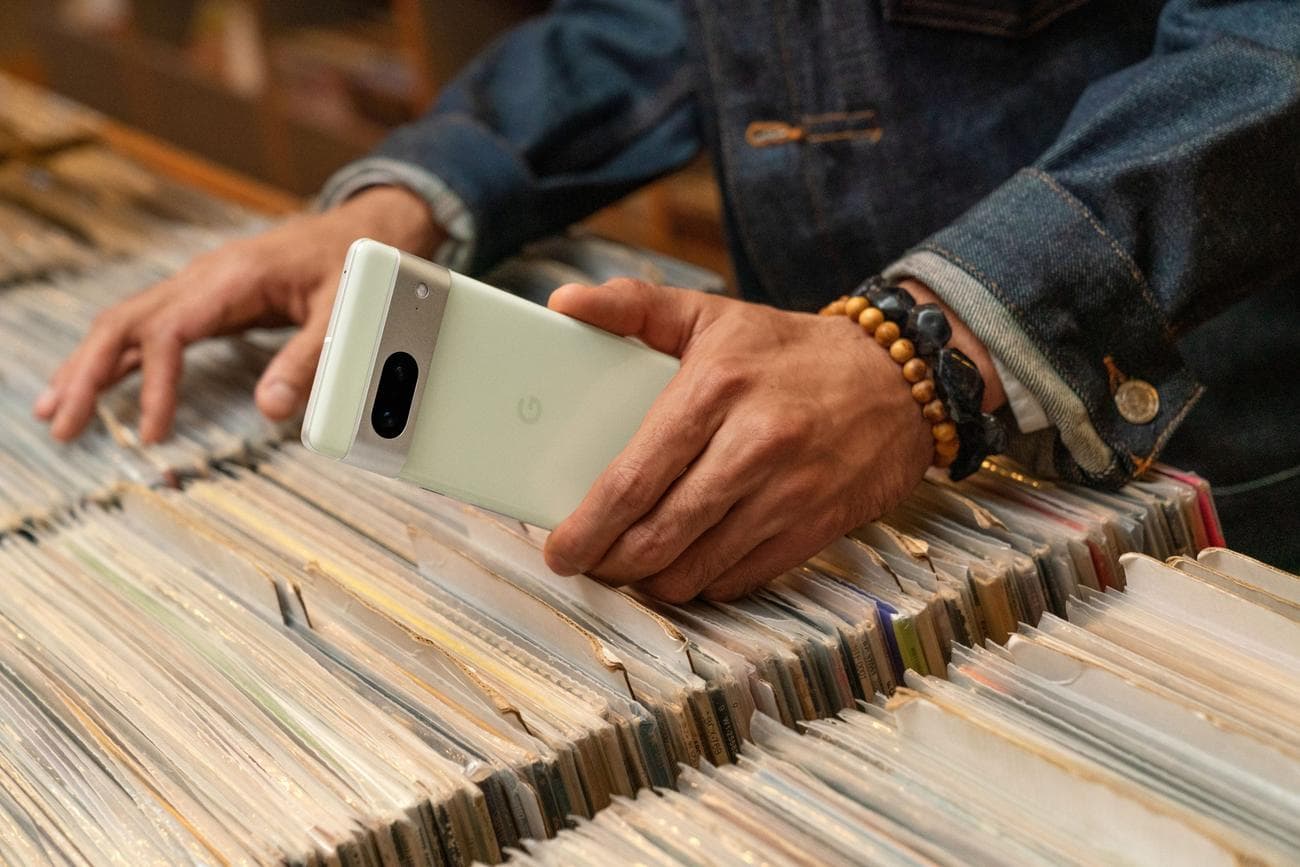
Top 7 Google Pixel 7 tips and tricks you should try today
There are a lot of Android phones available, but
Google
‘s Pixel phones have been perennial contenders for our favorite Android phones. The
Google Pixel
7 series of phones continues this trend with the premium Pixel 7 Pro, the mid-range Pixel 7, and the budget Pixel 7a. Pixel phones’ standout features are their stellar camera and useful software, making for one of the best Android experiences. Here are seven tips and tricks for the Pixel 7, whether you recently got your phone or are a long-term user looking to maximize your experience.
1
Personalize your phone with Material You
With Android 12, Google introduced Material You theming to its Pixel phones. Material You takes colors from your wallpaper and applies those colors to many facets of the system and app UIs. You can access the Material You theming menu by long pressing on your homescreen and selecting
Wallpaper & style
.
You can customize your phone’s coloring by choosing different color palettes based on colors pulled from your current wallpaper. There’s also an option if you’d rather have a single, solid color. After selecting a theme, this color palette is applied to the settings menus and some
apps
throughout your device. Not all apps work with Material You, but many do, including most Google apps.
Google also includes an option called
themed icons
, which gives the app icons on your homescreen the Material You treatment. When you turn on this option, your app icons turn a shade of gray, and the icon backgrounds match your Material You theming. Not all apps are compatible with this
feature
, but many popular apps are.
2
Save time and frustration with Pixel Call Assist
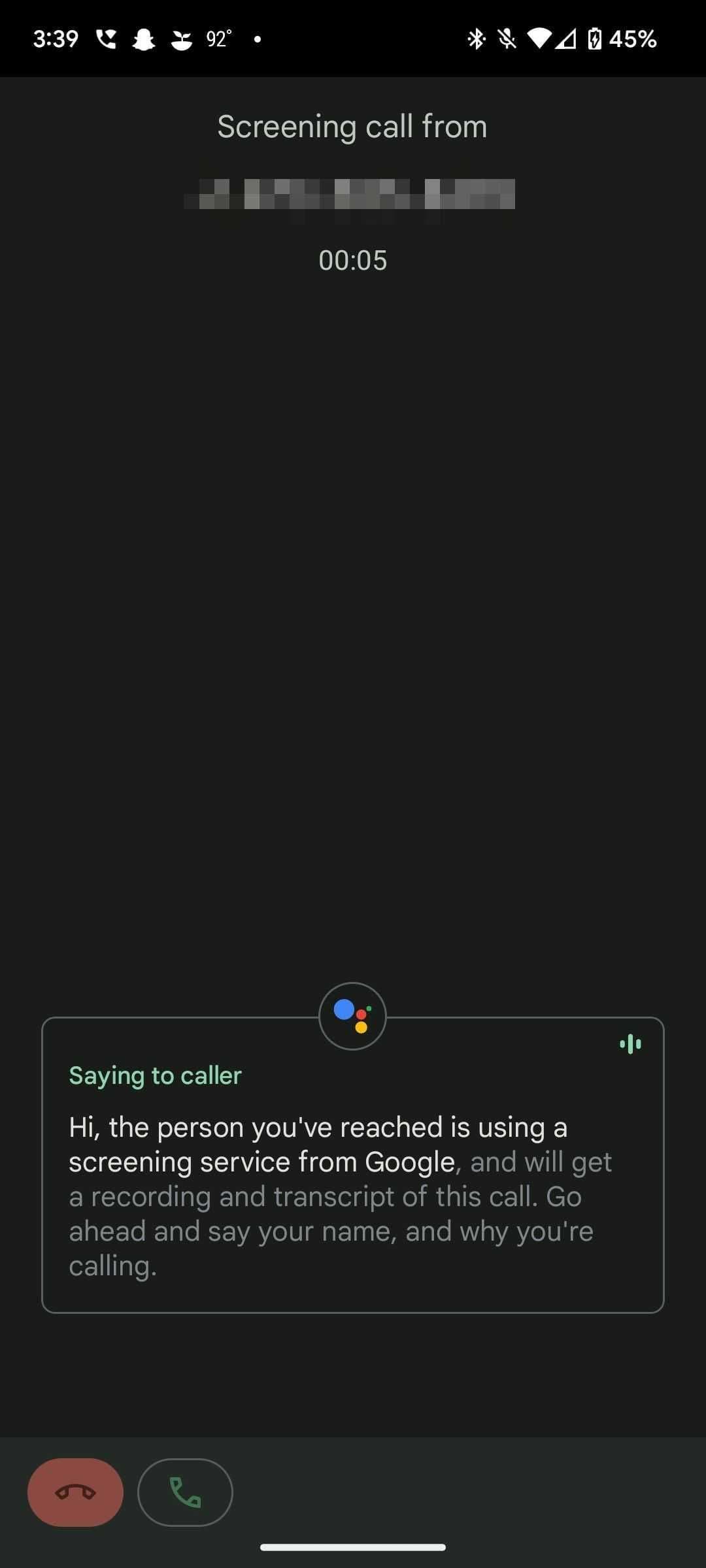
Google includes several features to make phone calls easier for users, called Pixel Call Assist. One of the best features of Pixel Call Assist is Google’s Call Screening feature. Call Screening answers calls from suspicious and unknown numbers for you to find out if they are legit. If Google determines the caller is spam, it hangs up and blocks that number for you. If it’s someone Google thinks is real, it sends the call to you with a transcript of its conversation, so you know who they are and why they’re calling. You then have the option to take the call or decline it.
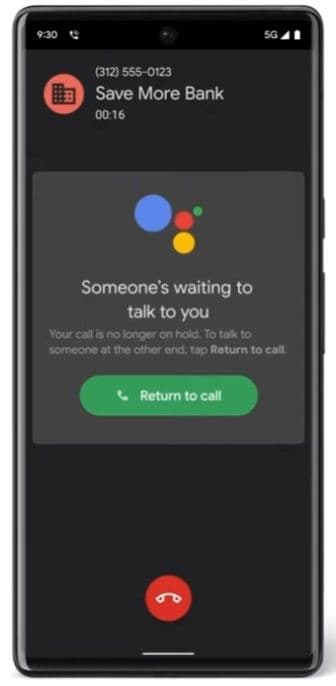
Google’s Hold for Me and Direct My Call features reduce frustration when calling a business. If you’re put on hold, Hold for Me waits on the line for you until a real person talks. Then your phone rings, alerting you that someone is on the line. With the press of a button, you are talking to them. This feature eliminates the need to listen to hold music or repeating messages, which might add to your frustration while waiting.
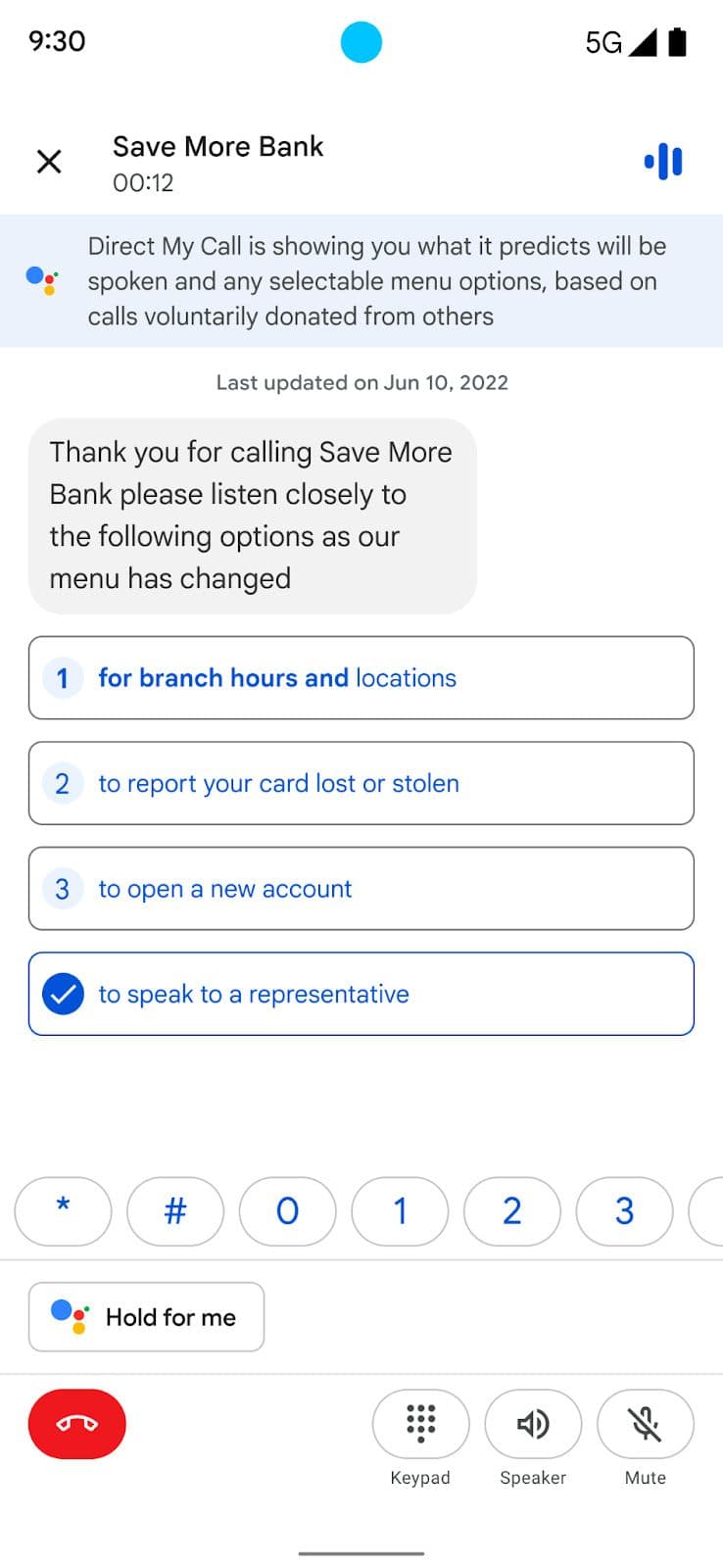
If you’re on a call and hear a series of menu options, Direct My Call creates a selectable series of buttons, making it easier to select the option you need. This feature works great if you have trouble hearing the call or if there are too many options. Direct My Call knows the menu options for some companies and displays those options to help you navigate their menus quicker.
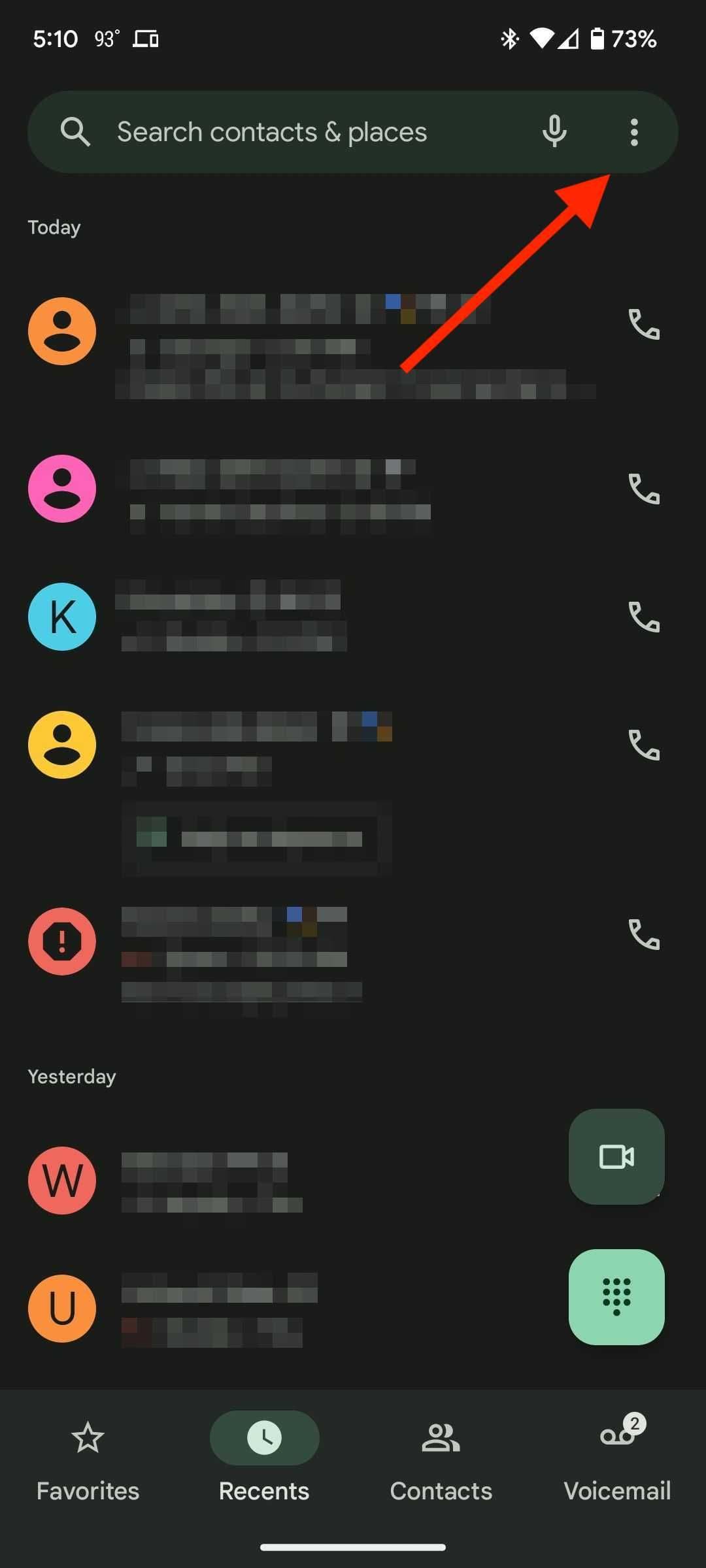
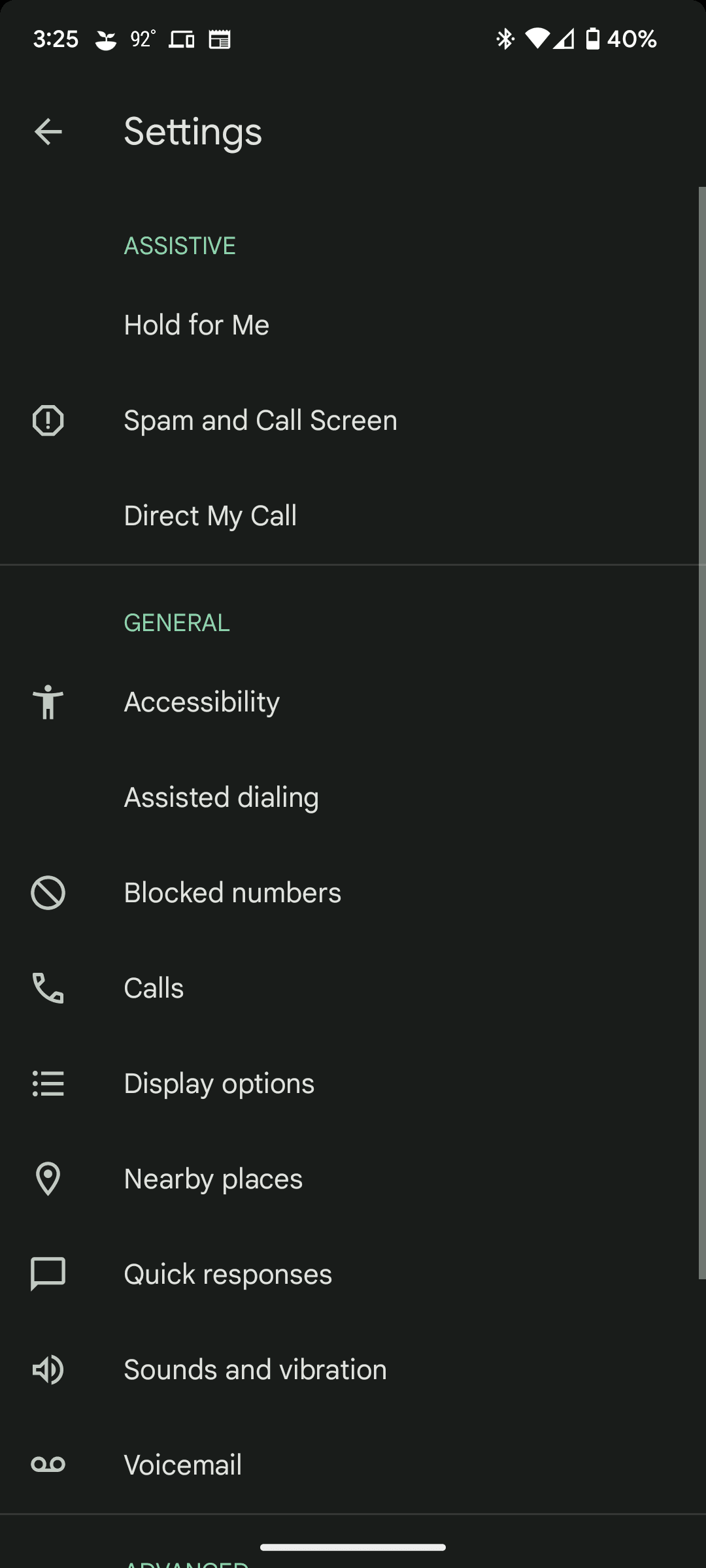
To turn on these features, open the
Phone
app, tap the
three dots
in the upper-right corner, and select
Settings
. You’ll see the sections for each feature at the top.
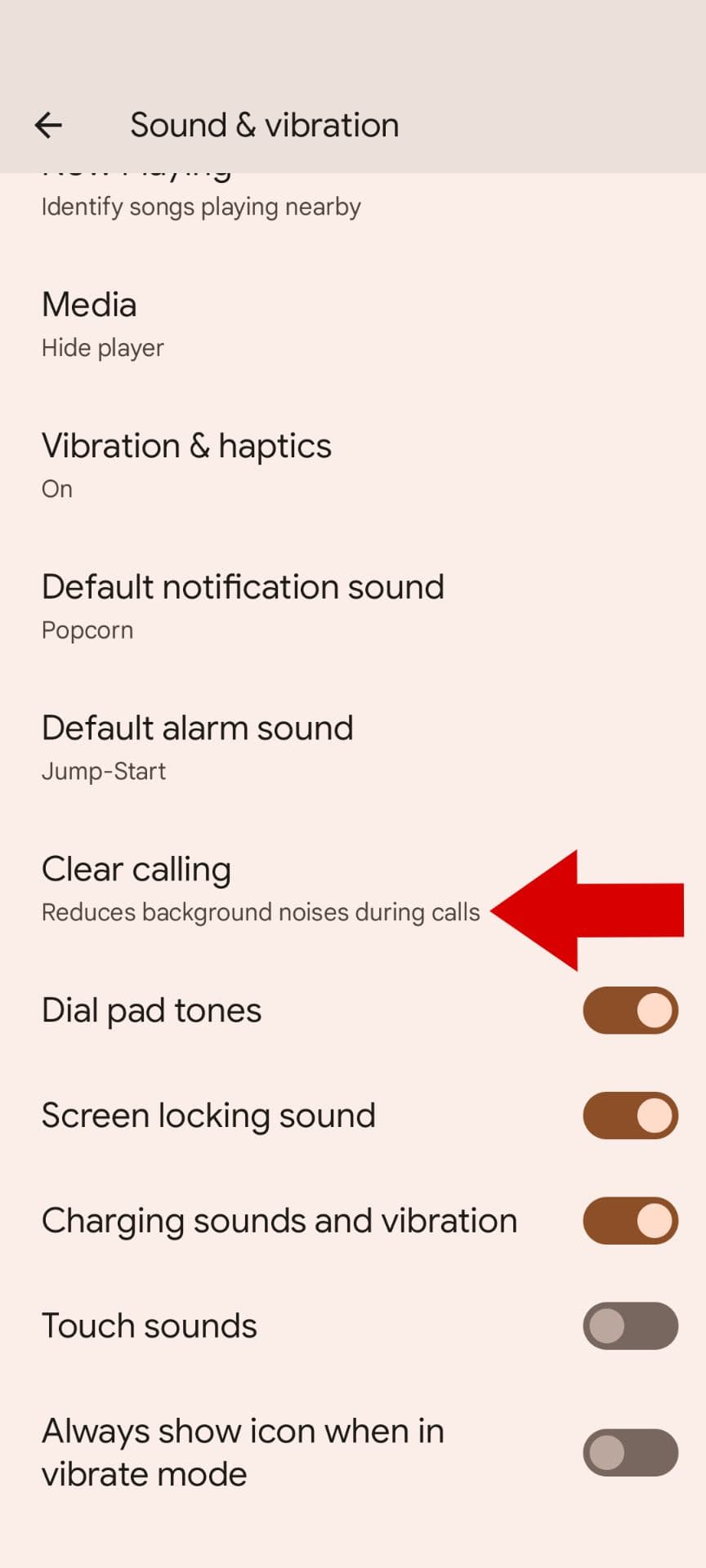
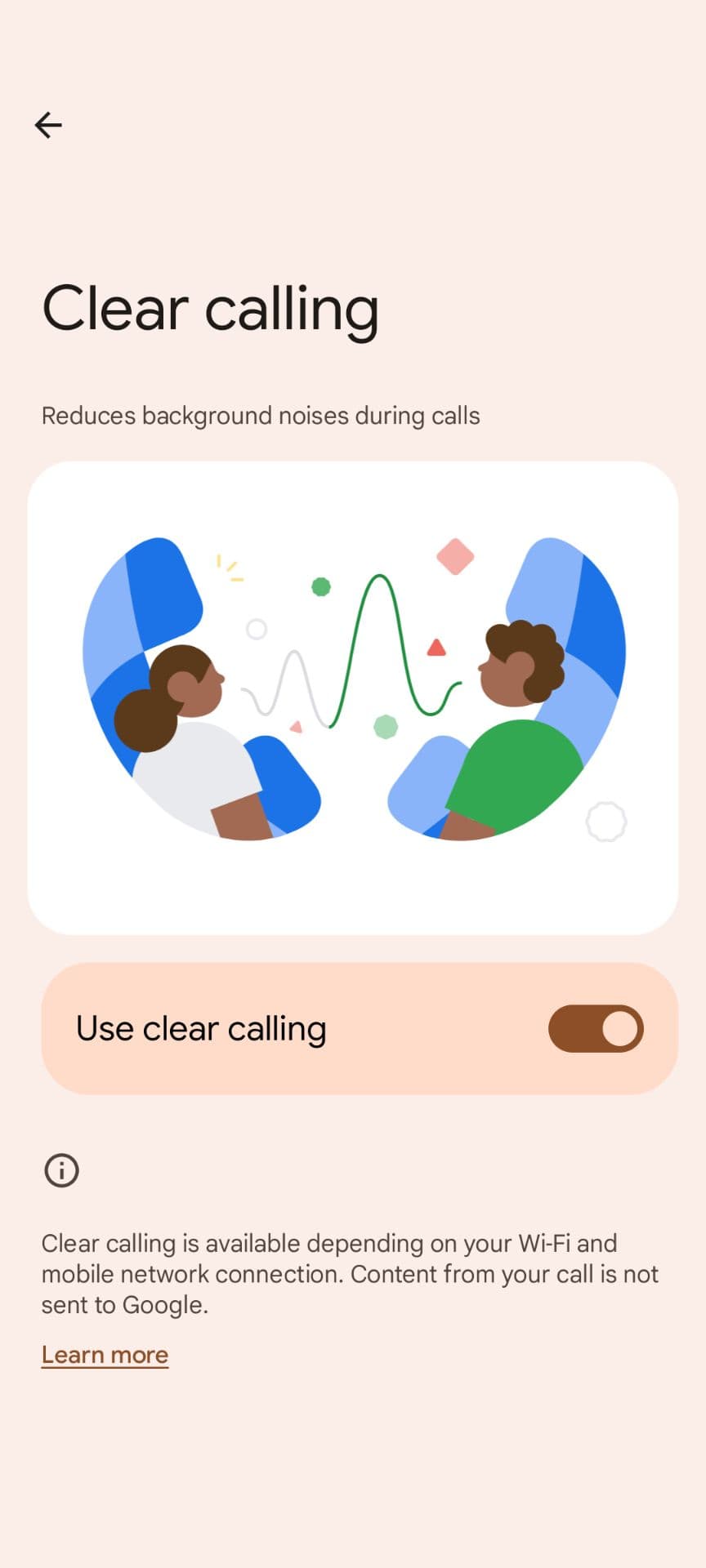
Google added another feature in its December 2022 feature drop called Clear Calling. This feature uses Google’s AI to cancel noise for both members of a call to make it easier for them to hear each other. To activate this feature go to
Settings
, select
Sound & vibration
, find the
Clear calling
option, and turn on the feature.
3
Use voice typing to send a quick message
Who needs fingers for typing when you can use your voice? Google’s original Tensor chip in the Pixel 6 series brought great voice typing to Pixel phones. The second-gen Tensor G2 takes what the Pixel 6 line started and makes it better. When your keyboard is open, a small microphone icon appears in the upper-right corner of the keyboard. Tap this icon, and use your voice to type.
The Pixel 7 series does a great job of registering what you say and typing it accurately. It even allows you to say punctuation and emoji names, which are inserted for you. Once you’re done typing, say, “Send” to send a message you typed. If there’s an error, say, “Delete” to delete the last word, “Clear” to delete the previous sentence, or “Clear all” to delete the entire message.
This feature is useful for sending a text, searching for something on Google, or taking notes. It’s also useful when you’re in situations where you are wearing gloves or working hands-free.
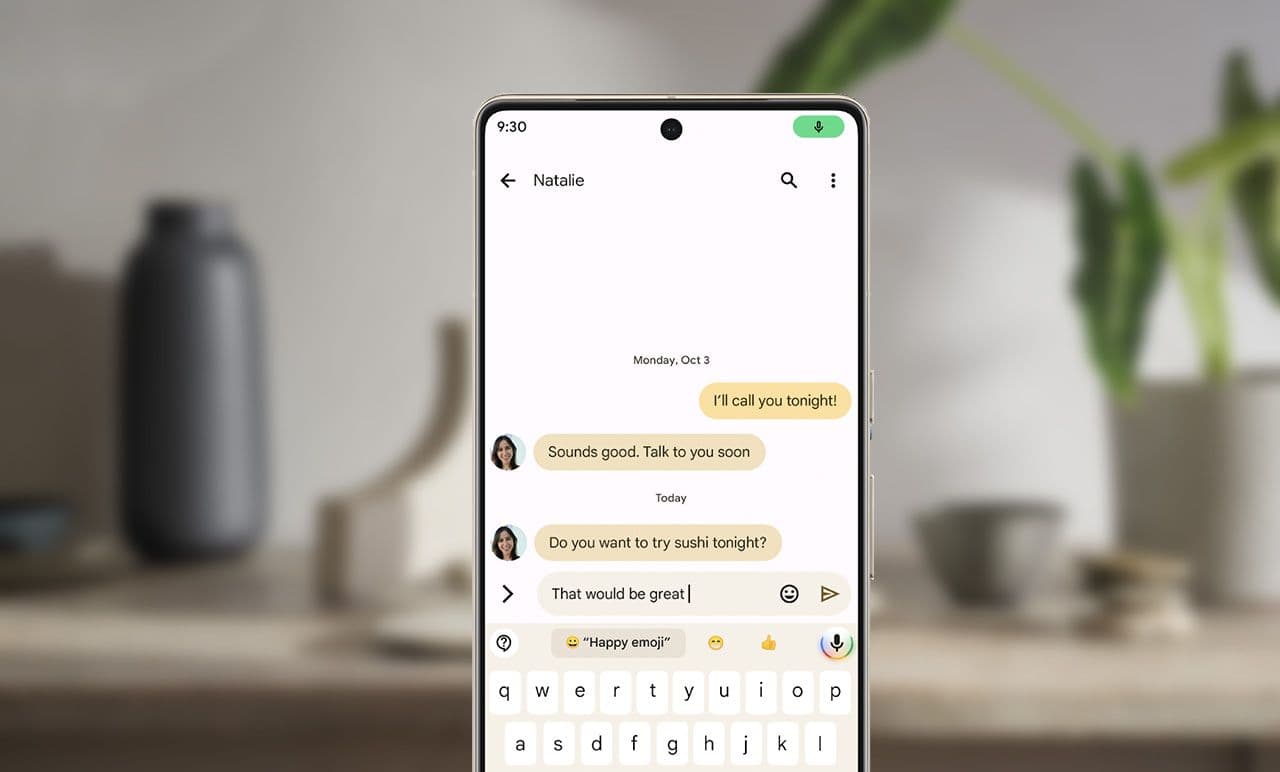
Source: Google
4
Use Digital Wellbeing to create healthier phone habits
We all have a complicated relationship with our phones, whether that’s doomscrolling while we’re with people or watching videos into the wee hours of the night. Google’s Digital Wellbeing suite of features helps you curb your addiction and improve your relationship with your phone. To access Digital Wellbeing, open the
Settings
app, scroll down, and tap
Digital Wellbeing & parental controls
.
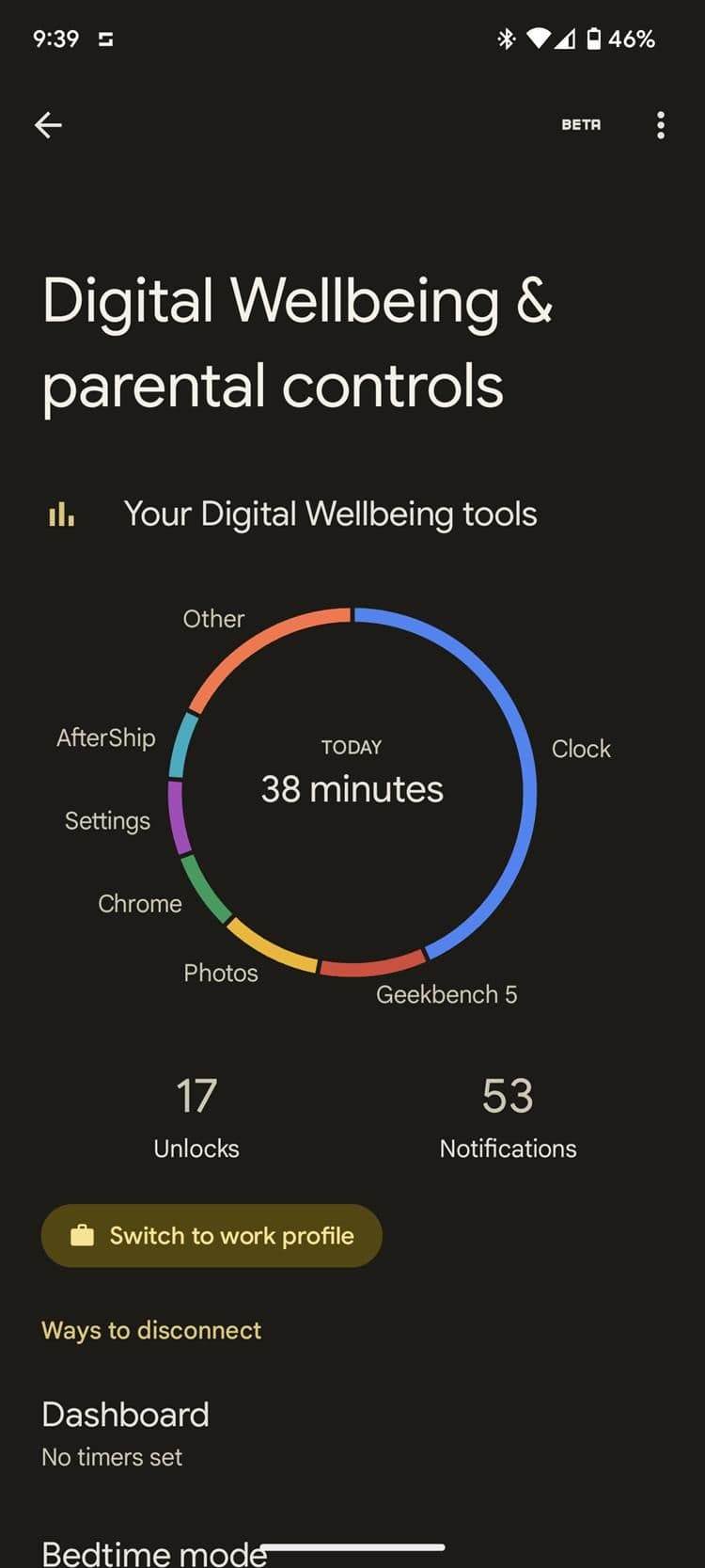
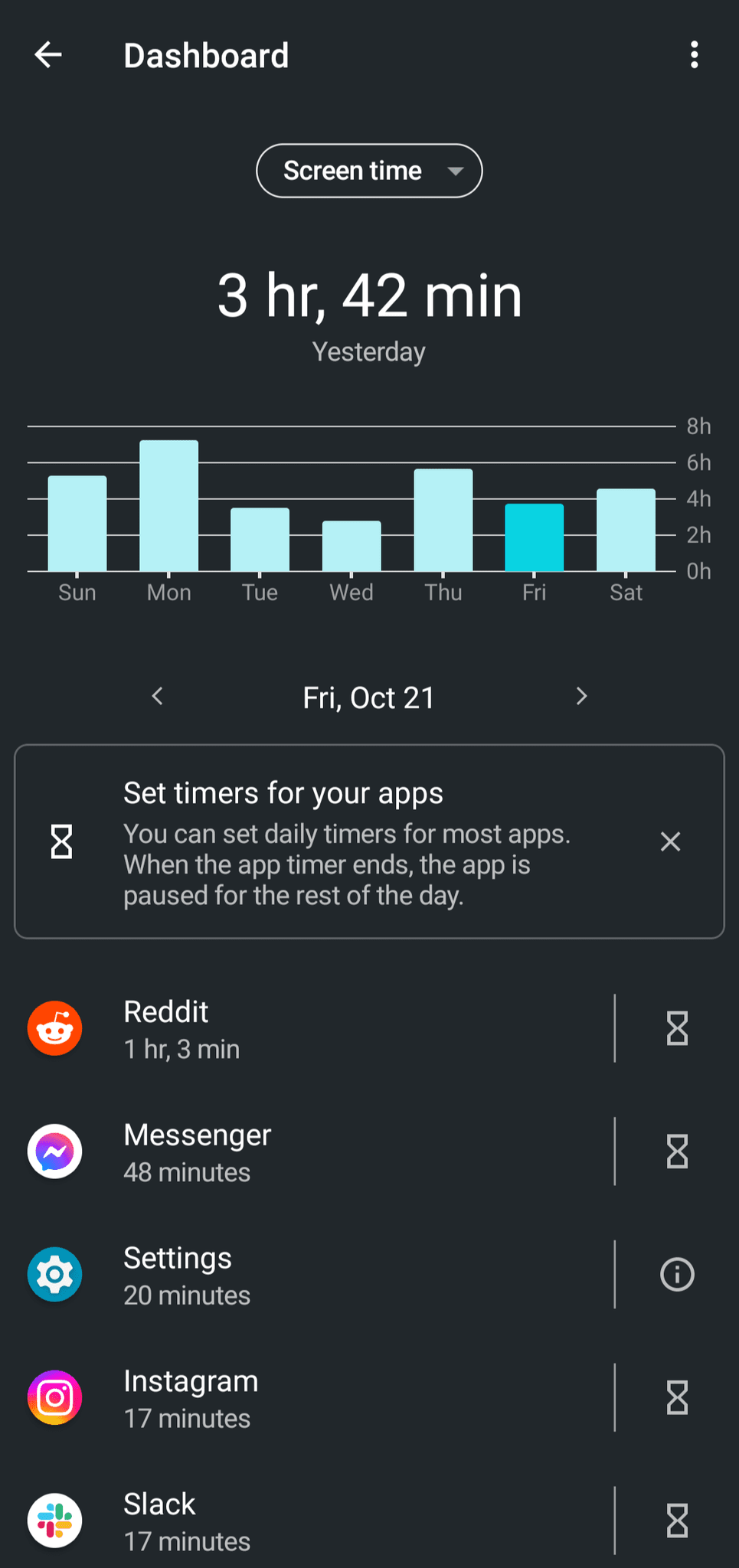
The Digital Wellbeing section displays a chart showing your app usage for the day, the number of times you unlocked your phone, and the number of notifications you received. If you use an app too much, set an app timer that limits the amount of time you can use an app each day. To set an app timer, tap the
Dashboard
option and click the
hourglass
icon to the right of the name of the app you’re setting a timer for. Then choose how long you want to use the app and tap the
Okay
button.
The Digital Wellbeing suite also has the ability to set up
Bedtime mode
. Bedtime mode limits your phone’s functions during a time range when you are normally sleeping or want to unplug. To set up this feature, tap the
Bedtime mode
option and set a time for Bedtime mode to turn on. When Bedtime mode turns on, you can have it automatically turn on Do Not Disturb, limit how often the screen turns on, enable grayscale to make your phone easier on your eyes, and allow Bedtime mode to turn off for your next alarm.
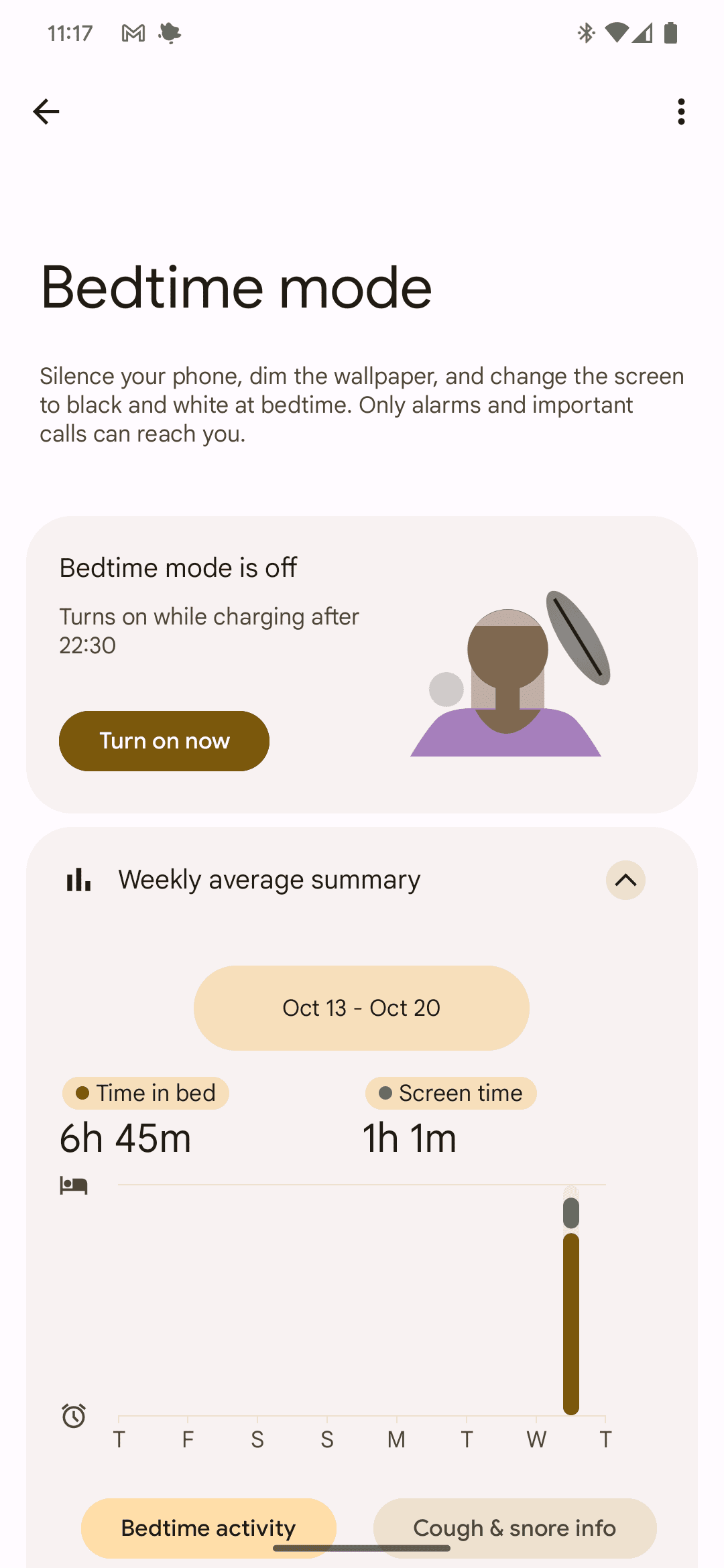
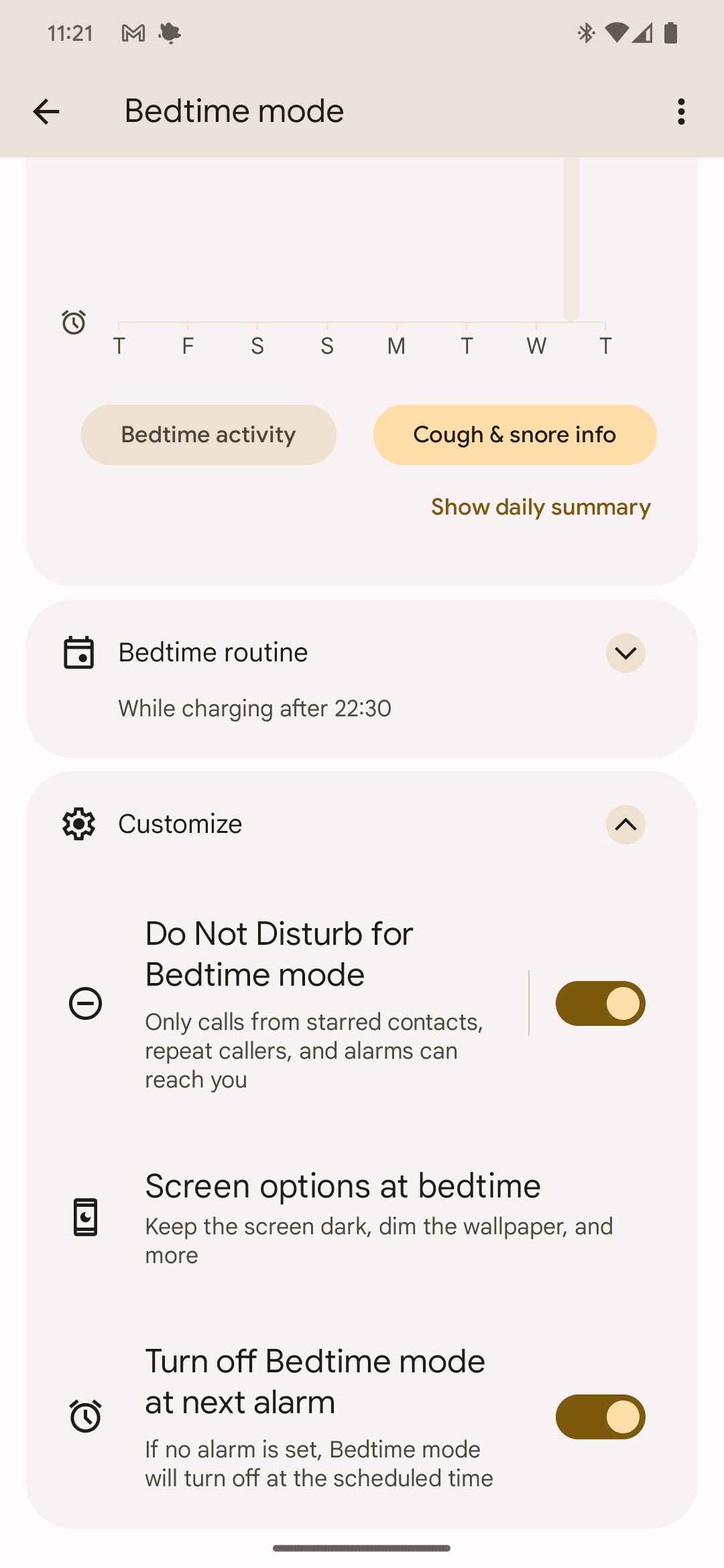
Bedtime mode houses Google’s cough and snore detection feature. When you enable this feature, your phone detects how much you snore and cough while Bedtime mode is on. To view these statistics, go to the
Bedtime mode
section and expand the
Weekly average summary
section.
5
Unlock your phone with two biometric authentication options
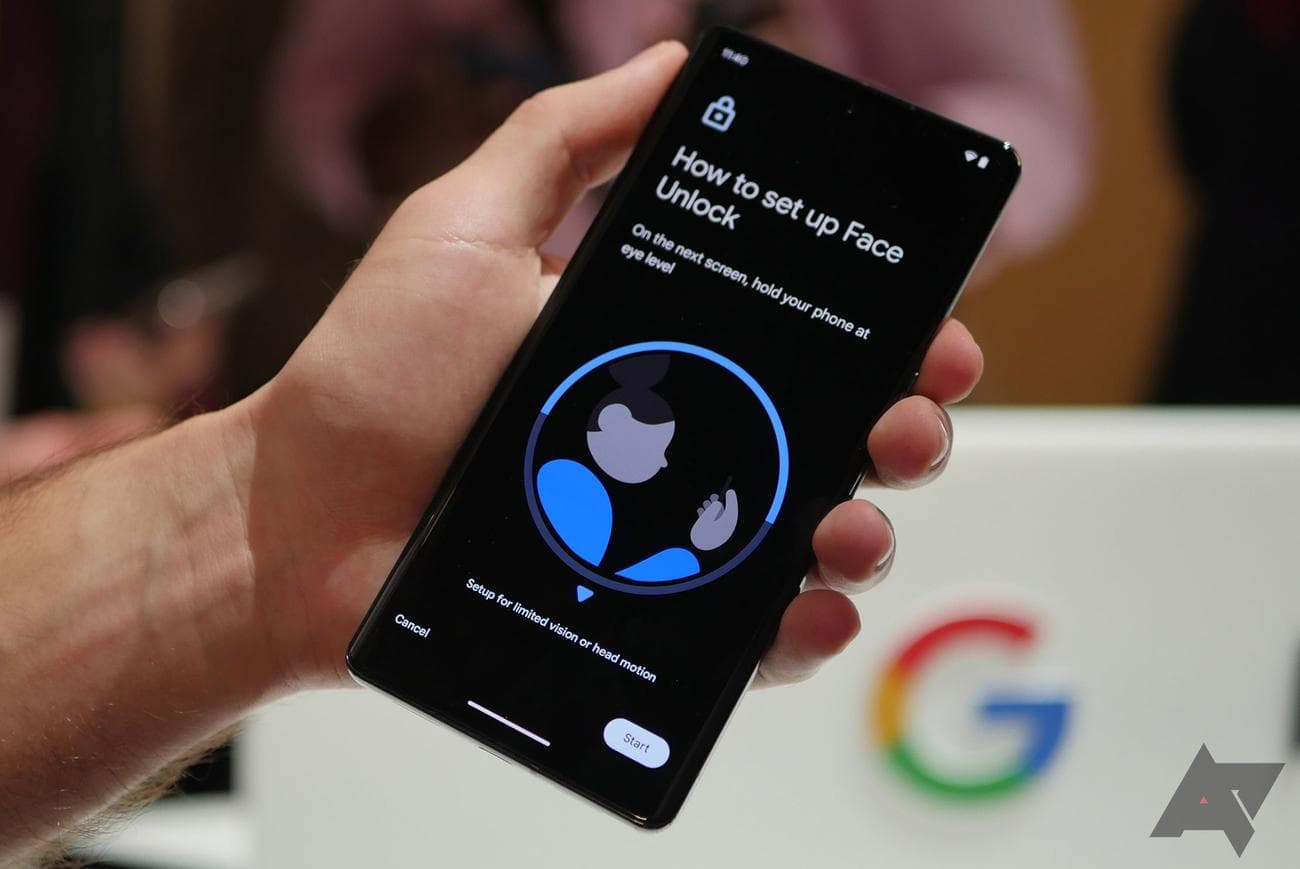
PINs and passwords are cool, but biometrically unlocking your phone is often quicker with a similar level of security. The Pixel 7 series offers two ways to unlock your phone biometrically: fingerprint and face unlock. Fingerprint unlock uses an under-screen fingerprint scanner to unlock your phone, while face unlock uses the front-facing camera to recognize your face and unlock your phone.
.jpg)
These two features work in tandem to unlock your phone under any condition. If it’s cold outside and you have gloves on, use face unlock to open your phone. If you’re in the dark or wearing a mask, use fingerprint unlock to get into your phone. To enable these features, open the
Settings
app, select
Security
, and tap
Face and Fingerprint Unlock
.
6
Maximize your battery life with adaptive settings
Battery life is one of the most important features of any smartphone, and Google includes a couple of features to help you get the most out of your battery life. These two features work in tandem to keep your time between charges and the lifetime of your battery as long as possible.
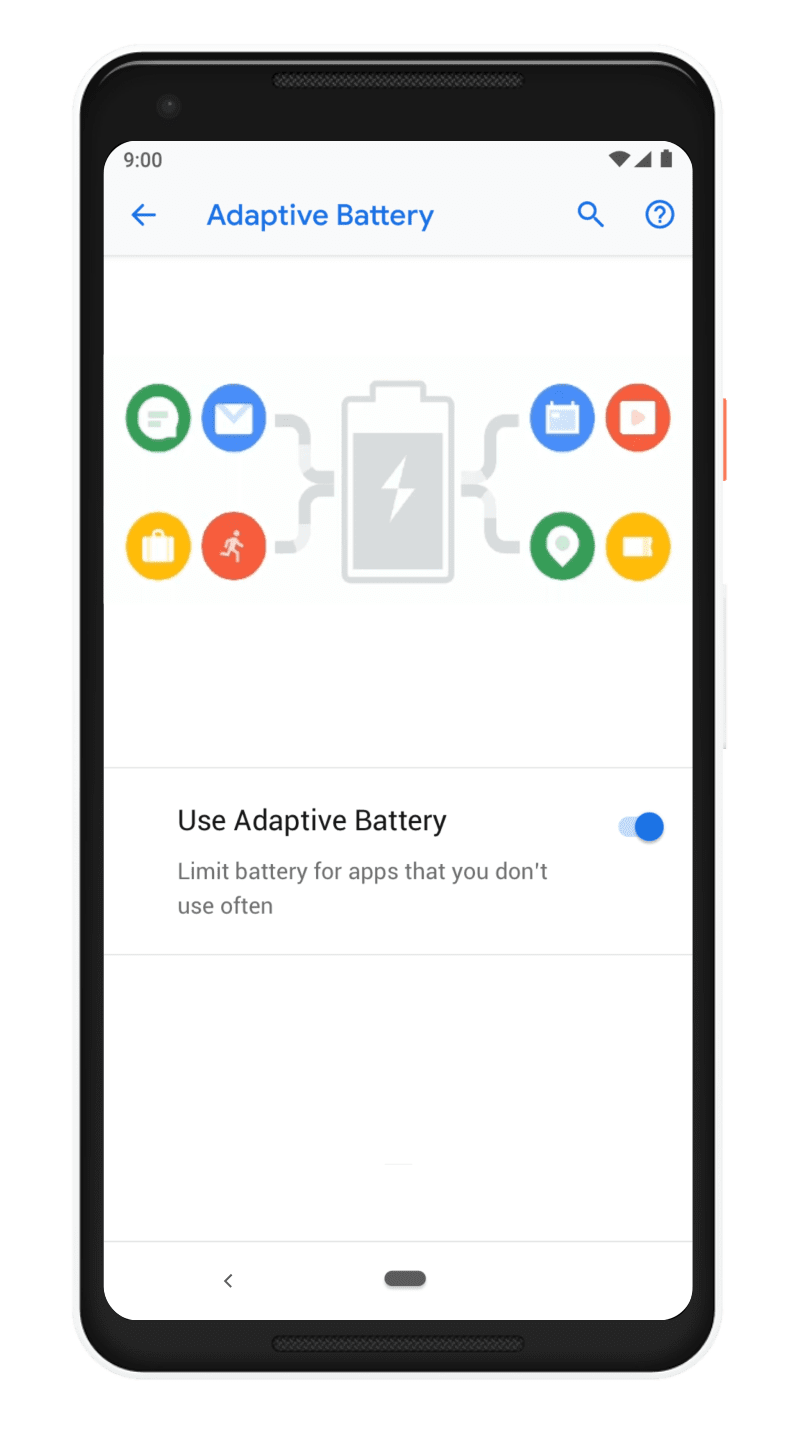
The first is Adaptive Battery, which extends the battery life between charges and your phone’s battery life. To extend the time between charges, Adaptive Battery learns your phone usage habits and optimizes app and system operations to maximize your battery life.
Adaptive Charging extends the lifetime of your phone’s battery by charging steadily over a longer period. If you set an alarm and plug in your phone before bed, Adaptive Charging notices this and steadily charges the battery until your alarm time. That way, your phone is fully charged when you wake up, and it doesn’t get too hot or charge too fast and degrade the battery while you aren’t using it.
The other feature Google includes to preserve your battery is
Extreme Battery Saver
. This feature extends your phone’s battery life by pausing most of the apps and notifications on your device so that only essential apps are used. This decreases the load on the G2 Tensor chip, which reduces the amount of battery usage. You can choose what apps are considered essential, which is helpful to ensure your phone is still useful.
The Extreme Battery Saver feature is helpful if you run low on battery and are away from a charger or if you’re on a trip and know you won’t be using most of the apps on your phone. To activate these features, open the
Settings
app and go to the
Battery
section.
7
Try the Pixel 7 series’ improved camera and photos features
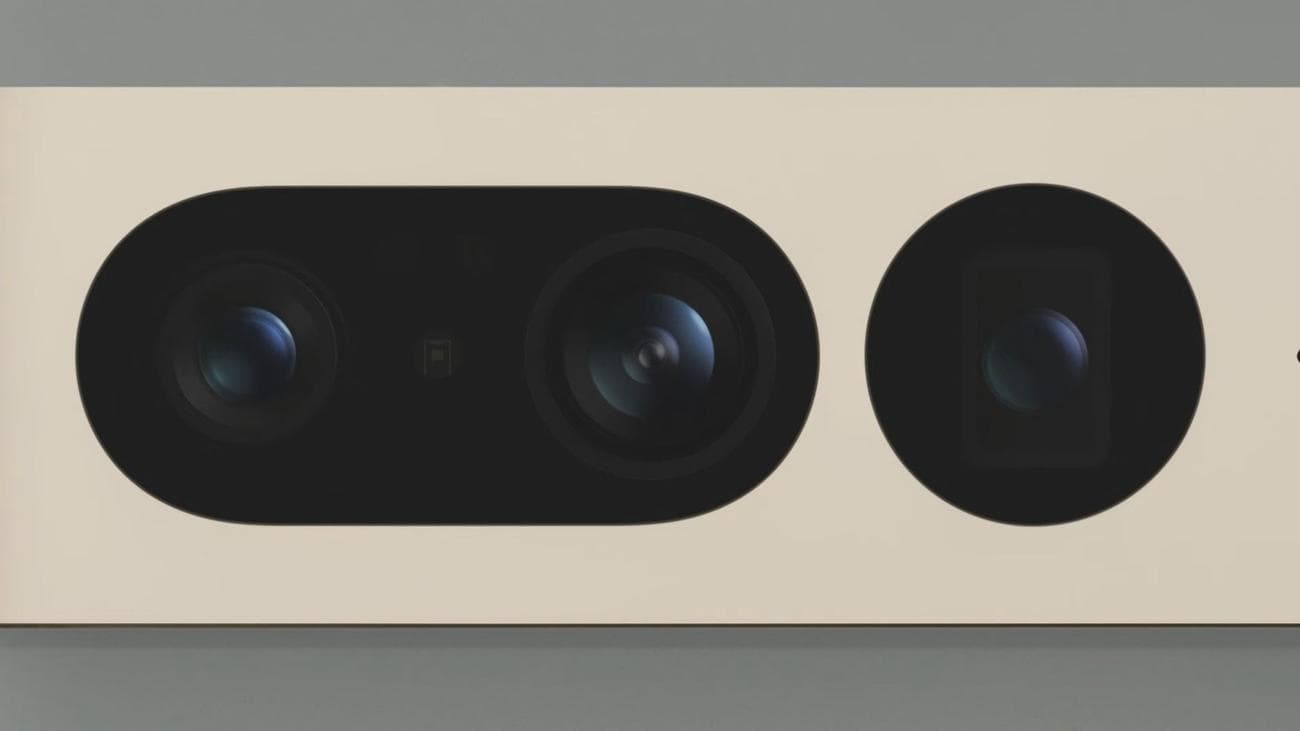
Pixel phones are best known for taking amazing photos, and the Pixel 7 takes the best pictures yet. Several features make the Pixel 7 one of the best phones to take photos. Google revamped its Super Res Zoom feature, which helps you take great zoomed-in photos. Google uses a short burst of photos, sometimes with multiple lenses, along with its computational photography to make a great photo. To take advantage of this feature, tap the preset zoom options or pinch the viewfinder to access the zoom slider.
Source: Google
Taking photos in the dark using a flash is hit or miss, but Google’s Night Sight feature makes taking photos in dark conditions a breeze. When your phone detects you’re in a dark space, it turns on the feature. You can also turn it on it by selecting the Night Sight mode in the Camera app. A slider pops up, where you choose how long you want your phone to take the photo. The longer you choose, the more information the phone will have, which creates a better photo. Along with Night Sight, Google has an Astrophotography mode that takes amazing photos of stars and constellations at night.
Google also includes its True Tone
technology
in its camera software. True Tone takes authentic and accurate photos of people of all skin tones. Google partnered with experts across the globe to develop this feature and trained its camera algorithms to improve tuning for all skin tones. These features are baked into Google’s camera hardware and software, so there’s no need to dig into the settings to enable them.
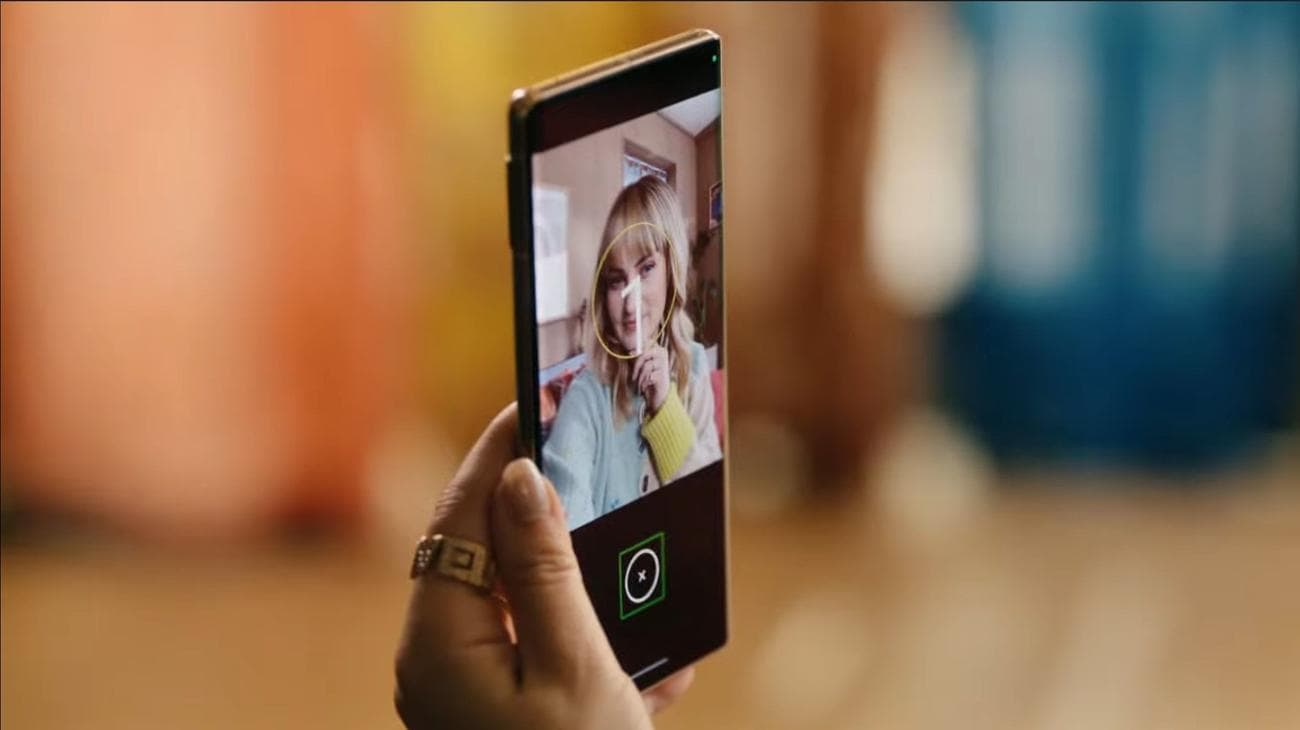
For people who are blind or have low vision, Google created the
Guided Frame feature
. The new Guided Frame feature works with Google’s existing accessibility feature, TalkBack, to instruct users on how to take selfies. When this feature is enabled, your Pixel 7 advises you where to move your phone to capture your face using audio and vibration queues. Once your face is in the frame, a photo is taken after a three-second countdown. This feature is a great addition to
Google’s accessibility suite of features
and helps anyone take a great selfie.
Another feature Google added to Google Photos is Photo Unblur. While not quite a camera trick, this feature makes blurry photos you’ve taken clearer, even if you took them on another device. Photo Unblur uses Google’s computational photography AI to see what the image should look like and sharpens it to make the subject clear. This feature allows people to focus on capturing the moment instead of making sure the photo is clear or that the subject isn’t moving. To use this feature, go to the
Google Photos
app, select a photo, and tap
Edit
.


Google is ready to dominate the Android smartphone market
Google’s Pixel 7 series of phones are the best Pixels yet. They take the best things from the Pixel 6 series and make them even better while adding other useful features. To make sure you’re using your Pixel 7 series camera system to its fullest, check out these Pixel camera tips and tricks to supercharge your experience.
-
Source: Google
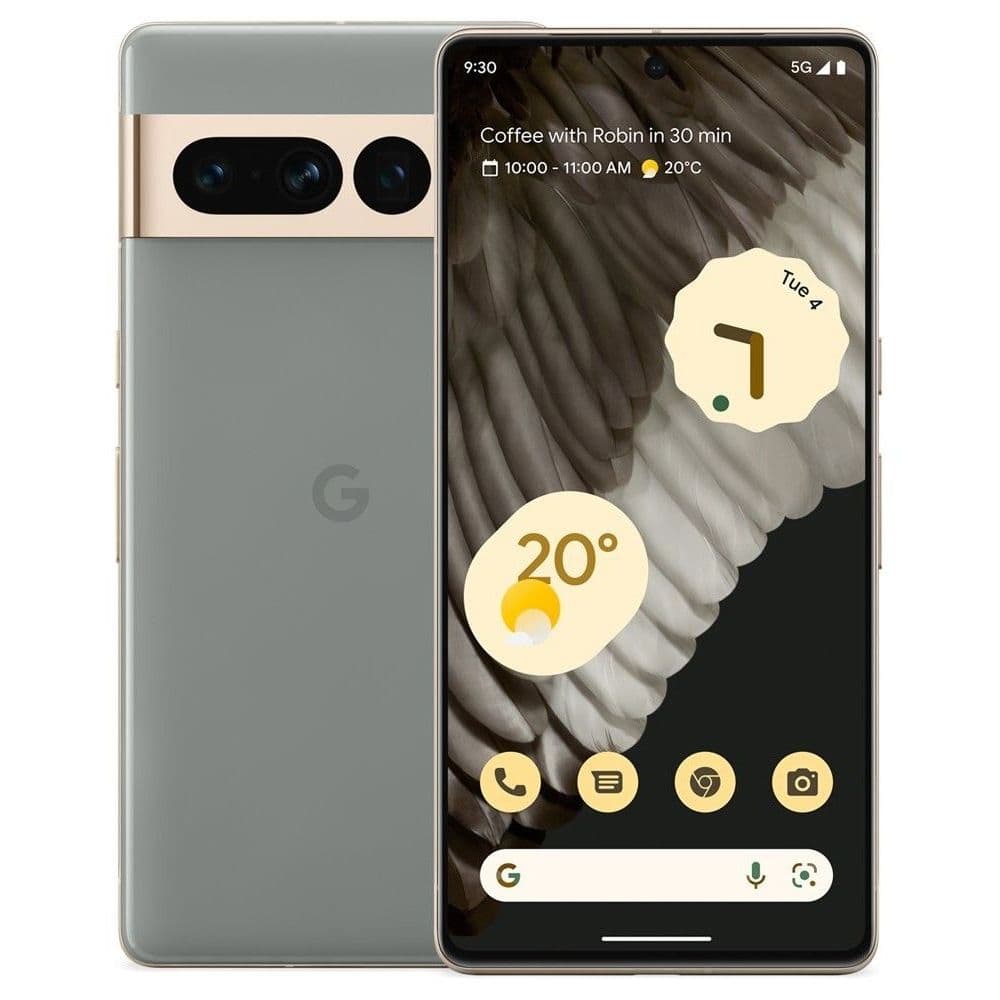
Google Pixel 7 Pro
Google’s Pixel 7 Pro refines the Pixel experience after the 6 Pro’s initial stumbles last year, improving stability and taking the camera prowess to new levels with image fusing and 4K60fps video on all cameras. 30W fast charging and Pixel’s addictive features like automatic Call screening and Pixel recorder help make the Pixel 7 Pro an alluring phone even as an iterative update.
-
Source: Google
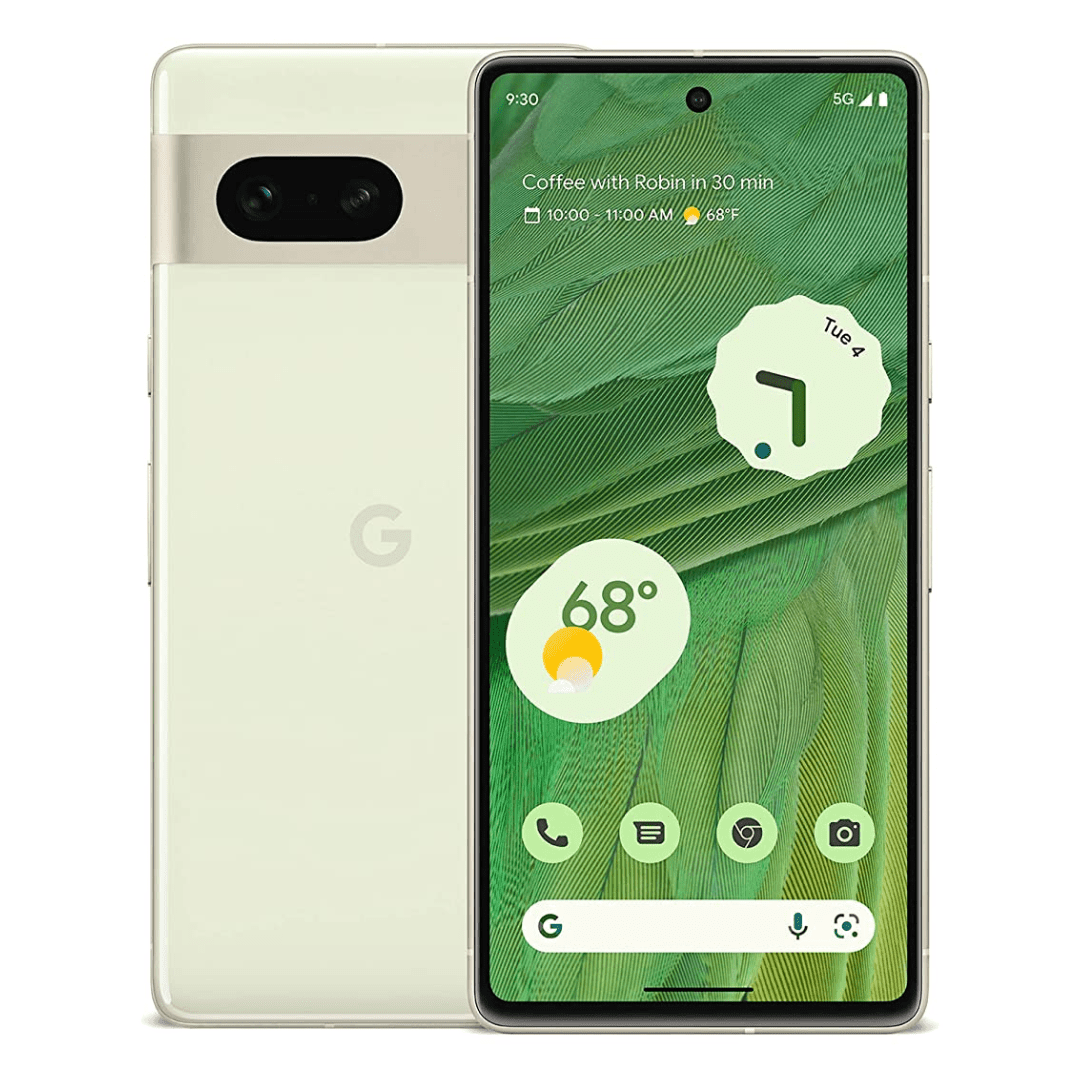
Google Pixel 7
Google did not reinvent the wheel with the Pixel 7, but there was no need to. With improved cameras, the next-gen Tensor G2 chipset, and Google’s wonderfully feature-filled software, the Pixel 7 earns its price tag again this year.
-

Source: Google
Google Pixel 7a
$449
$499
Save $50If you are looking for a new device at a midrange price, the Google Pixel 7a checks off all the boxes. It has a fantastic camera system, strong power, great software support, and good battery life. It may be midrange in price but feels closer to its flagship siblings overall.