What is WhatsApp Communities and how do I use the feature?
WhatsApp Communities is here. In April 2022, Zuckerberg announced an umbrella feature that may rival the best social apps. Communities presents an arranged communication system for large organizations or anyone looking to keep their WhatsApp groups in one place. You can send messages to everyone via a primary group or limit information to subgroups. This way, no one misses vital news while discussing other topics.
Also, you’re not continuously scrolling through chats when you need to find a group. Creating a community is possible on your favorite budget Android phones, iOS devices, and desktop apps. Read along to learn how to create and manage WhatsApp communities.
What is WhatsApp Communities, and how does it work?
WhatsApp Communities is a feature that allows you to sort multiple WhatsApp groups under a larger one known as a community. You can create a community for your organization’s Finance, General Management, and Human Resources department groups. You can also create a community for family, friends, and colleagues. Here are some of the reasons to create a WhatsApp community:
- It allows you to bring related groups to a single place. For example, an educational institute can bring several class groups into a community and manage them more efficiently.
- You can streamline communication by sharing common messages in the Announcements channel. You don’t need to forward the same text to different WhatsApp groups. All the community group members receive an alert for your message.
- Communities gets a separate space on mobile and desktop apps to continue conversations.
- It comes with robust privacy and collaboration tools to manage admins and members.
When you make a new community, it automatically creates the Announcement group and makes you the admin. It’s where you share important information, and everyone sees it, regardless of the group they belong to. If you send a message to a subgroup, only that group sees it. Furthermore, only community admins can send messages to the Announcement group, but you can assign admin roles to members to allow them to do the same.
Adding groups to your community doesn’t mean members will automatically join every other group. They can only see the groups when they view the community’s info and need to request to join. Community admins can remove anyone from a group, but the member remains in the Announcement group until you remove them.
Like Groups, privacy is ensured with end-to-end encryption, and only community admins can see all participants. Other admins or members can only see and message contacts belonging to the same groups. This way, strangers can’t creep into your DM.
What’s the difference between WhatsApp communities, groups, and broadcasts?
WhatsApp has several ways to arrange contacts and streamline communication into groups, broadcasts, and communities, and it’s easy to confuse them.
WhatsApp Communities combines Broadcast and Group functionalities. It’s a collection of WhatsApp groups, and you can have up to 50 communities and add 5,000 members to the Announcement group. Communities supports 32-person video and voice calls, file sharing of sizes over 2GB, message reactions, and creating polls.
On the other hand, a WhatsApp group is a chat room where anyone can send a message, and everyone sees it at once. You can also send messages to an unsaved number in the group. There can only be one group owner, but they can appoint as many admins as needed to manage the group with them. When the creator exits, ownership transfers to another admin.
With communities, ownership transfer is not possible. Once you deactivate the community, you lose it permanently. Initially, groups could hold only 512, but the numbers have increased to 1,024 since Meta launched Communities. Also, Groups now allow 32 people to be on a video and voice call. Media file sharing and sending voice notes are also supported.
Broadcasts allow you to select a list of people from your contacts and send bulk messages to them. The recipient doesn’t know the message is generic and receives it as a normal chat. If they reply, you also receive it as a standard text. You can’t use video or voice calling since broadcast lists don’t gather members into one virtual space like Groups and Communities. You can add up to 256 people to a Broadcast list.
You can create a new group and include it in your community or add an existing one. To add an existing group, you must be an admin. Otherwise, you can’t add groups. WhatsApp doesn’t notify your contacts when you create a new community. But if you add an existing group, the entire group is alerted.
Create a WhatsApp community on Android
-
Open
WhatsApp
. - Swipe right to access Communities.
-
Tap
Start your community
. -
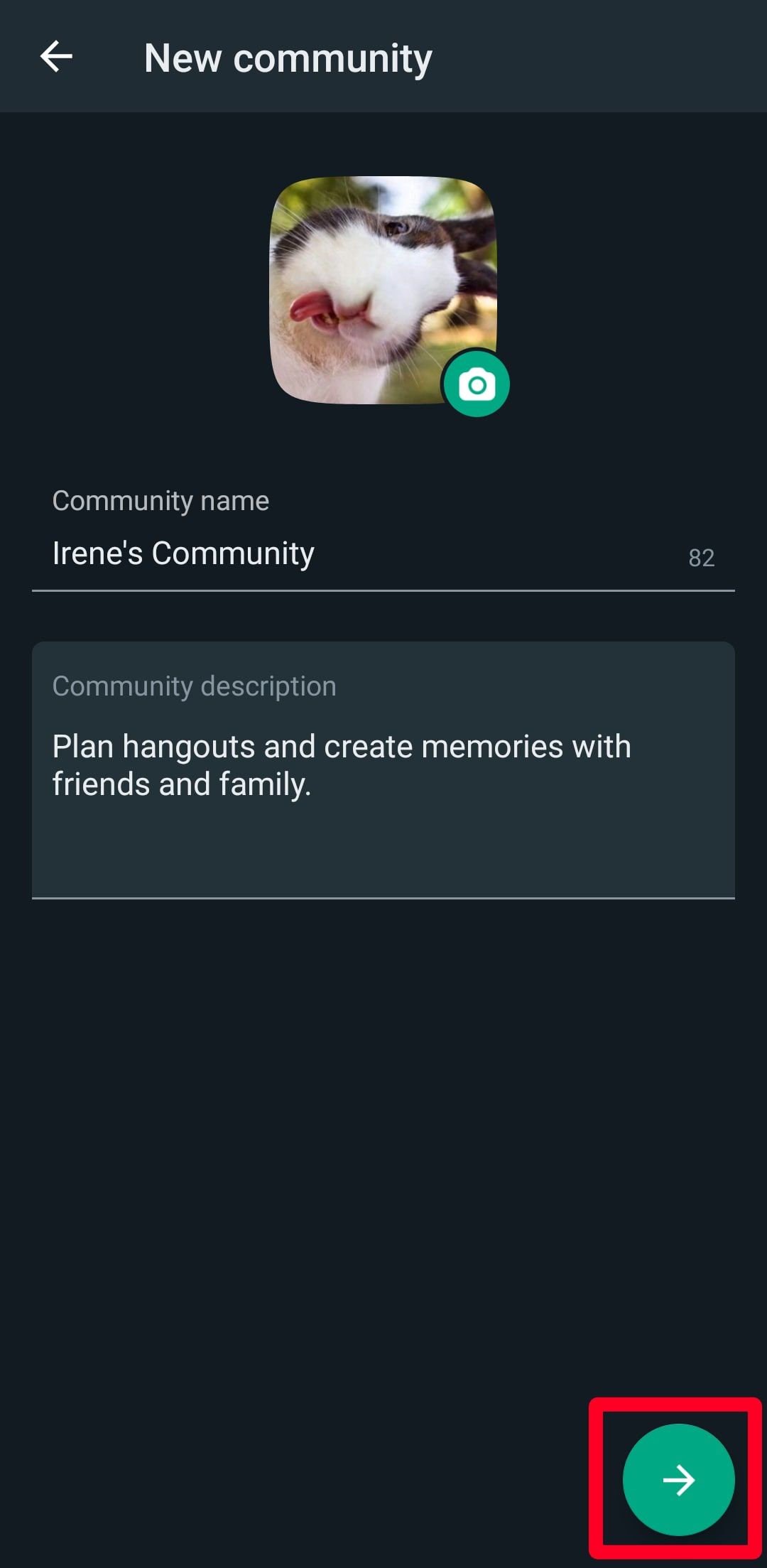
Type a name, enter a description, and set a display picture for your community. You can skip the description and display photo for later.
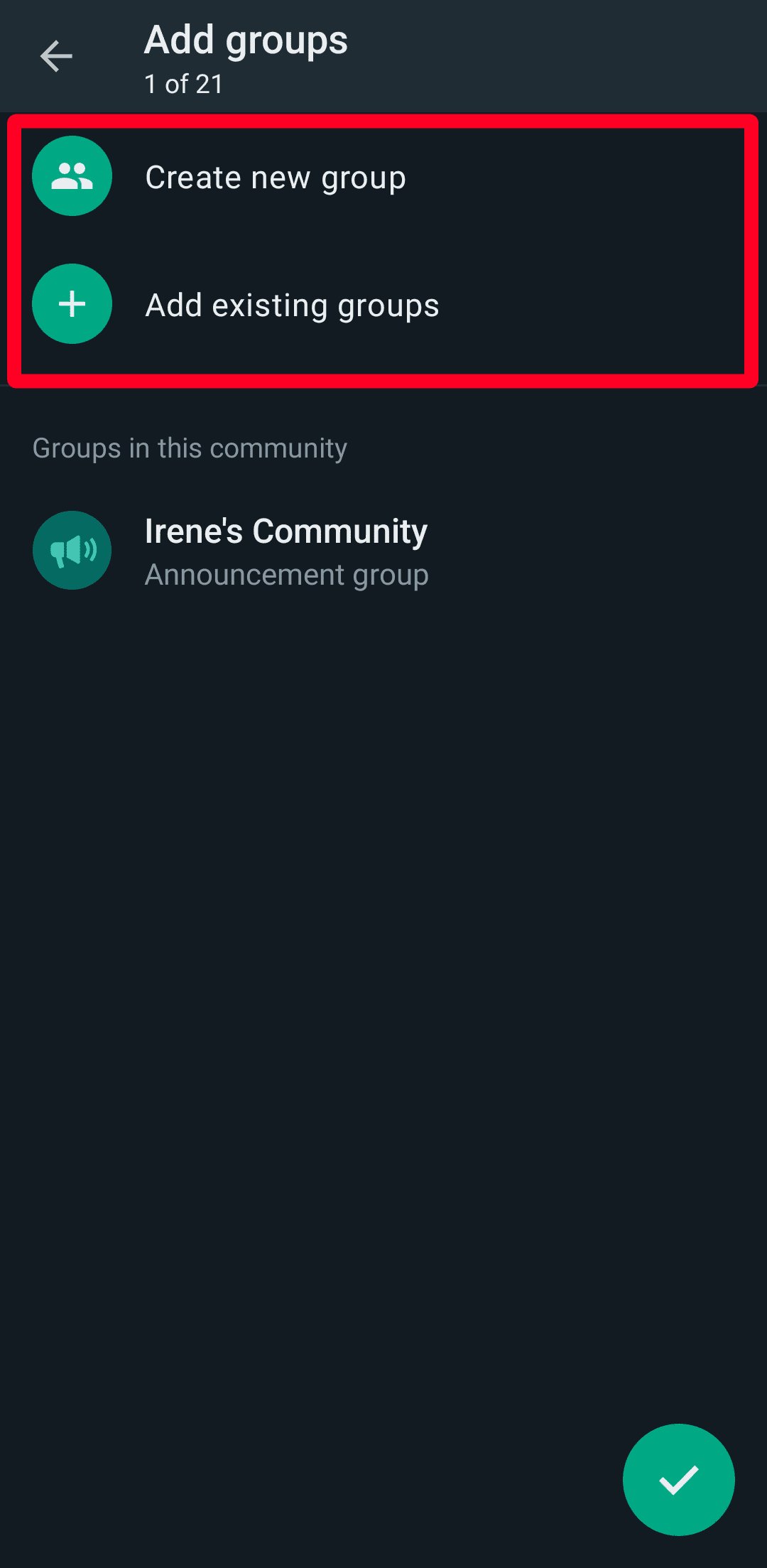
- Create a group from scratch or add existing groups.
-
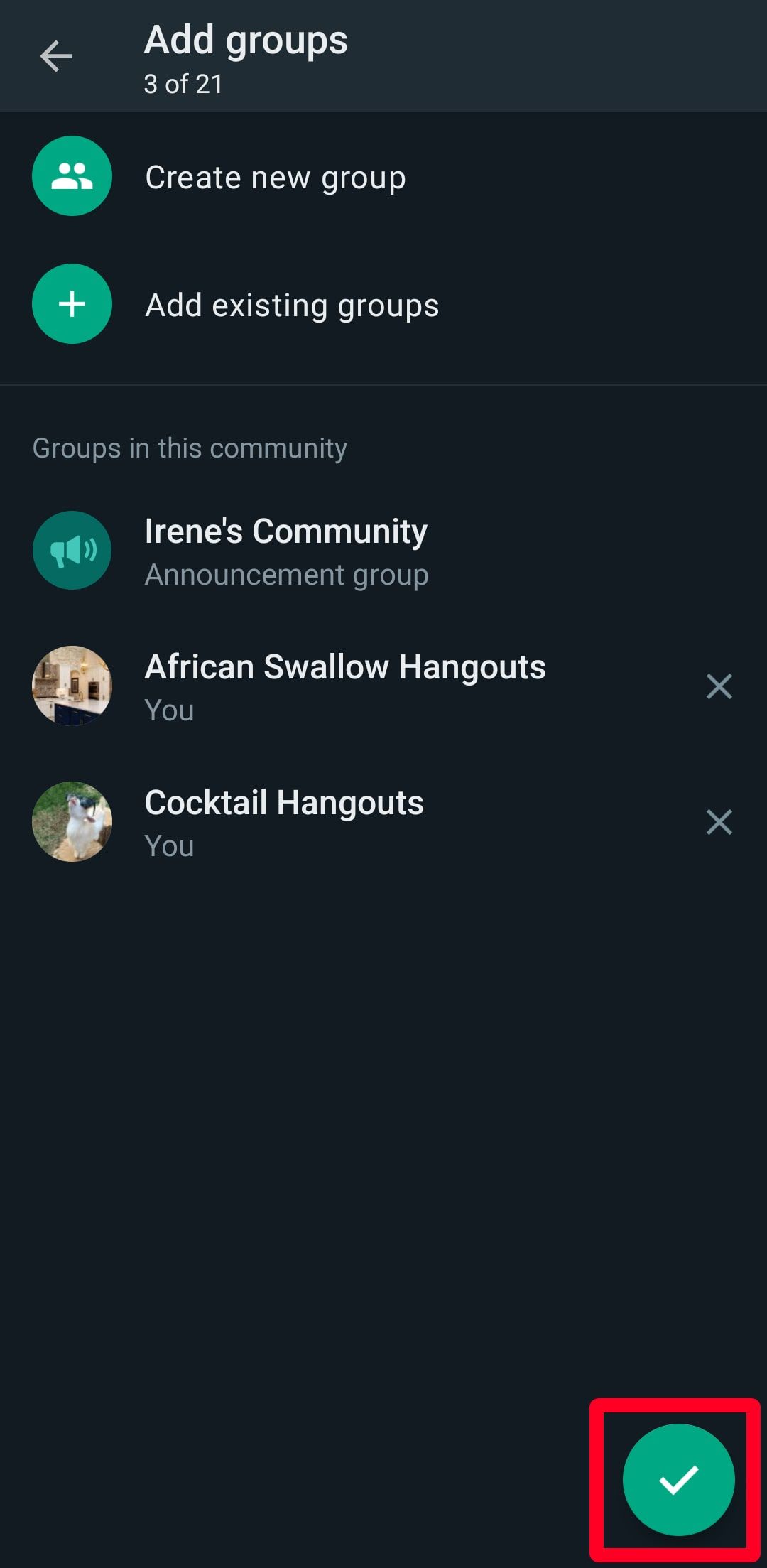
Tap the
checkmark
in the lower-right corner to save the settings.
-
Open
WhatsApp
. -
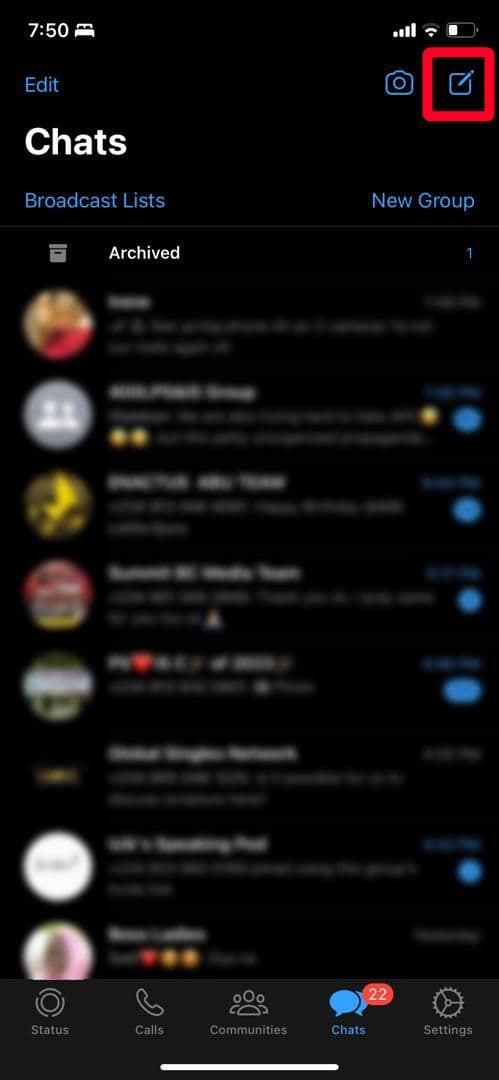
Tap the
pen
icon in the upper-right corner of your screen. -
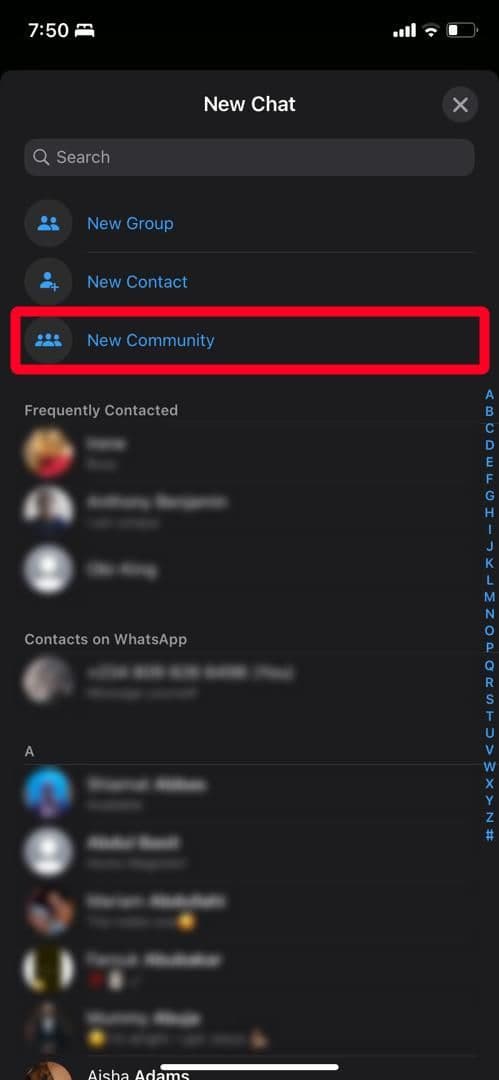
Select
New community
.
-
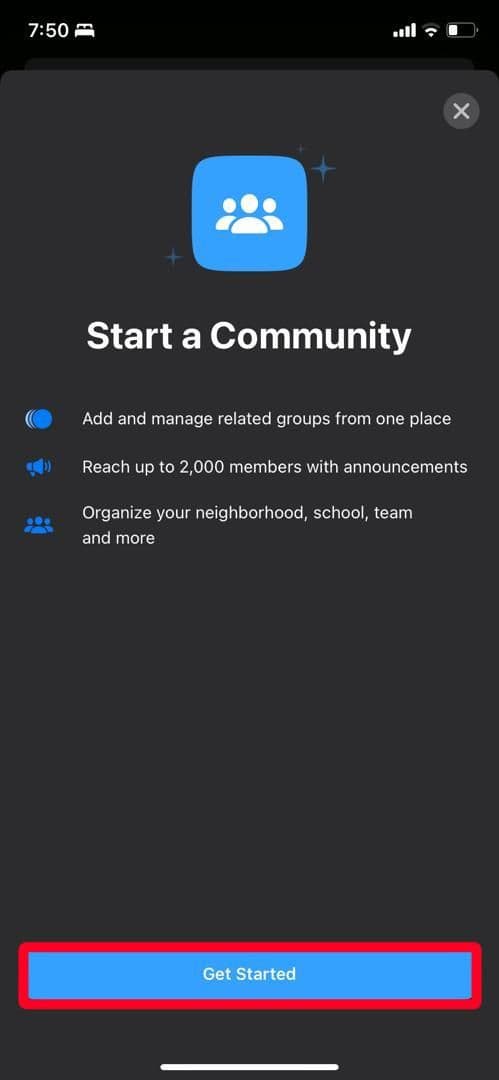
Tap
Get started
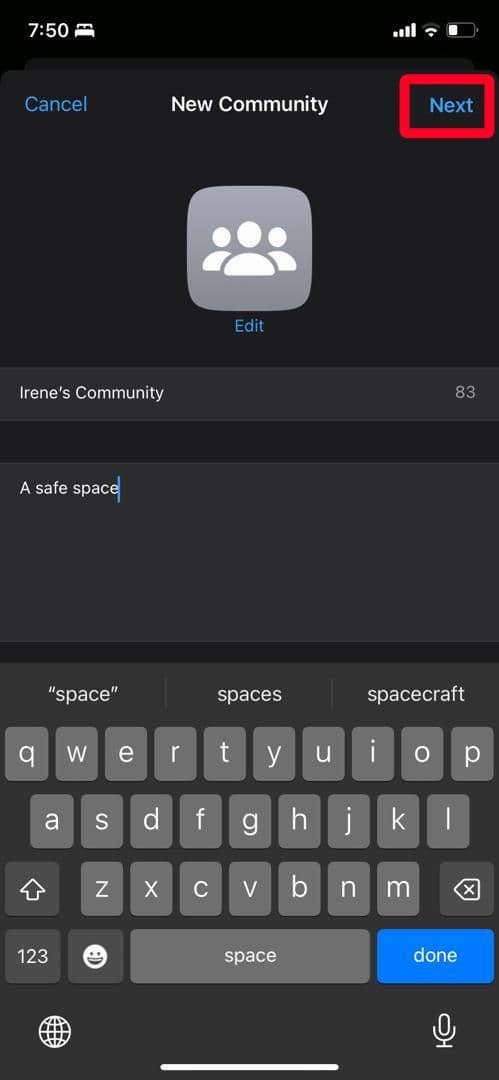
. - Type a name, enter a description, and set a display picture for your community. You can skip the description and display photo for later.
-
Tap
Next
to continue.
-
Create a group from scratch or add existing groups.
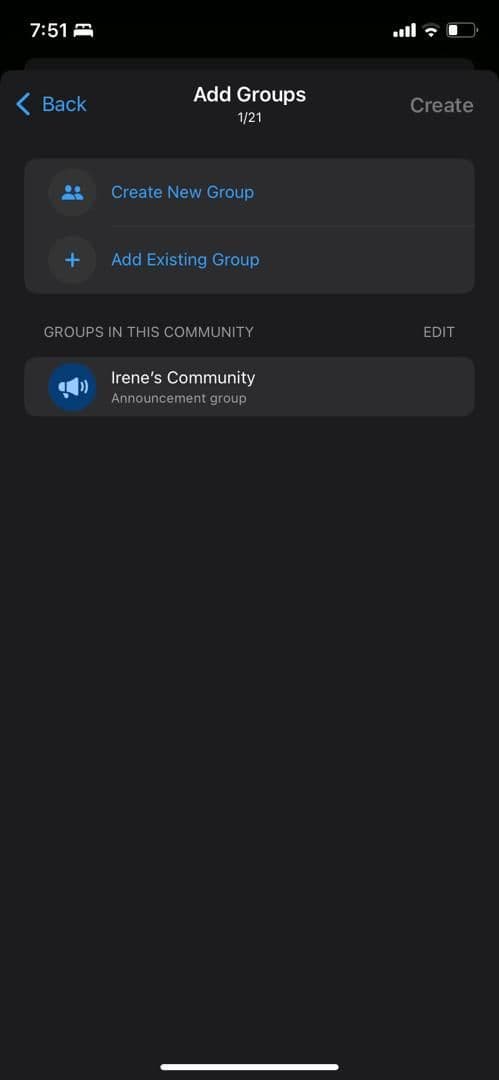
-
Tap
Create
to save your settings.
You can also create a WhatsApp community without leaving the desktop. The experience is better on a large canvas. If you’re unfamiliar with the company’s desktop apps, check our dedicated guide to set up your WhatsApp account on Windows or Mac and use the steps below.
-
Launch
WhatsApp
on the desktop. -
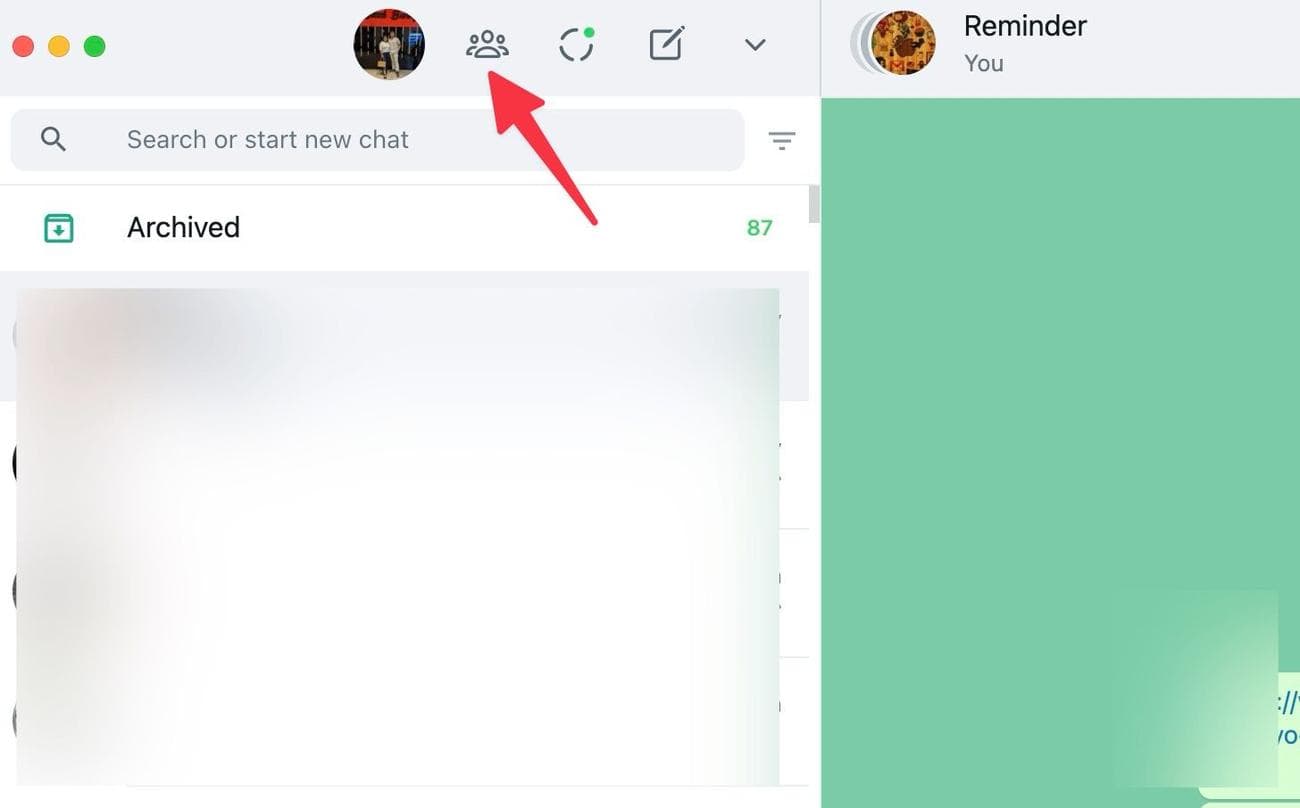
Click the
Communities
icon at the top.
-
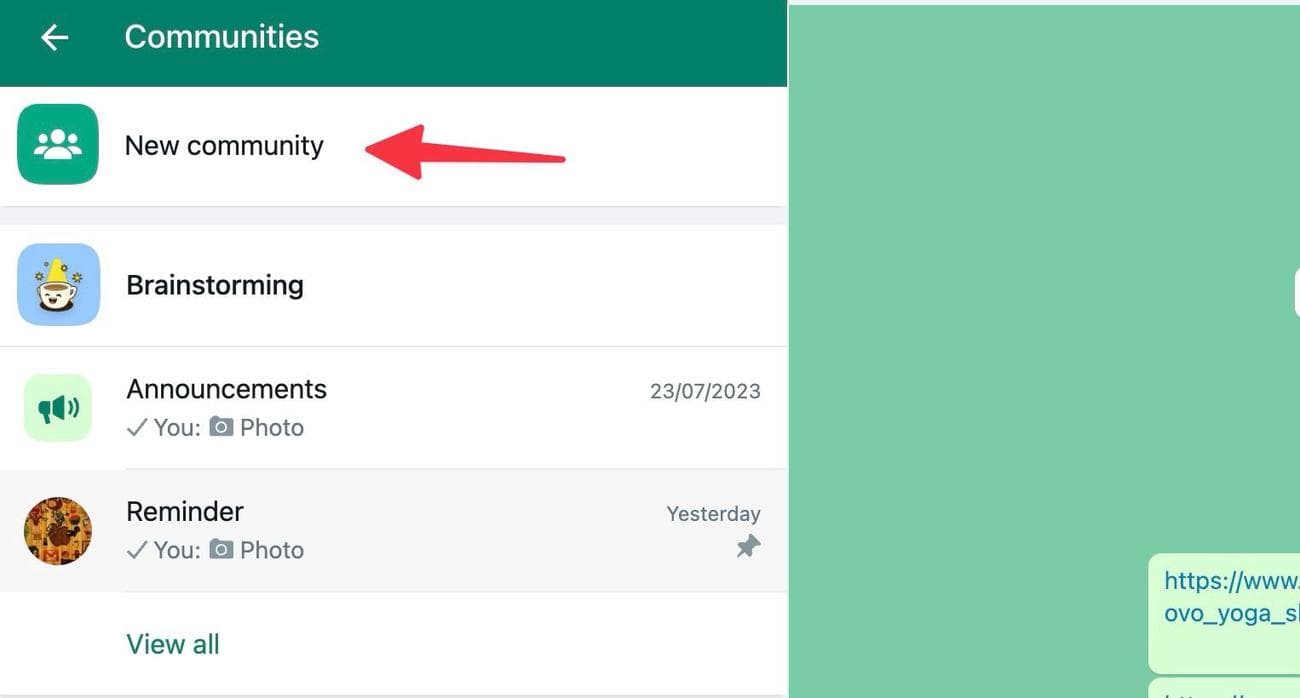
Select
New community
.
-
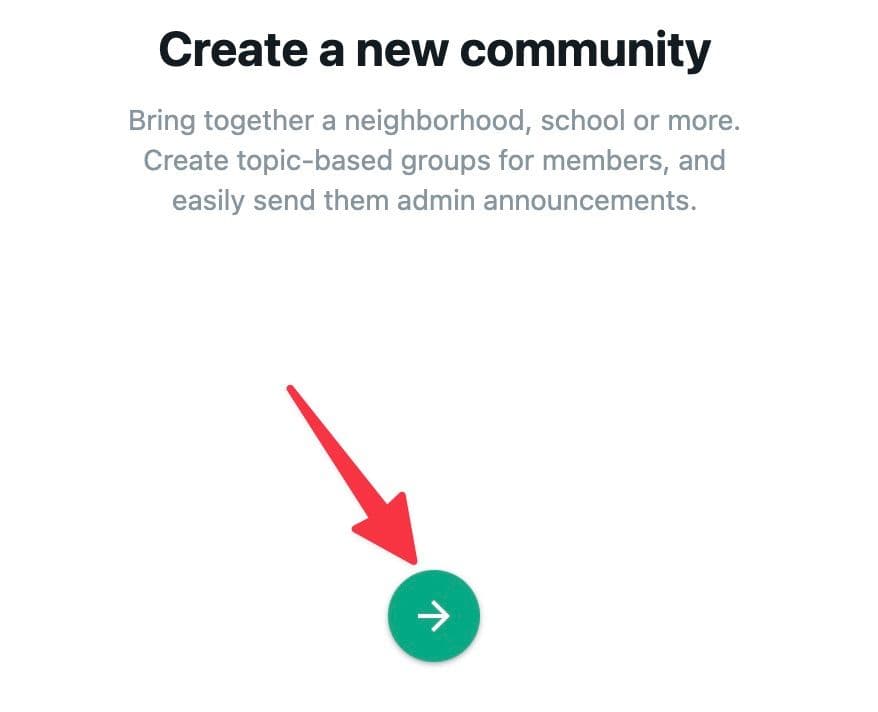
Check a short community description and click the
green arrow
.
- Add a community icon, type the name, use an emoji if you prefer, and write a short community description.
-
Tap the
checkmark
at the bottom.
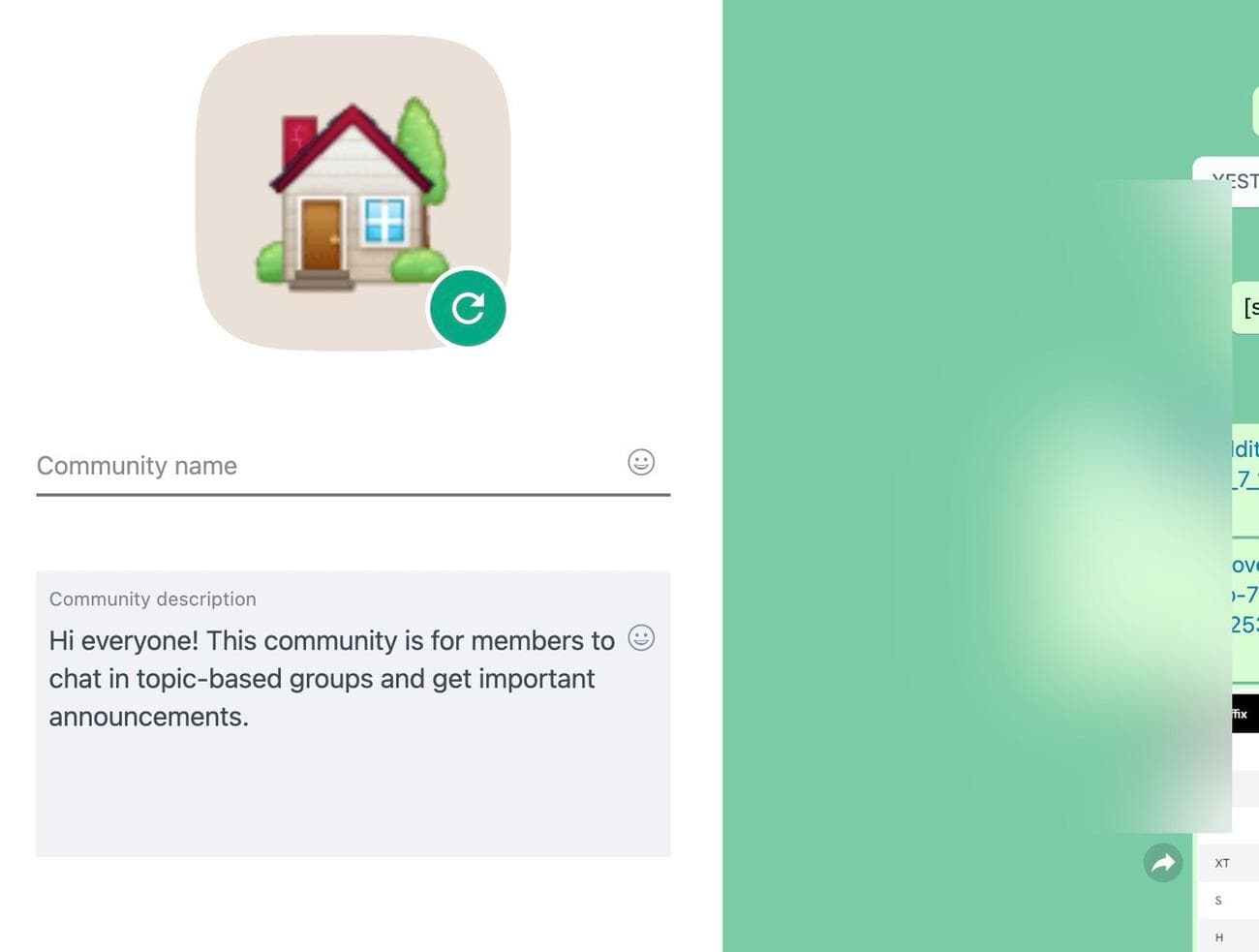
-
Your WhatsApp community is ready to use. You can check the announcements channel at the top. Click
Add group
.
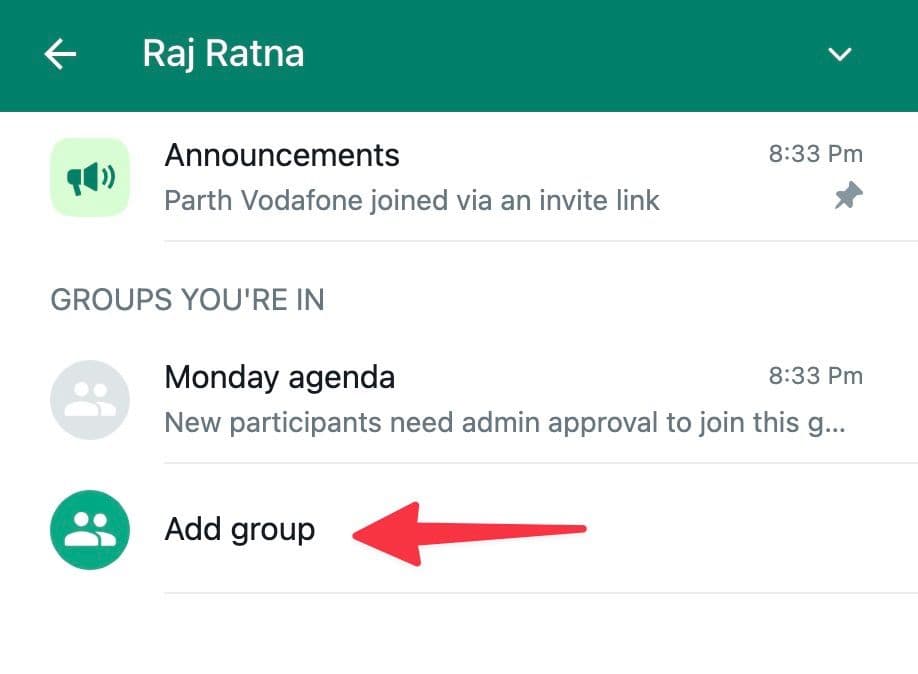
-
You can create a new group or add an existing one. You can check the list of groups with admin access.
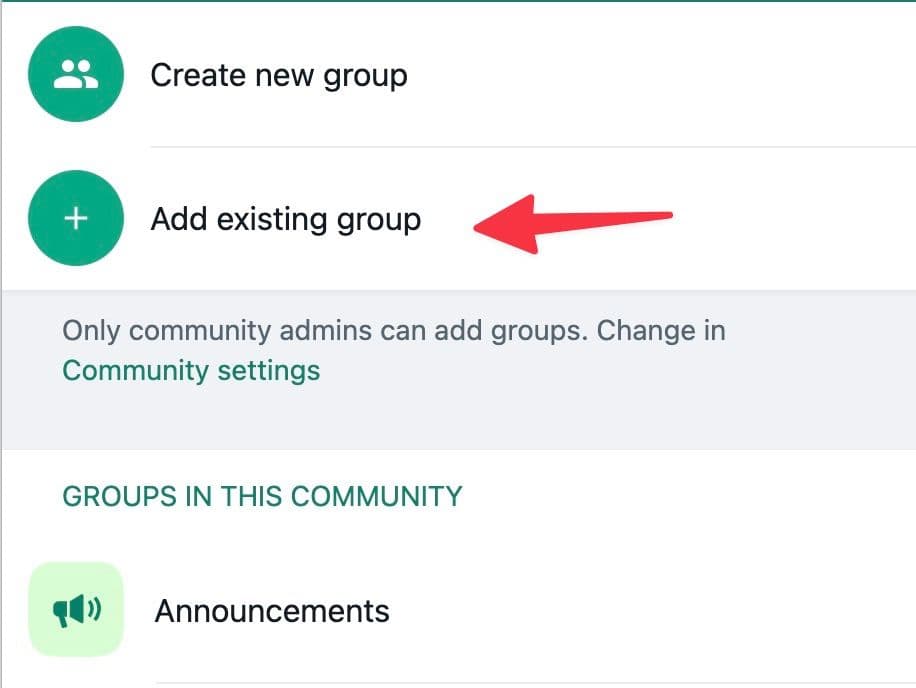
-
Select the
checkmark
beside a group you want to add to a community. You can add up to 100 groups to a community. -
Select the
checkmark
to confirm.
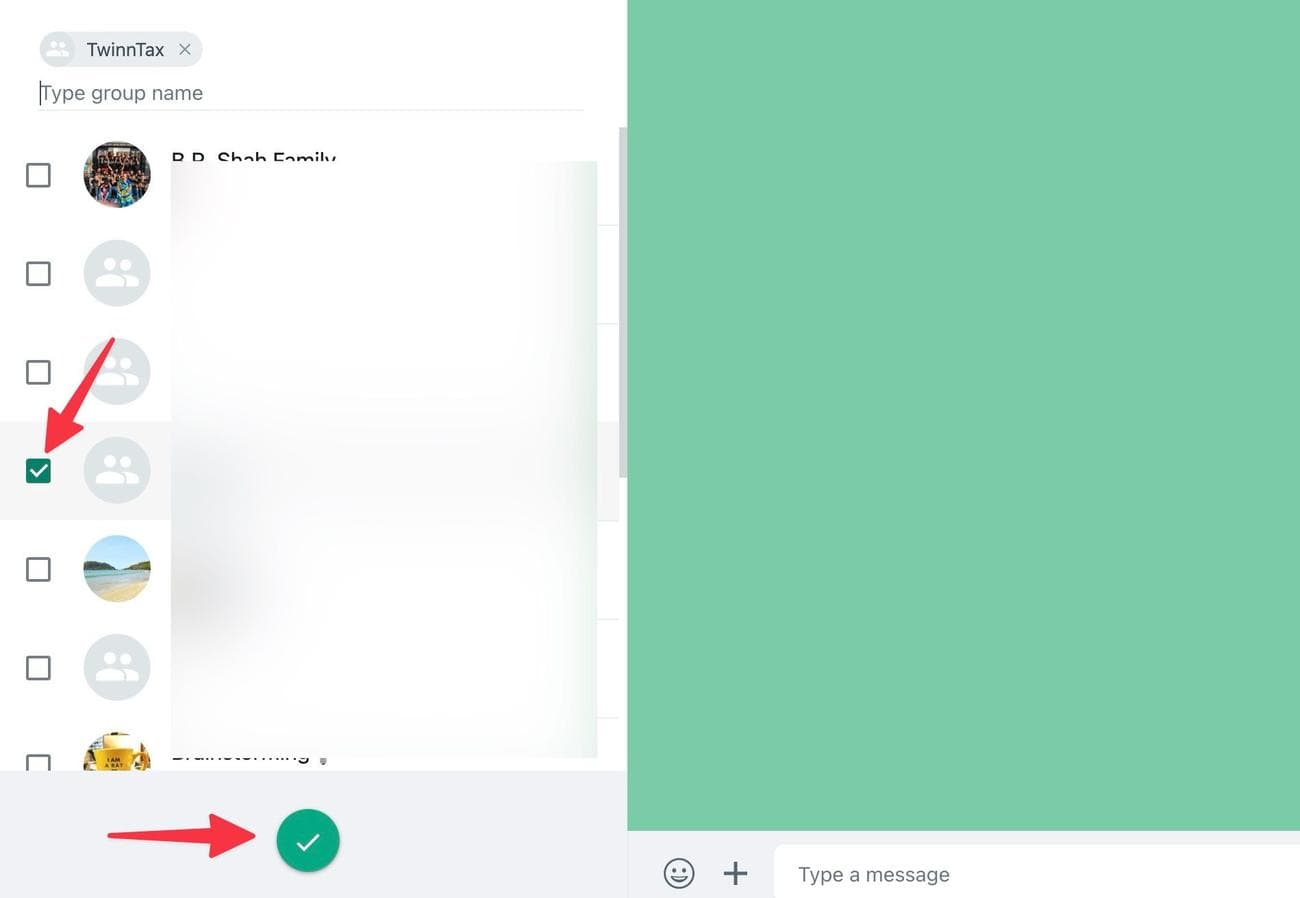
That’s it. You are all set to share updates with all the group members in the community.
How to manage members and groups in Communities
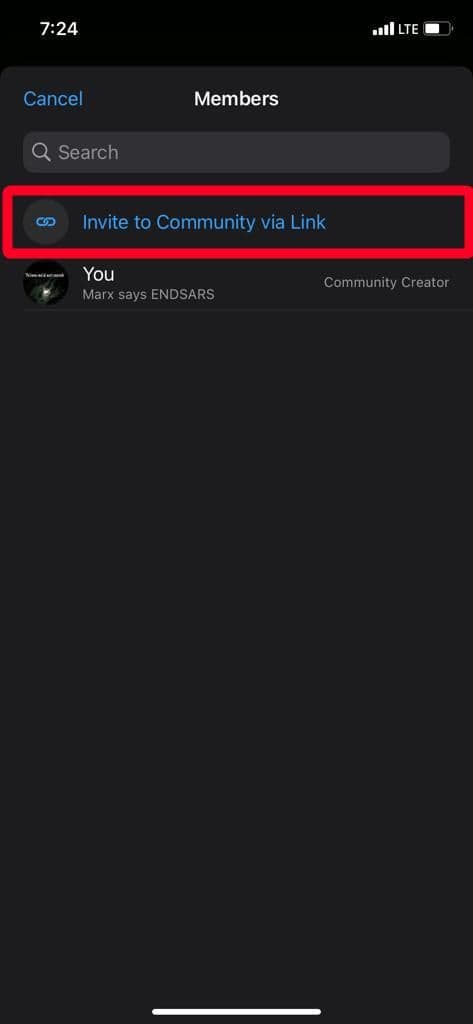
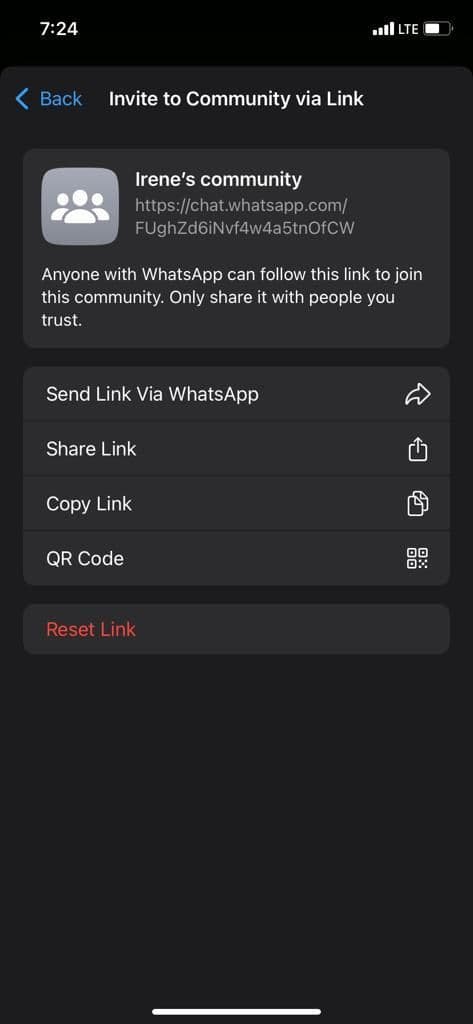
You can add new members to your community or invite people by sharing the link. The polite thing to do is invite them via URL since not everyone is okay with you adding them without permission. The URL allows people to decide if they want to join the community.
When someone joins a group, they automatically become part of the community. However, they can only access the Announcement group when they join the community via URL. They can’t see what goes on in subgroups until you add them or they request to join one.
Additionally, when a participant exits a group or is removed, they remain in the Announcement group until you remove them. However, Communities offers an option to remove a member from all groups simultaneously, including the Announcement group.
Add members to a WhatsApp community on Android
-
Open
WhatsApp
. - Swipe right to access Communities.
- To invite someone, tap a community.
-
Select
Invite members
.
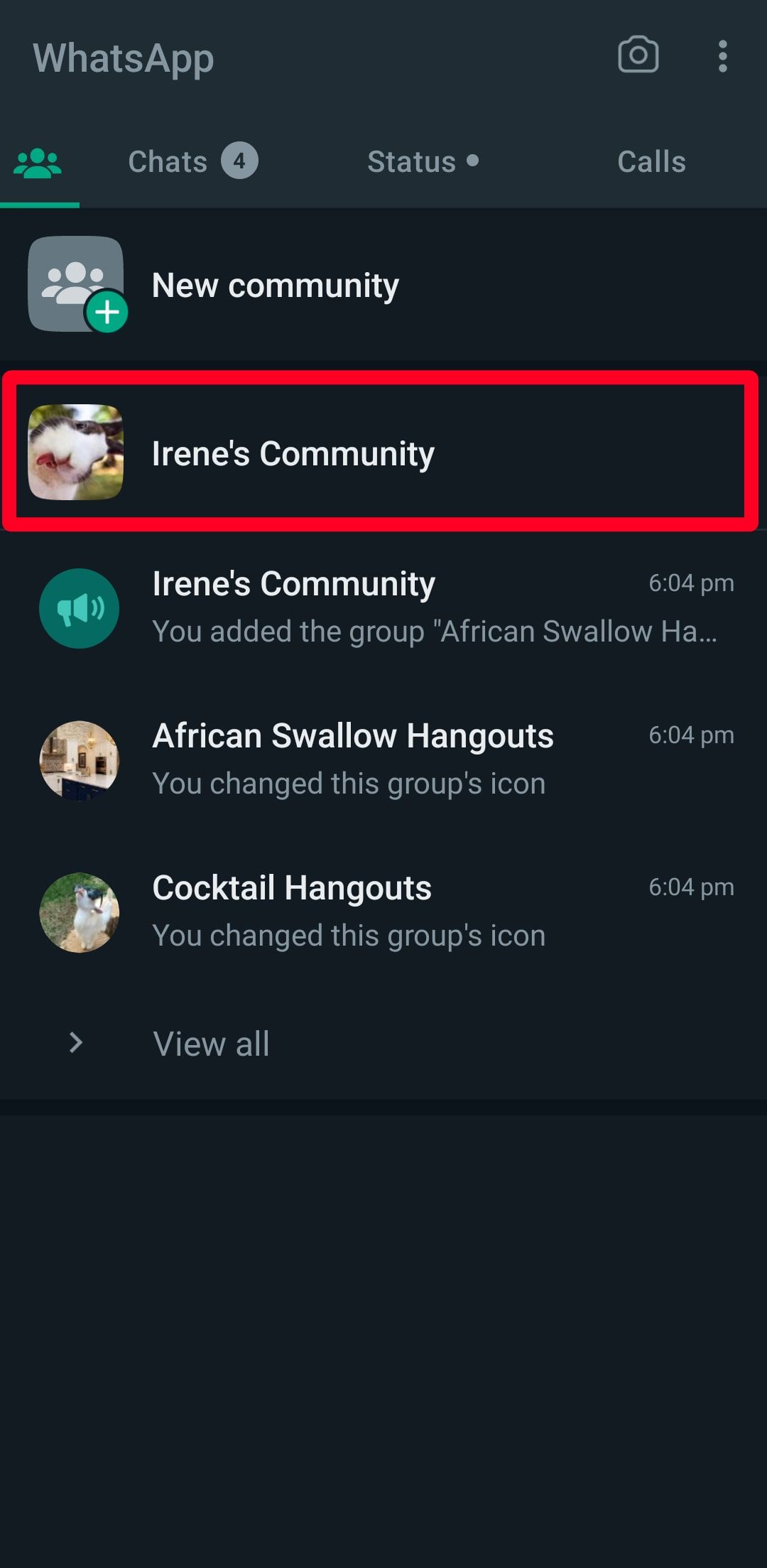
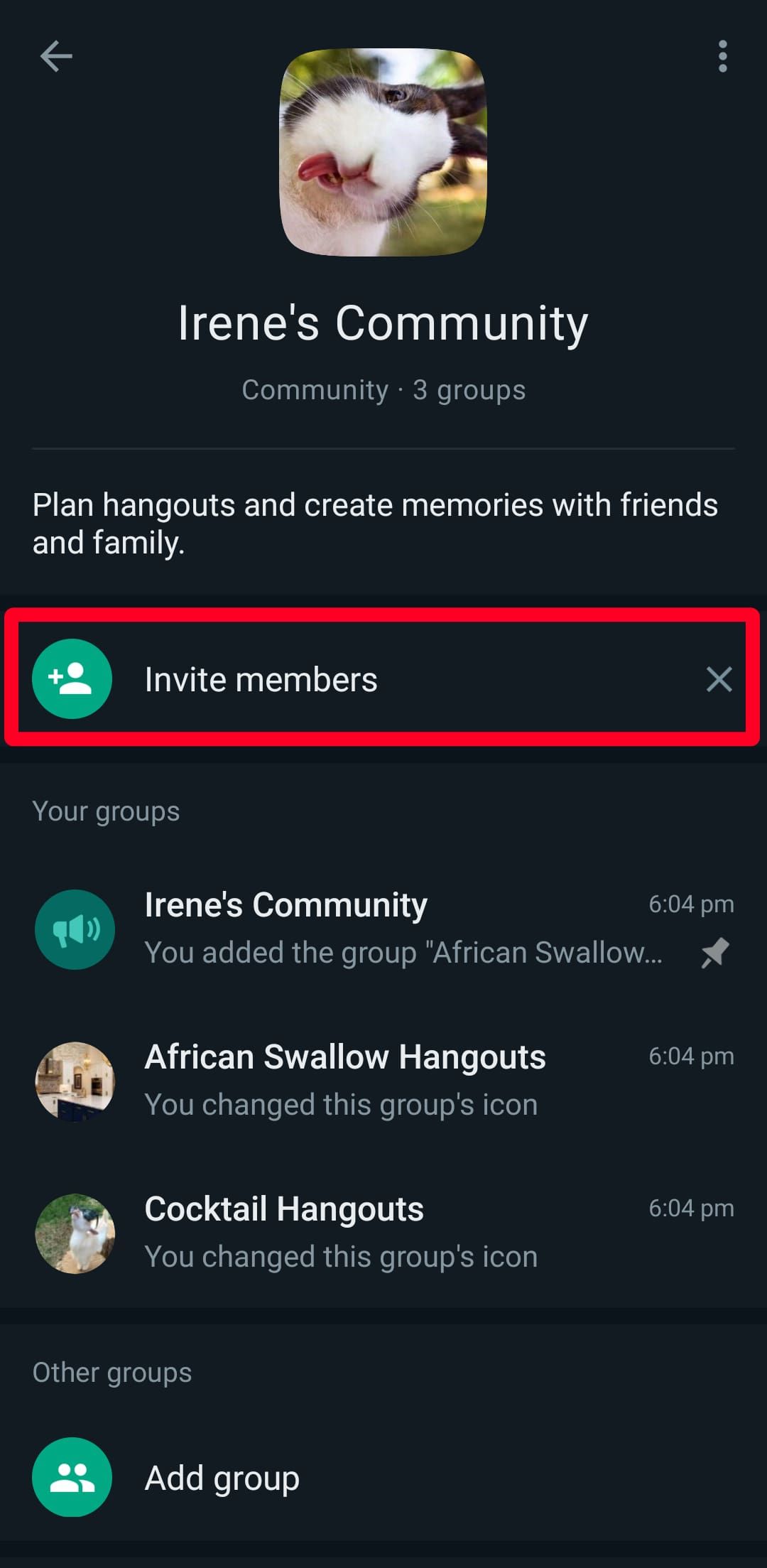
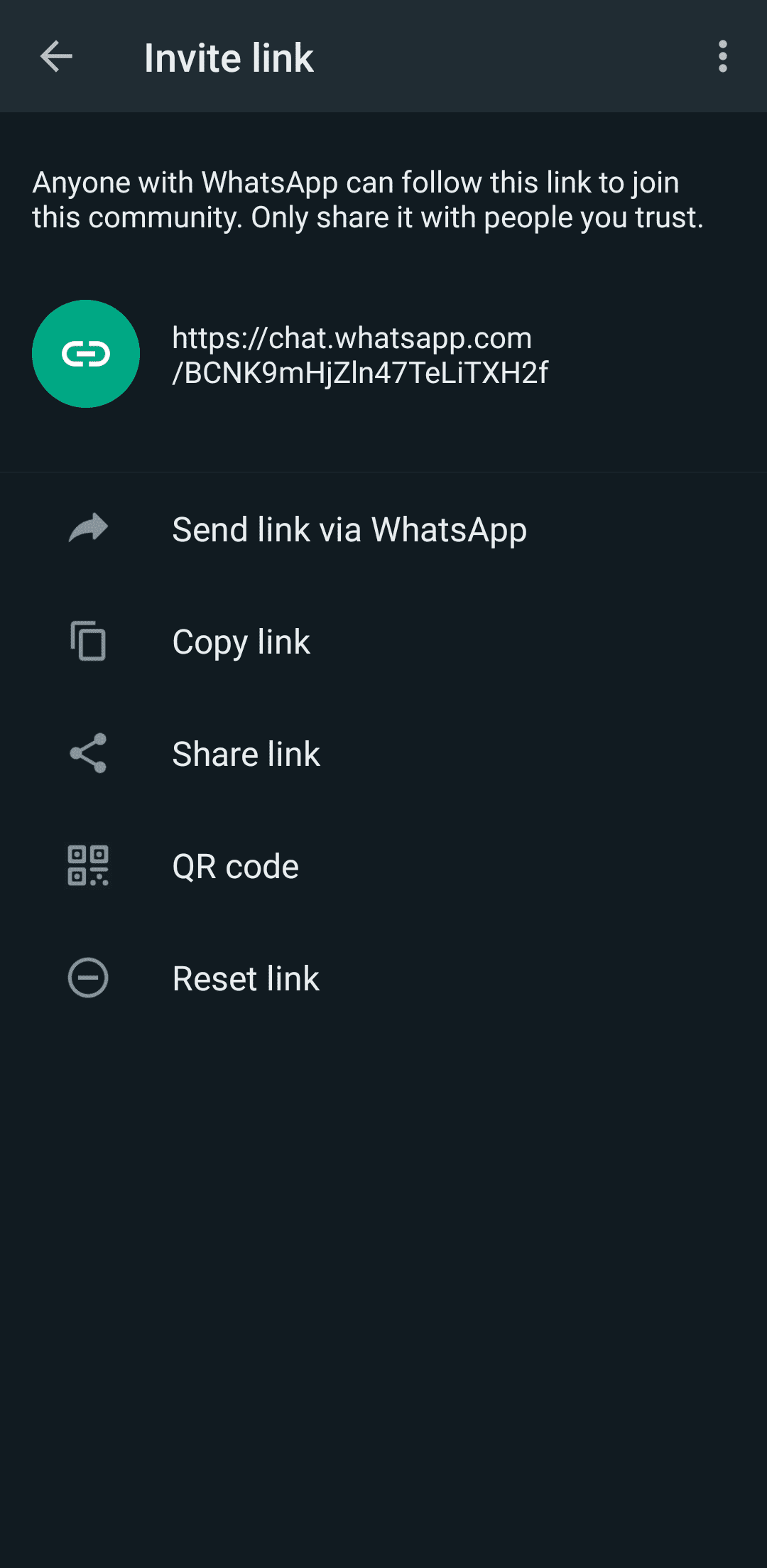
- Use the provided options to share your link on WhatsApp and other platforms, invite members via QR codes, or reset your link.
-
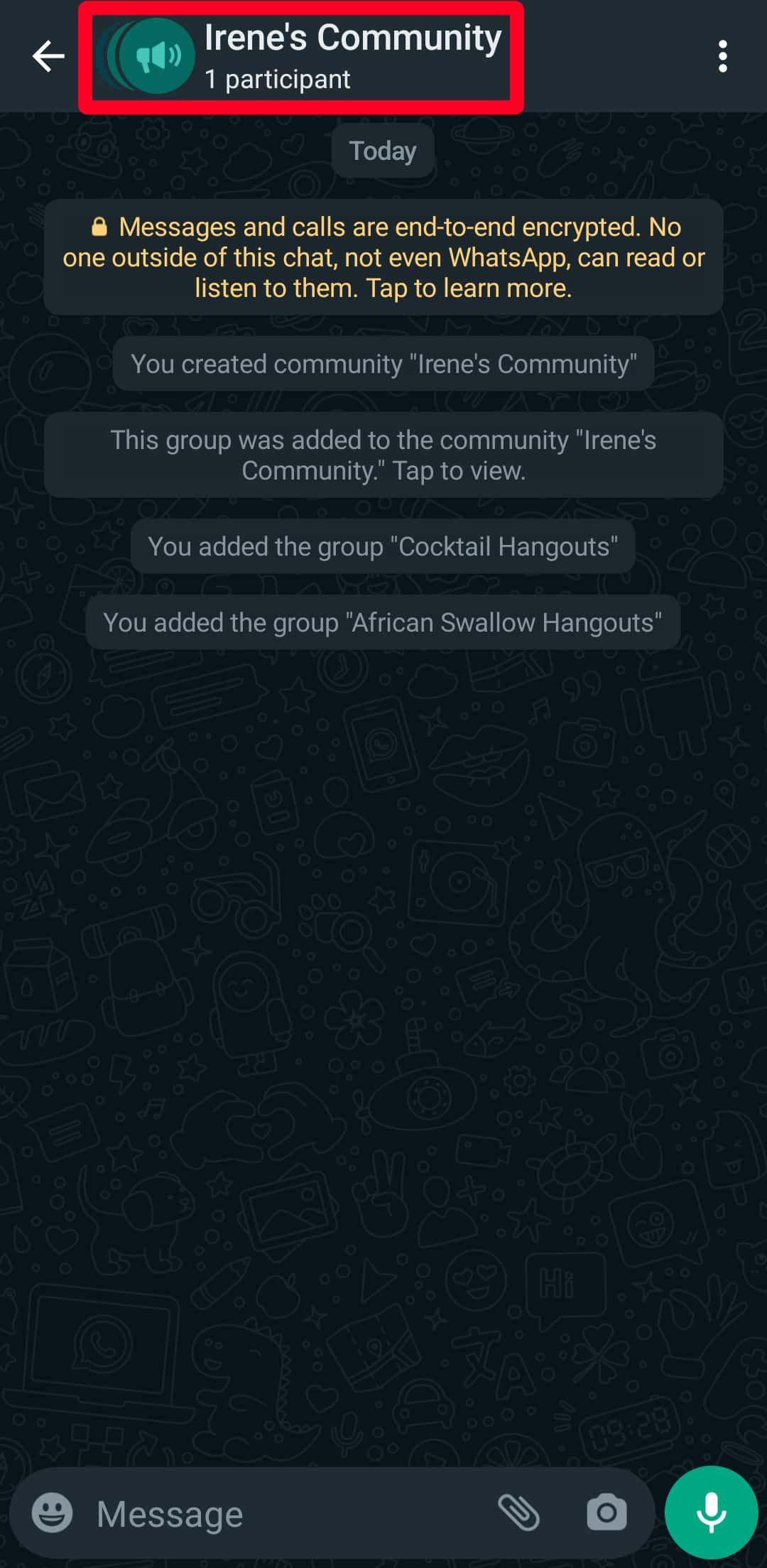
Access the Announcement group from your community info menu to add members directly to the community.
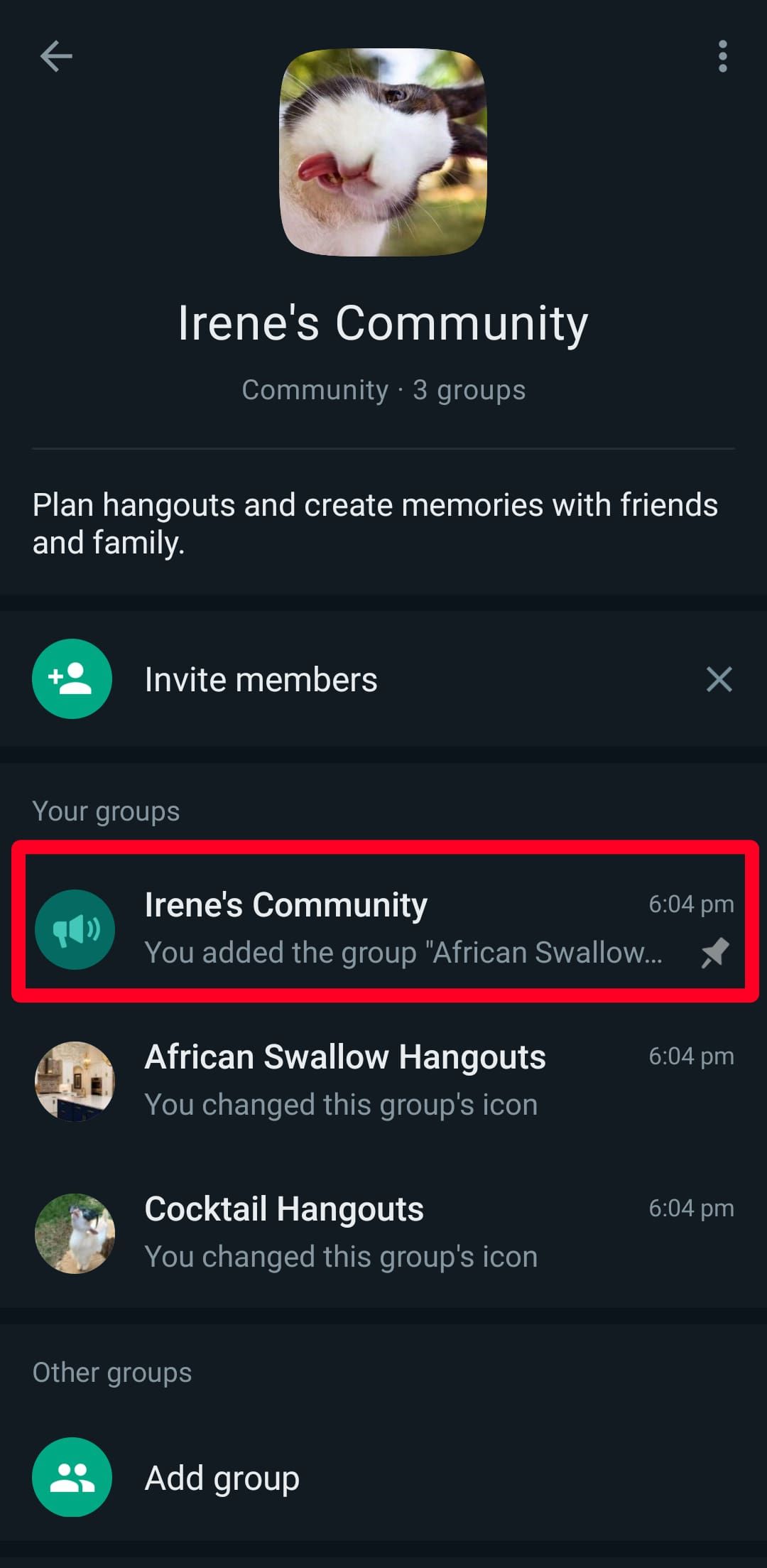
-
Tap
the
Group
subject at the top of your screen. -
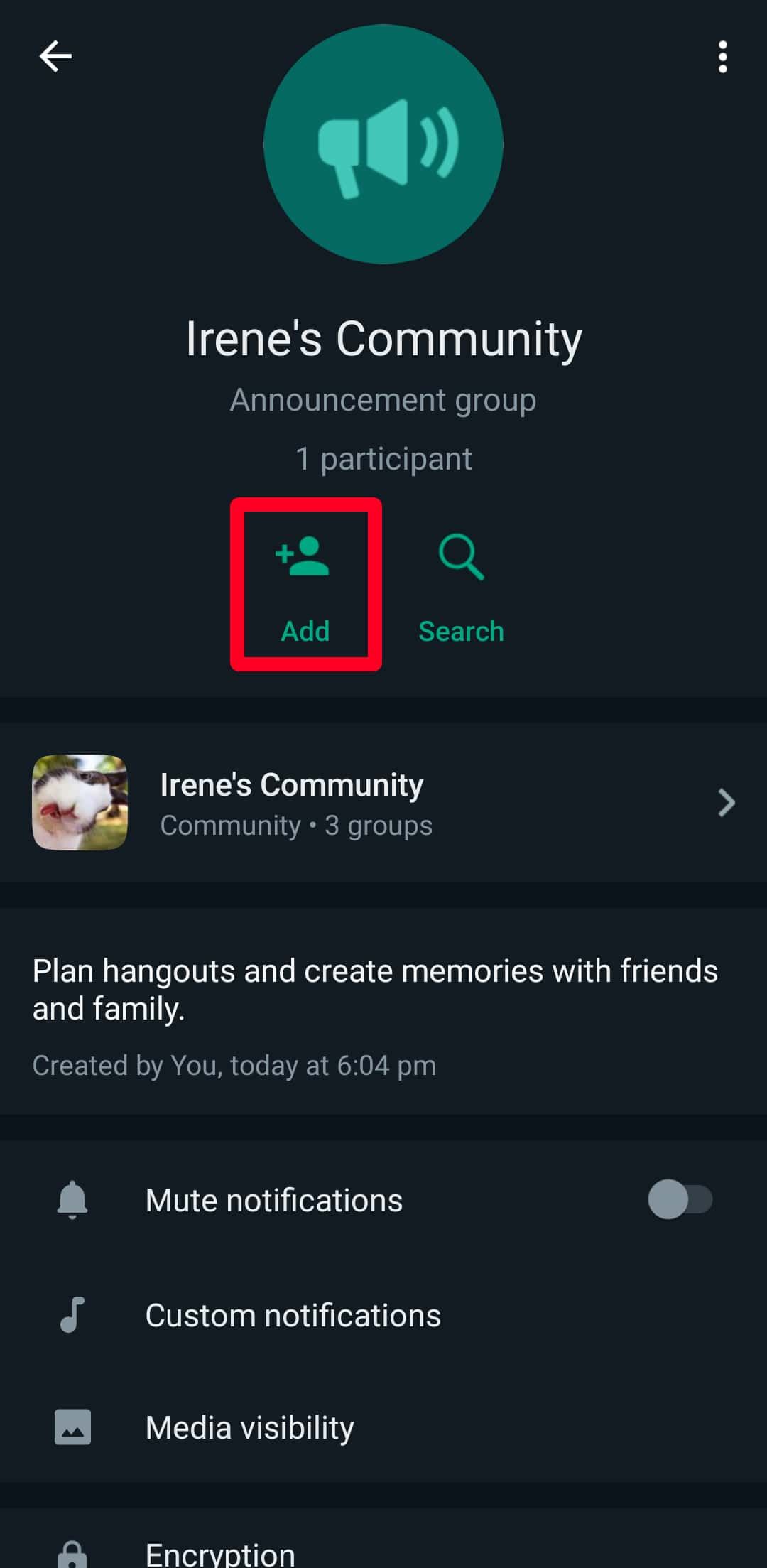
Tap
Add
.
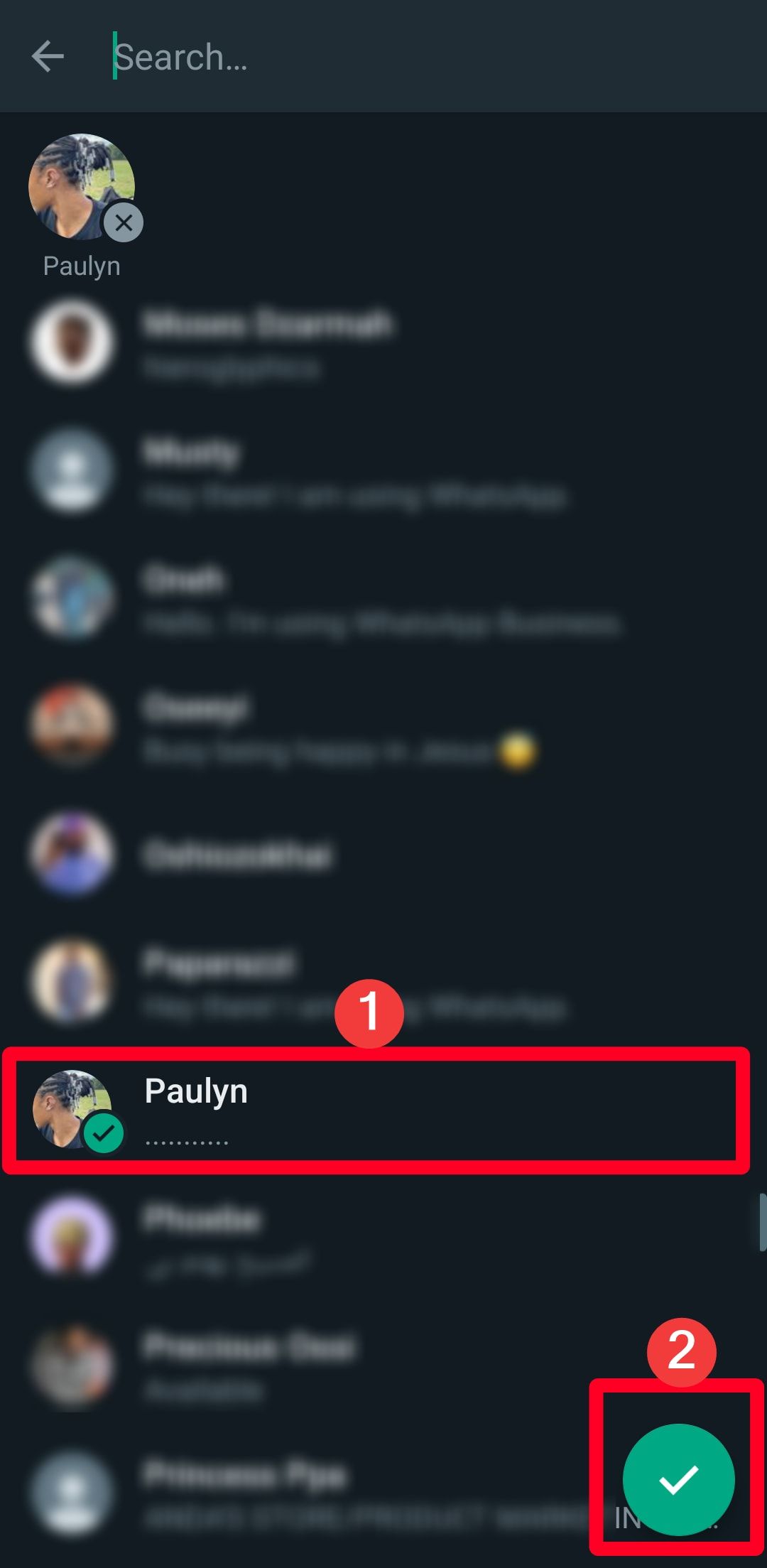
- Select a contact or search for one.
-
Tap the
checkmark
.
-
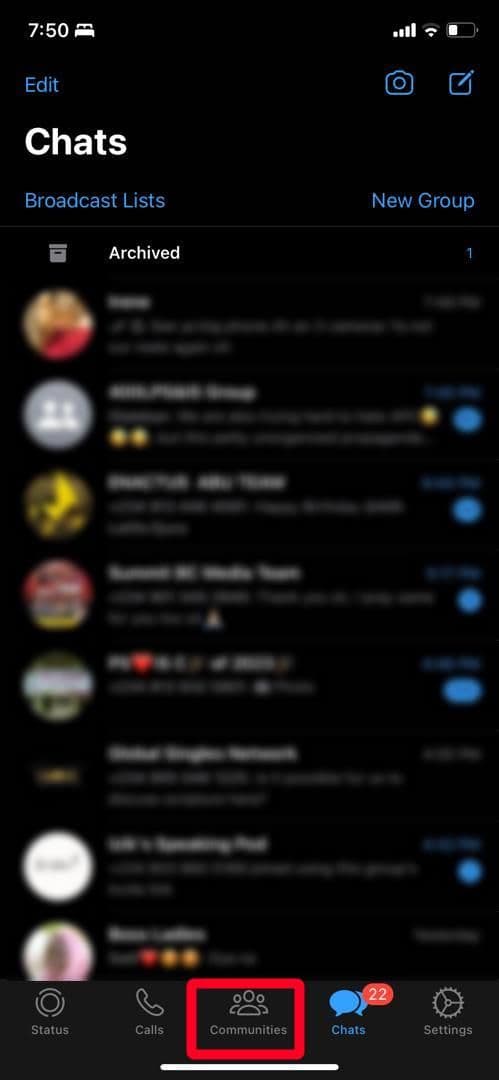
Open
WhatsApp
. -
Tap the
Communities
tab. - Select a community.
-
Tap
View Members
.

-
Tap
Invite to Community via Link
. -
Use the provided options to share your link on WhatsApp and other platforms, invite members via QR codes, or reset your link.
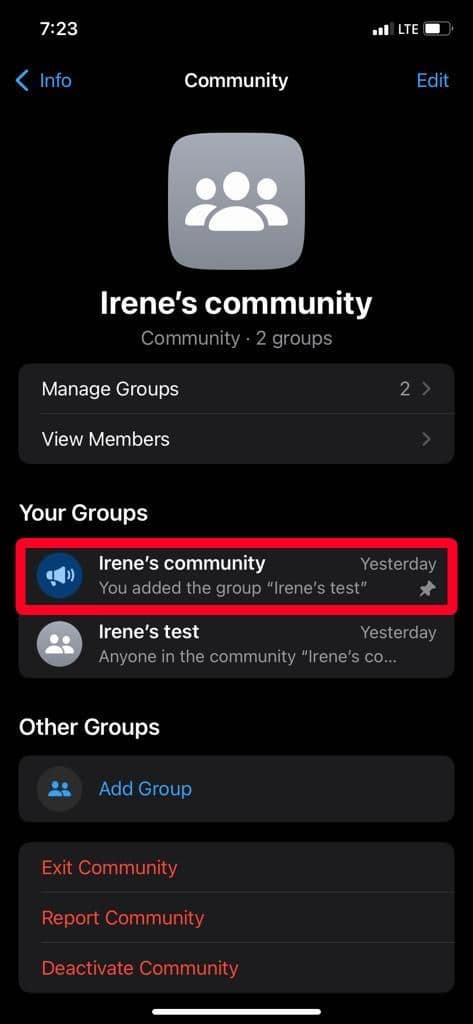
- Access the Announcement group from your community info menu to add members to the community.
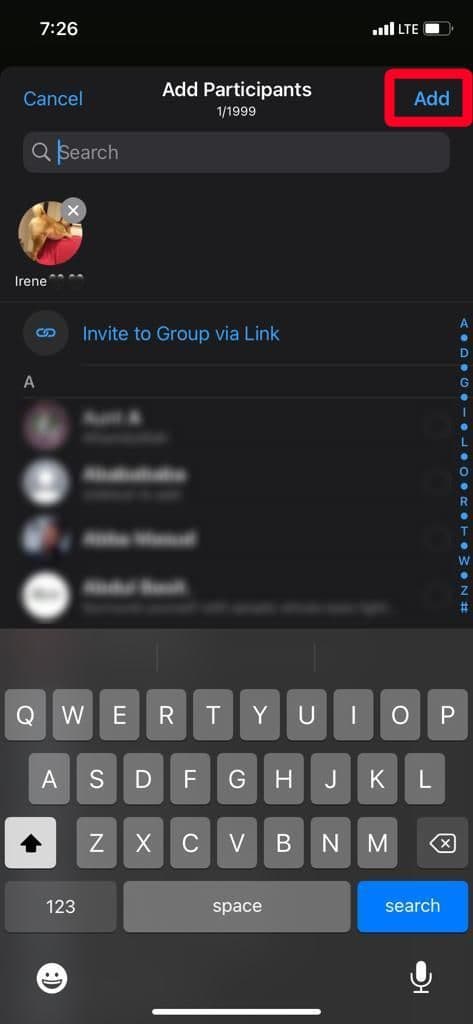
-
Tap the
group subject
above your screen. -
Tap
Add participants
.
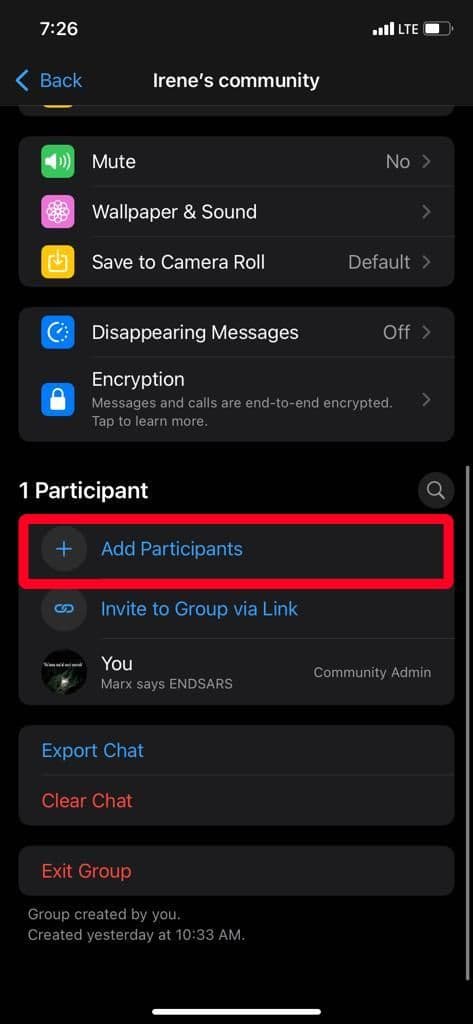
-
Search for a contact or select one from the list.
-
Tap
Add
.
-
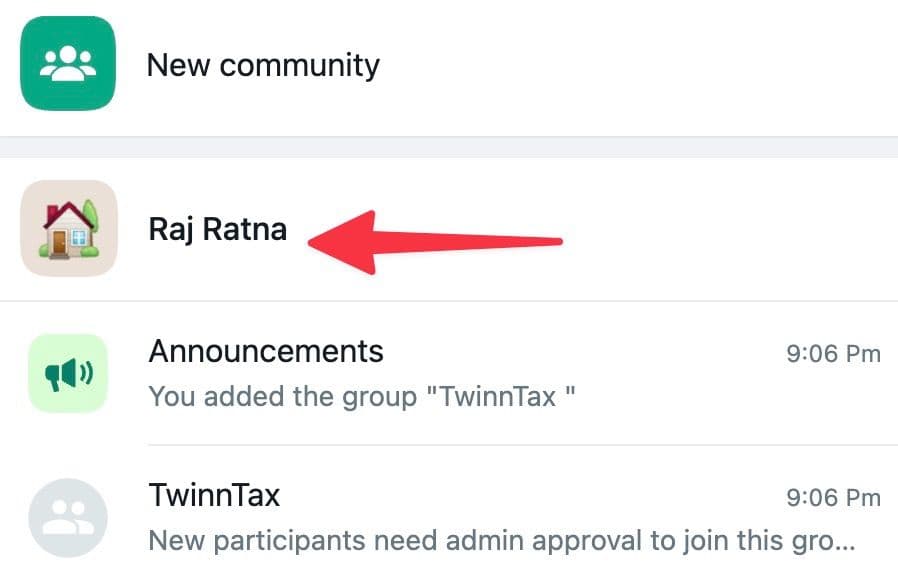
Open
WhatsApp
and go to the
Communities
tab. -
Select the community name.
-
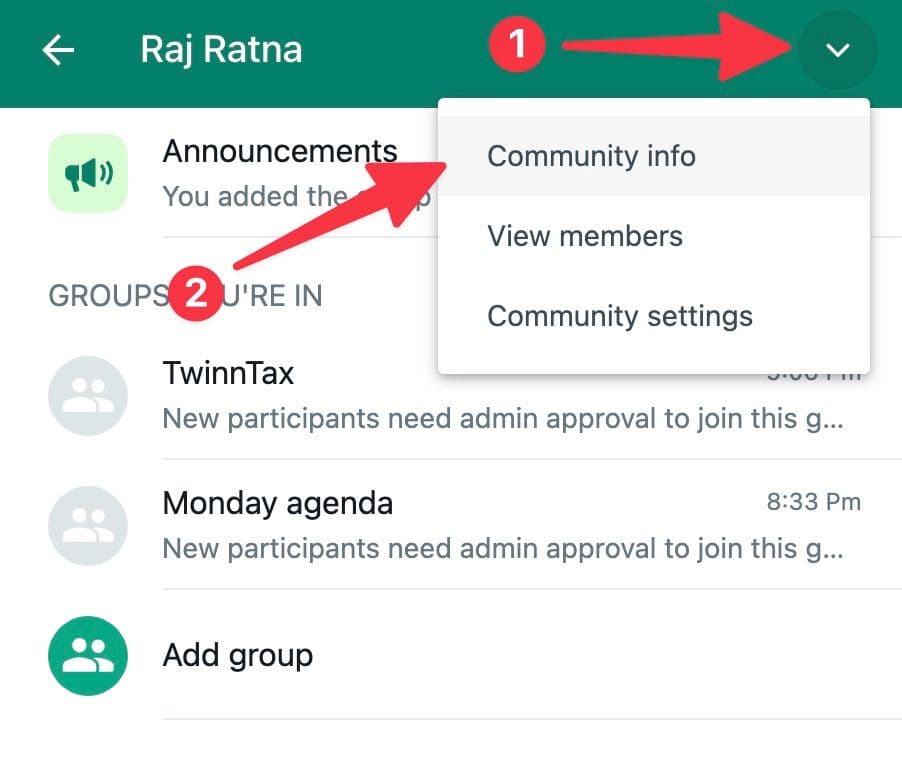
Click the
down arrow
at the top and select
Community info
.
-
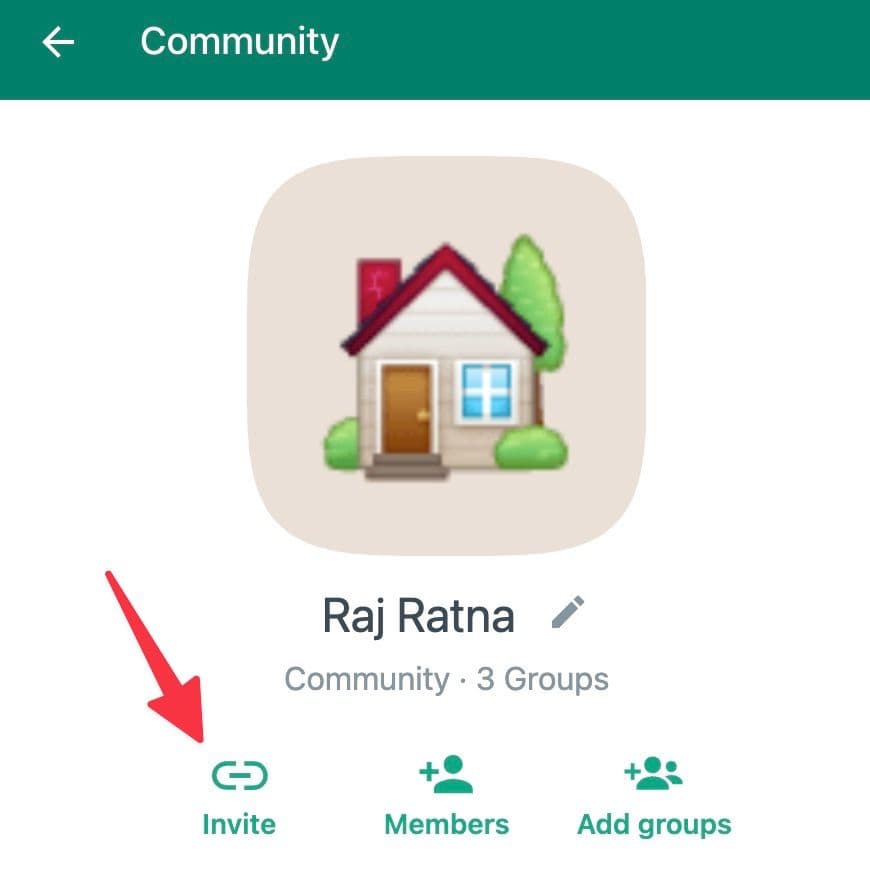
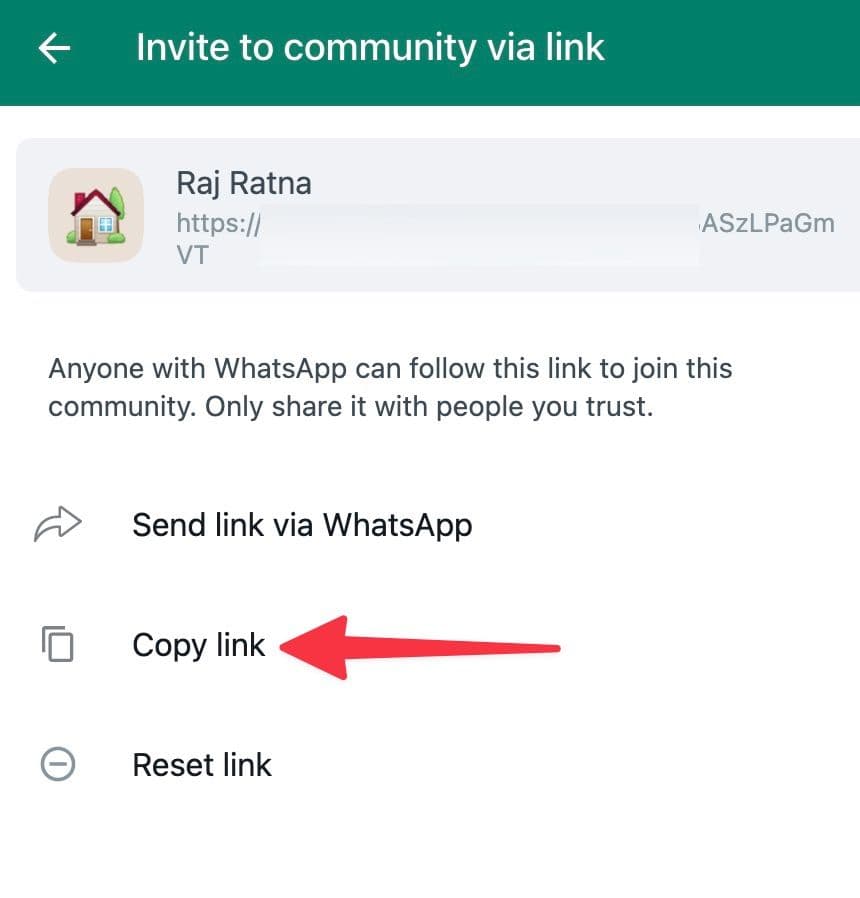
Click
Invite
and copy a community link from the following menu.
-
You can send a link via WhatsApp or reset the current link from the same menu.
Remove members and groups from a WhatsApp community on Android
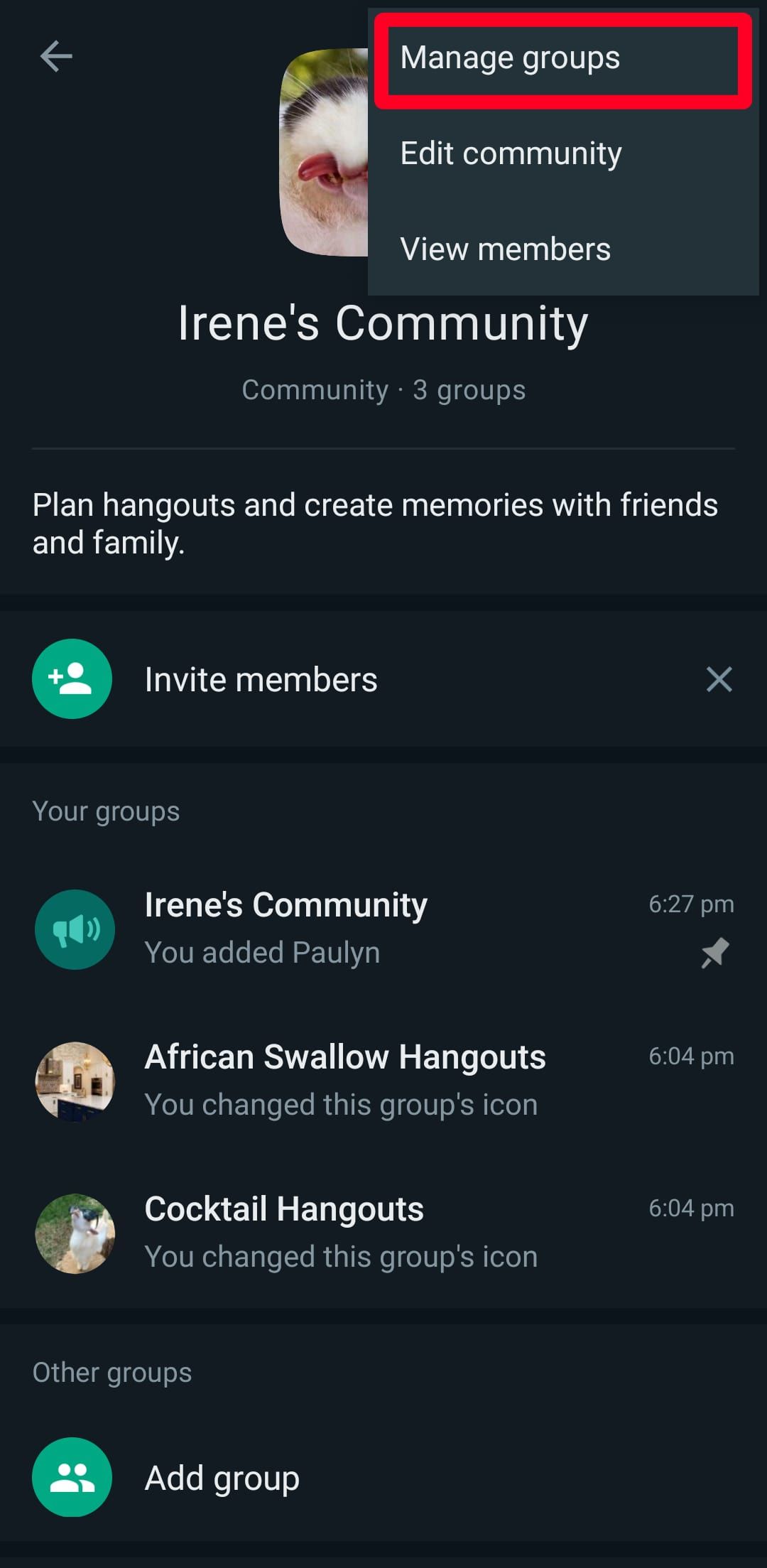
- Open your community info menu.
-
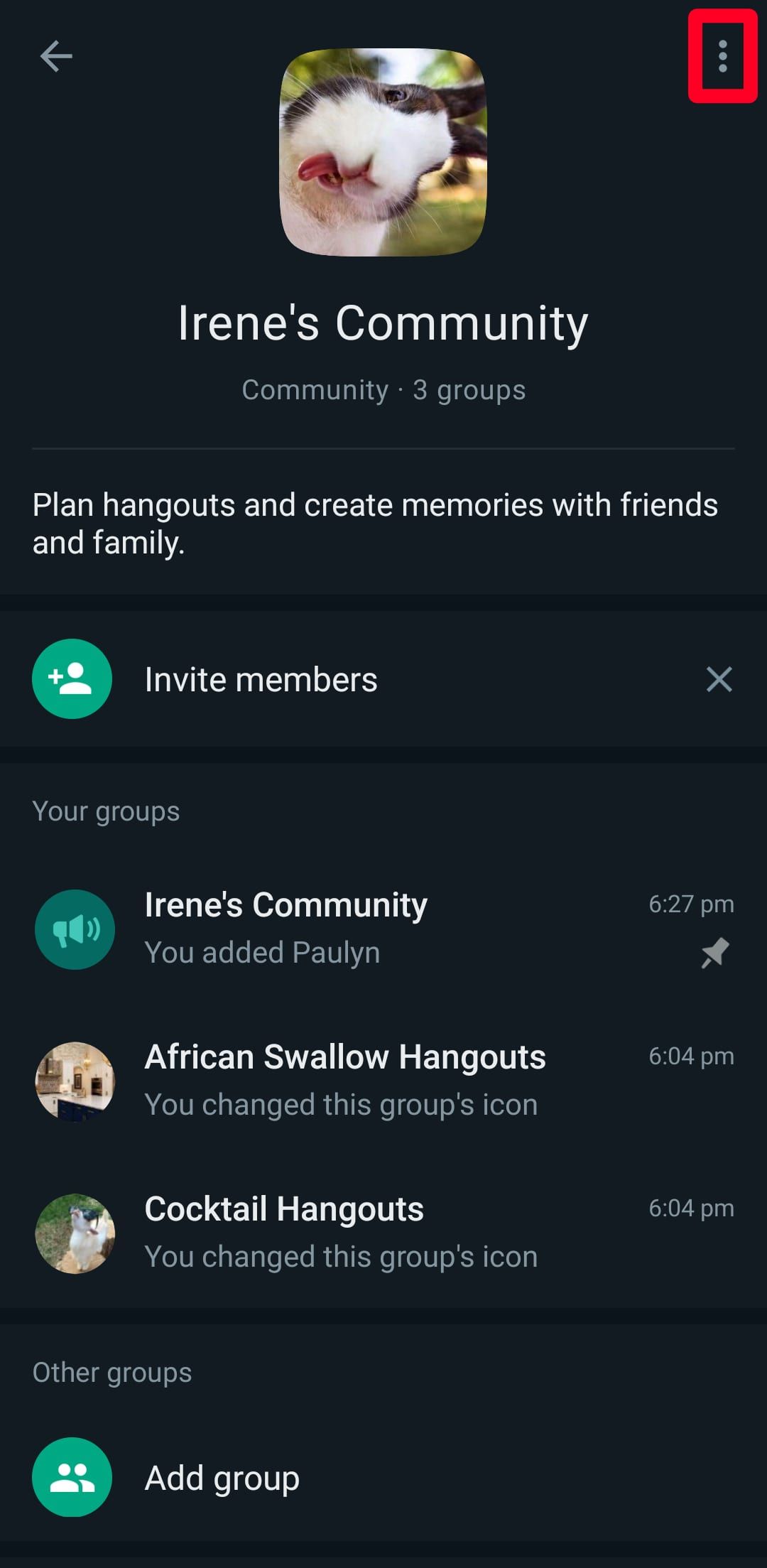
Tap the
three dots
icon in the upper-right corner to remove a member. -
Select
View members
.
-
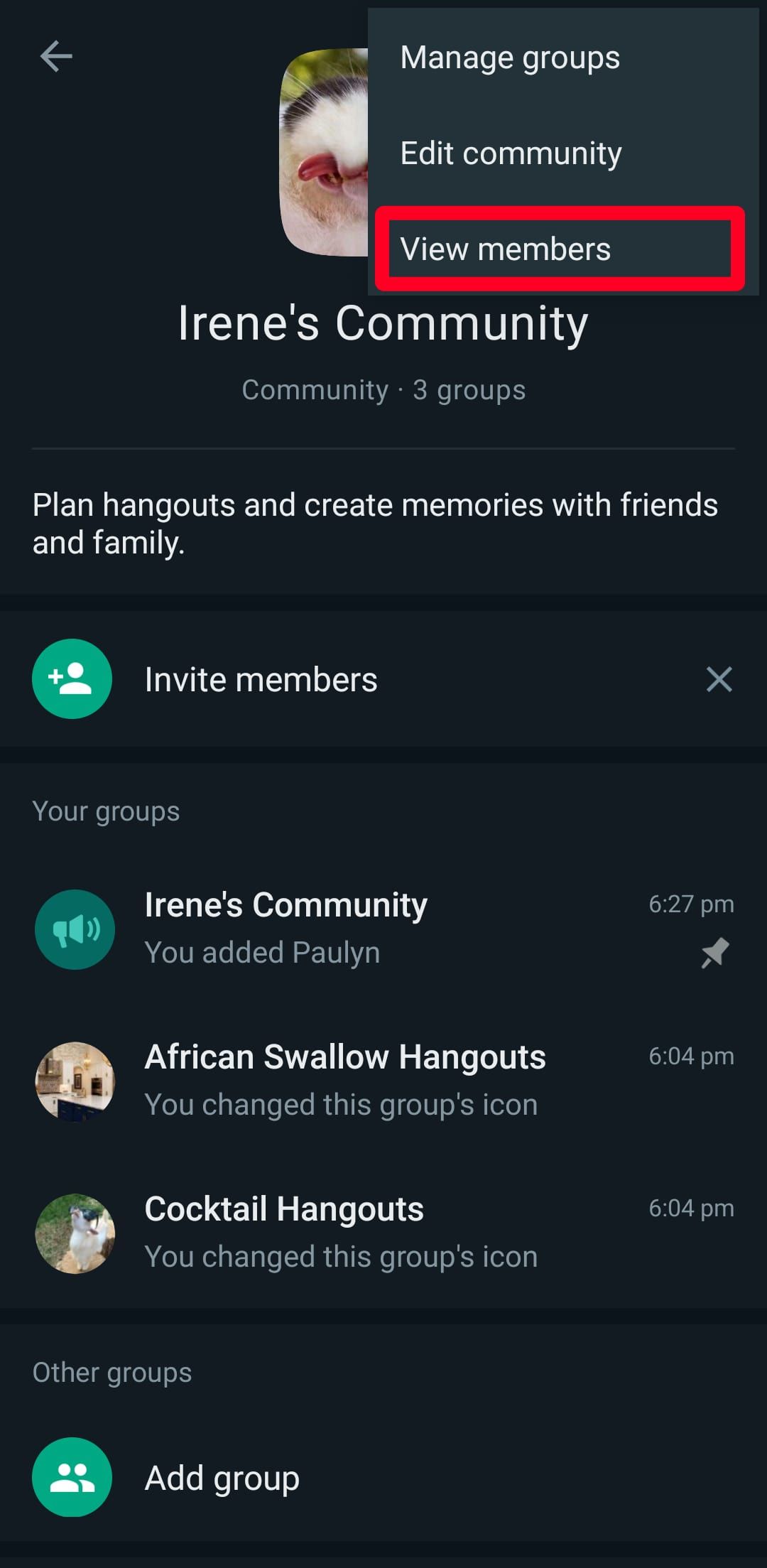
Tap a member and select
Remove [their name]
. This action erases the member from the announcement group and the other groups they belong to in the community. - Return to the community info menu to remove a group from your community.
-
Tap the
three dots
icon. -
Select
Manage groups
.
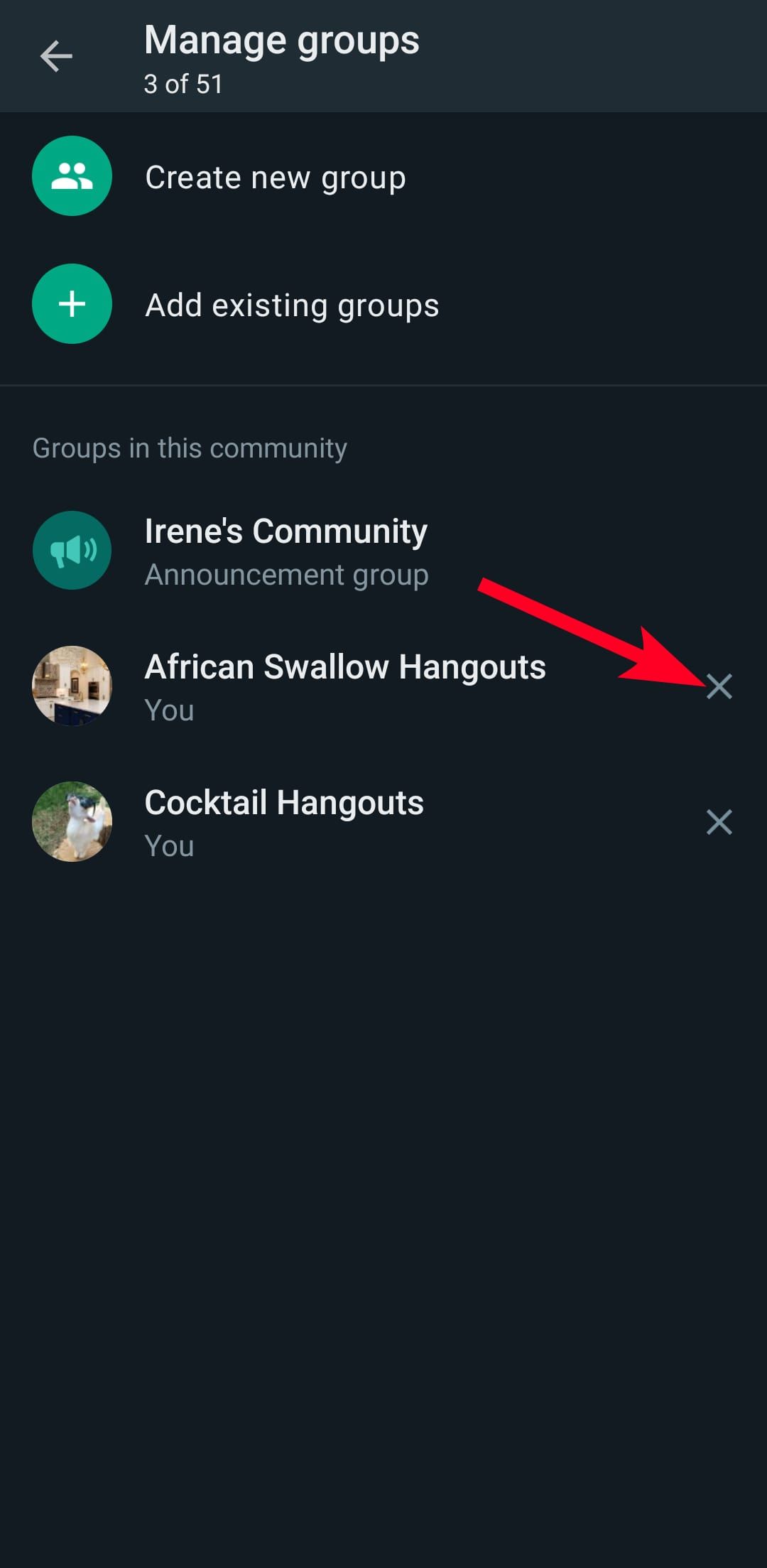
-
Tap
X
beside any group. -
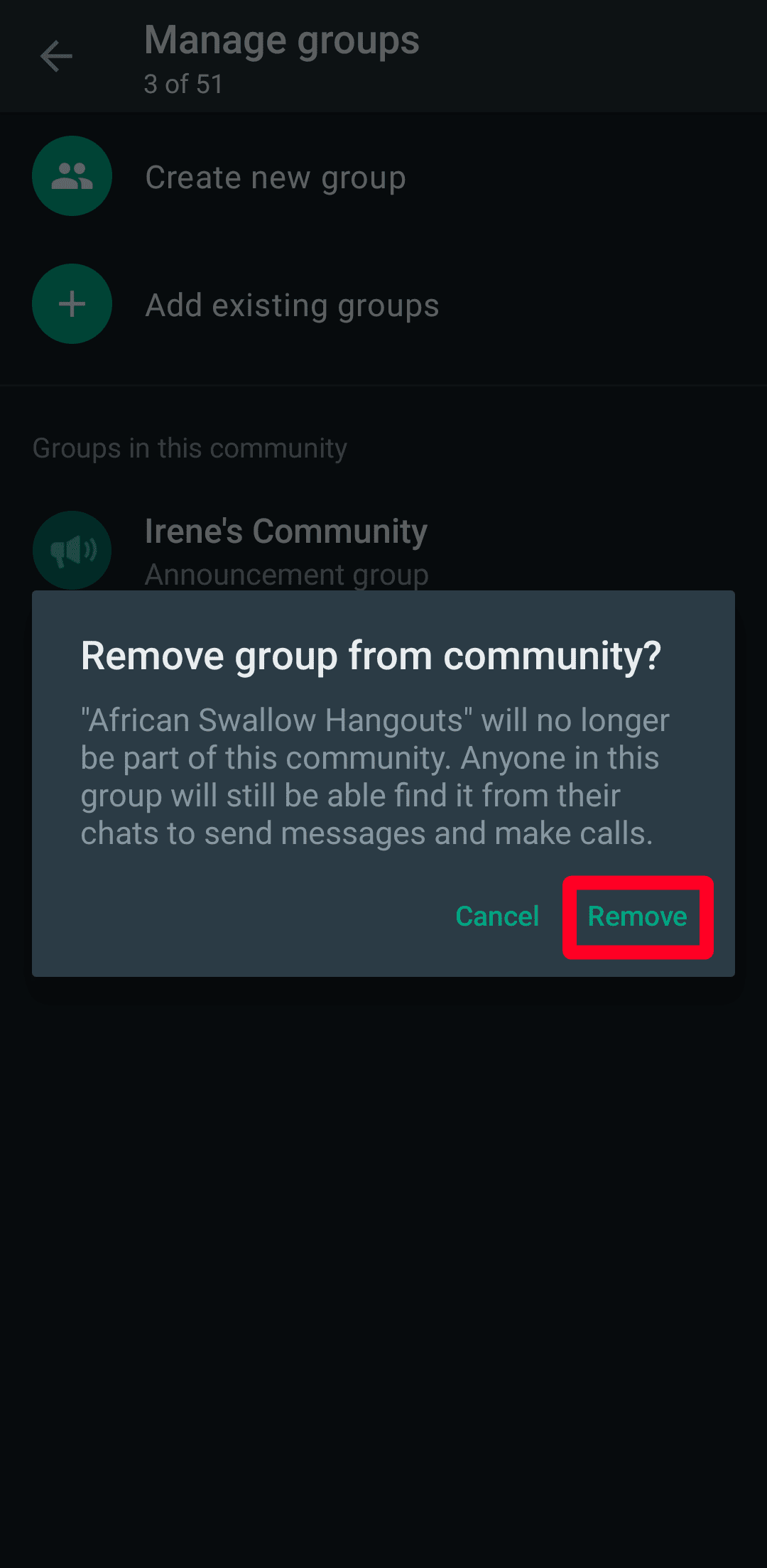
Tap
Remove
. This action erases the group from the community, but its members remain inside it.
Remove members and groups from a WhatsApp community on iOS
-
Open
WhatsApp
. -
Tap the
Communities
tab. - Open a community.
-
Select
View members
.
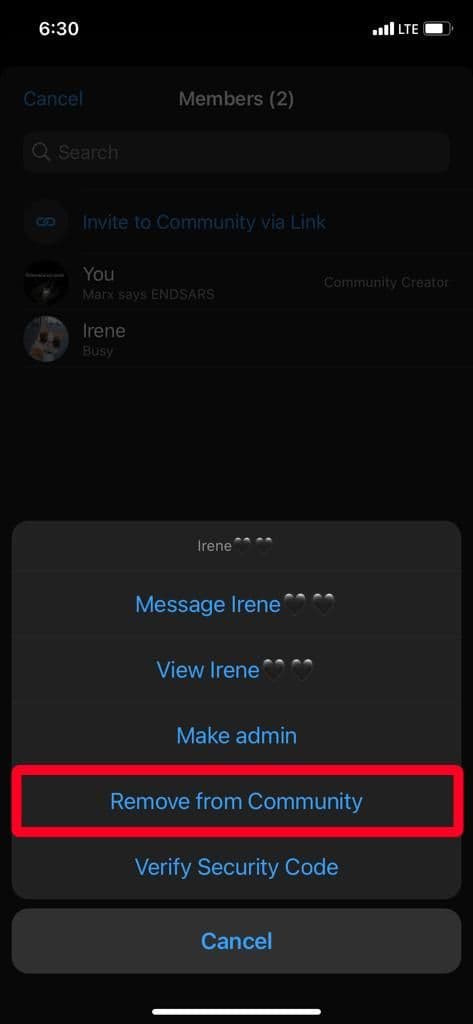
- Select a member.
-
Tap
Remove from Community
. -
Tap
Remove
to confirm your choice.
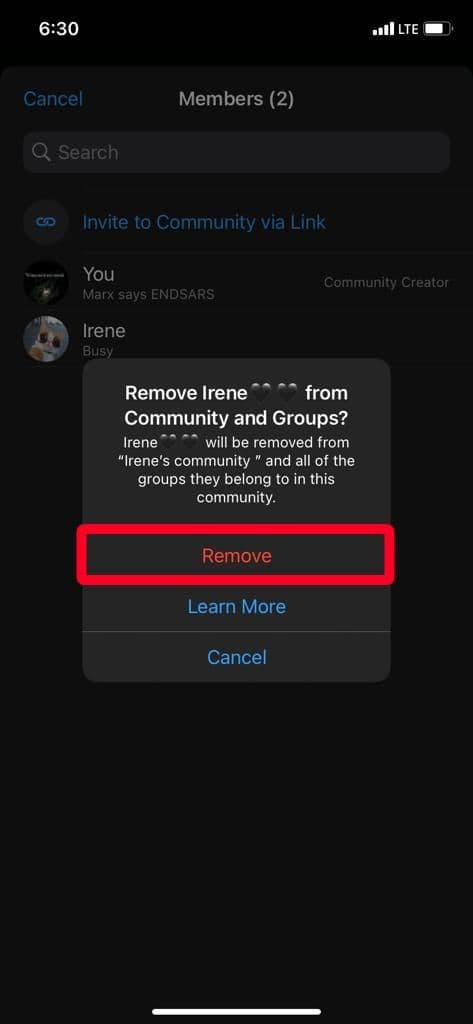
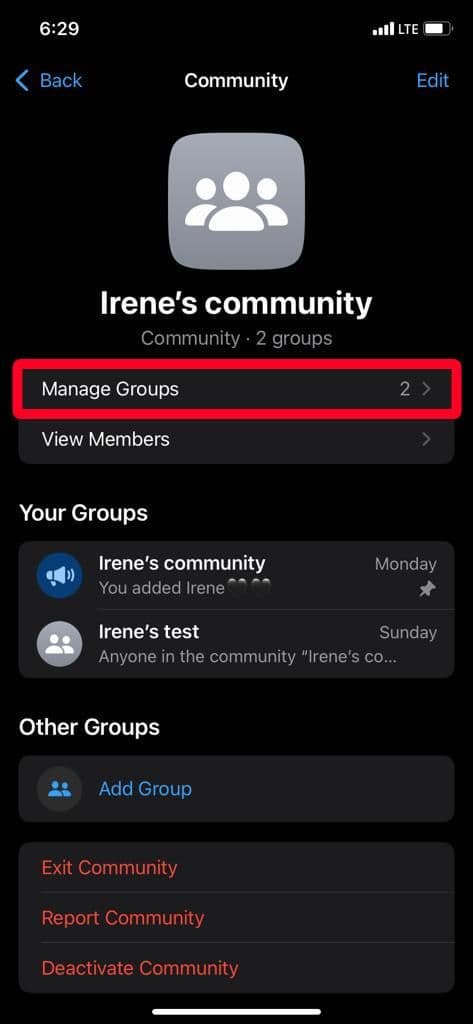
- Return to your community info menu to remove a group from the community.
-
Tap
Manage Groups
. -
Tap
Edit
.
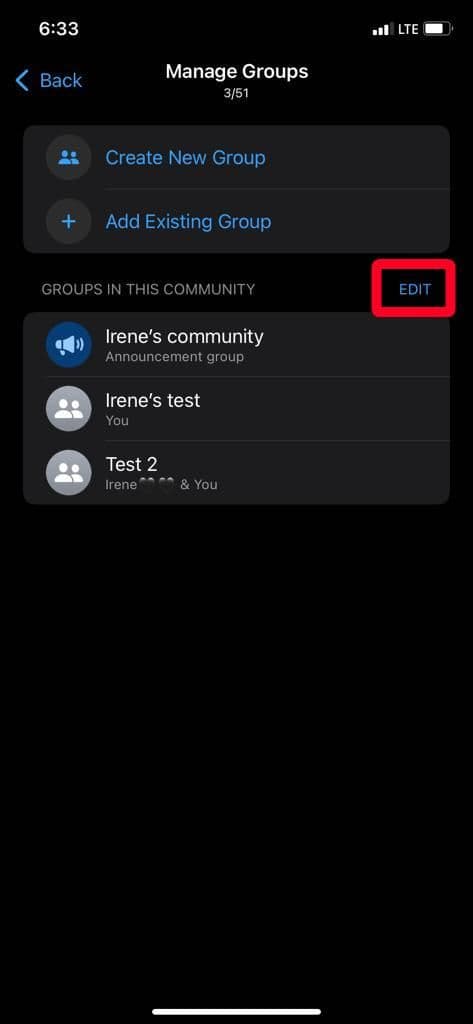
-
Tap
—
beside a group. -
Tap
Remove
beside the group.
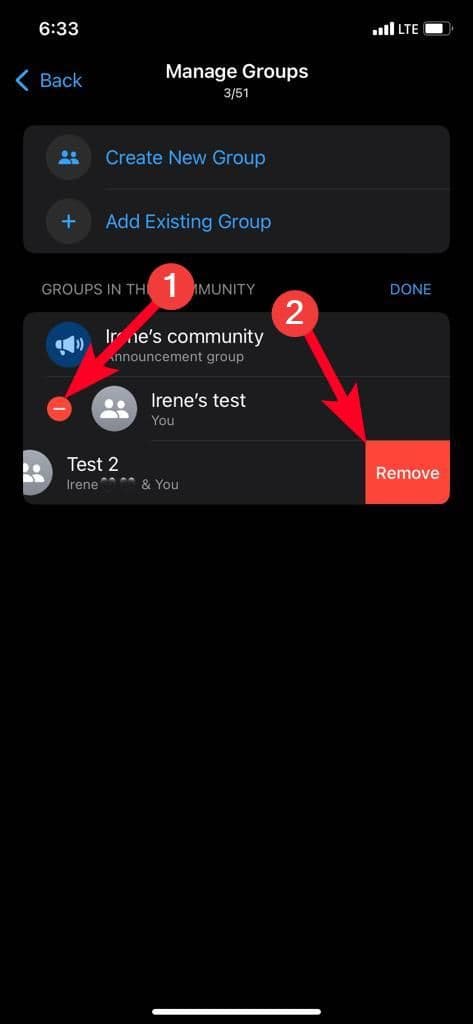
-
Tap
Remove
again to confirm your decision. -
Tap
Done
to save the changes.
Remove members and groups from a WhatsApp community on desktop
-
Go to the
Communities
tab and select a community. -
Click the
down arrow
at the top and select
Community info
.
-
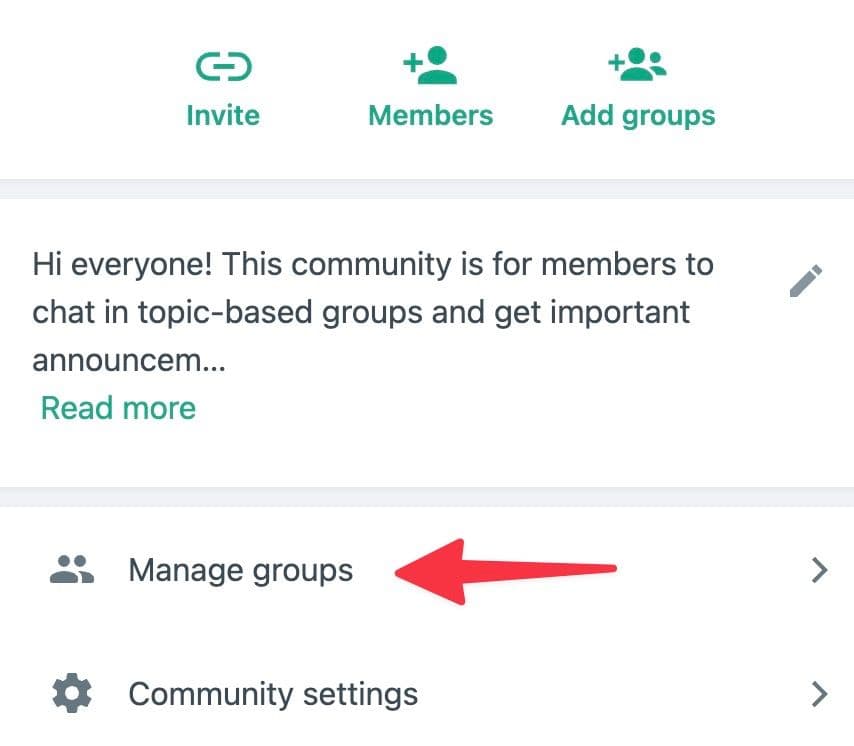
Select
Manage groups
.
-
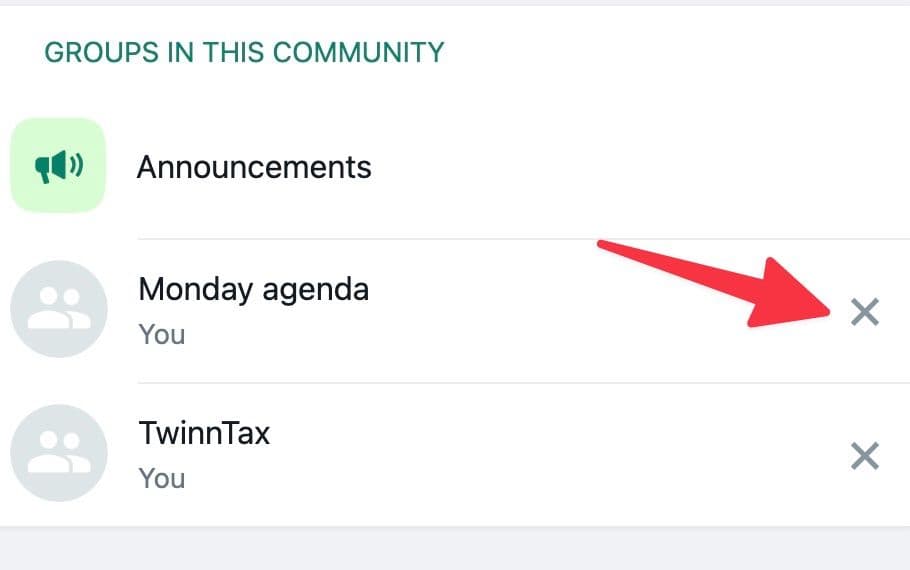
Tap the
x
mark beside a group, and confirm your decision.
-
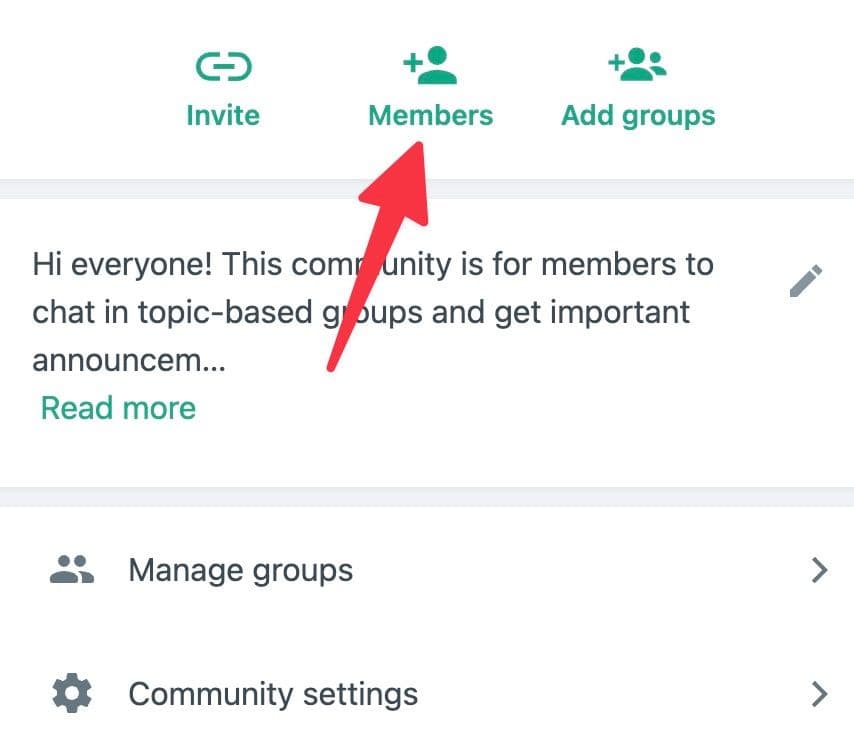
Go back and select
Members
.
-
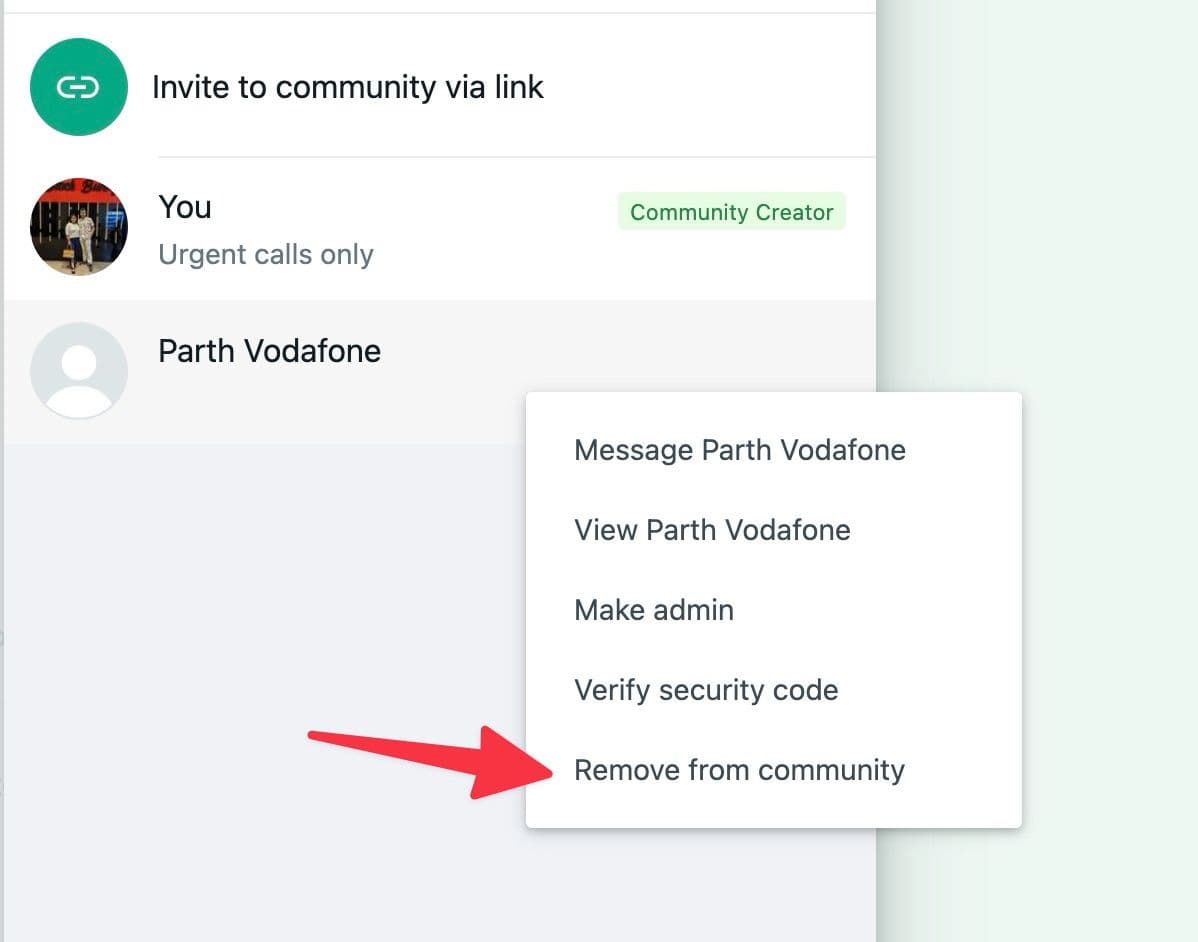
Choose a contact and select
Remove from community
.
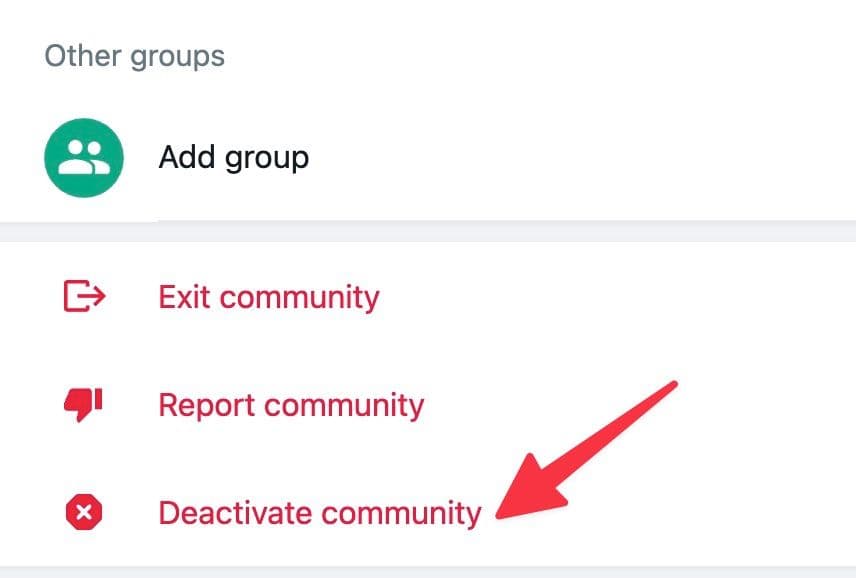
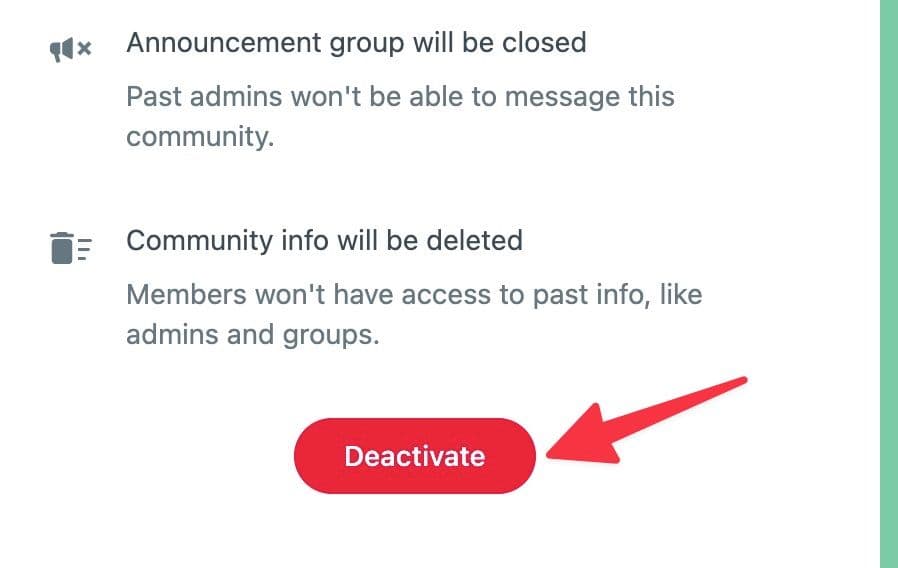
WhatsApp doesn’t let you leave a community if you created it. You can only deactivate the community, but this action disbands every group or member and deletes the community permanently. Groups continue to exist outside the community until you delete them. There’s no grace period to recover a community once you’ve deleted it. The best you can do is create a new one and organize it to look like the deactivated one.
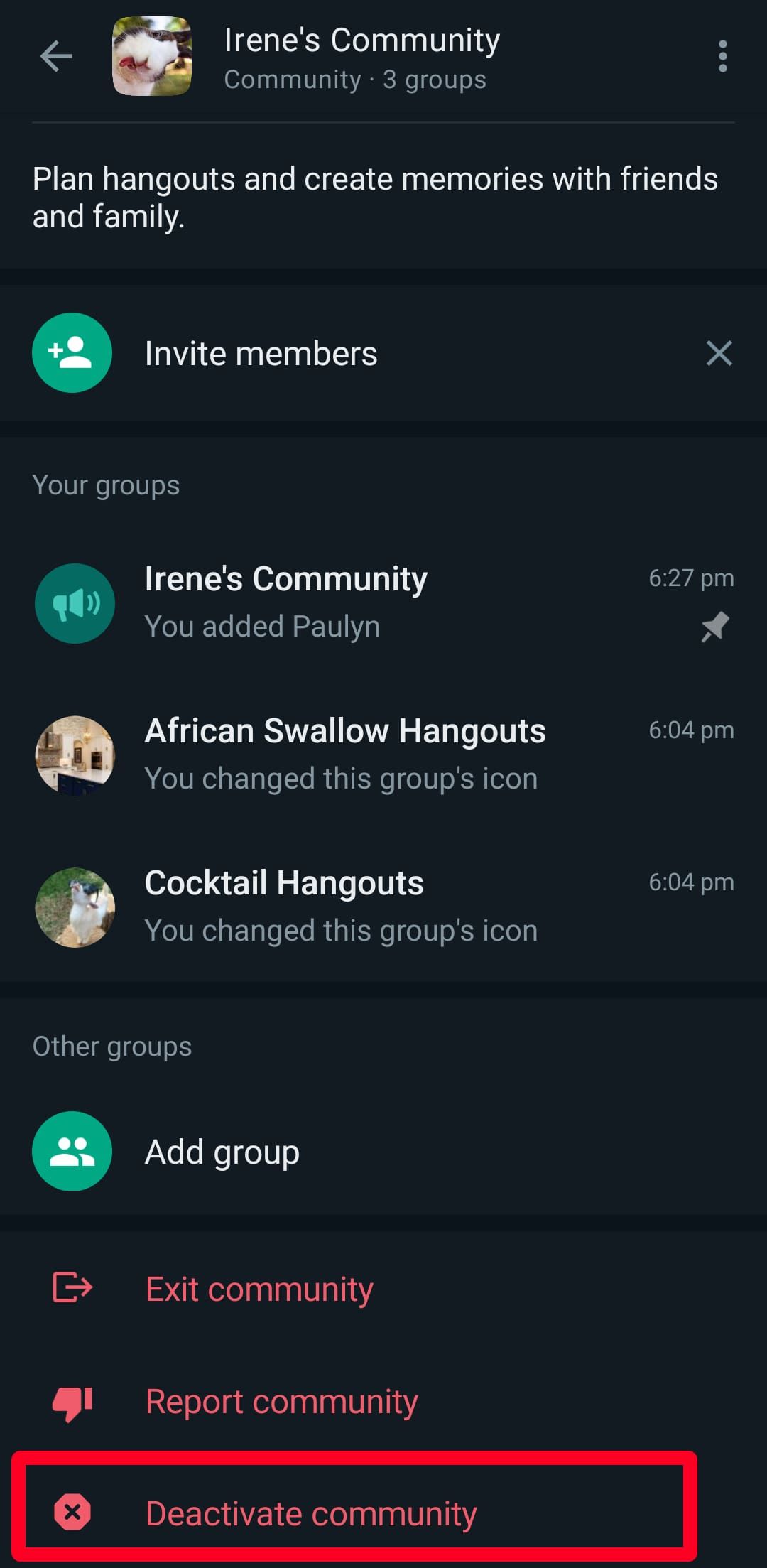
Deactivate a WhatsApp community on Android
- Tap a community.
-
Scroll up and select
Deactivate community
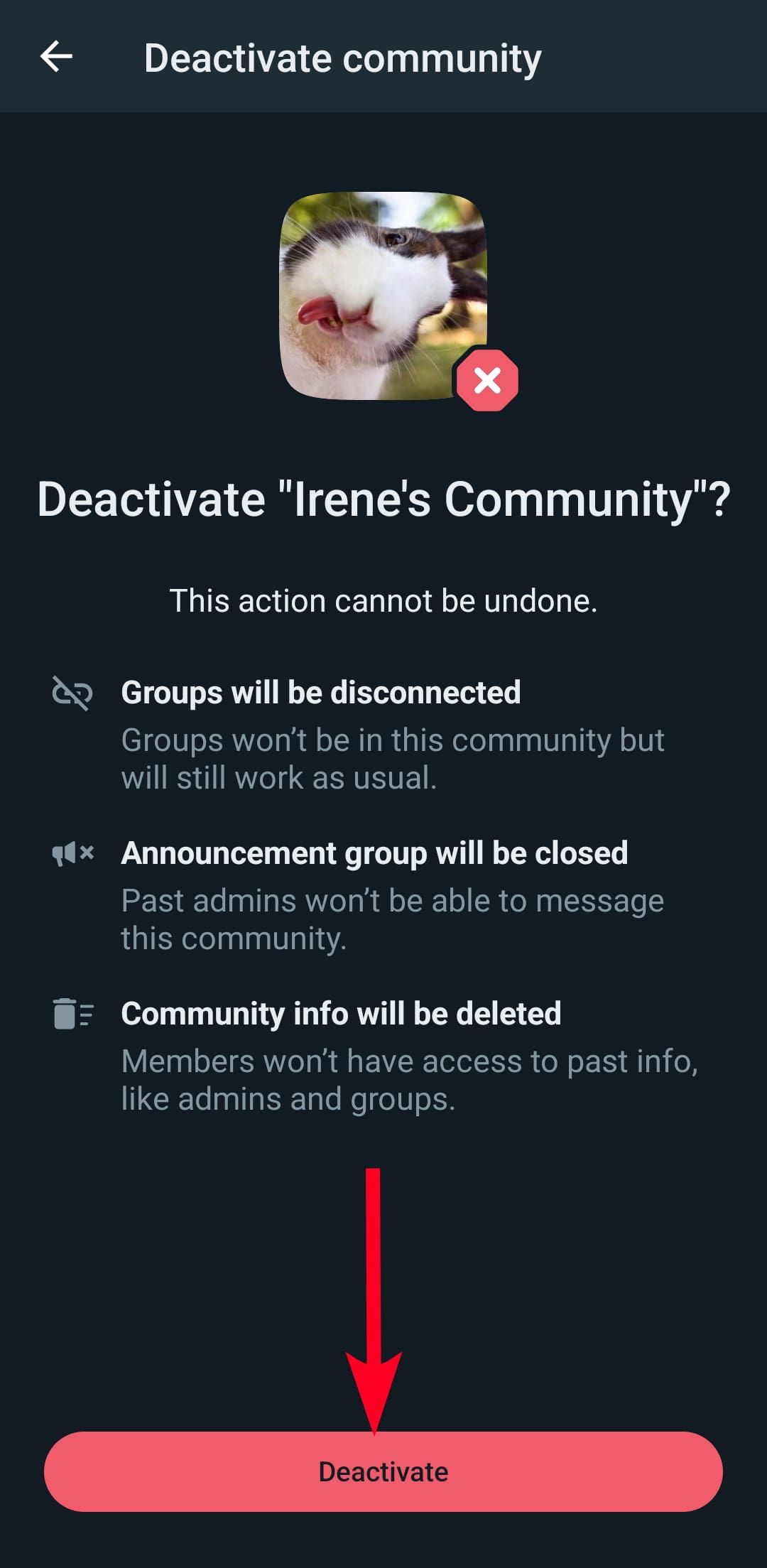
. -
WhatsApp warns you that your action cannot be undone. Tap
Deactivate
to confirm your decision.
-
Open
WhatsApp
. -
Tap the
Communities
tab. - Select a community.
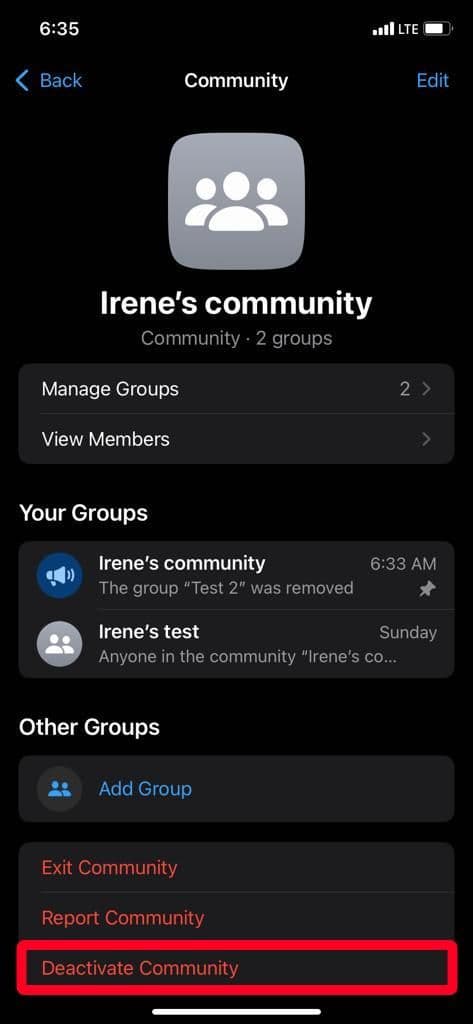
-
Scroll up and tap
Deactivate community
.
-
WhatsApp warns you that your action can’t be undone. Tap
Deactivate
.
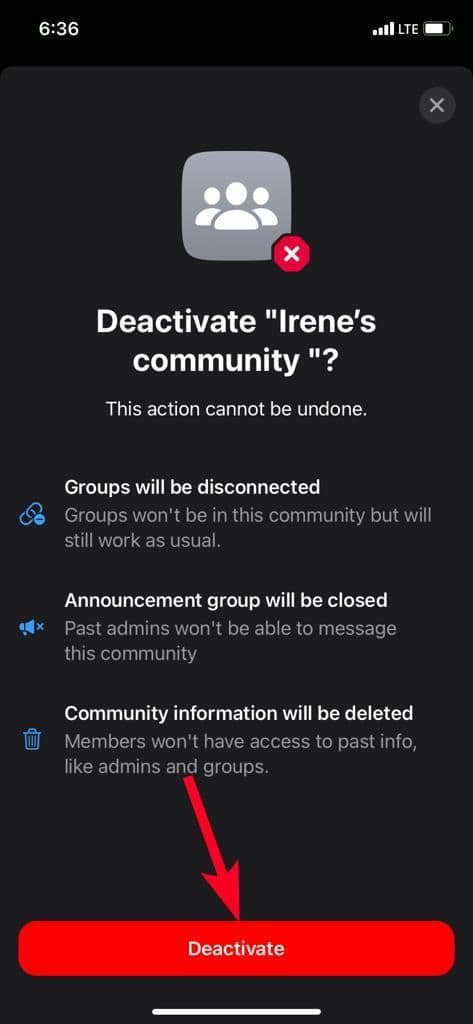
-
Tap
Deactivate
again to confirm your decision.
-
Launch
WhatsApp
, go to the
Communities
tab, and select a community you want to deactivate.
-
Click the
down arrow
icon and select
Community info
.
-
Select
Deactivate community
.
-
Read the consequences and click
Deactivate
to confirm your decision.
Take control of your WhatsApp groups
WhatsApp Communities gives you an uncluttered view of your groups, and there are numerous tricks to perform on the app. You can create a poll, video call 32 friends, and bulk delete content from group chats. Meta is still rolling out WhatsApp Communities worldwide, and it might take a while to get to your device. Ensure you’ve updated WhatsApp to the latest version to enjoy the new perks. If you can’t wait, Telegram offers a similar feature that lets you create channels and add 200 subscribers simultaneously.