15 quick ways to transfer files from your Android to a PC or Mac
Although the top Android phones have a minimum of 128GB of storage as standard, it may not be sufficient for everyone. Perhaps you’d like to back up photos to free up storage space or move music to your desktop that you downloaded on your phone. Because of Android’s open and transparent nature, there are many ways to do it. You can use a USB cable, Bluetooth, a third-party app, or a local wireless connection.
With so many options, it’s not always clear which one you should go for, so here are the 15 easiest ways to transfer your files from an Android phone to a Windows PC or a Mac.
USB cable
Using the USB cable that came with your smartphone is probably the easiest way to connect and transfer files to your computer. You may need a different one if your phone has the newer USB Type-C-to-Type-C cable and your desktop or laptop doesn’t have a USB-C port. However, if this isn’t an issue, the bundled charging cable is all you need to move files between the two devices.
The transfer speed depends on the type of cable and storage you have on both devices. For example, the transfer speed is slower if your phone uses eMMC storage but faster if it comes with UFS. Similarly, transferring files to a SATA drive on a PC takes longer than an SSD.
Use a USB cable to transfer files to Windows
If you’re transferring to a Windows PC, it couldn’t be easier.
- Connect your phone and PC using the USB cable.
-
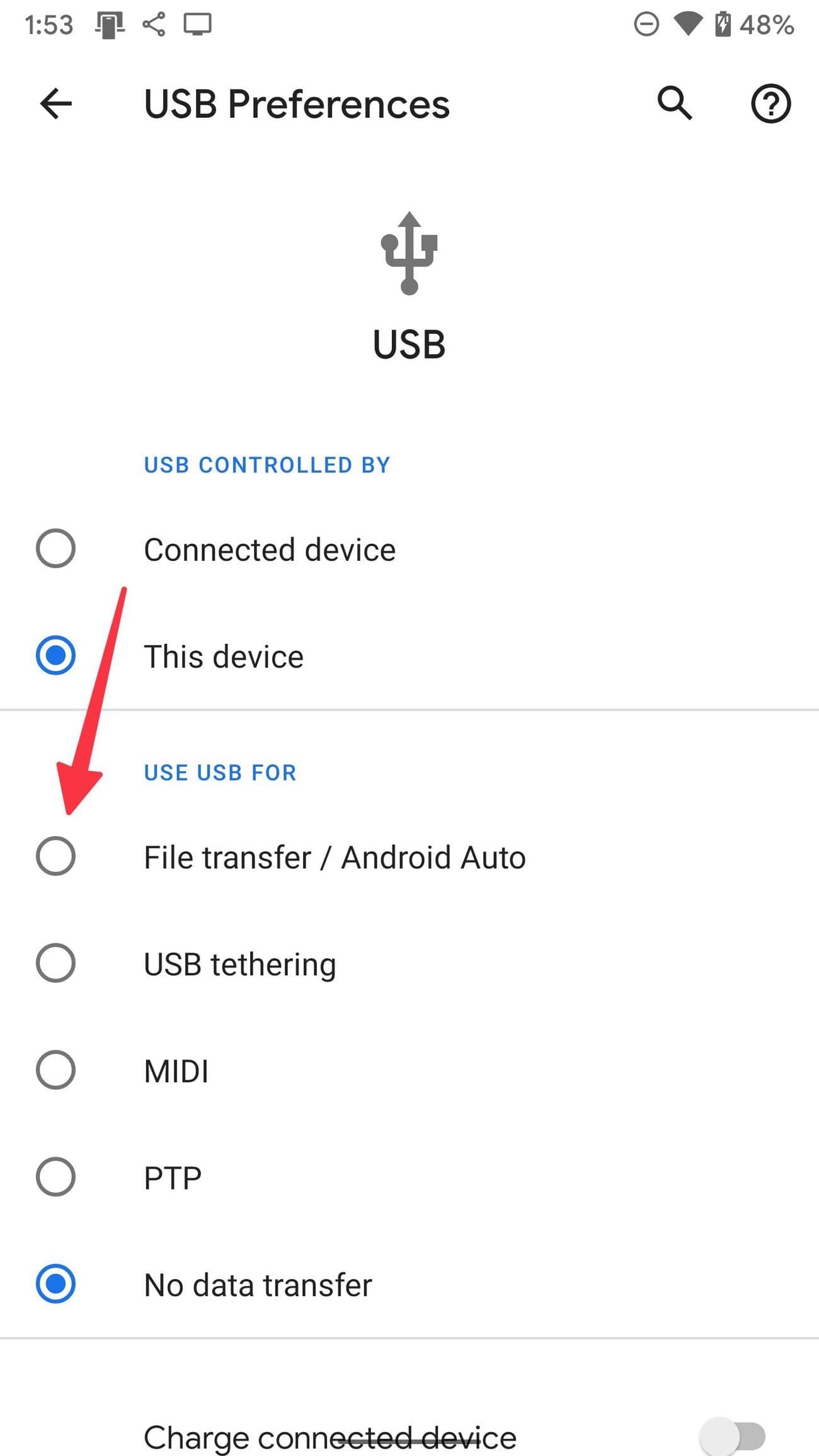
You’ll see a notification or pop-up on your phone where you can choose a USB preference. Select the radio button beside
File transfer / Android Auto
. -
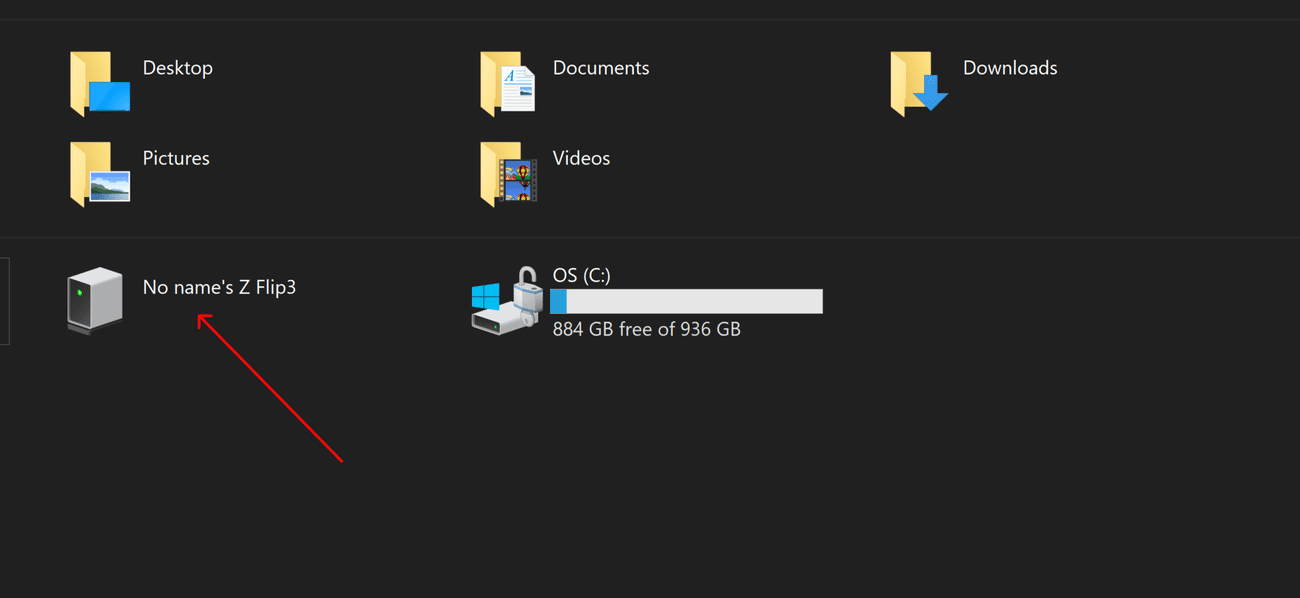
A file transfer window opens on your PC, or you may need to navigate to
This PC
via File Explorer and find the folder named after your phone.
-
From here, you can browse the contents of your phone and drag files across to a folder on your PC. Photos are usually in the
Camera
>
DCIM folder
, while downloaded files are in the
Downloads
folder. - You can also select and copy one or more files, then paste them into the desired folder on your PC.
Use a USB cable to move files to a Mac
Using a USB cable to transfer files to a Mac is not as straightforward. You’ll first install the official
Android File Transfer app
on your Mac. Once you’ve done that, the steps are fairly simple.
- Connect your phone and Mac with the USB cable.
-
Select
File transfer / Android Auto
from the USB preferences notification or pop-up.
-
Open the
Android File Transfer app
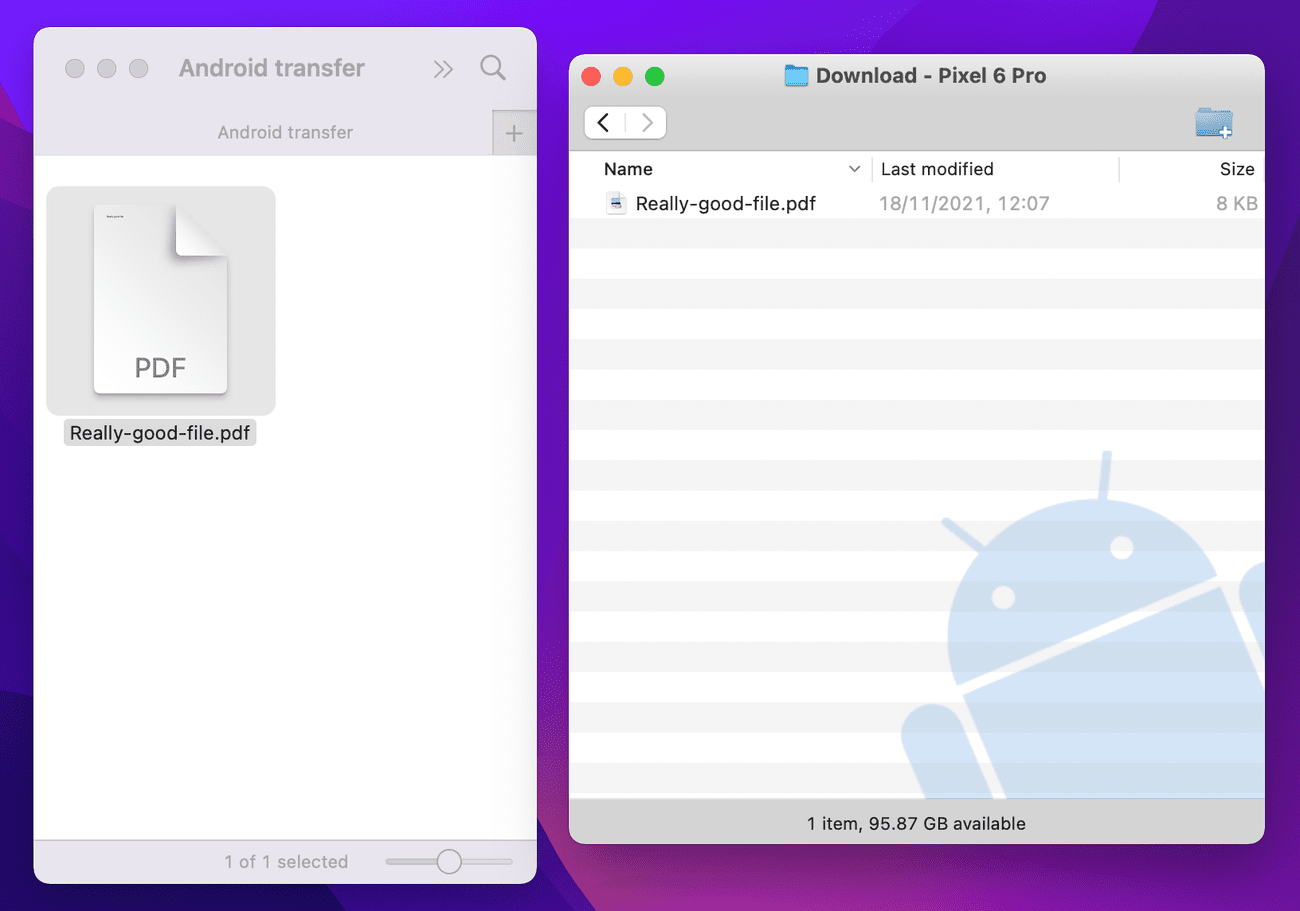
(if it doesn’t open automatically). -
Browse your phone’s contents and drag files to a Finder window to transfer.
Bluetooth
You can also use Bluetooth to transfer files if you don’t have a USB cable handy. But fair warning, the transfer speeds are slow, so it’s best to use this method when transferring smaller sizes. A single attachment or a photo from your gallery should be fine, but we don’t recommend using Bluetooth for a long video or a large album of photos.
-
Turn on
Bluetooth on your phone and PC or Mac. Activate it on Android from Quick Settings by pulling down the notification shade. Look for the
Bluetooth
icon on the status bar or control center on Mac and Windows. -
On your Windows PC or Mac, search for available devices. Select your phone to pair with it.
-
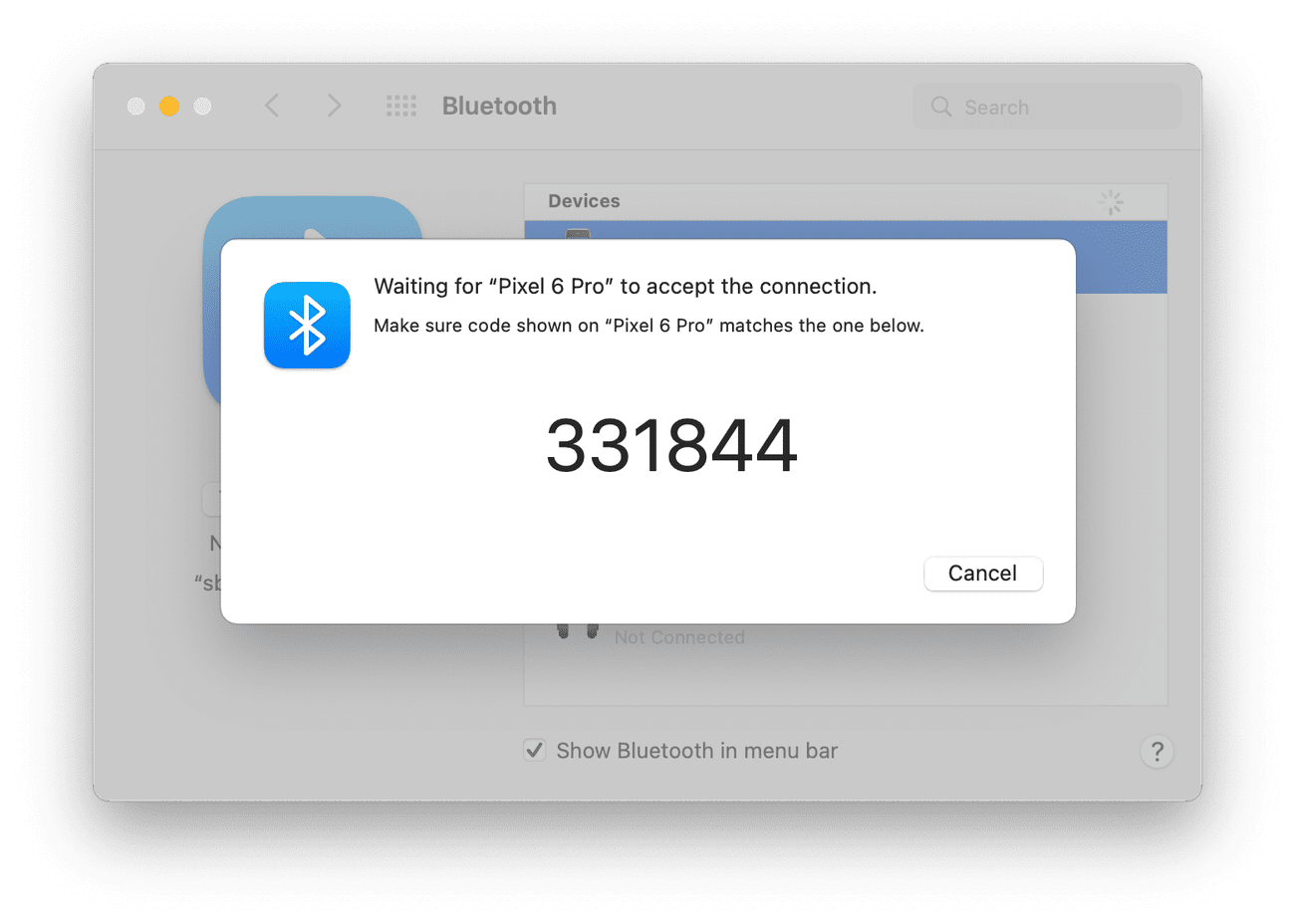
The system asks you to accept the connection by checking a pin that matches on both devices.
-1.png)
-
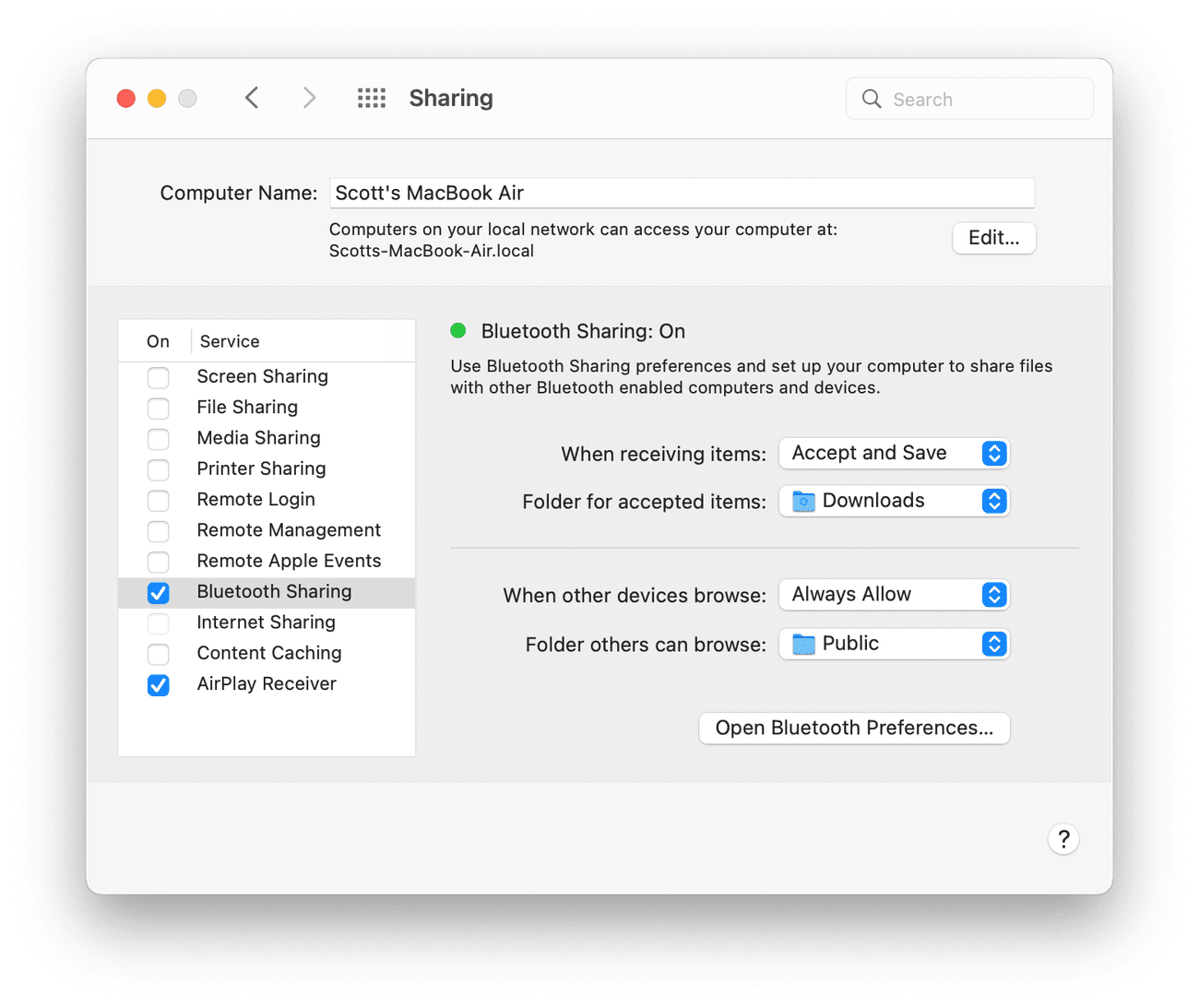
If you’re on a Mac, there’s an additional step. Go to
System Preferences
>
Sharing
and check
Bluetooth Sharing
to turn it on.
-
Locate the file or photo on your phone that you want to transfer. Tap the
Share
icon, then select
Bluetooth
.
.png)
-
On a PC, right-click the
Bluetooth
icon on your Taskbar and click
Receive a File
. Then select the device you’re sharing from, and the file is sent to your
Documents
folder. On a Mac, the file is sent to the
Downloads
folder, where you can access it immediately.
-1.png)
Microsoft Phone Link
If you want to transfer several photos from your phone to your Windows PC,
Microsoft’s Phone Link app
(formerly known as Your Phone) is a fantastic tool. While Your Phone was limited to
Samsung
Galaxy phones, the rebranded app is compatible with all phones running Android OS 7.0 or later.
-
Install the
Link to Windows app
on your phone. Newer versions of Windows have the
Phone Link
app preinstalled on the PC, but you can
grab it here
if it’s not there. -
Open the
Phone Link app
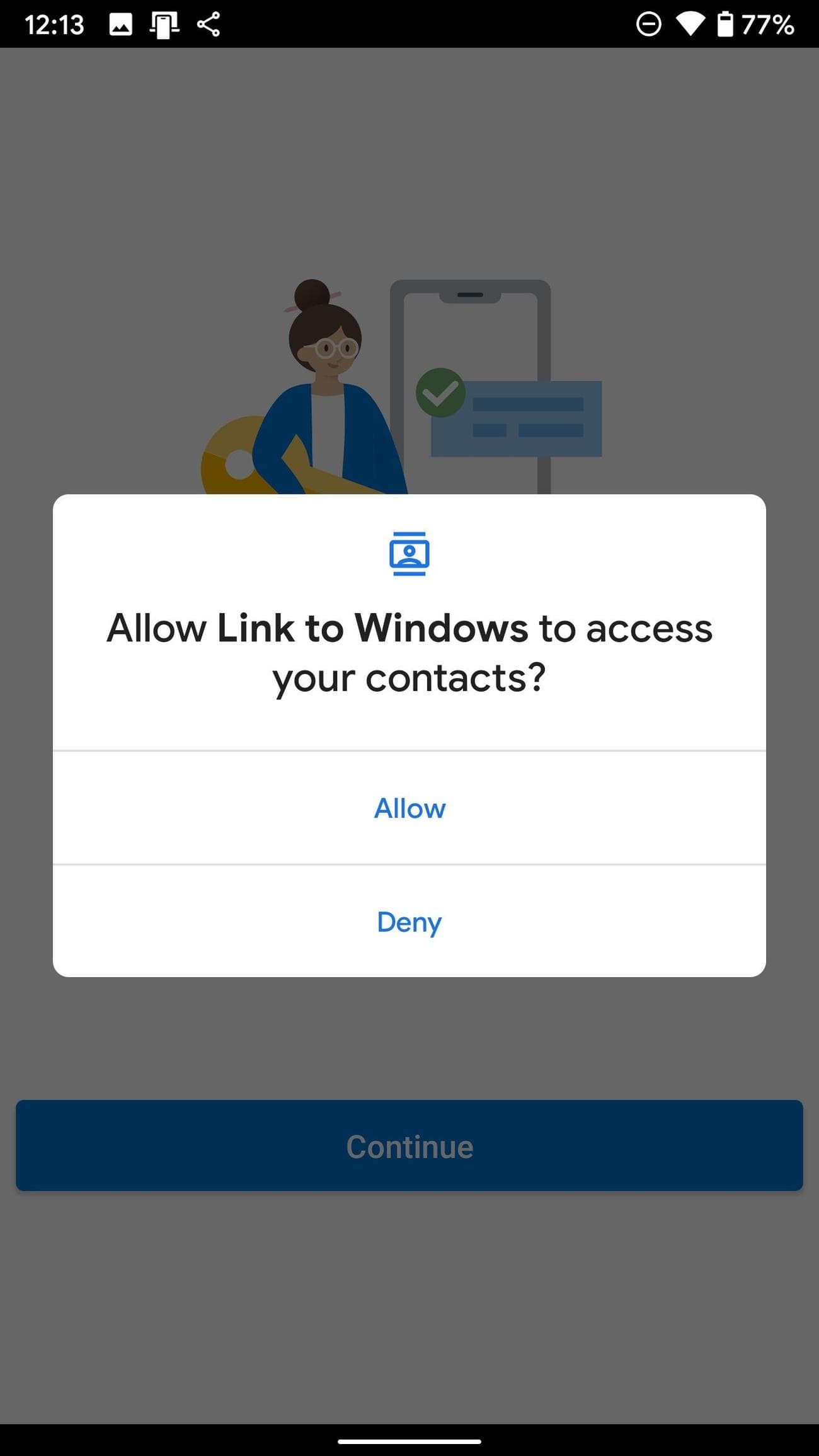
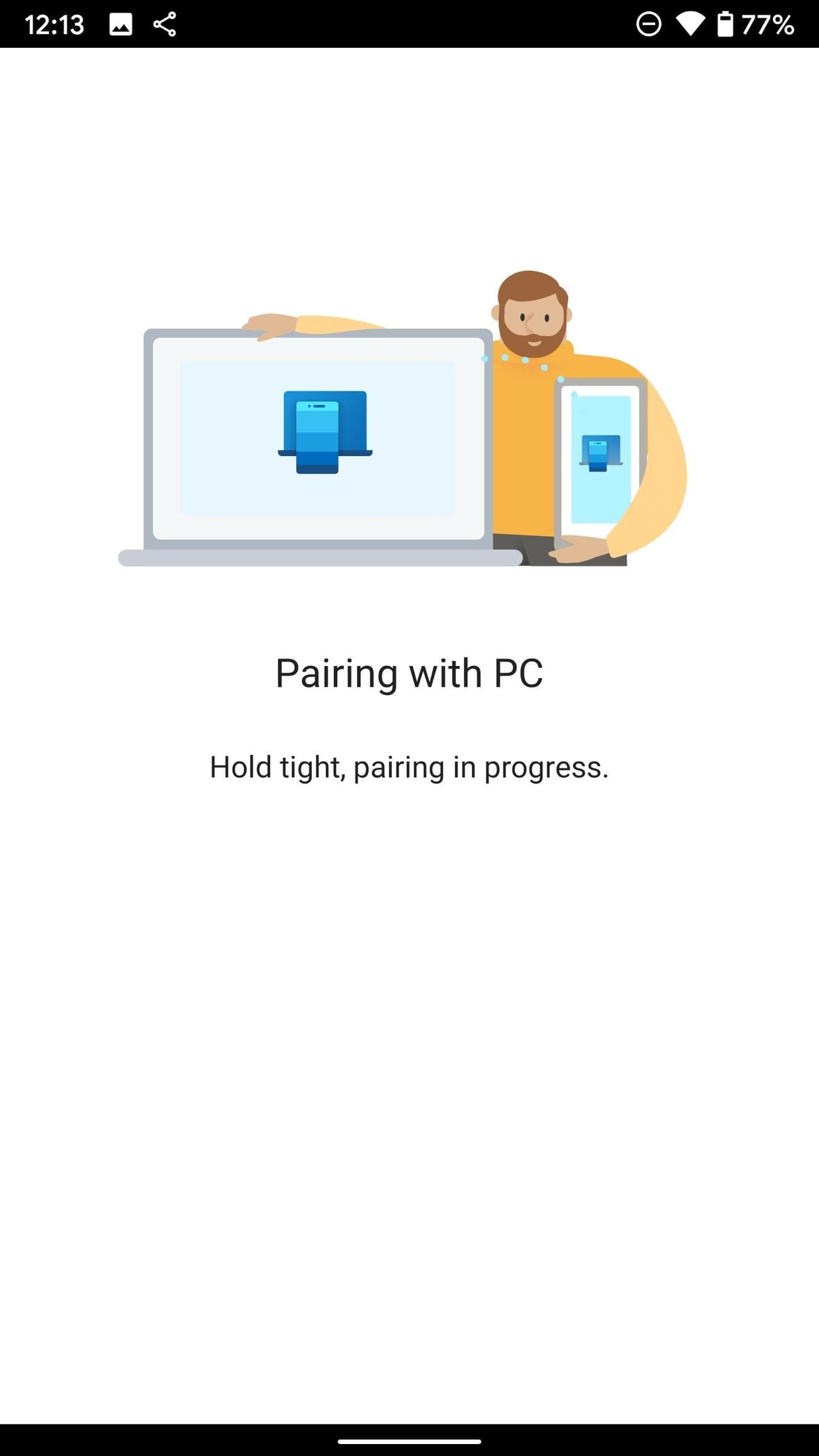
on Windows and connect your Android phone via the QR code. Allow the necessary permissions to the Link to Windows Android app.
-
After pairing your phone to your PC using the app, transferring images is as easy as dragging and dropping the files.
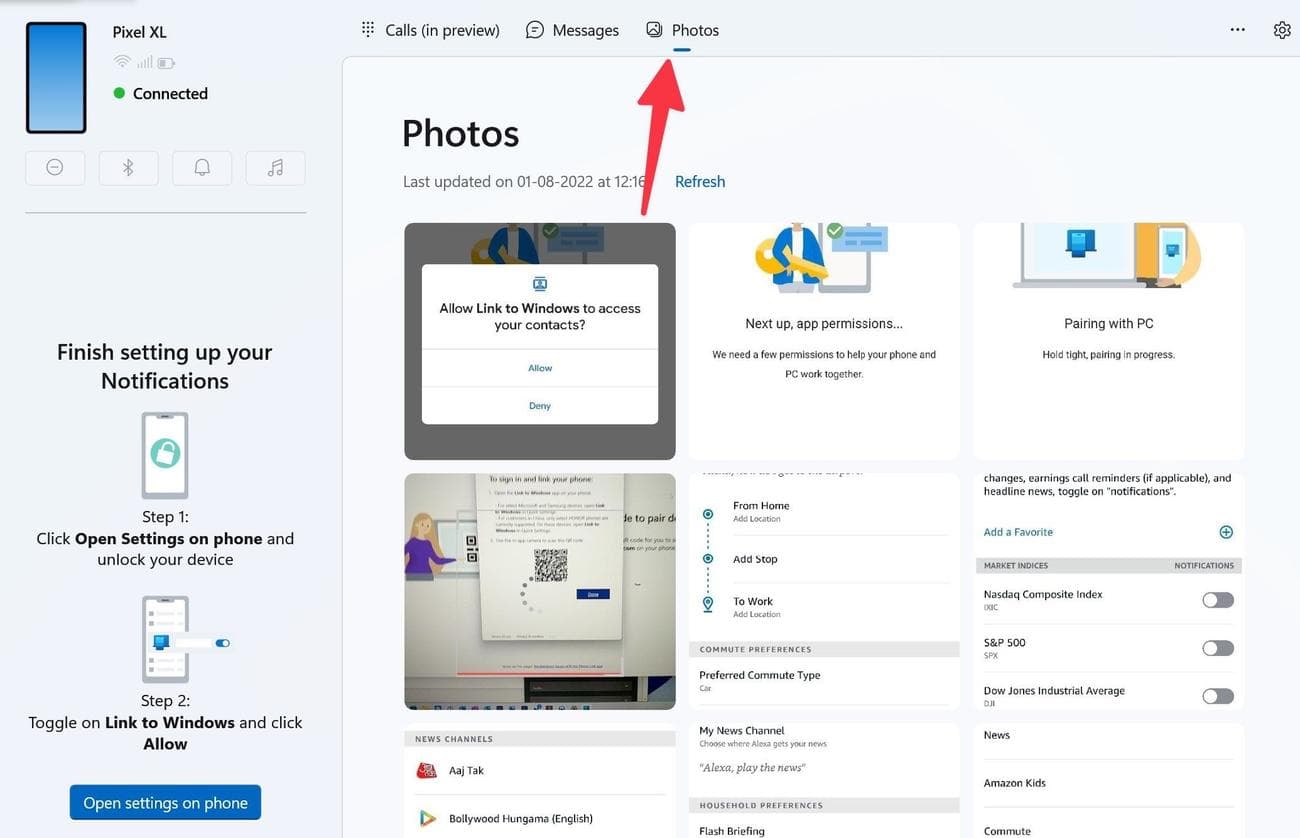
-
Either drag and drop photos from the Phone Link app to the desktop or right-click on an image and select
Save as
from the context menu.
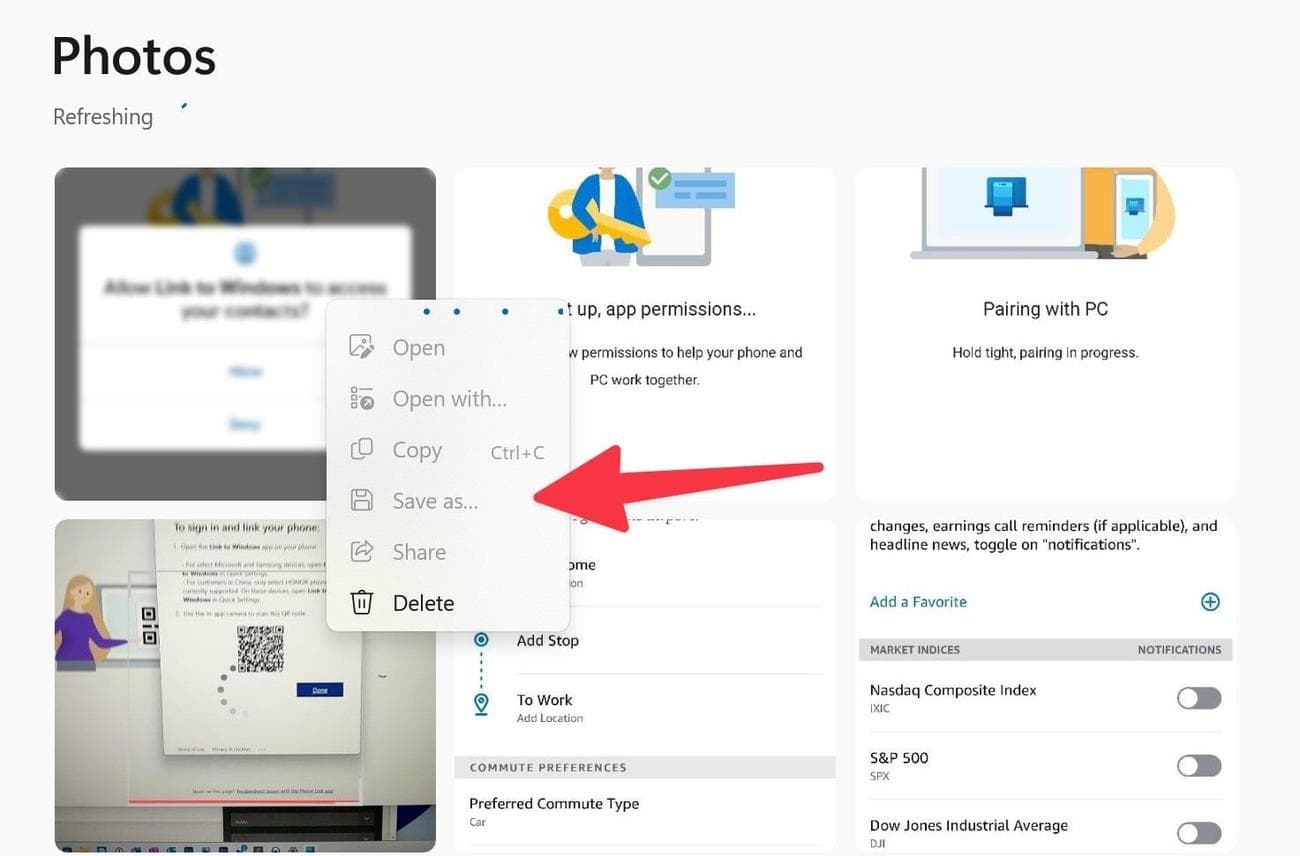
- Select the folder on your PC to export the image.
Microsoft’s Phone Link can do more than transfer files. You can also use it to mirror your notifications, make calls, and more. Check out our full guide to the powerful Phone Link app.
ShareDrop
ShareDrop is a free, open source web app to transfer files from your Android phone to your Windows PC or Mac and vice versa. You don’t need to install an app on either of the devices. The solution is web-based and uses an encrypted peer-to-peer connection. The software uses WebRTC (Web Real-Time Communication)
technology
to complete the transfer process. First, make sure your phone and Windows PC or Mac are connected to the same network and follow the steps below.
-
Visit
ShareDrop
on your preferred desktop browser. -
Click
+
in the upper-right corner.

-
Copy the web address and open the same on your Android phone. You can also scan the QR code using your Android device.
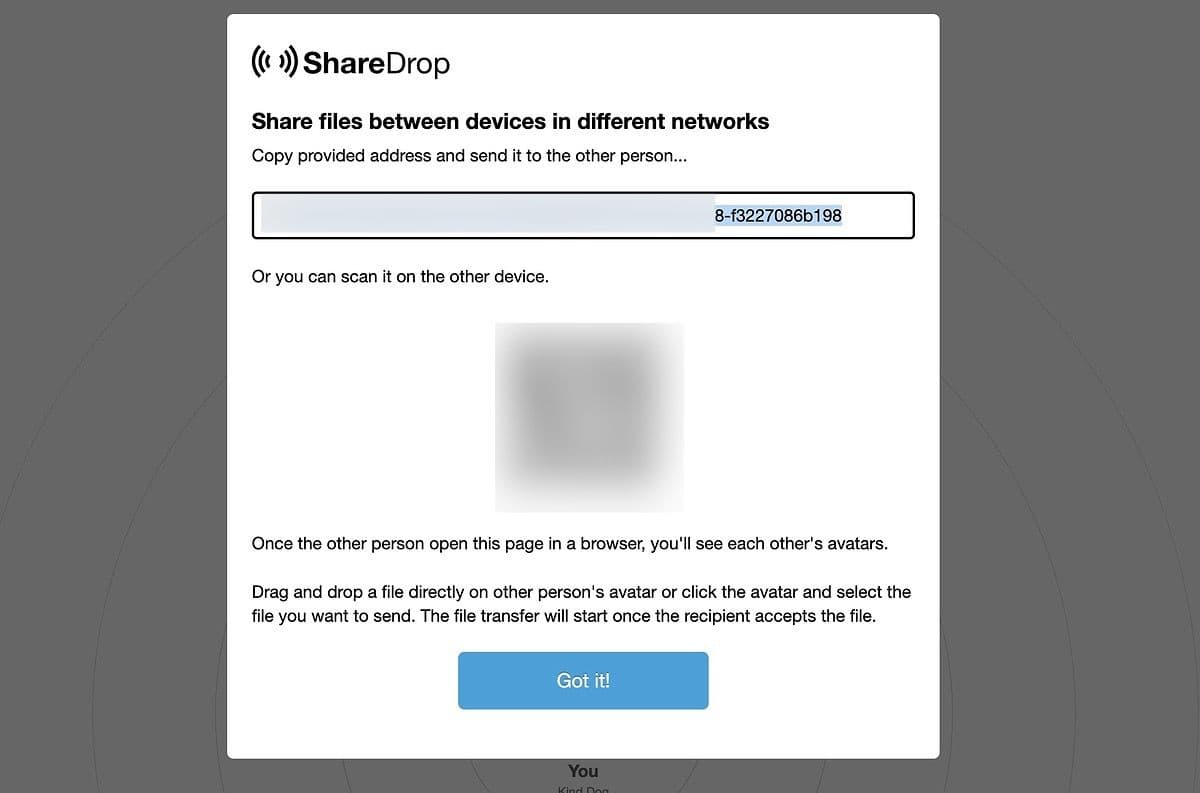
-
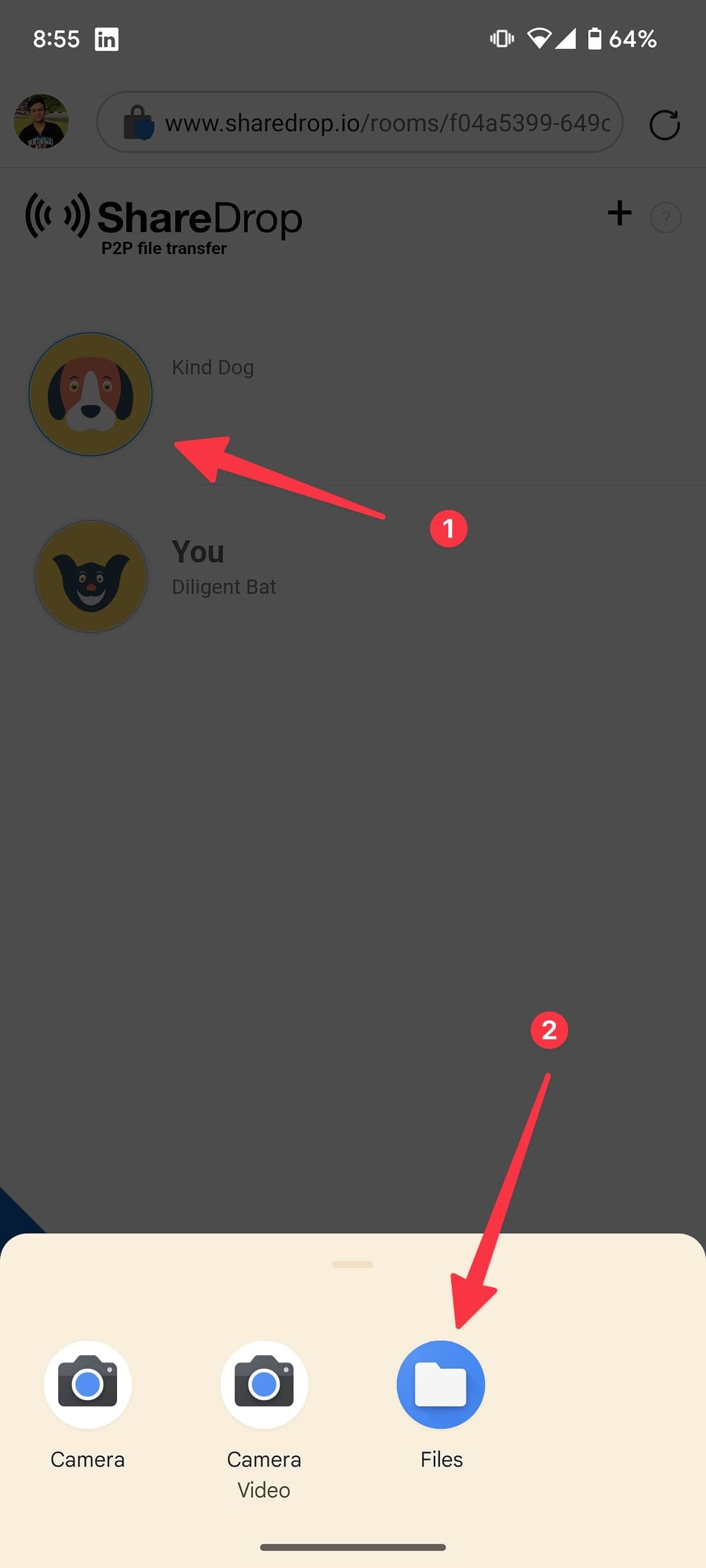
Your phone opens ShareDrop in the default browser. Select your
avatar
. -
Tap
Files
. -
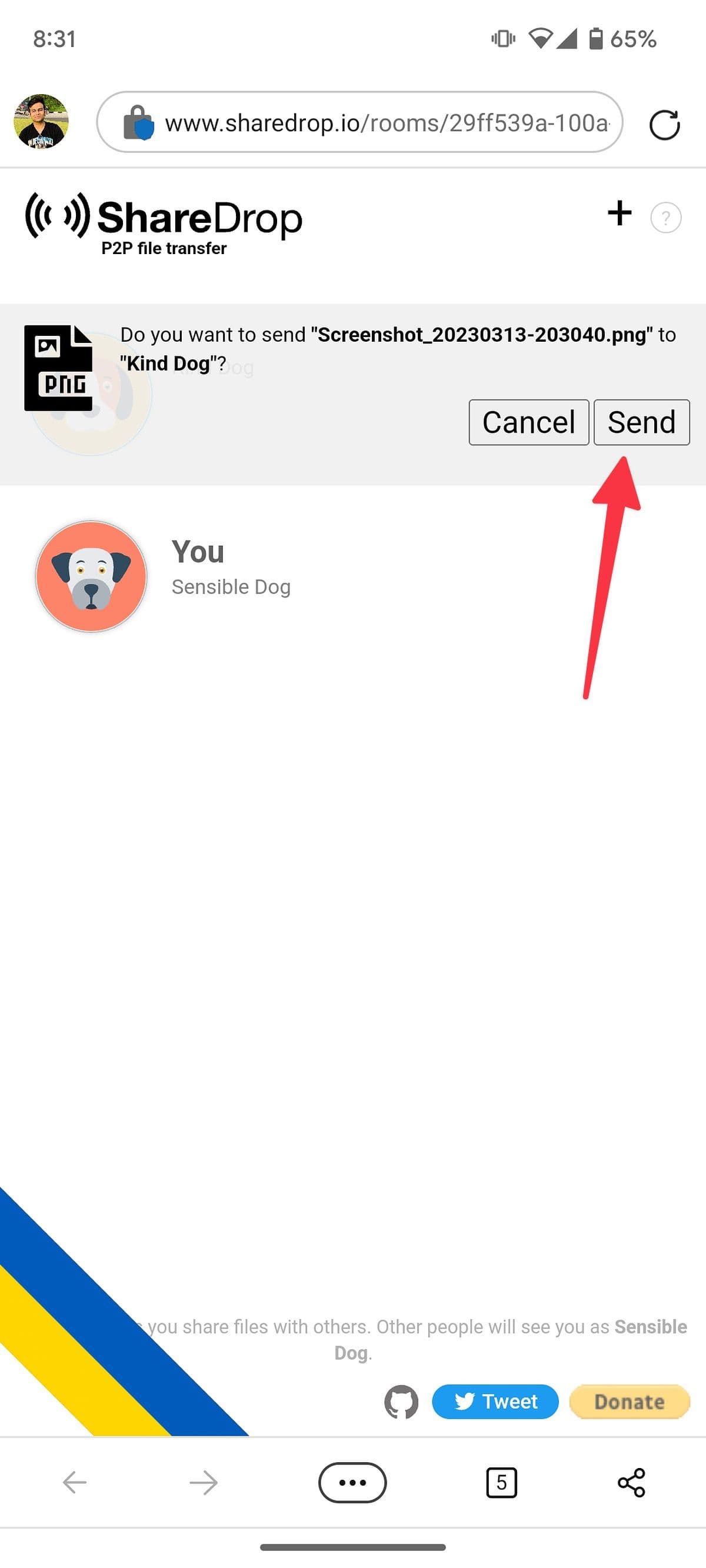
Select images and videos you want to send. Tap
Send
.
-
ShareDrop on the desktop asks you to save files. Tap
Save
.
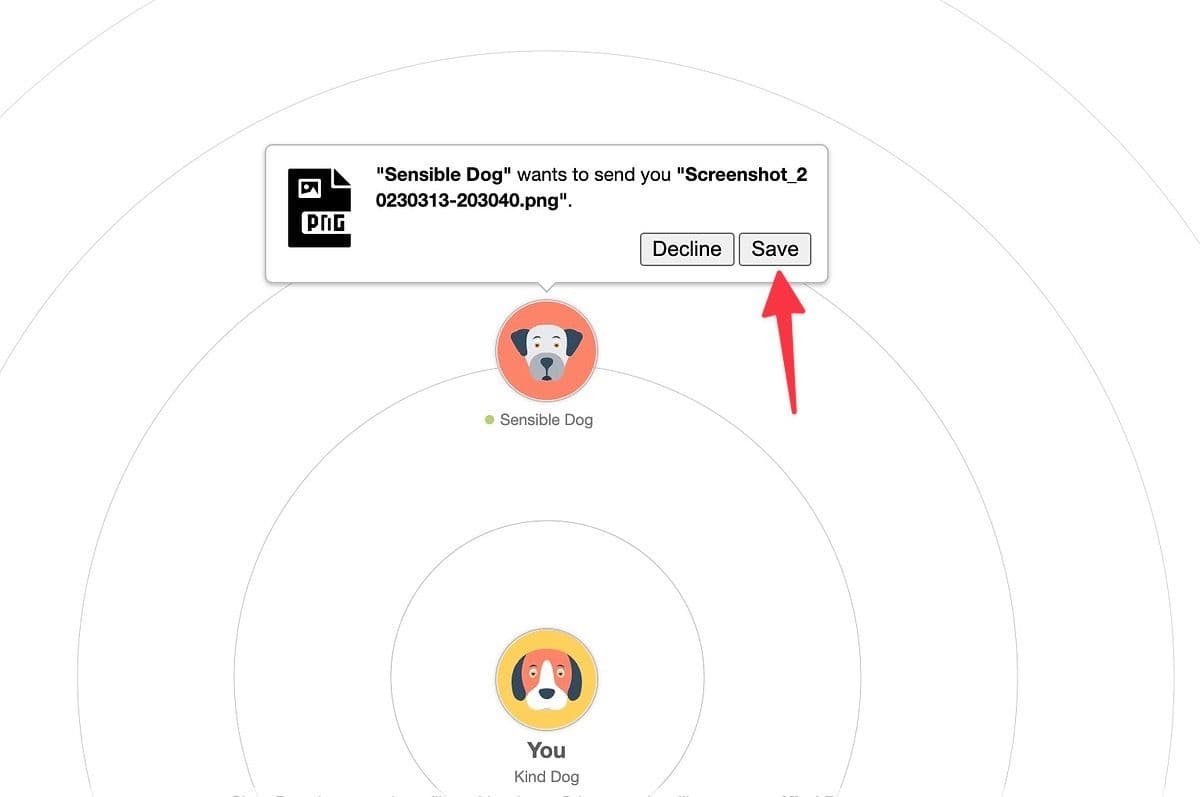
You can find your downloaded files from the File Explorer (Windows) or Finder (Mac) app.
Google
Drive
Another easy option for sharing files is via the cloud. The Google account you used to set up your Android phone comes with 15GB of Google Drive storage by default, and it’s easily accessible on a Windows PC or Mac, allowing you to send multiple files at once. Google Drive is readily available to every Android user. Follow the steps below to use it.
-
Open the
Google Drive app
on your Android device. -
Click on the
+
button
in the lower-right corner, and tap
Upload
. -
Select the files you want to share from the list and wait while they’re uploaded. This could take some time for large files.
-1.png)
-2.png)
-
Go to
drive.google.com
in your desktop browser and make sure you’re logged in with the same Google account as your phone.
-1.png)
- Your uploaded files are ready to download.
If you frequently use Google Drive to transfer files from Android to Windows or Mac, download and set up
Drive for desktop
and integrate Google Drive with the File Manager (Windows) or the Finder (Mac) menu. You can also upgrade to one of the Google One plans to enjoy more storage space and premium customer support.
OneDrive
All Microsoft 365 subscribers get 1TB of OneDrive storage. The cloud storage service is built into Windows. If you are an existing Microsoft 365 subscriber, you might prefer OneDrive over Google Drive to transfer files from your Android phone to Windows or Mac.
-
Download the
OneDrive app
on your Android phone. -
Open
OneDrive
and sign in with your Microsoft account credentials. -
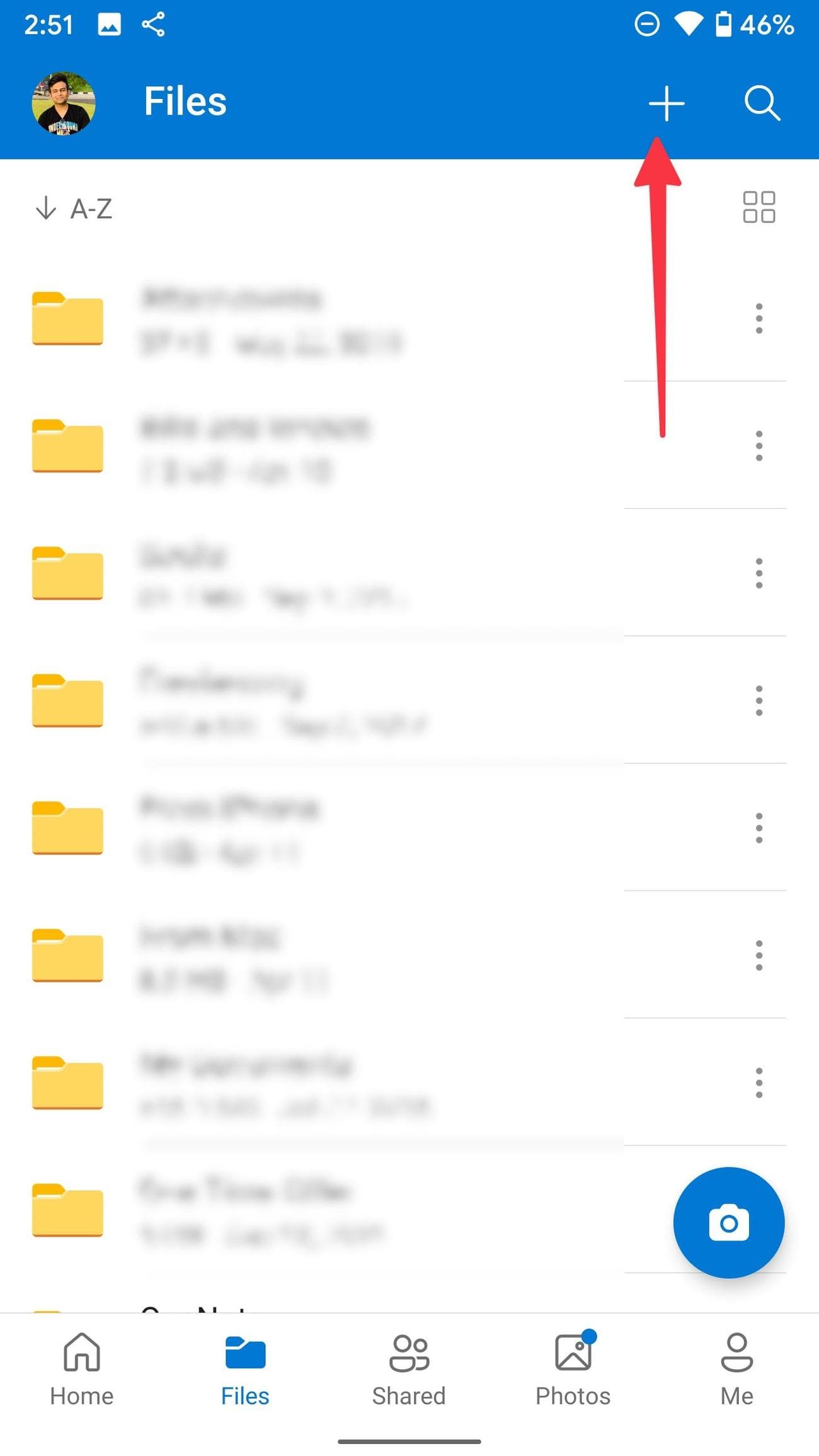
Select the
+
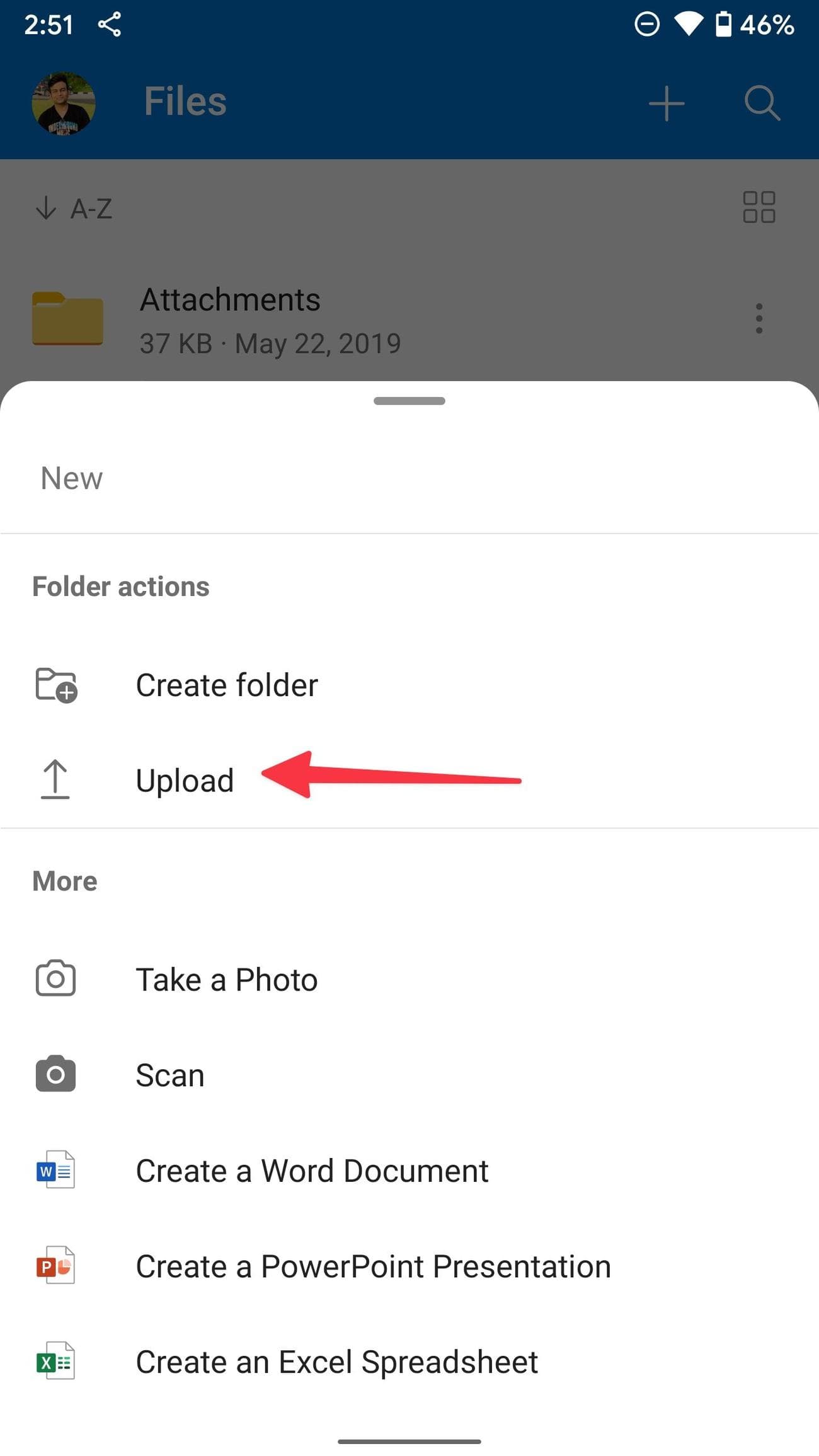
icon at the top, tap
Upload
, and upload files to OneDrive from the following menu.
-
Open
File Explorer
(press
Windows
+
E
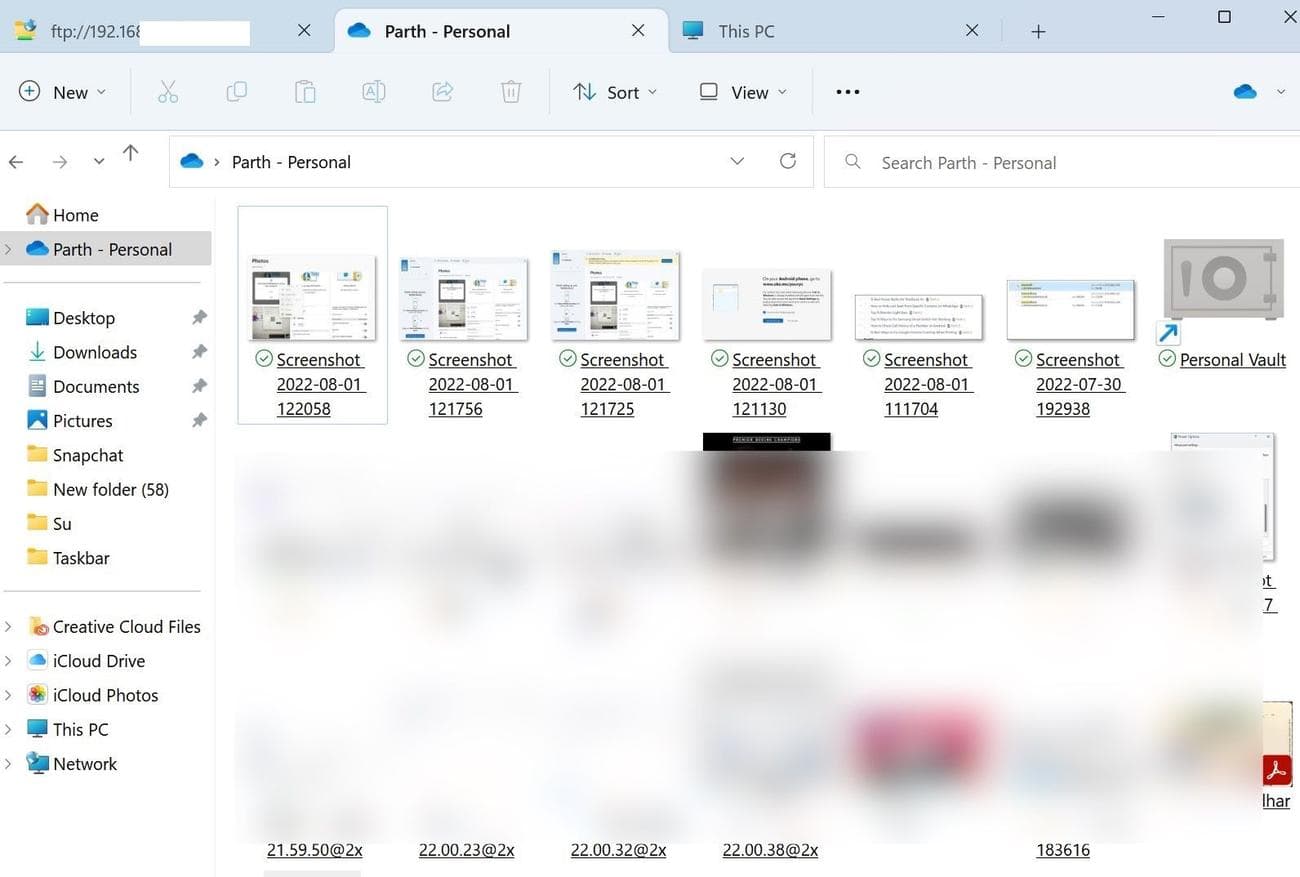
) on Windows and select your
OneDrive
account
from the left sidebar. -
Your uploaded files are ready to use on the desktop.
Mac users can
download OneDrive for macOS
or access the same via the
OneDrive web app
.
Snapdrop
Snapdrop is an easy-to-use local file-sharing solution to transfer files from Android to Windows or Mac.
-
Download
Snapdrop
on your Android phone. -
Visit
Snapdrop.net
on your desktop.
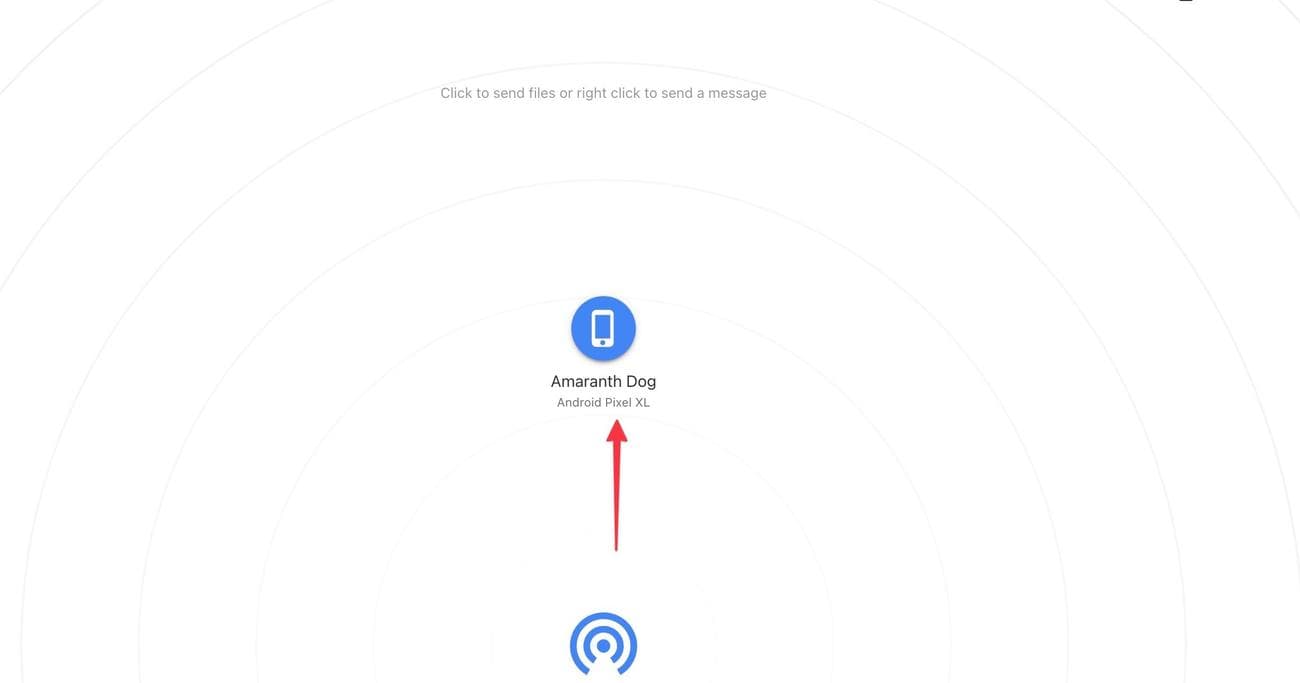
- Connect your Android phone and desktop to the same Wi-Fi connection.
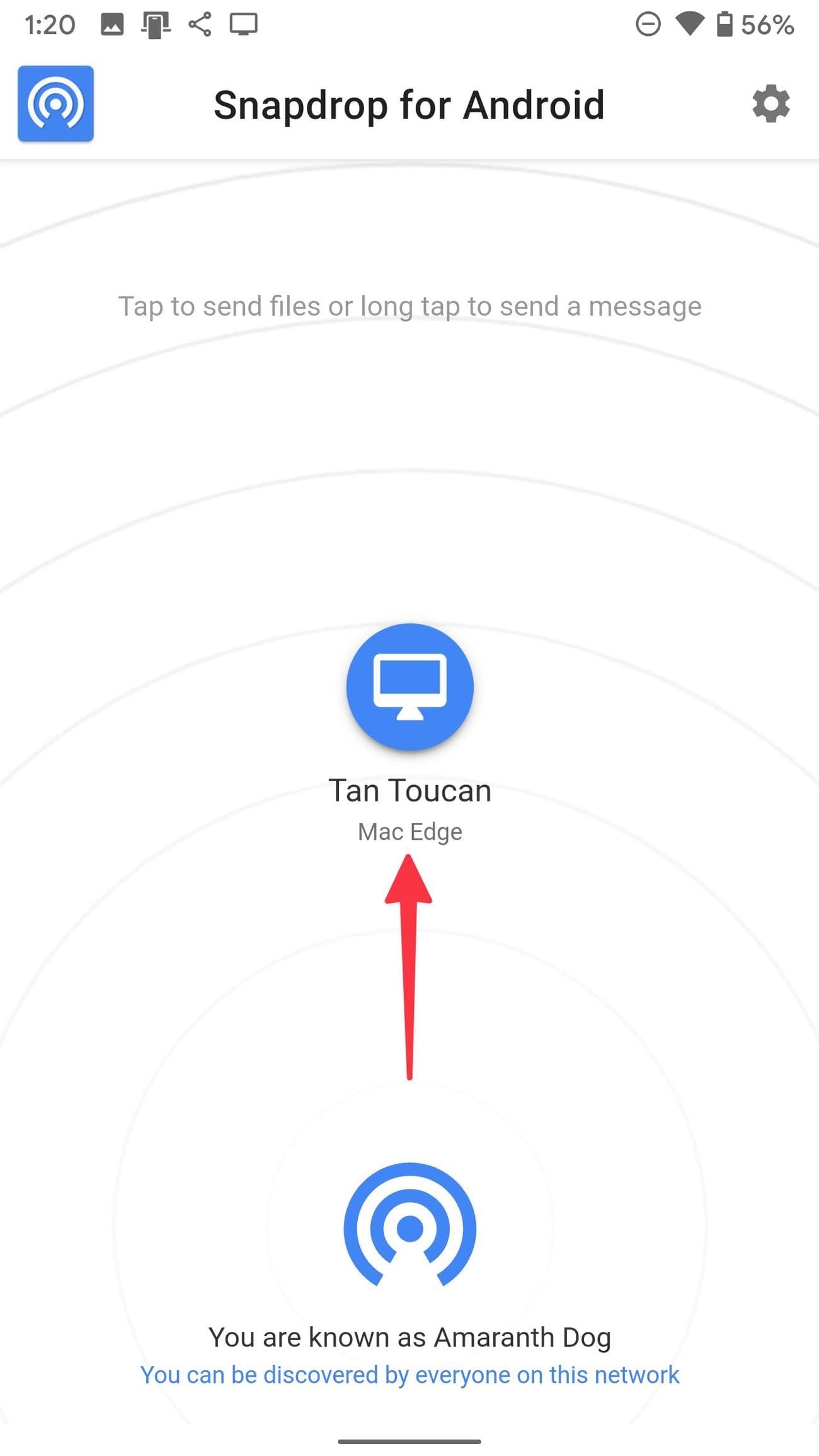
- Open the Snapdrop app, and your desktop appears.
-
Tap the
Desktop
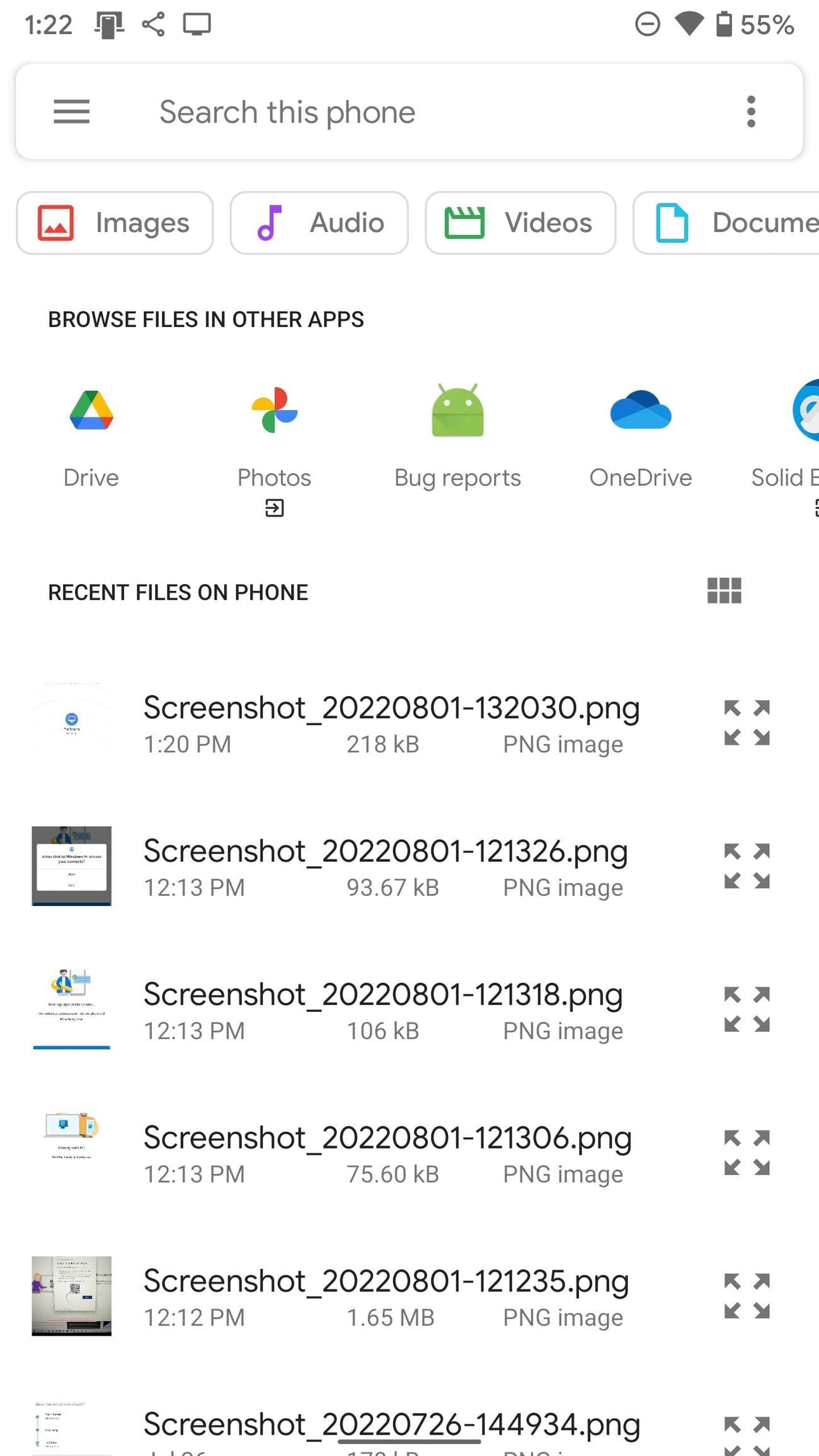
icon and select the files you want to transfer. -
Snapdrop transfers selected media files and documents from your Android phone to the desktop.
Use an FTP server
You can set up an FTP (File Transfer Protocol) server and move files from Android to Windows or Mac. We use the Solid Explorer app on Android as an example.
Set up an FTP server and move files to Windows
-
Download the
Solid Explorer app
on Android. -
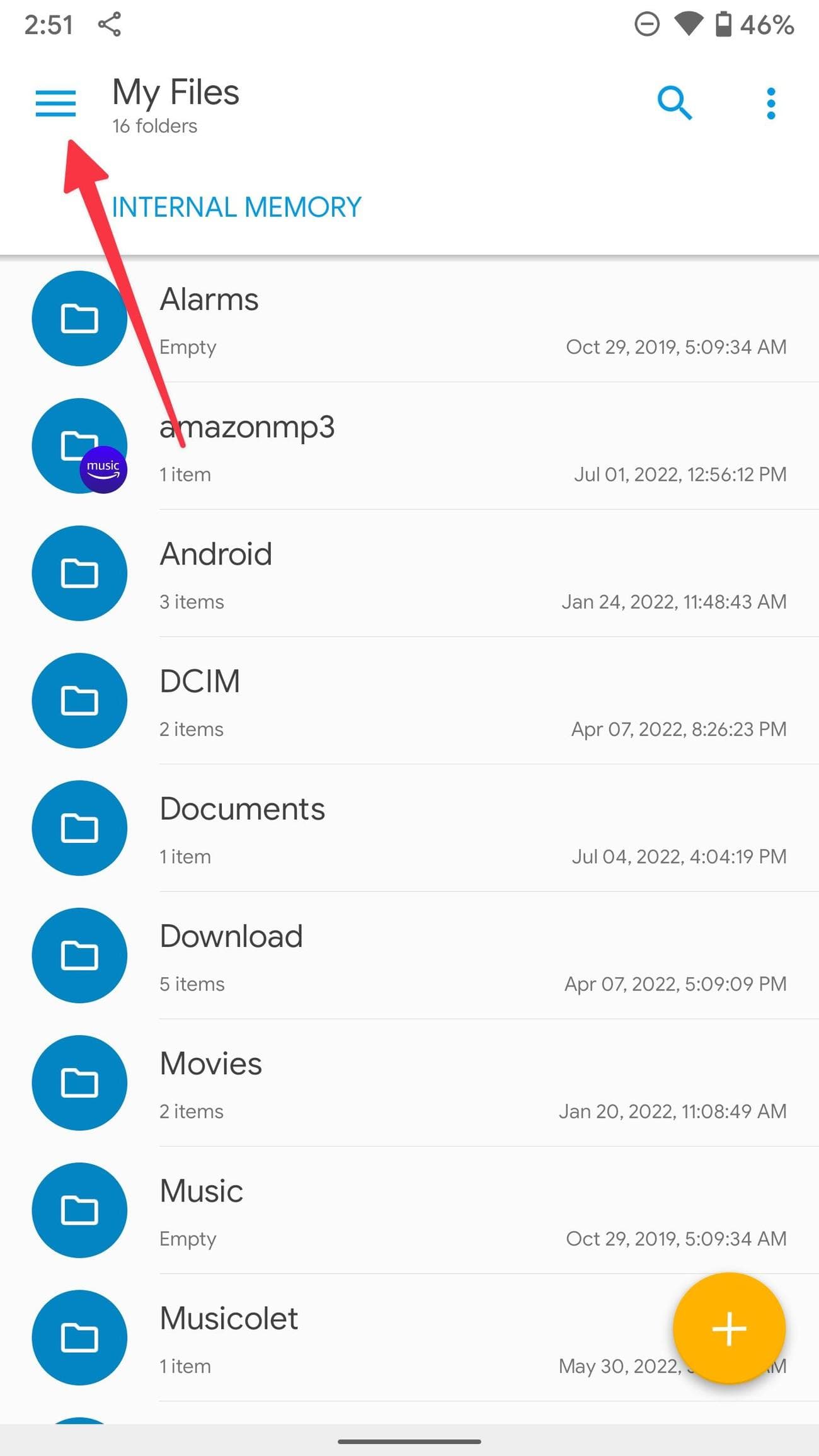
Tap the
hamburger menu
in the upper-left corner. -
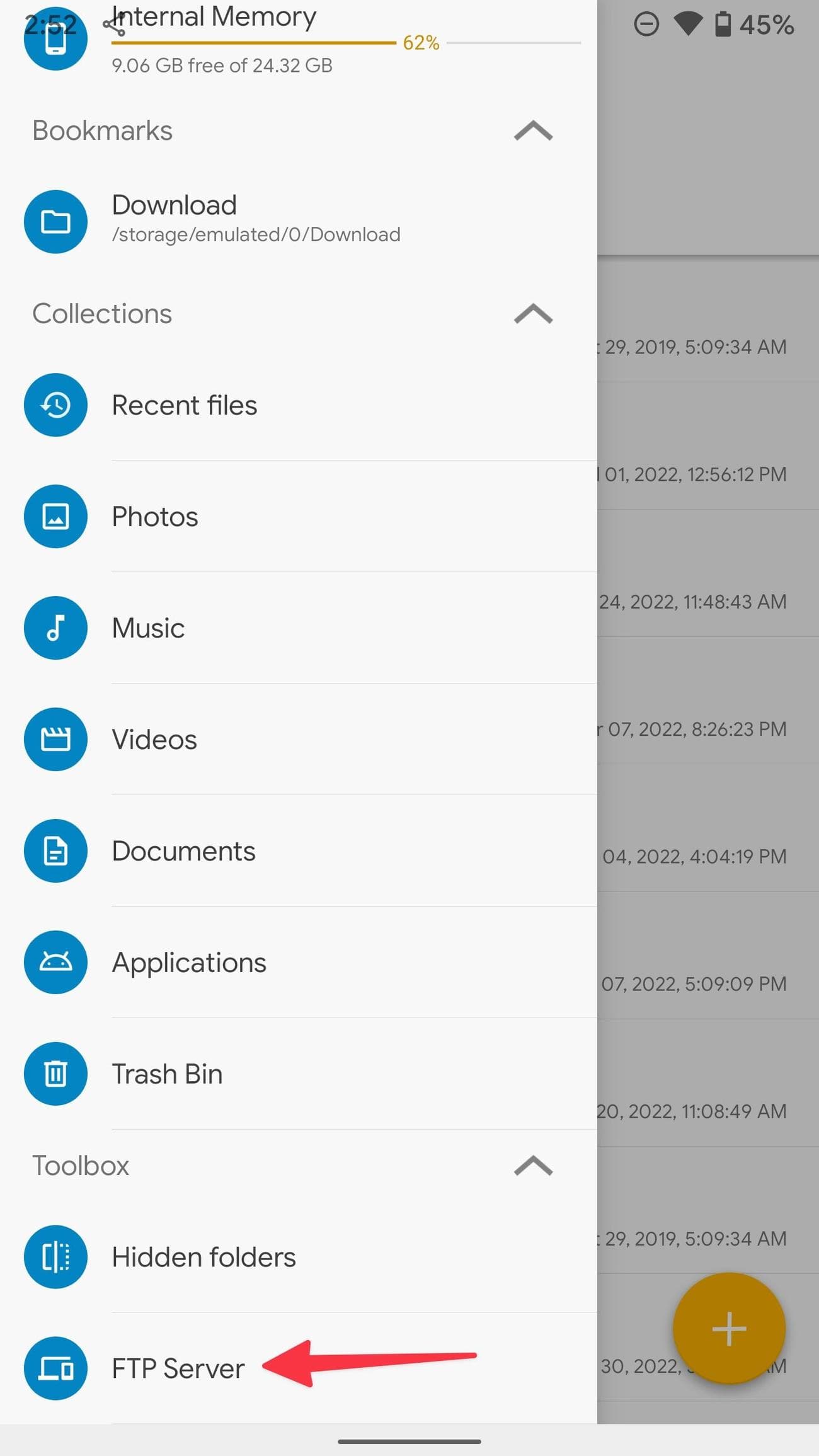
Select
FTP Server
.
-
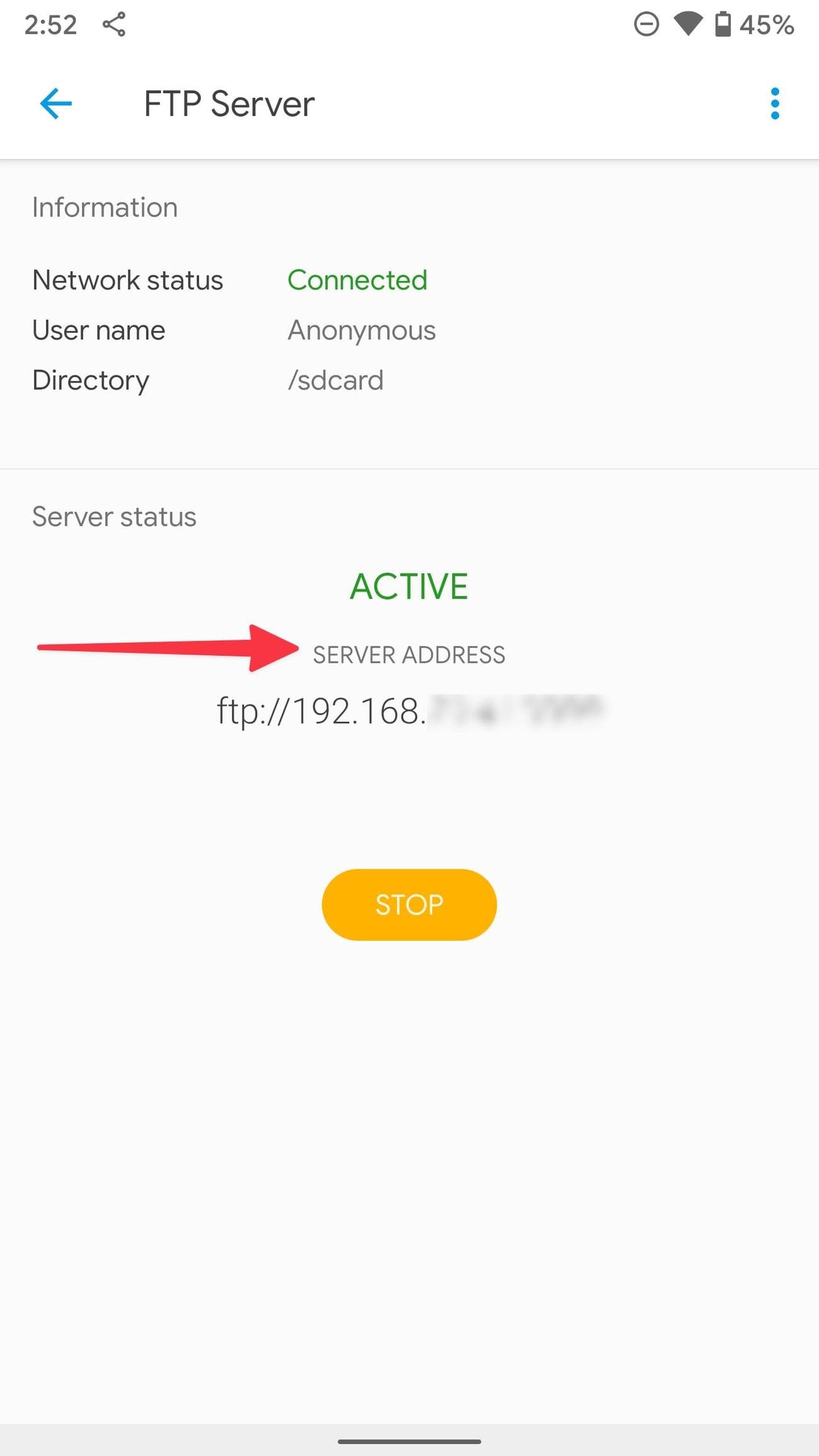
Make sure the server status is active. Make a note of the server address.
-
Launch
File Explorer
on Windows. -
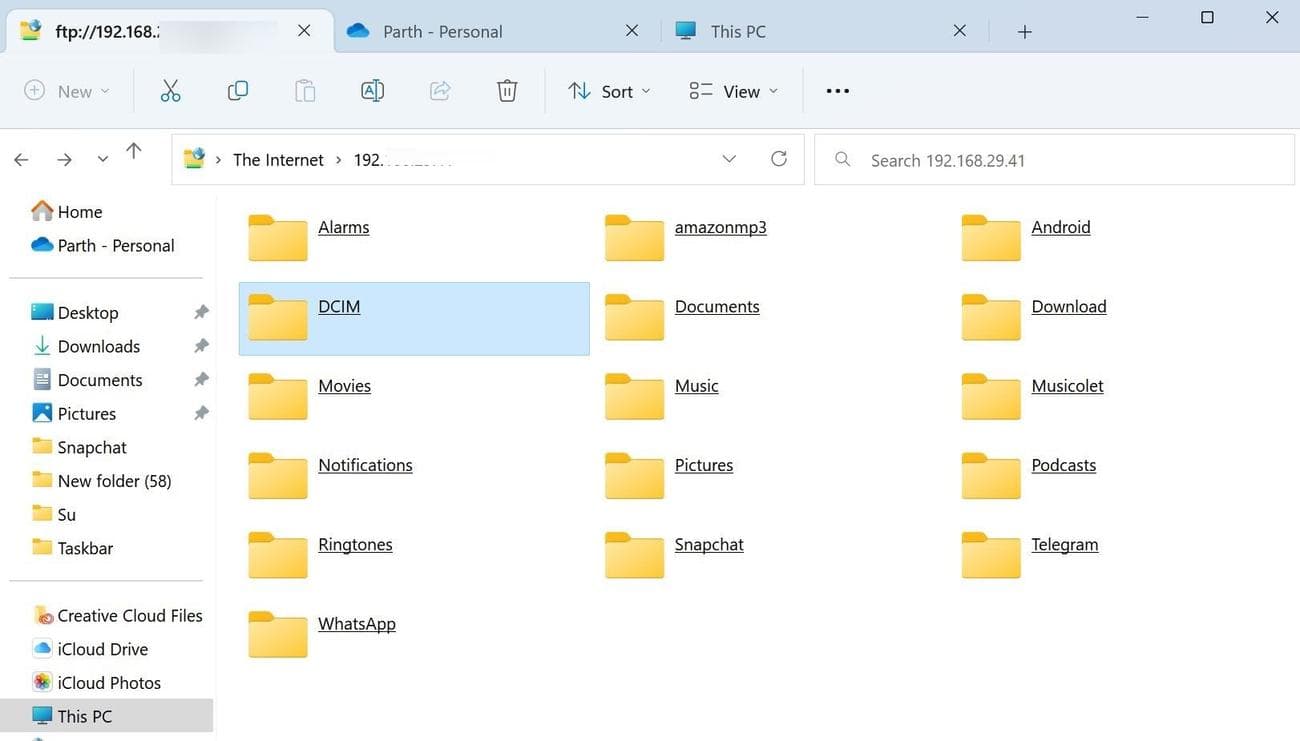
Type the server address in the address bar at the top. It should look like ftp://192.168.xx.xx:xxxx/. Then press
Enter
.
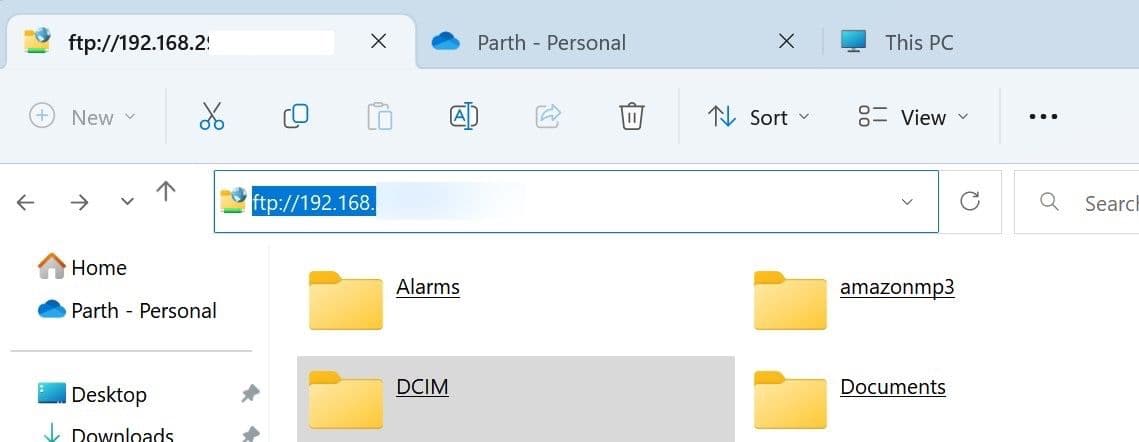
- You can check all your phone folders on the desktop.
-
Copy or move files from Android folders to a relevant destination on Windows.
Set up an FTP server and move files to a Mac
-
Open
Finder
on Mac. -
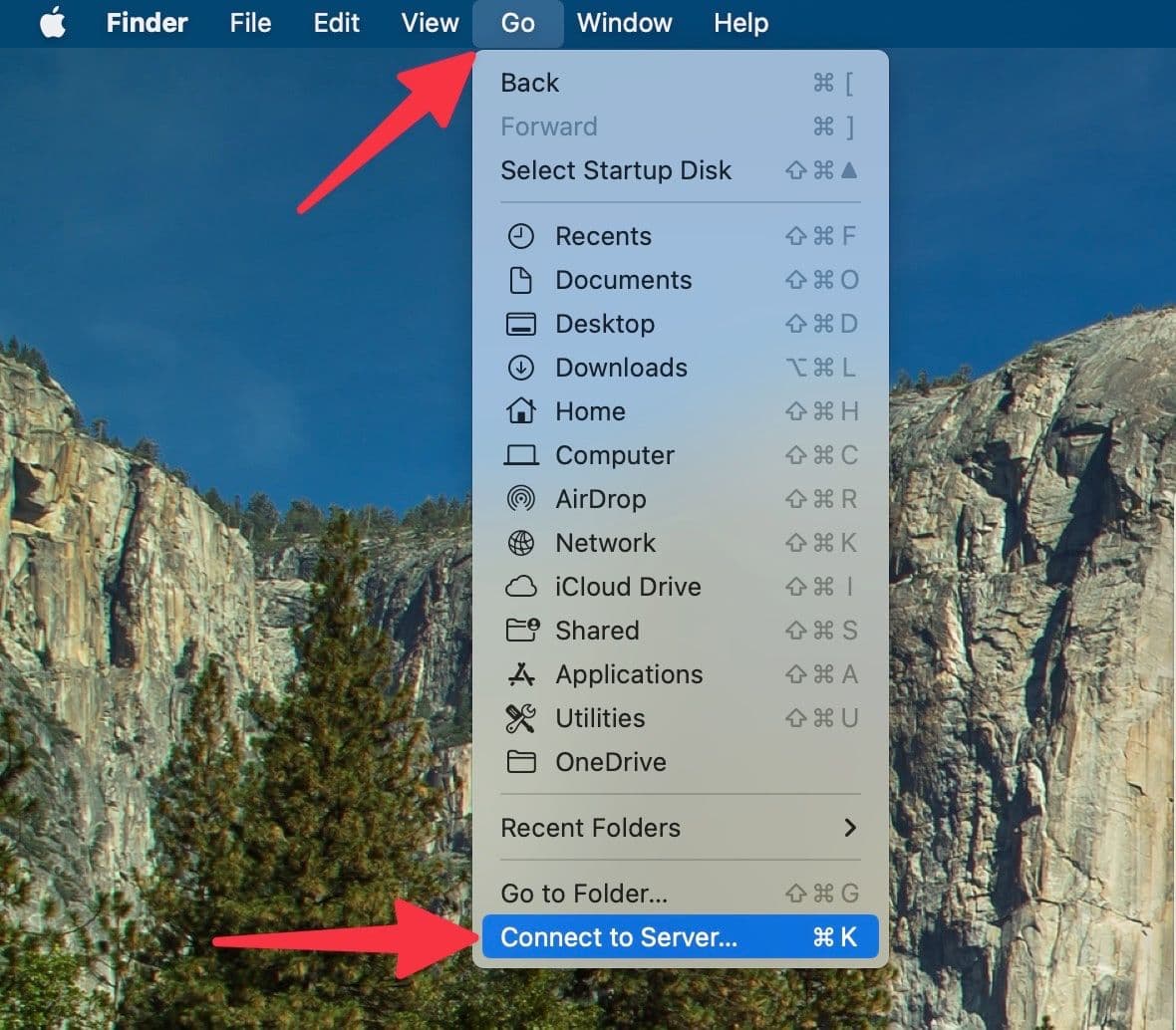
Select
Go
in the menu bar. -
Select
Connect to Server
.
-
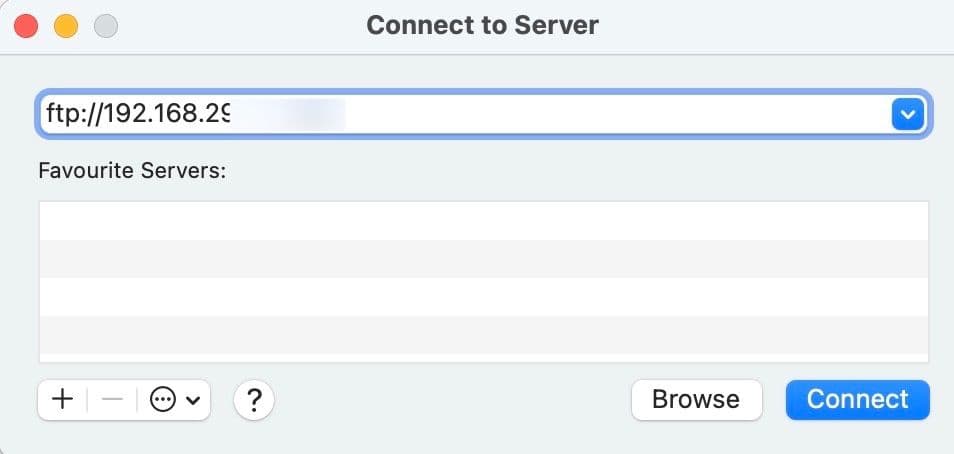
Type the server address (find it from the Solid Explorer app, as shown in the steps above) and click the
Connect
button.
-
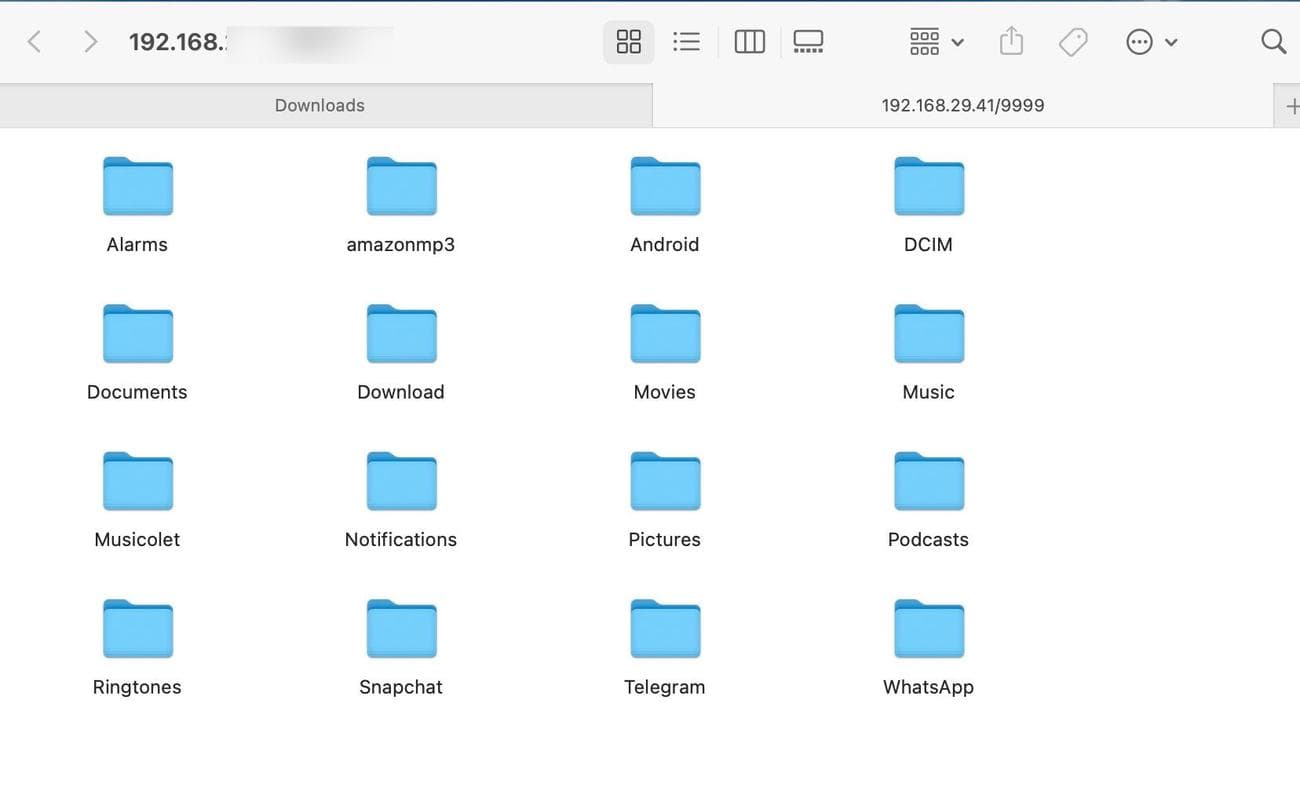
Check your Android folders in the Finder menu. You can now move or copy them to your Mac.
OpenMTP for Mac
OpenMTP is an advanced Android file transfer app for macOS. Follow the steps below to use OpenMTP to transfer files from Android to Mac.
-
Download OpenMTP on your Mac
from the official website. -
Launch
OpenMTP
on your Mac. - Connect your Android phone to your Mac using a data cable.
-
Open
USB Preferences
from the Notification Center. Select the radio button beside
File transfer / Android Auto
.
-
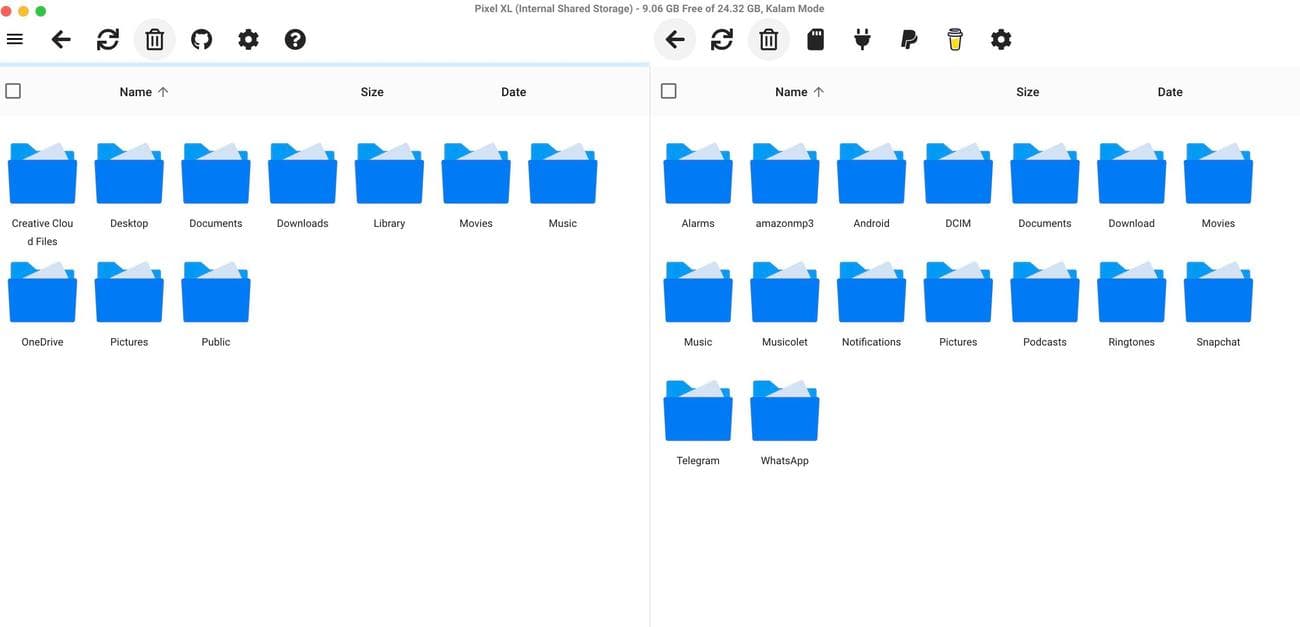
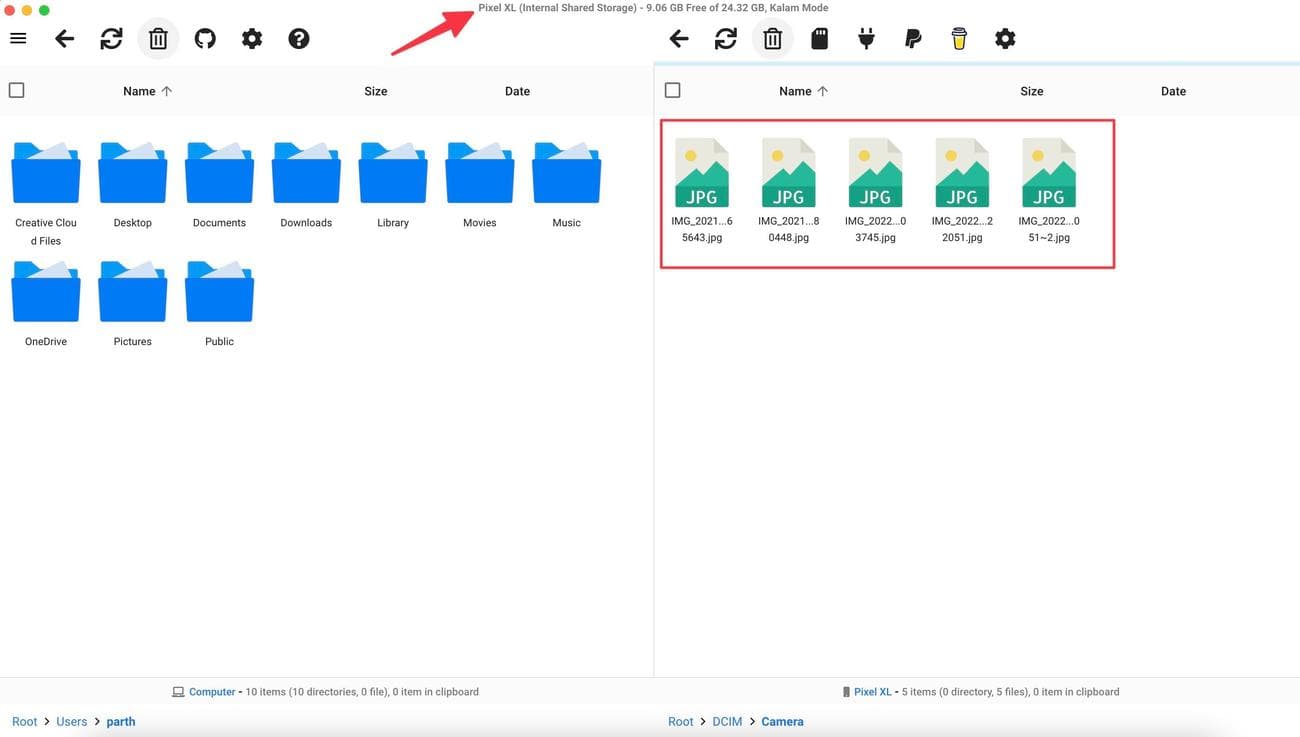
Check your Android phone storage with all the folders that appear in the OpenMTP app.
-
Drag and drop files from the phone folder to the Mac storage and complete the transfer process.
Google Photos
Google Photos is ideal for transferring images and videos from your Android phone to a PC or Mac. You must turn on Google Photos backup on your phone and download the same using Google Photos web on the desktop.
-
Open
Google Photos
on your Android phone. -
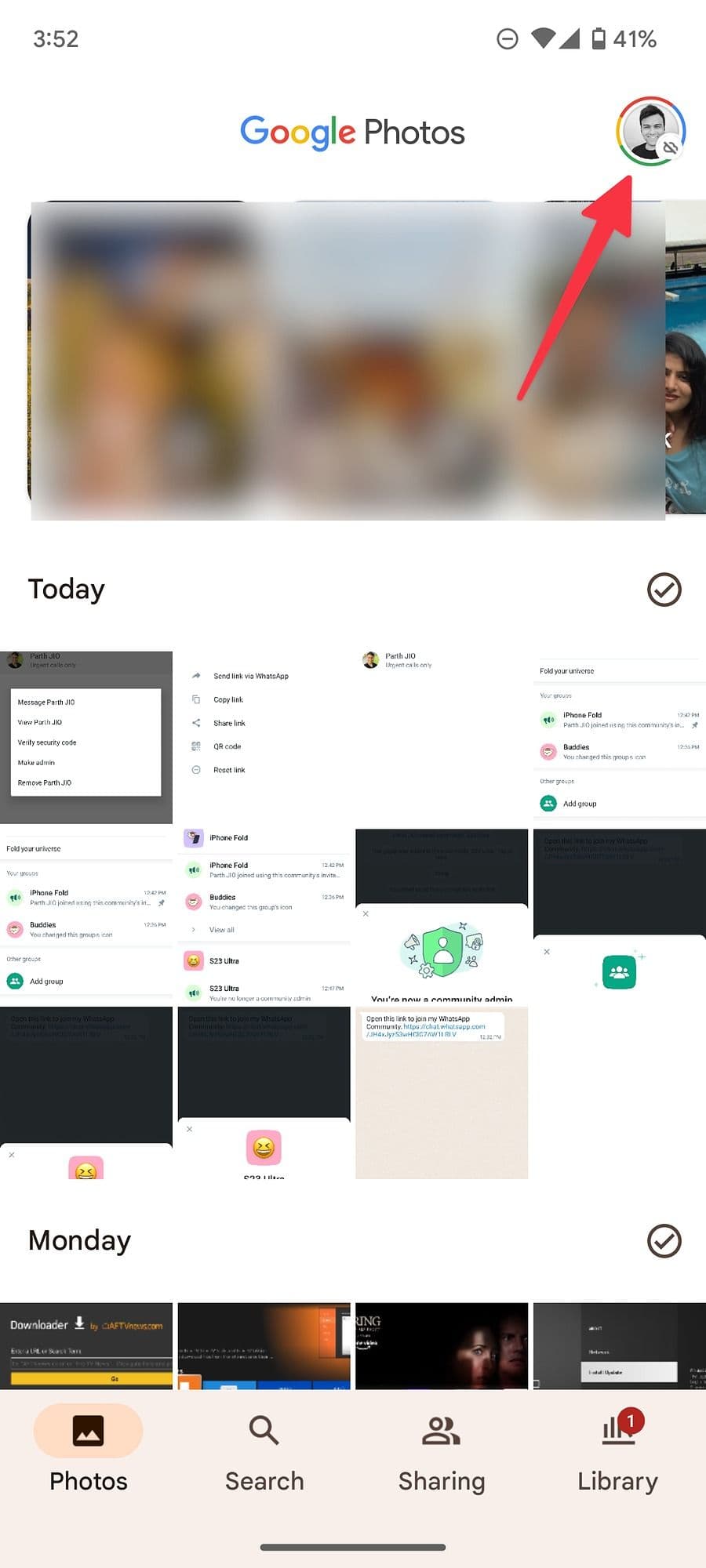
Tap your circular
account picture
in the upper-right corner. -
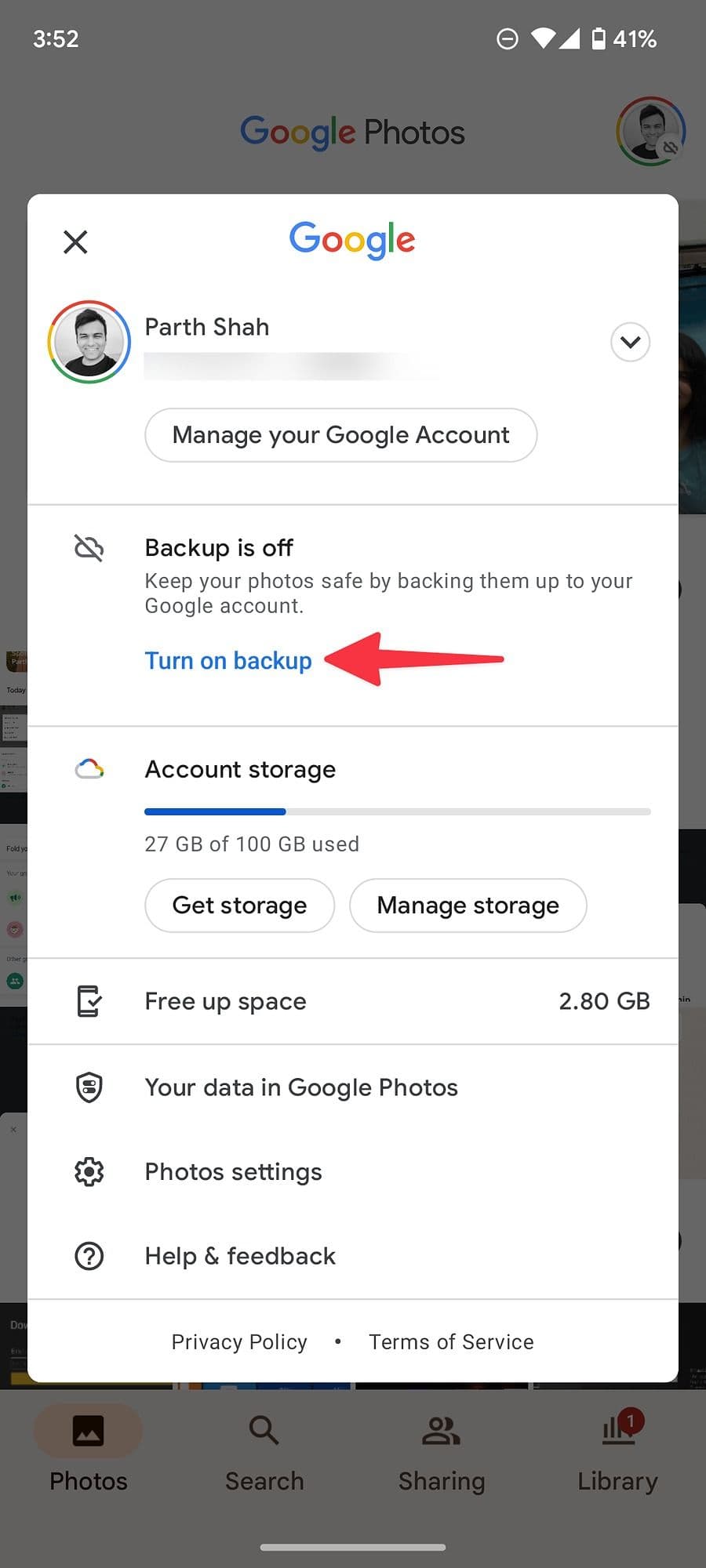
Select
Turn on backup
(you must have sufficient Google Drive storage to upload media).
-
Once you upload media from your phone, go to
Google Photos web
on your desktop. -
Select the photos and videos you want to download on your computer and press the
Shift
+
D
keys.
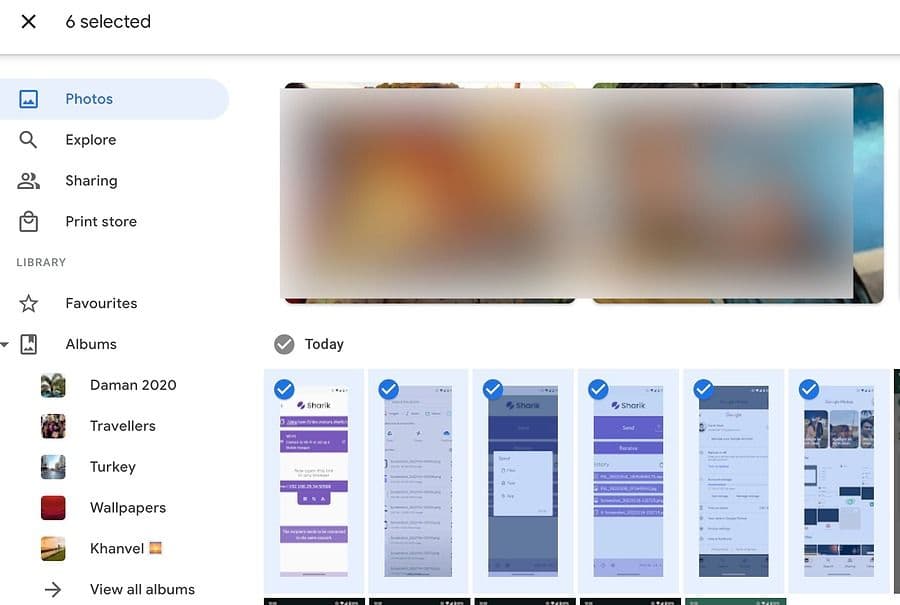
-
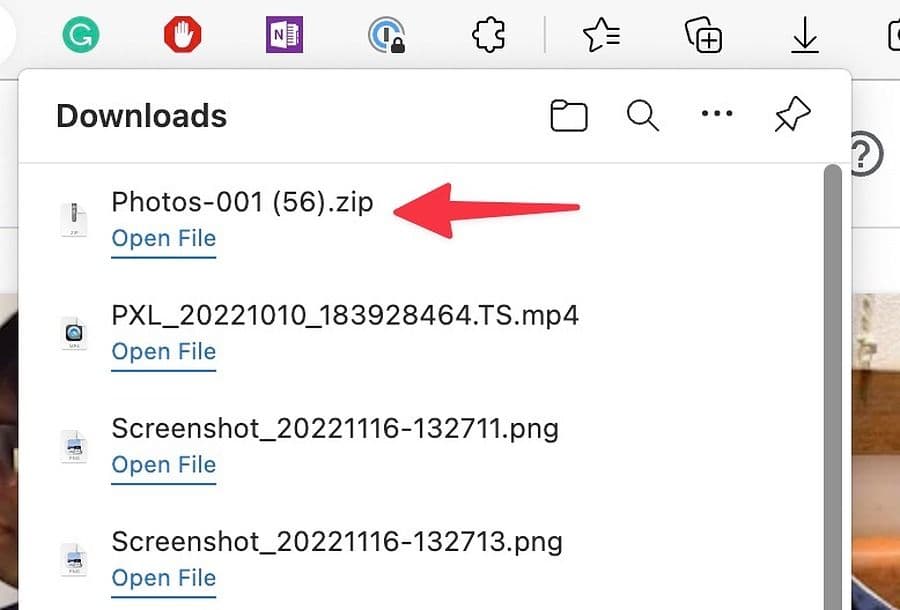
Google Photos downloads a ZIP file that you can extract from the Finder (Mac) or File Explorer (Windows) app.
Once you get the hang of Google Photos, read our top tips and tricks to use it like a pro.
Sharik
Sharik is one of the fastest ways to transfer files from your Android phone to a Windows PC or Mac. It’s an open source, cross-platform solution for sharing files via Wi-Fi or a mobile hotspot. To complete the transfer process, your phone and the desktop must be connected to the same Wi-Fi network.
-
Download
Sharik
on your Android phone. -
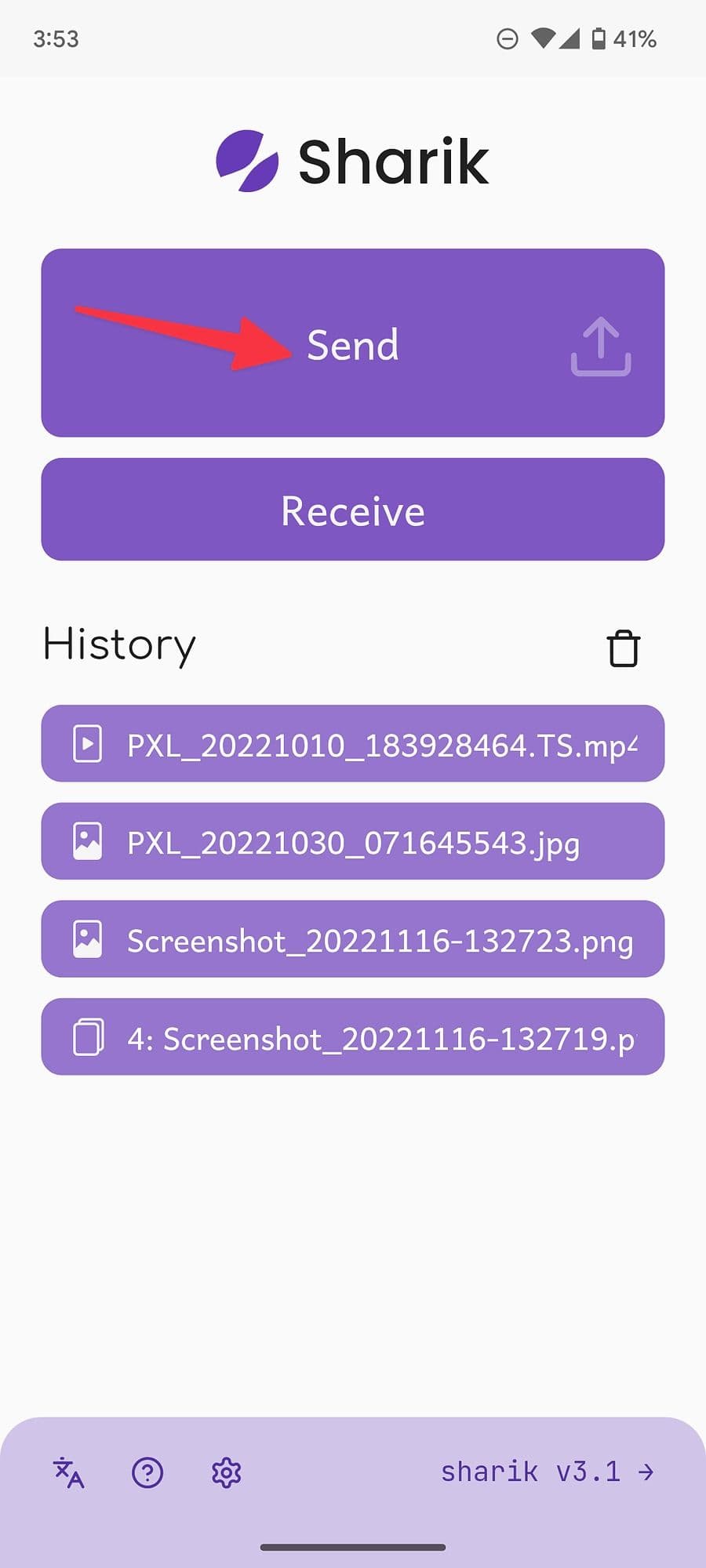
Open the app and tap
Send
on the main page. -
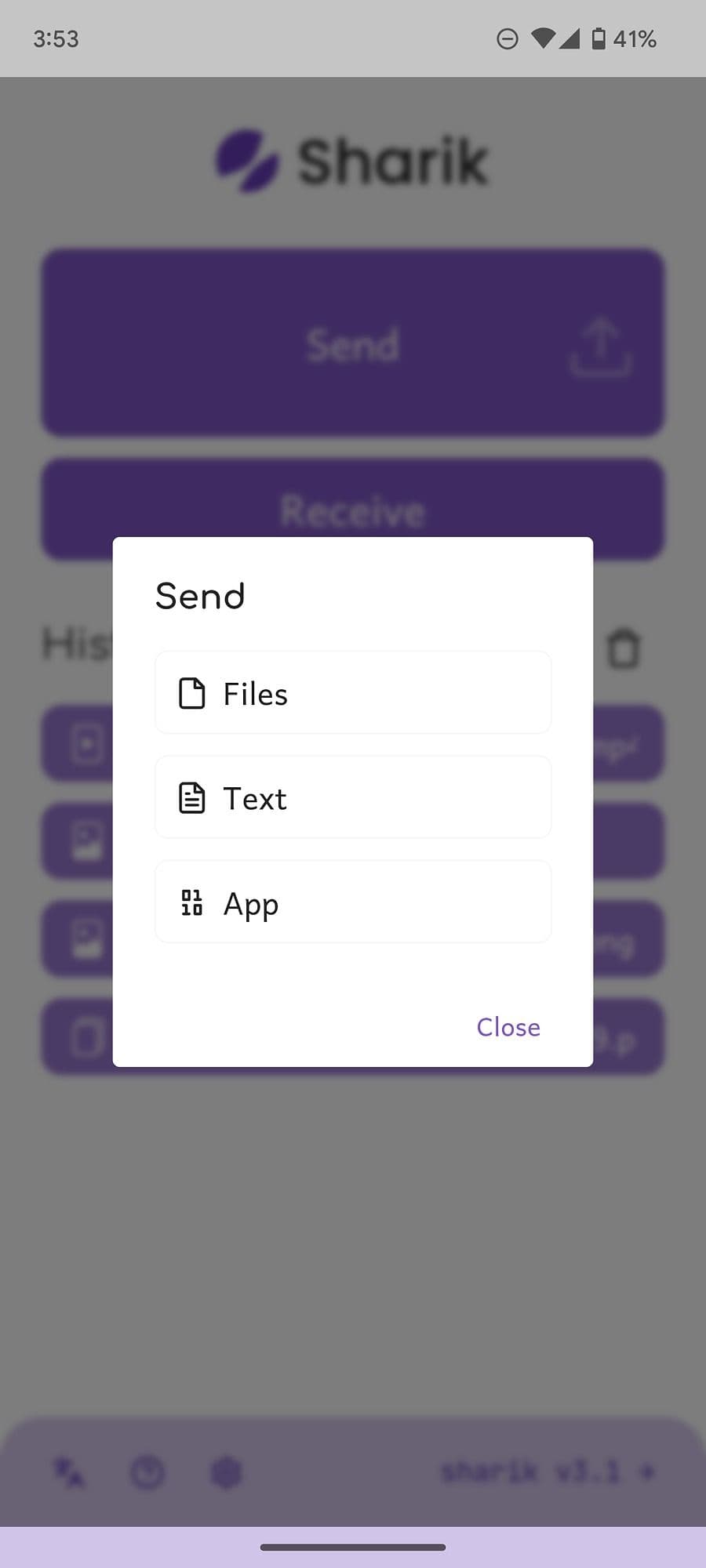
Select
Files
from the dialog box.
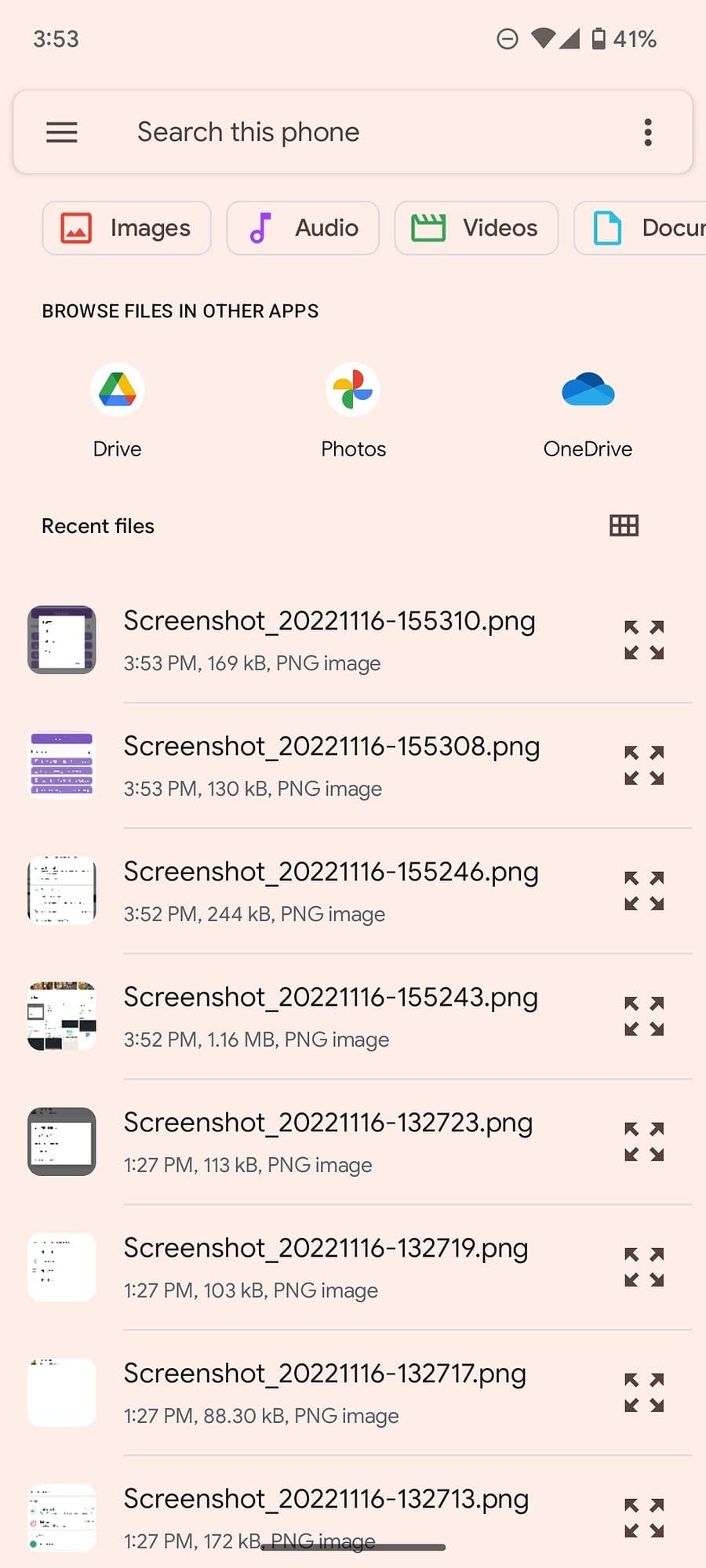
- A file picker menu opens. Select multiple files.
-
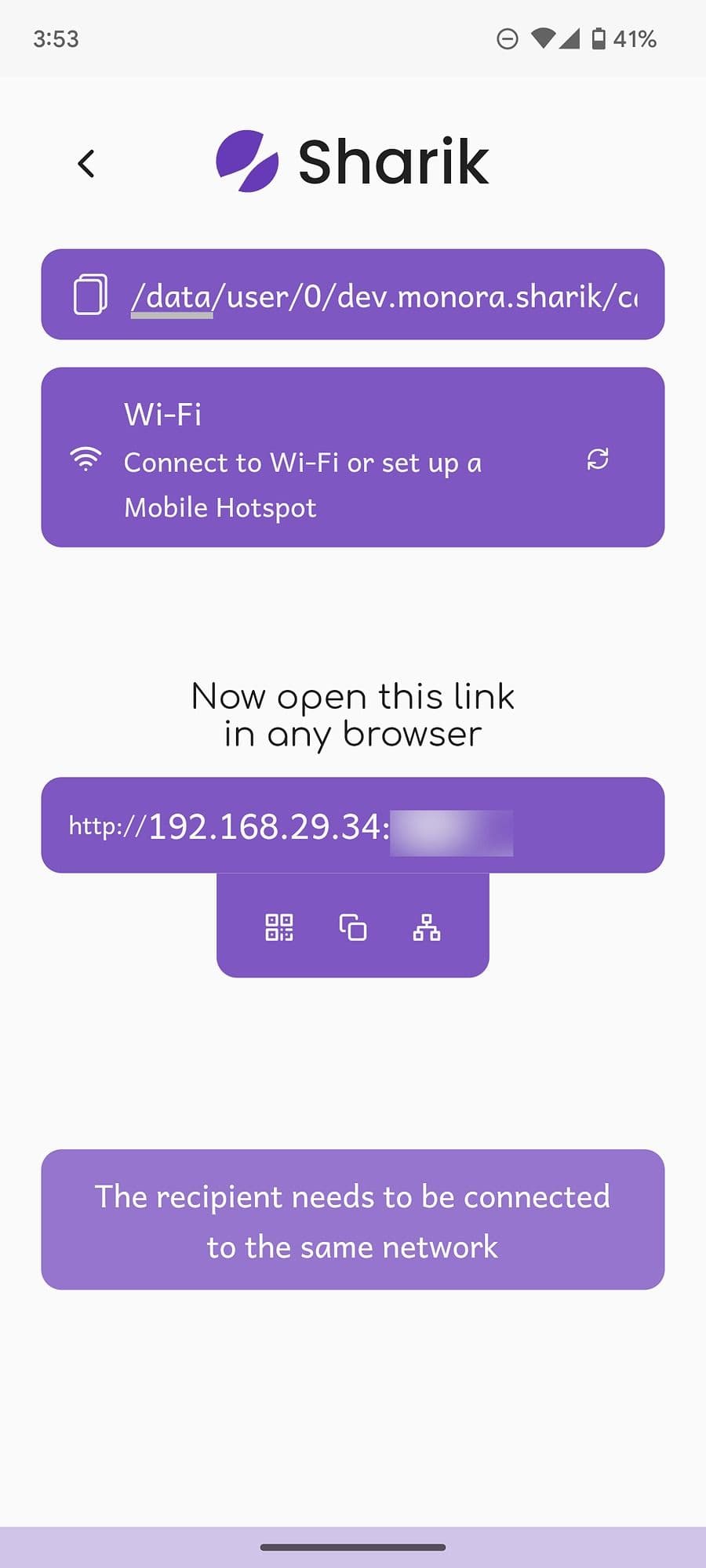
Sharik asks you to open an IP address on your desktop browser.
-
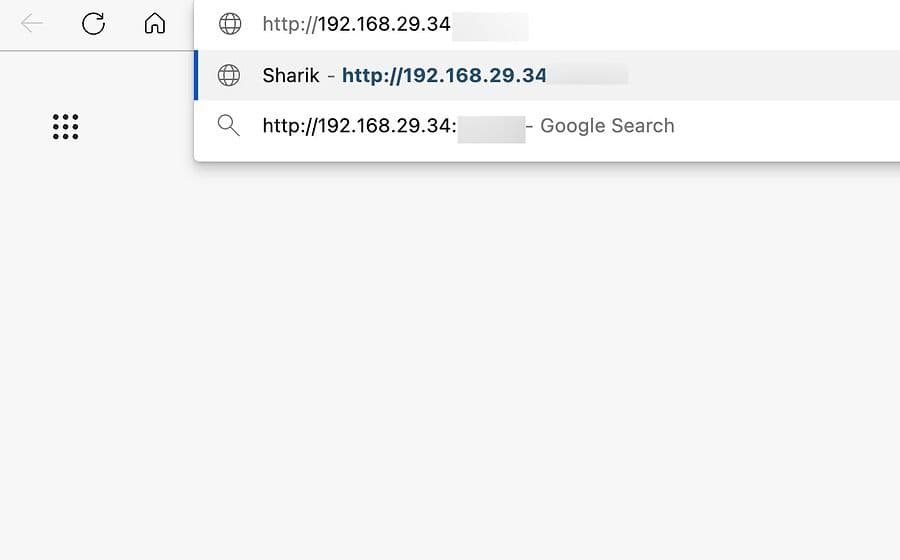
Enter the IP address in the address bar of your web browser.
-
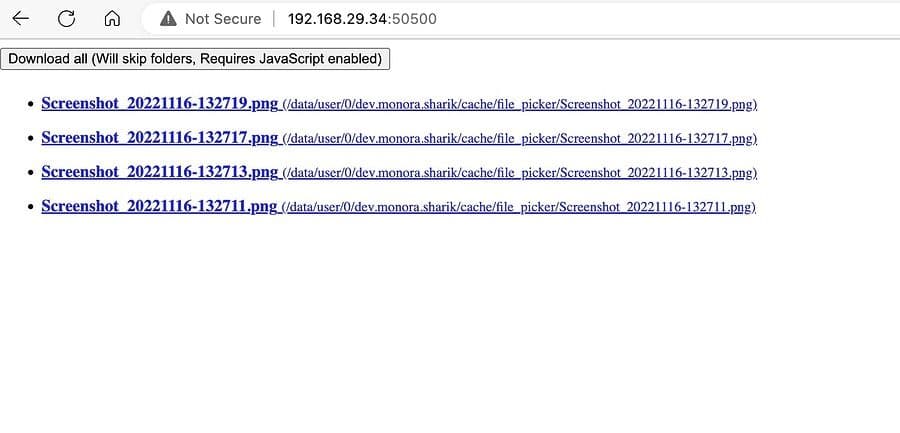
The browser automatically starts the download process if it’s a single file. If you transfer multiple files, you can check the list and download them to your Windows PC or Mac.
We transferred a 100MB video using the trick, and Sharik completed the job without breaking a sweat. The app is free to download and use.
Commander One
Commander One is a
feature
-rich alternative to the Finder app on Mac. If you want to manage thousands of files like a pro, the default Finder app may be limited in certain ways. You can get Commander One, which has a better dual-pane interface, more organization options, and an option to transfer files from your Android phone. Let’s check it in action.
-
Download
Commander One
from the Mac App Store. -
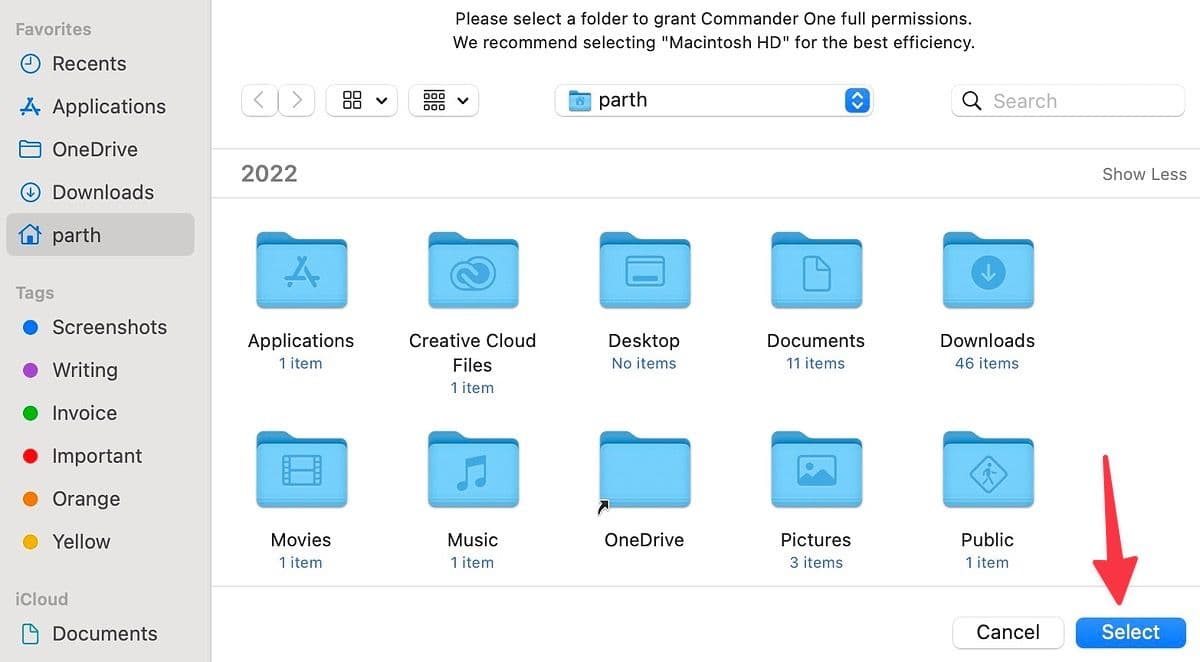
Open the app and grant it permission to access your Mac files. The app may ask you to turn on full disk permission from Mac Settings.
- Connect your Android phone to a Mac via a cable.
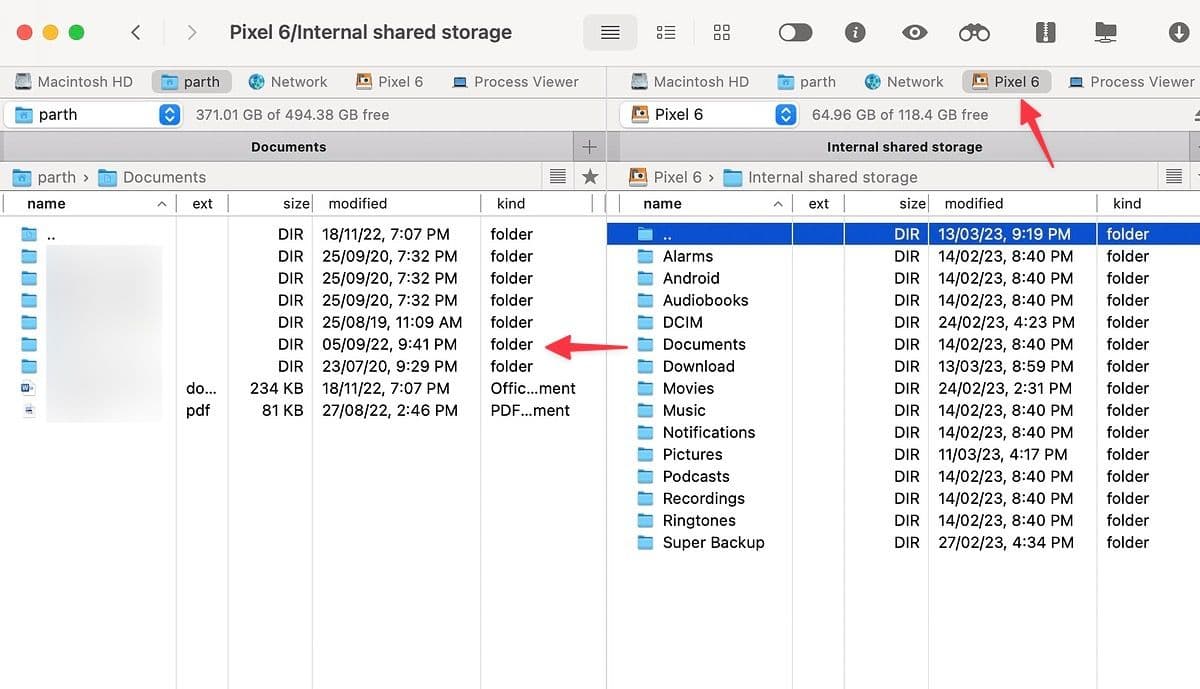
- Your Android phone appears at the top. Select it to check your phone’s internal storage and folders.
-
Select your files and drag and drop them to your Mac storage.
Commander One is free to download and use. You can purchase the PRO pack at $30 to unlock all features.
Dropbox
Cloud storage services like Dropbox offer a convenient way to transfer files from your Android phone to your Windows PC or Mac. Unlike most file transfer apps, you don’t have to fiddle with settings to share files between devices. However, Dropbox only offers 2GB of free storage, so this option works best for smaller files.
-
Download the
Dropbox app
on your Android device. -
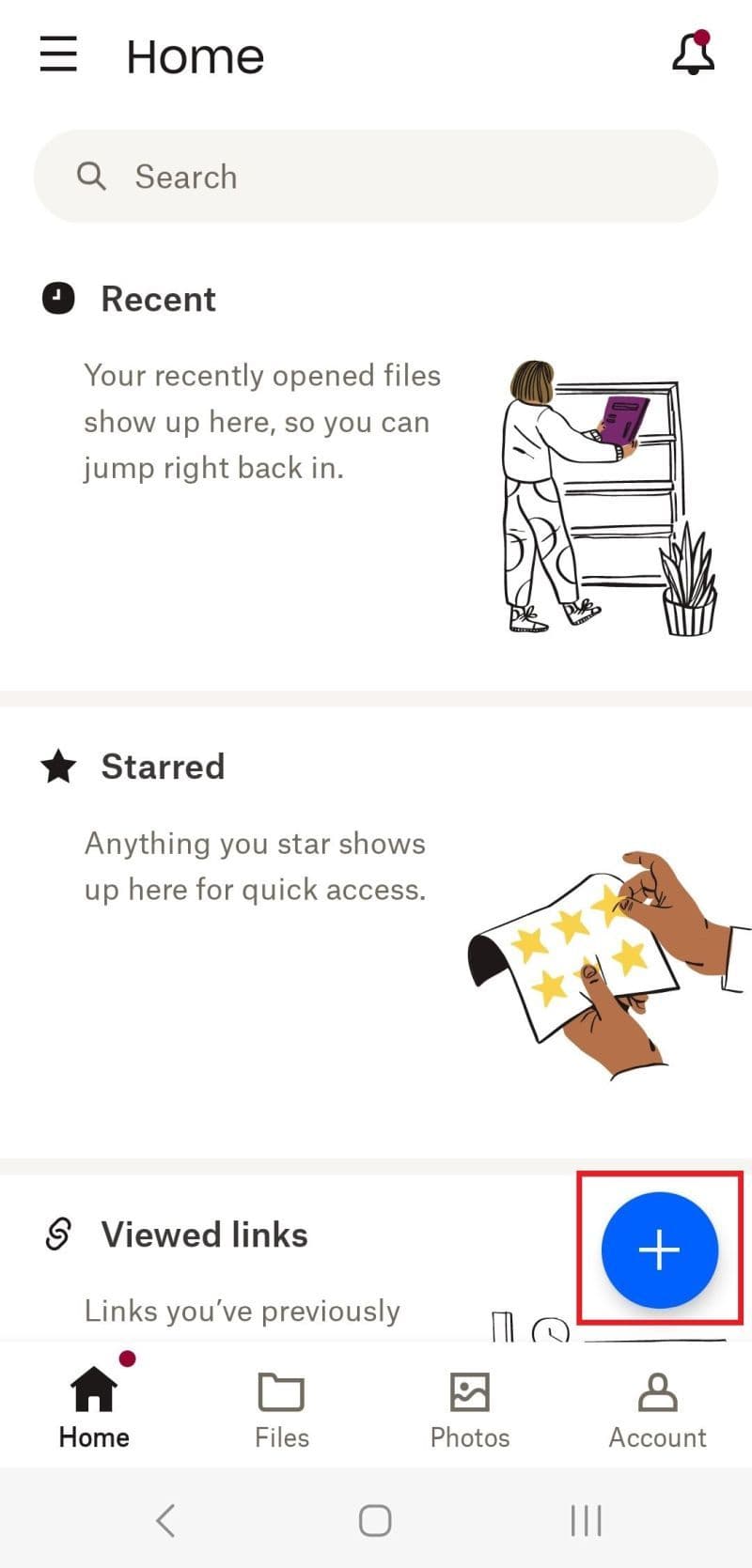
Click the
+
icon in the lower-right corner of the screen. -
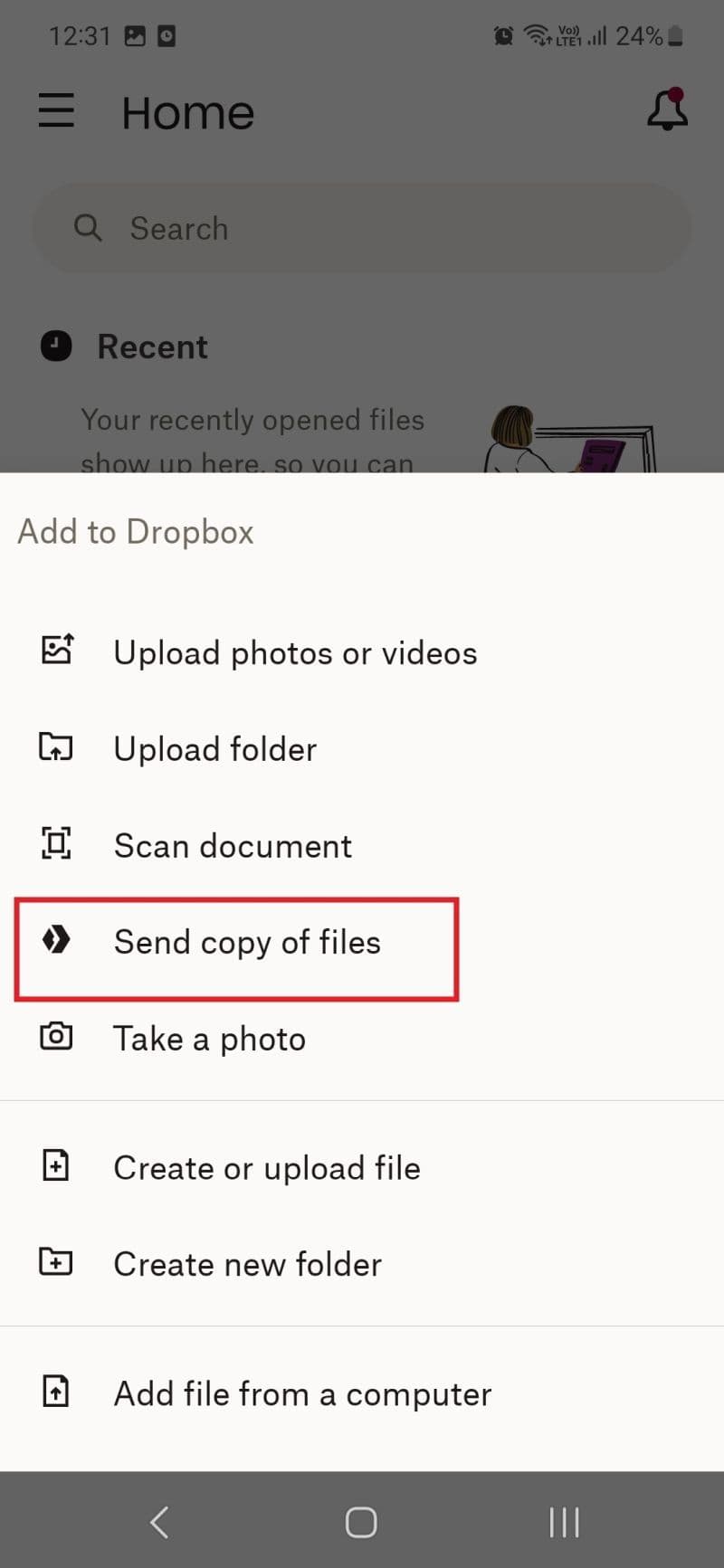
Select
Send copy of files
. -
Select
Continue
.
-
Choose the file or folders you want to share from the list and select
Transfer [x] file(s)
. -
Select
Continue
. -
You can rename your file, get download notifications, and set an expiration date. Select
Continue
. -
Select
Copy link to share
. The link is copied to the clipboard. You can share this link with anyone. -
Select
Done
. -
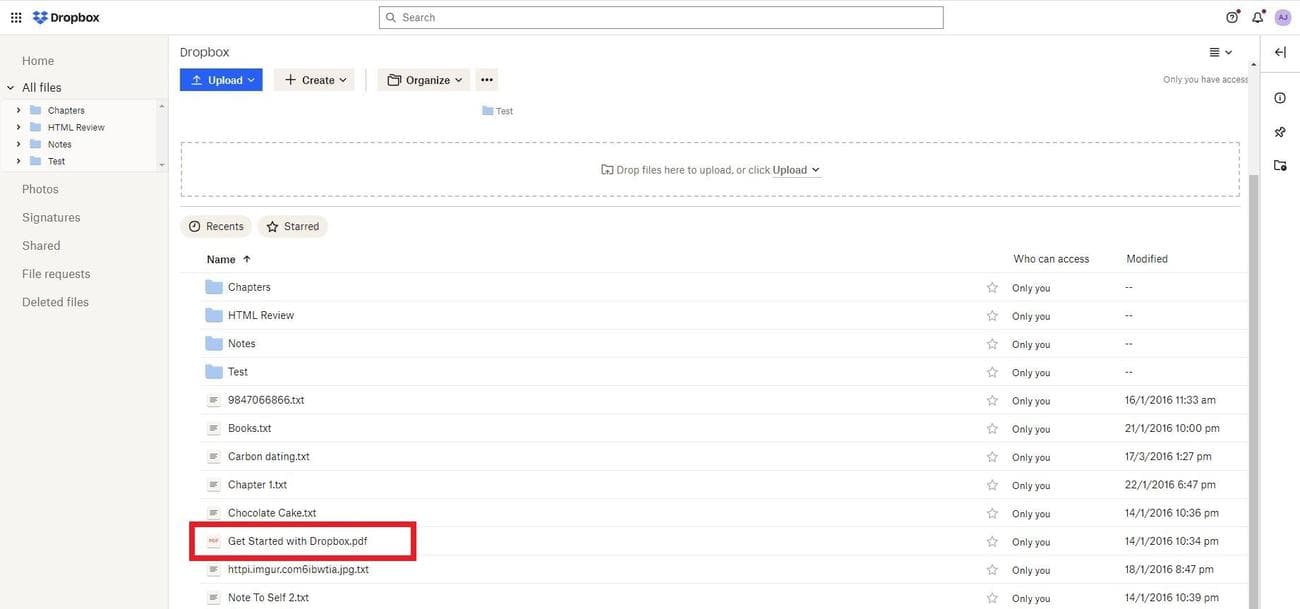
To view shared documents on your PC, go to the
Dropbox website
on your desktop browser and log in to your account. -
You can see a list of all your shared files on the Dropbox site.
AirDroid
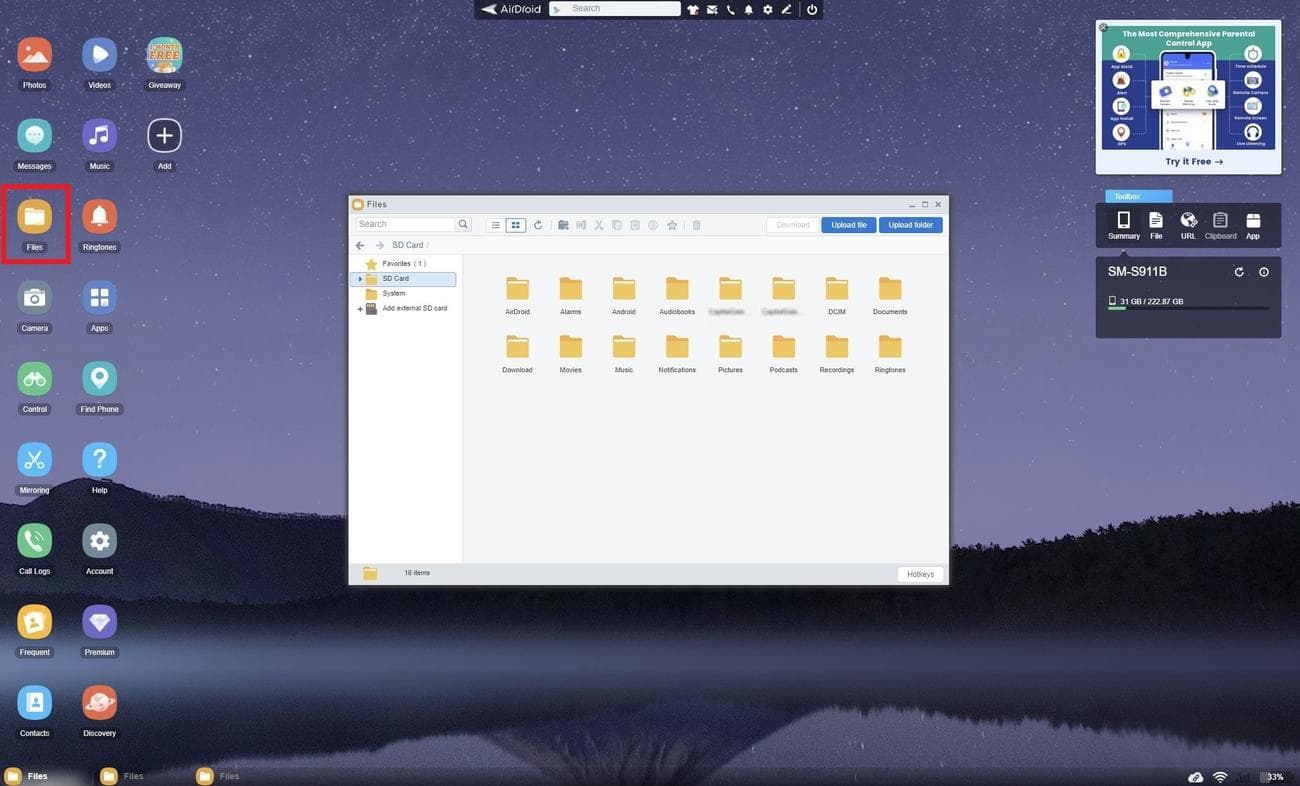
AirDroid is a free file management app that lets you quickly transfer files from your Android phone to your Windows PC or Mac. Besides file sharing, the app offers features like screen mirroring, file management, phone notifications on a PC, and more.
-
Install
AirDroid
on your Android phone. - Sign in with your account.
-
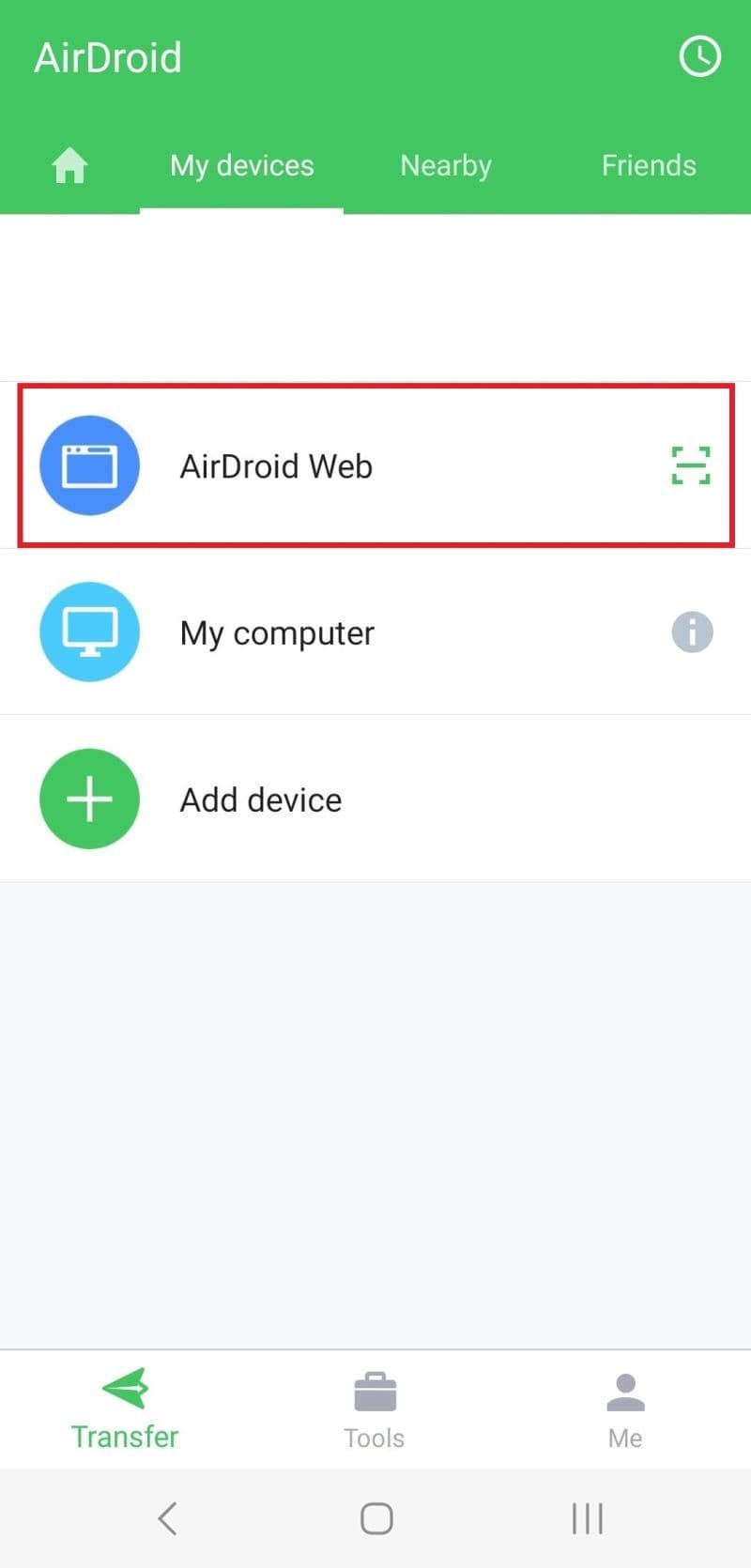
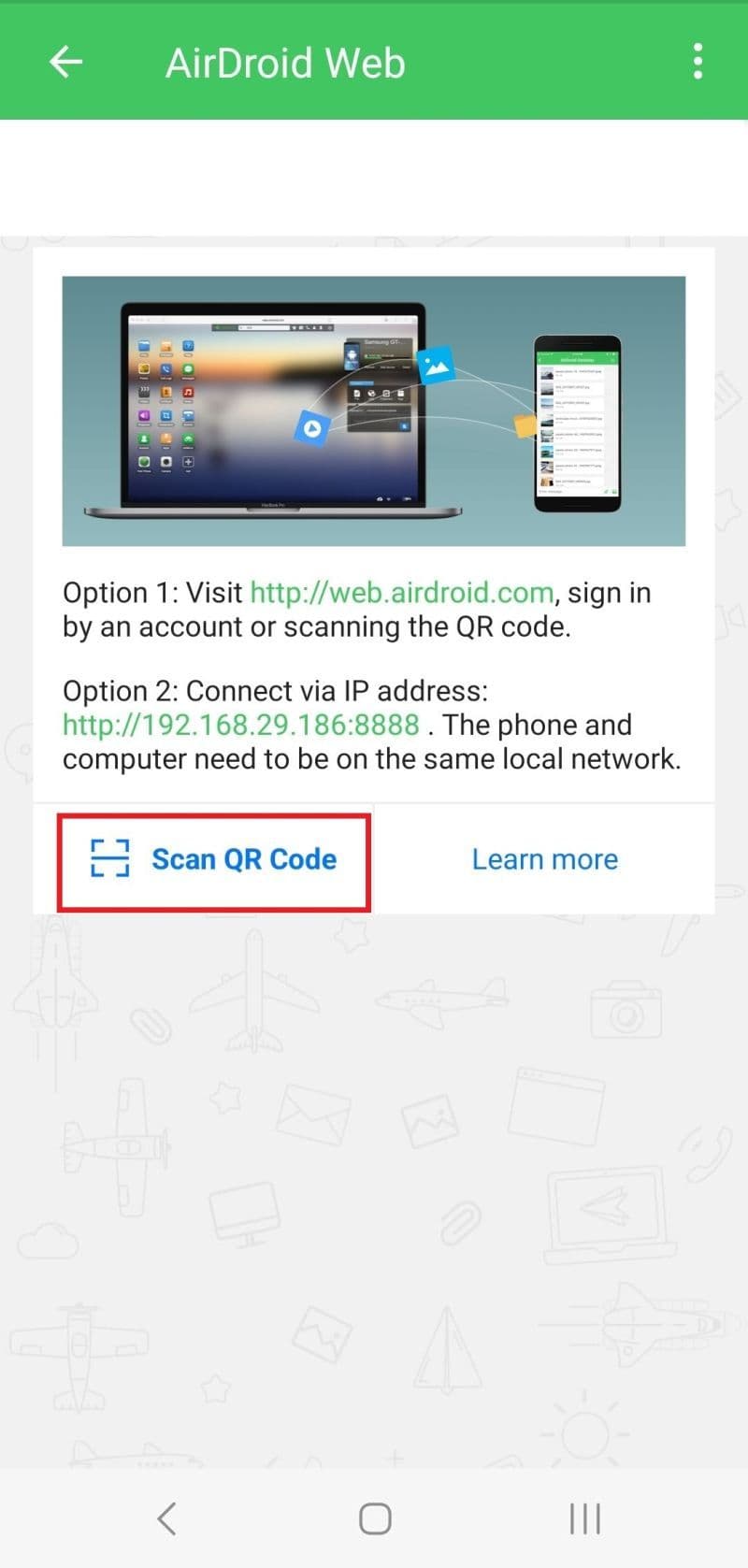
Select
AirDroid Web
and choose
Scan QR Code
.
-
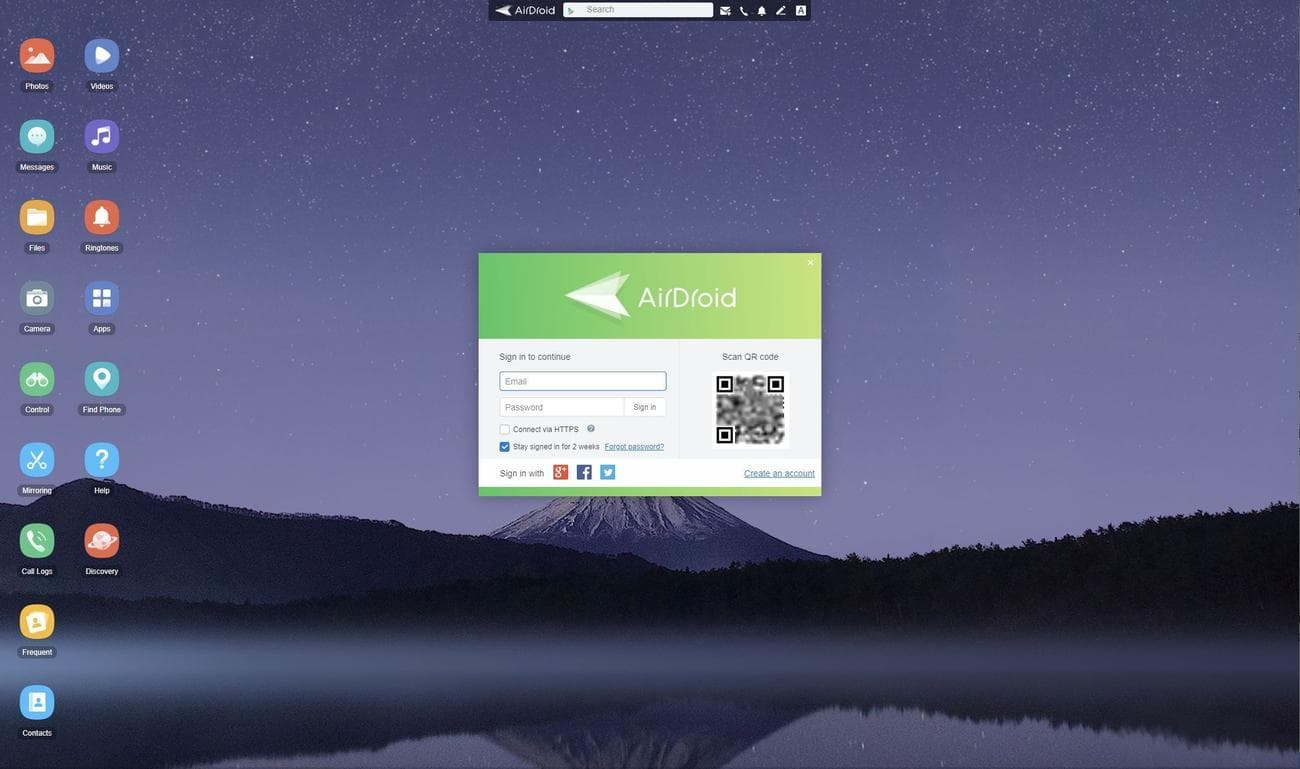
Open the
AirDroid web app
on your Windows PC or Mac. -
Scan the
QR code
on the web app with your phone to link both devices.
-
Click
Files
in the web app to view your Android phone’s files.
KDE Connect
KDE Connect is one of the easiest file-sharing solutions to share files from your Android device to your Windows PC or Mac, with the caveat being that all devices must be connected to the same Wi-Fi network. It also lets you access your phone’s clipboard, receive messages from your computer, turn your phone into a remote control, and more.
-
Install
KDE Connect
on your Android phone. -
Go to the
KDE Connect website
on your Windows PC or Mac and install the app. -
Launch KDE Connect on your Android device. You’ll see the name of your computer under
Available devices
. -
Select your computer and choose
Request Pairing
. -
On your computer, click
Accept
when a notification for a pairing request pops up. -
Select
Send files
from the KDE Connect app on your Android device and choose the file you want to share. - You can view the file in your computer’s Downloads folder.
Transfer your files in no time
These fifteen methods are the quickest and easiest ways to transfer files from an Android phone to your Windows or Mac computer. You can also clear the cache on Android if you want to free up more space on your phone.