How to open the Chrome Web Store
The Chrome Web Store is a great resource for anyone who uses the
Google
Chrome browser or a web browser that’s compatible with Chrome extensions. For example, Microsoft Edge and other Chromium-based
apps
can use the same browser extensions.
If you want to boost your productivity, add convenience features to your browser, or change its appearance, learn how to open and navigate the Google Chrome Web Store to explore the available upgrades and add-ons.
Open the Chrome Web Store from Google Chrome
If you use Google Chrome on your Windows PC or Mac, you can enhance your browsing experience with a variety of extensions and themes. It’s easy to open the Chrome Web Store from the Google Chrome browser.
-
Select the
three vertical dots
in the upper-right corner of the address bar to see a menu of options. -
Hover over the
Extensions
submenu, then select
Visit Chrome Web Store
. -
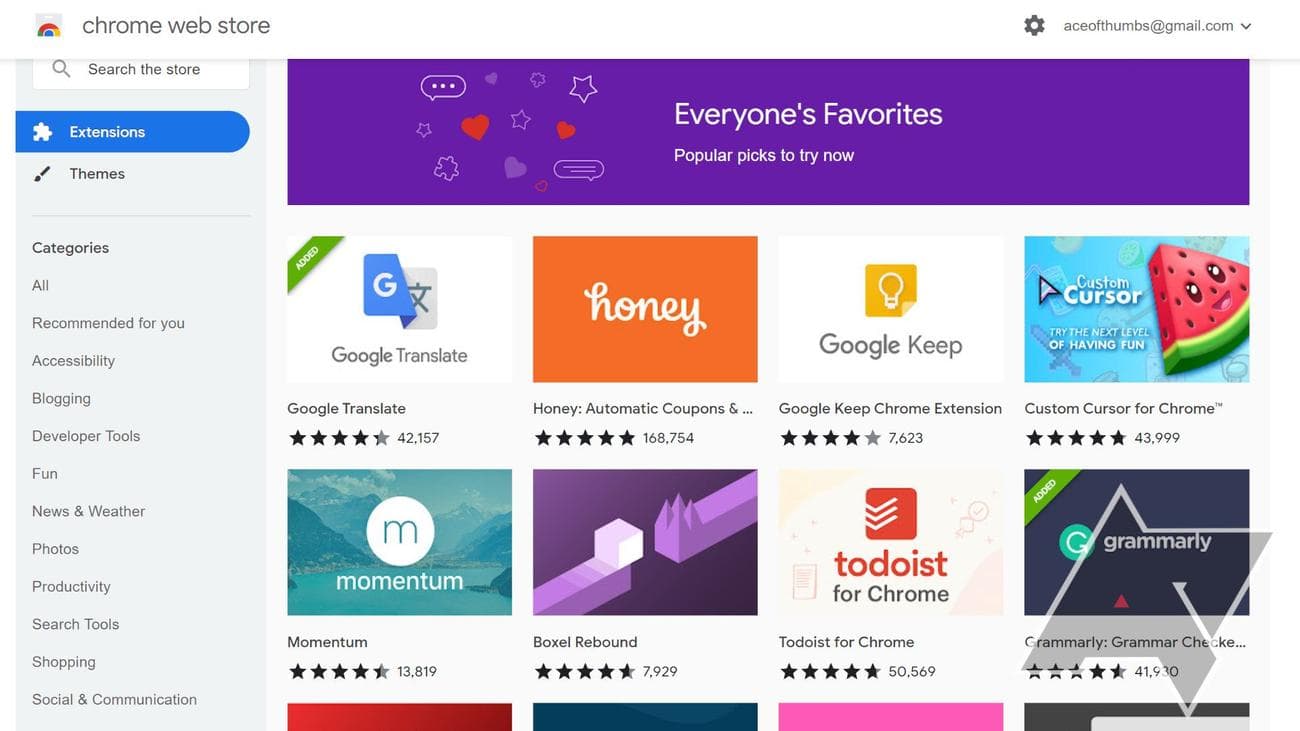
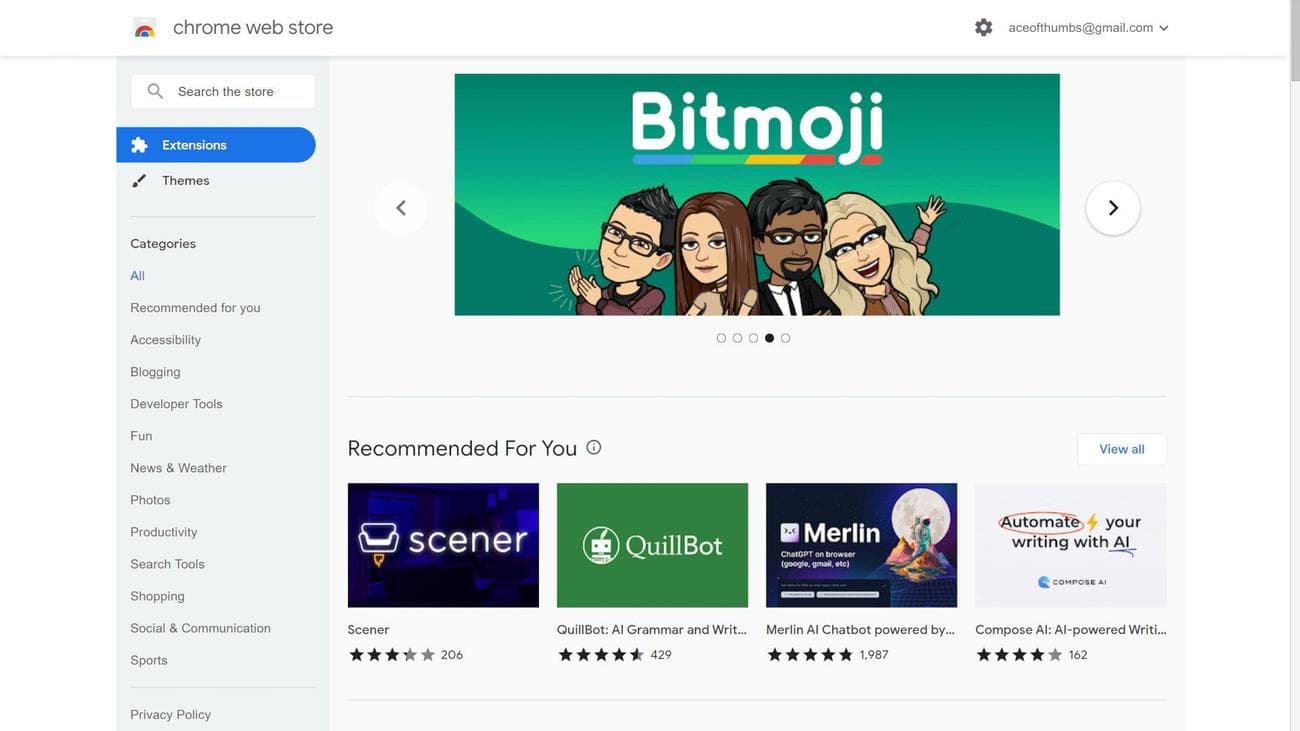
A new tab opens, showing the Chrome Web Store extensions page. From there, you can browse extensions using the carousel at the top or by scrolling down and checking out the cards on the main page.
-
Narrow in on a particular type of extension by selecting a category from the left sidebar. Google offers suggestions in the
Recommended for you
category and provides several other options, including
Accessibility
,
Blogging
,
Productivity
, and
Shopping
categories. -
You can also type keywords in the search box in the upper-right corner to find particular tools and extensions that make it more convenient to access the information you need.
-
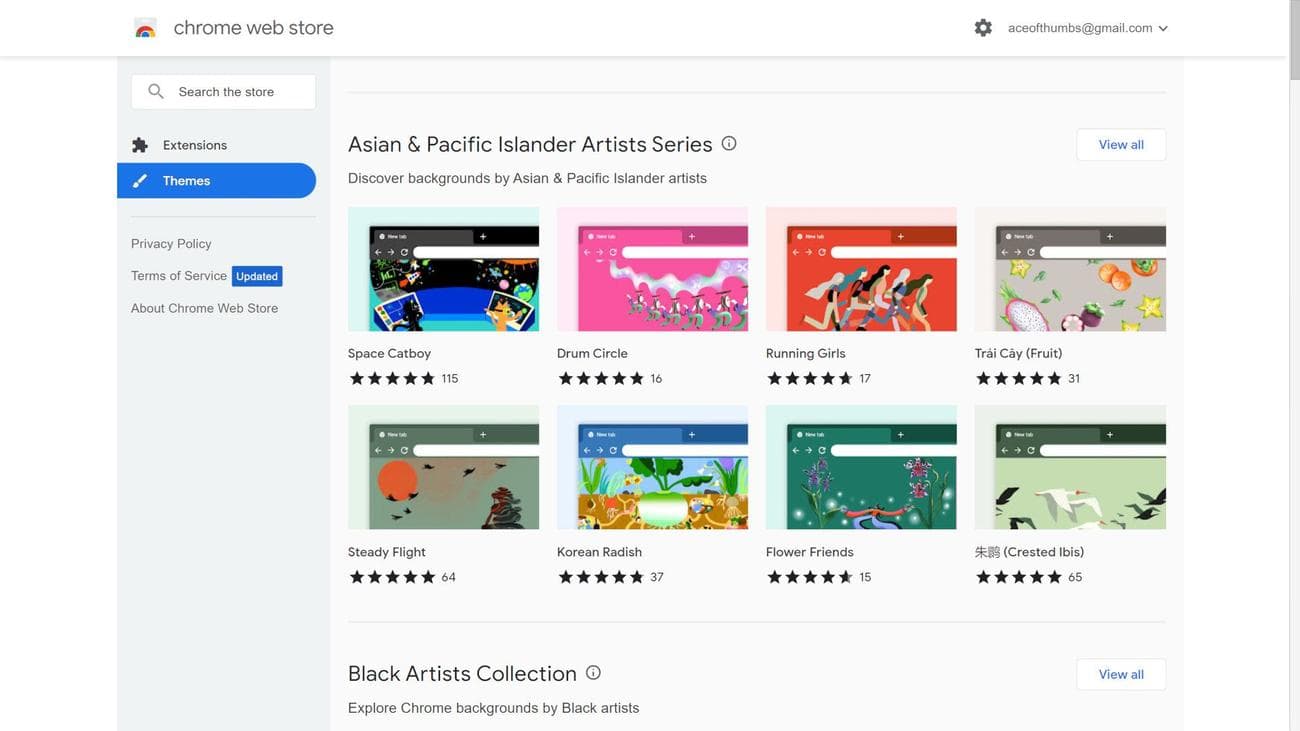
Select the
Themes
option in the upper-left corner to browse the custom styles you can apply to your browser.
How to install Chrome extensions and themes
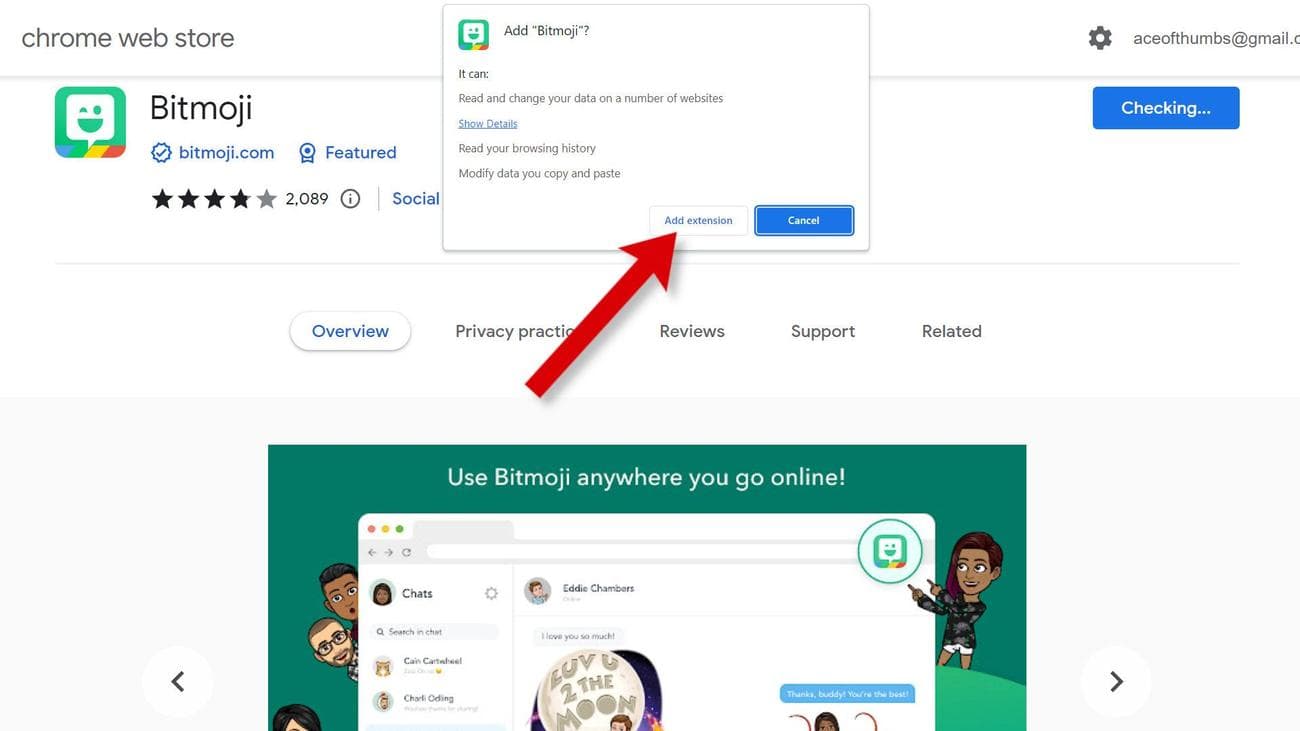
After you’ve found something you like, install the extension by opening it in the Chrome Web Store, then selecting the
Add to Chrome
button in the upper-right corner. A popup window provides you with privacy and security information about the extension. Select
Add extension
to continue.

It’s common for an extension to need permission to read and change data on websites you visit. Some extensions can be customized to restrict which websites they can access, and all extensions can be deactivated and uninstalled if you want to take a break or remove them entirely.
With a Chrome theme, choose
Add to Chrome
, and the new theme becomes active immediately.
How to use Chrome extensions
Some Chrome extensions begin working as soon as you install them. Others require some setup. You can access some extensions in the toolbar that appears to the right of the address bar. Toolbar extensions appear as icons. You can click them to activate them or right-click for more options.
To manage extensions:
-
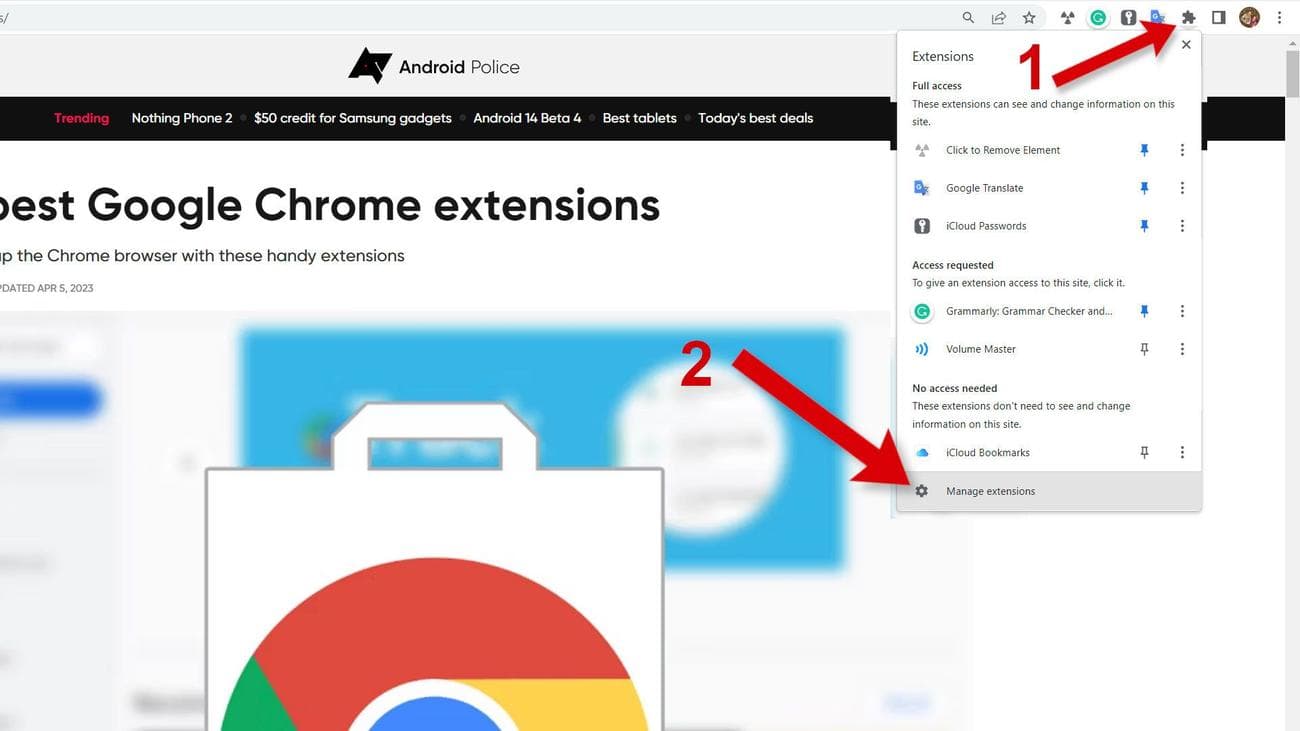
Select the icon at the far right of the toolbar that looks like a jigsaw puzzle piece, then choose
Manage Extensions
from the popup menu.
-
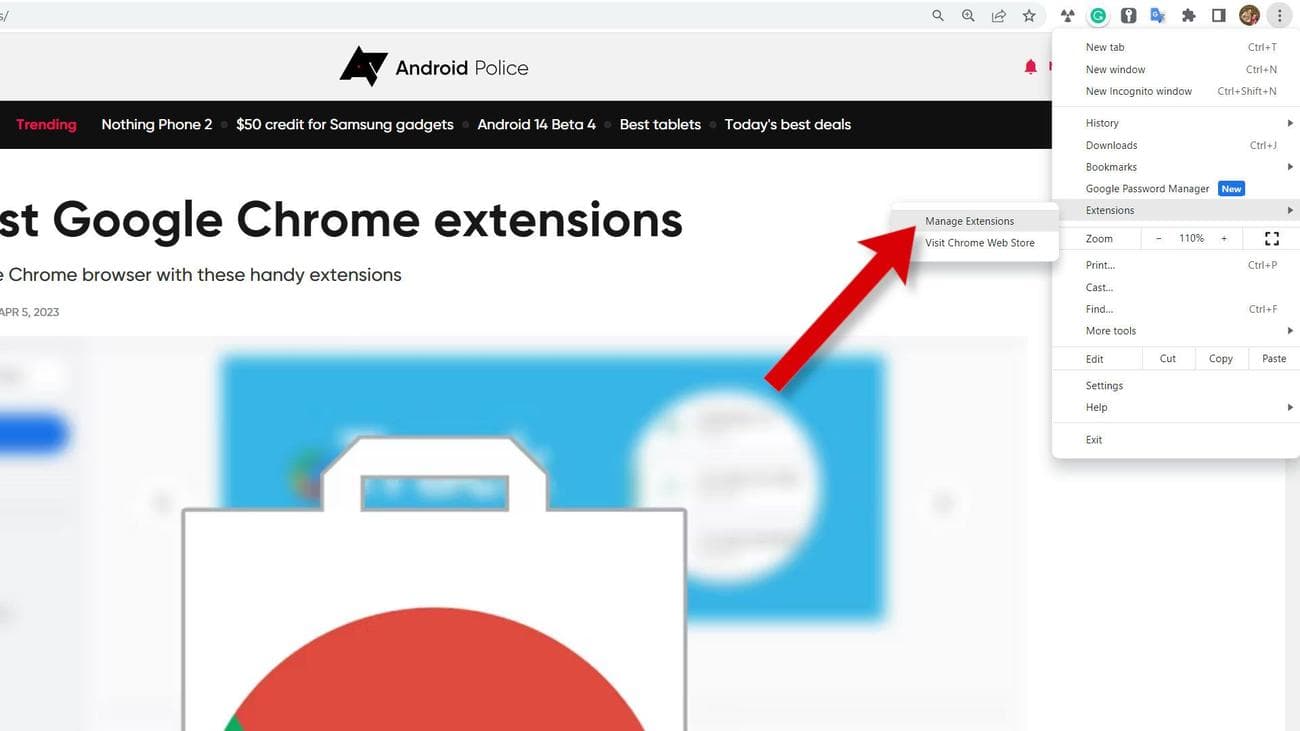
Alternatively, use the
more menu
in the upper-right corner, hover over
Extensions
, and then choose
Manage Extensions
.
-
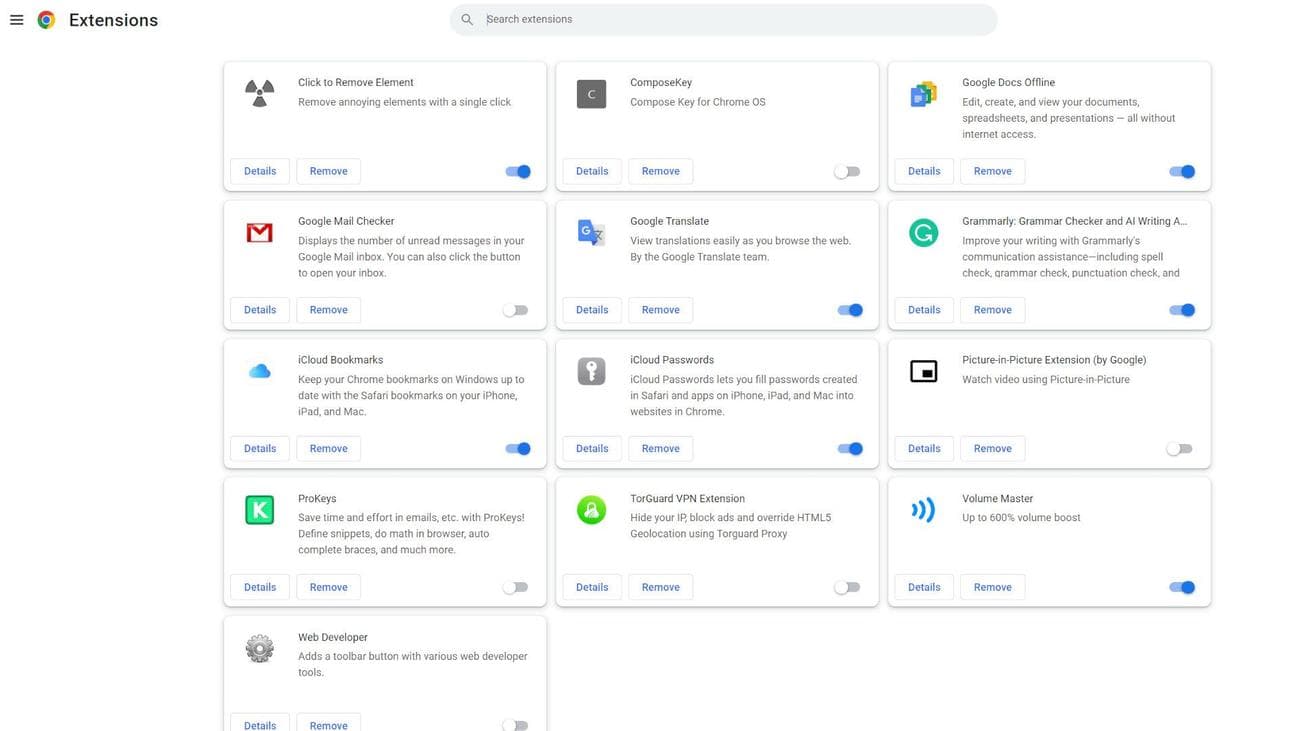
A new tab opens, showing the extensions you installed on your computer.
-
You’ll see a toggle switch that’s blue when turned on and gray when turned off. There are also buttons to show more
Details
and to
Remove
an extension.
Open the Chrome Web Store from a Chromebook
ChromeOS is great for most computing needs, and our guide to the best Chromebooks can help if you are interested in switching away from Windows and macOS.
The Chrome browser is the primary interface on a Chromebook, so Chrome extensions are important. You can use the method mentioned above to open the Chrome Web Store from your Chrome browser.
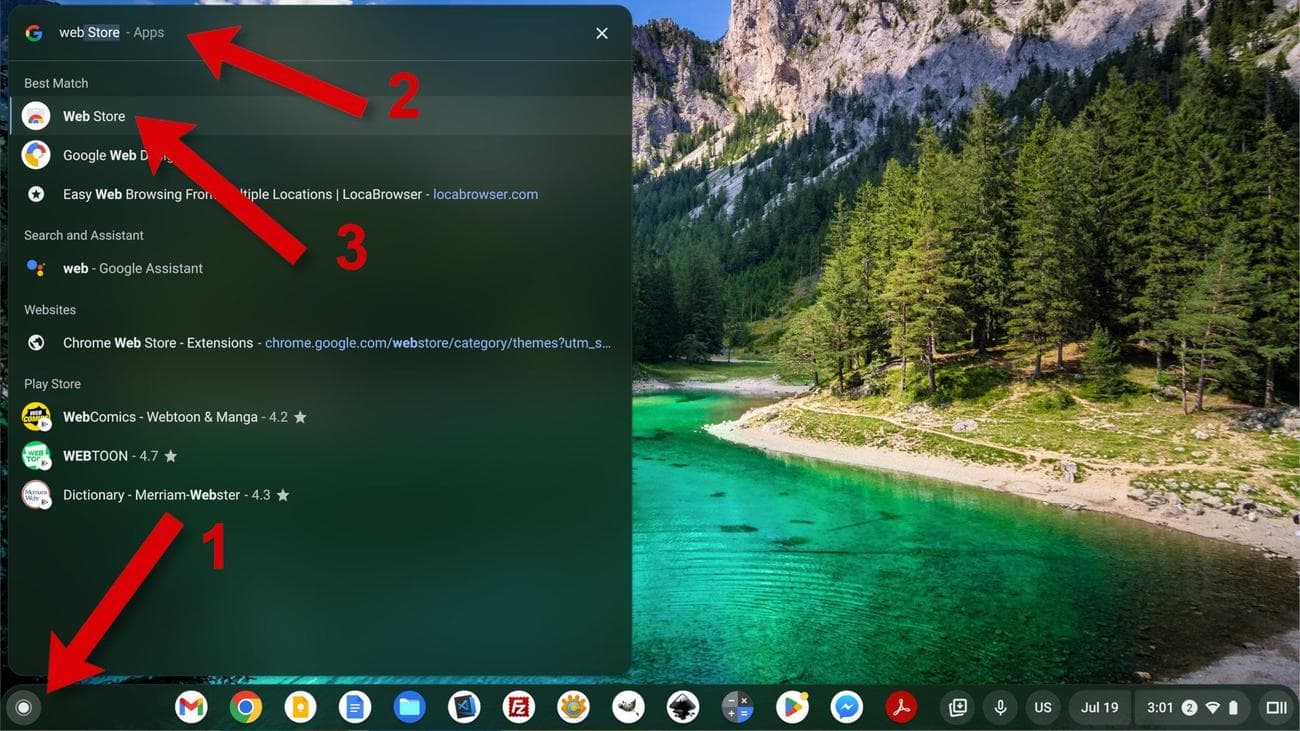
You can also open the Chrome Web Store from the Launcher. Select the round button in the lower-left corner and type
Web Store
in the search box. When it appears in the list below, choose it to open the Chrome Web Store in a browser tab.
What about Chrome apps?
You might find references to Chrome apps online, but they are no longer supported except for Google Enterprise and Education customers and partners.
Google
said Chrome app support has been extended for these users “until at least January 2025.”
For everyone else, they are no longer accessible in the Chrome Web Store, and existing Chrome apps won’t execute. For Google’s Chrome apps and some others that have equivalent web apps, you’re redirected to a website that provides similar functionality.
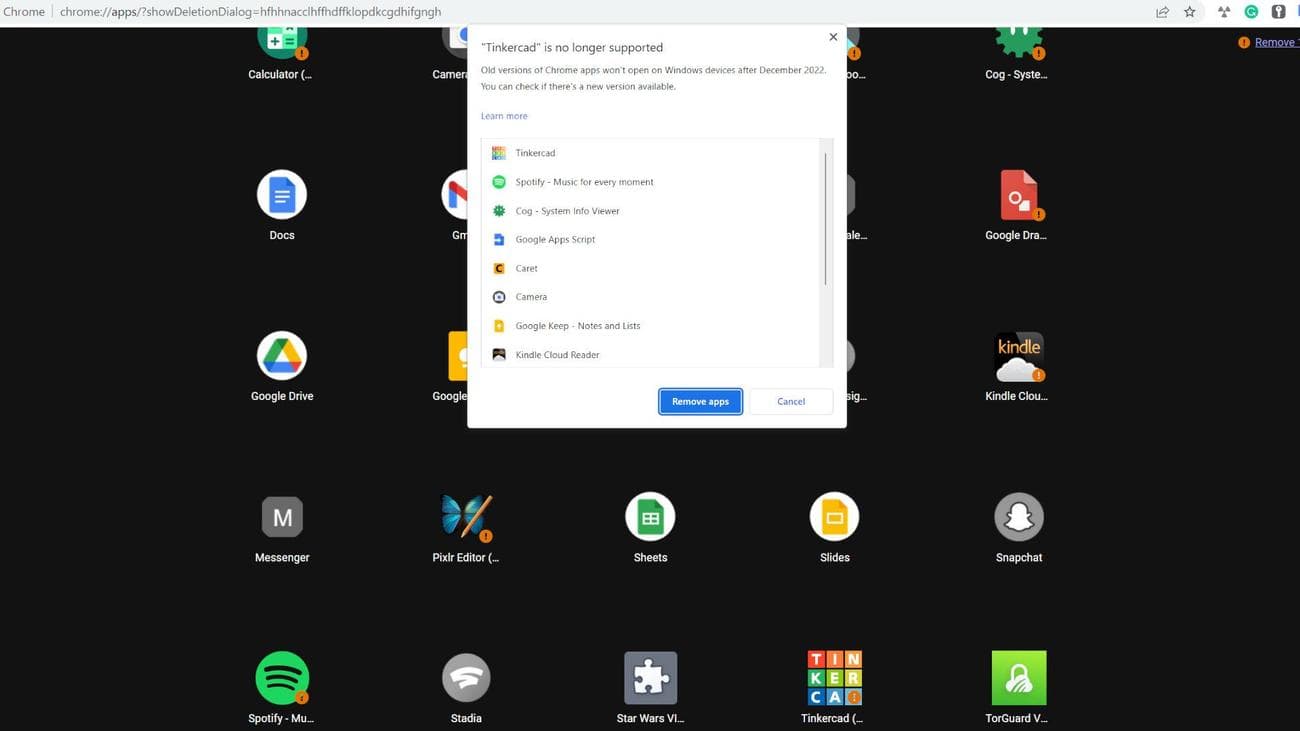
Google Chrome apps require a compatible web browser since they are built with web-friendly languages like HTML, CSS, and JavaScript. These apps look much like Windows and macOS apps and open in their own windows.
It was a great idea, and many Chrome apps were developed, but a new
technology
called progressive web apps (PWA) is a better option for web developers who want to create lightweight apps that run everywhere.
Open the Chrome Web Store from another browser
Several browsers are compatible with Chrome extensions and themes. For example, Microsoft Edge, Opera, and Brave browsers support Chrome extensions.
Apple
‘s Safari browser supports extensions but is not compatible with Chrome extensions. However, you can install the Chrome browser on a Mac if you need to access a Chrome extension. Many Chrome extensions work in Firefox, but there are some
incompatibilities
.
You can check if your browser is supported by opening the Chrome Web Store using this link:
Android and iOS support for Chrome extensions
Chrome extensions are designed for computers, not smartphones. On most Android phones, the default browser is Chrome, which doesn’t support extensions. On an iPhone, the default Safari browser only supports Safari extensions.
Some third-party mobile browsers support Chrome extensions, but extensions aren’t made for small screens and might not operate correctly on your smartphone.
The best Chrome extensions
The Chrome Web Store has a huge variety of extensions and themes. Customizing your web browser is a personal decision, but there are a few popular extensions you might want to check out. There are
Gmail
extensions that keep you up to date on email without keeping a tab open.
Grammarly is a useful extension that helps you correct spelling and grammar mistakes when typing online.
Bookmark managers can help you organize the massive number of websites you want to visit regularly.
We have a complete list of recommendations of the best Chrome extensions that you might find helpful in your search for customizing how your browser works.
Visit the Google Chrome Web Store and simplify your life
The Google Chrome Web Store is a great way to find new extensions. It’s easy to browse for themes as well. Most extensions are free, but some require a subscription to access all the features.
With a few clicks, you can customize your web browser and simplify your day with more tools and plugins than Google includes in Chrome.