
18 simple tips and tricks to get started with RCS
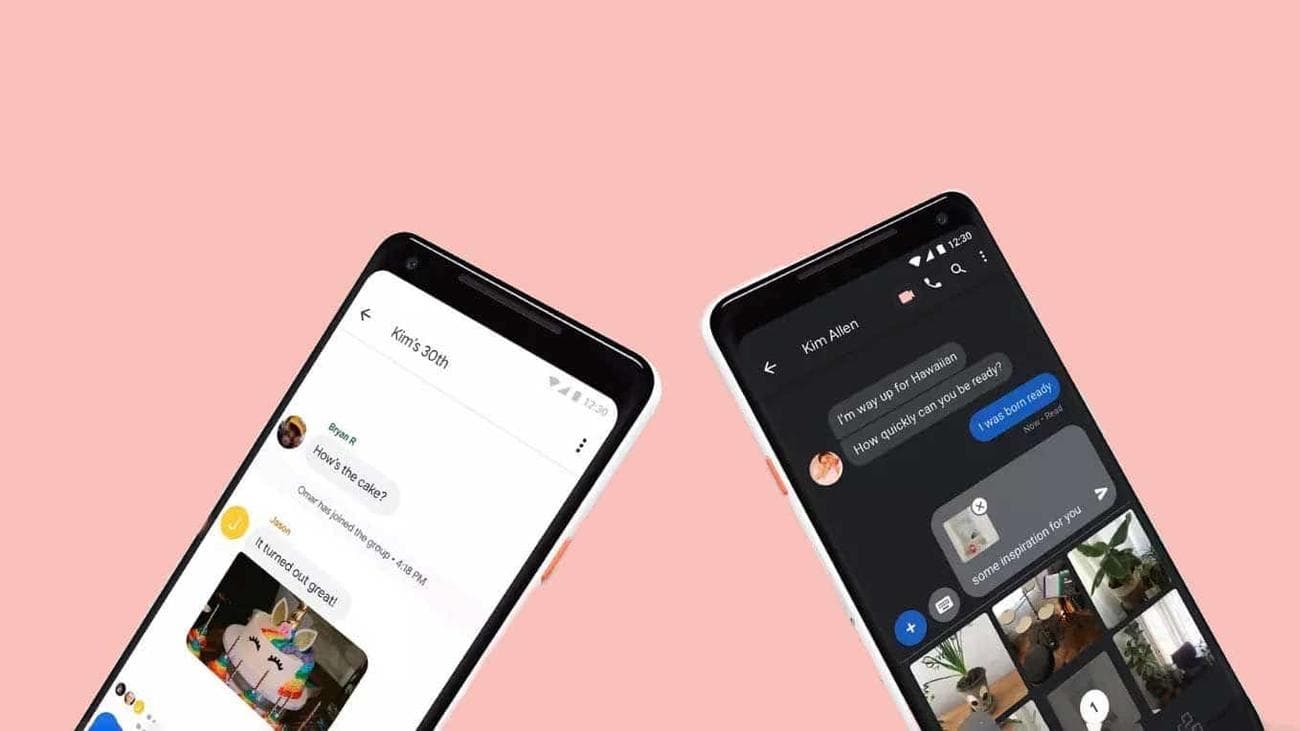
Forget WhatsApp and iMessage. Google Messages is the best RCS messenger, and thanks to new end-to-end encryption, it’s even better. It comes preinstalled on every Android device, from the cheapest phones to the most luxurious flagships.
Despite its availability, it’s easy to miss some of the app’s most useful features. We gathered the best of these, along with some handy tips and tricks, to help you use the app to its fullest potential.
1
Send texts from your desktop computer with Google Messages
While the desktop version of Google Messages has fewer features than the Android app, it’s more than enough to view, send, and reply to messages from your computer.
Here’s how to set up Google Messages on a desktop browser:
-
Open
Google Messages for web
on your desktop browser. -
Open the
Google Messages app
on your phone. -
Tap the
three-button menu
in the upper-left corner of your screen. -
Tap
Device pairing
. -
Tap
QR code scanner
.

- Scan the QR code on Messages for web.
If you use a private computer, toggle the
Remember this computer
switch when you open Google Messages for web. If you leave this off, your phone won’t automatically reconnect when you reopen the website. However, leave it off if you’re using a public computer.
2
Activate Google Messages’ RCS chat features
The most important feature of Google Messages is RCS compatibility. Activating RCS chat in Google Messages brings end-to-end encryption, typing indicators, and read receipts to your messages. However, they don’t work when chatting with a non-RCS app (for example, iMessage). In this situation, you must use SMS.
Not sure if RCS is activated for a chat? A padlock icon appears next to your messages when RCS is activated.
Here’s how to activate chat features in Google Messages:
-
Tap your
profile
picture
in the upper-right corner of your screen. -
Tap
Messages s
ettings
. -
Tap
Chat features
.
-
Turn on
Enable chat features
. -
Tap
Verify your number
.
-
Enter your phone number and tap
Verify now
. -
Toggle the rest of the switches to activate additional RCS features.
3
Verify end-to-end encryption
Google Messages automatically encrypts your messages once you’ve turned it on, provided both you and your receiver use the most updated version of the app. Sometimes, however, you want to double-check. Here’s how:
-
While in a chat, tap the
three dots
in the upper-right corner.
-
Tap
Details
. -
Select
Verify encryption
.
Another easy way to see if your conversation is encrypted is to look for the lock symbol under the most recent sent message. If it’s there, the message is encrypted.
4
Schedule a text to send later in Google Messages
Scheduling a text in Google Messages works for both RCS and SMS chat. With this feature, you can send text messages at any time in the future and edit them before they are sent.
Here’s how to schedule a text:
- Open a chat and type your message into the chatbox.
-
Tap and hold the
Send
button. -
Tap a preselected date and time, or tap
Pick date and time
to choose your own time.
5
Mark important messages within Google Messages
You can place a star next to messages for easy reference and to avoid losing important ones. Google Messages also automatically suggests you “star” messages containing important information like addresses and phone numbers.
Here’s how to star messages manually:
- Tap and hold the message you wish to star.
-
Tap the
star
button at the top of your screen.
Here’s how to view your starred messages:
- Return to Google Message’s homescreen.
-
Tap the
three-button menu
in the upper-left corner of your screen. Alternatively, tap the search bar at the top of your screen, then select the
Starred
category. -
Tap
Starred
.
6
Set message reminders
Google Messages sometimes automatically suggests that you set a reminder for a time-sensitive message, but you can also do it manually. You can set a reminder any time, and you’re notified through a Messages push notification when the reminder triggers.
Here’s how to set a message reminder:
- Tap and hold a message.
-
Tap the
Reminder
button
(the alarm clock) at the top of your screen.
-
Tap a preselected date and time, or tap
Pick date and time
to choose your own time. -
After setting the reminder, an alarm clock icon appears next to the message. Tap this to
update
the reminder.
After the time set expires, a reminder missed
message appears next to the conversation. The reminder disappears when you send another message in that conversation.
7
Share your location in Google Messages
Sharing your location in the Google Maps app is easy, but you can save time by sharing it within Google Messages.
Here’s how to share your location with a couple of taps:
- Open a conversation.
-
Tap the
plus
button
in the lower-left corner of your screen. -
Tap
Location
.
-
Tap
Send this location
to send your current location. -
Tap the
search
button
in the upper-right corner of the screen to search for and send a different location.
8
Pin conversations in Google Messages
A pinned conversation stays at the top of your conversation list, even when newer messages come in. You can pin up to three conversations, which also appear on Messages for Web in the same order.
Here’s how to pin a conversation:
- Tap and hold the conversation you wish to pin.
-
Tap the
Pin
button
at the top of your screen.
To unpin a message, repeat the previous steps.
9
Categorize Google Messages conversations
Google Messages has a neat feature lacking in most
other
messaging apps: the ability to keep it organized.
Personal texts, OTP codes, appointments, and special offers clutter your conversations, making it hard to find the important stuff. Categories fix this problem by sorting your messages into three groups: All, Personal, and Business.
These categories appear below the search bar in Google Messages. Tap a category to sort your messages.
Here’s how to turn on Categories:
-
Tap your
profile picture
in the upper-right corner of your screen. -
Tap
Messages s
ettings
. -
Tap
Message organization
. -
Toggle the
View messages by category
slider to
on
.
This feature is not available in all countries.
10
Receive iMessage reactions
iMessage users can react to your message, and you’ll see the
emoji
on your screen. But if you still see the “Liked your SMS
message,” you must turn on this option. Here’s how to see iMessage reactions from your friends who use iPhones:
-
Tap your
profile picture
in the upper-right corner of your screen. -
Tap
Messages s
ettings
. -
Tap
Advanced
. -
Toggle the
Show iPhone reactions as emoji
slider to
on
.
In a reverse-Uno, iMessage users are now the ones who won’t receive reactions from RCS users and will instead be notified that you liked their message.
11
Auto-delete authentication codes
Categorizing your messages is a neat way to stop authentication codes (OTPs) from cluttering your conversations, but they don’t need to stick around forever. You can manually delete them, but Google Messages can automatically delete these codes after 24 hours.
Here’s how to set up automatic deletion for OTPs:
-
Tap your
profile picture
in the upper-right corner of your screen. -
Tap
Messages s
ettings
. -
Tap
Message organization
. -
Toggle the
Auto-delete OTPs after 24hrs
slider to
on
.
12
Receive automatic birthday and message reminders
Google Messages can automatically remind you of your contacts’ birthdays. These conversations are moved to the top of your list until either a message is sent or the reminder is dismissed.
Here’s how to let Google save you the embarrassment of missing someone’s birthday:
-
Tap your
profile picture
in the upper-right corner of your screen. -
Tap
Messages s
ettings
. -
Tap
Suggestions
. -
Tap
Nudges
.
-
Toggle the
Suggest messages reminders
slider to
on
. -
Toggle the
Birthday reminders
slider to
on
.
13
Make a video call inside a conversation
Rather than switching apps, you can video call your contact from inside Google Messages. You’ll need to invite them to Google Meet first, but it’s a quick and simple process for them. Here’s how to call someone whether they have Meet or not.
How to call a contact already on Meet:
- Open the conversation you wish to call.
-
Tap the
Meet
button in the upper-right corner of your screen. -
Tap the red
Call
button in the lower-right corner of your screen.
How to call a contact who doesn’t have Meet installed:
- Open the conversation you wish to call.
-
Tap the
Meet
button in the upper-right corner of your screen -
Tap the
Compose an invite
button to send an SMS with an invite link.
-
Send the SMS and wait for your contact to accept the invite.
14
Change the notification sound for each conversation
Some conversations are more important than others. Changing the notification sound for each conversation lets you know which contact is texting you.
Here’s how to change the notification sound:
- Open a conversation.
-
Tap the
three-line menu
button in the upper-right corner of your screen. -
Tap
Details
.
-
Tap
Notifications
. -
Scroll down and tap
Sound
.
-
Choose a sound and tap
Save
in the upper-right corner of your screen.
15
Always send videos by a wGoogle Photos link
Sending a video over MMS can take a lot of time and data. Instead, link to your video stored within Google Photos. It’s quicker and potentially cheaper than sending a video via MMS.
Here’s how to send videos via Google Photos:
-
Tap your
profile picture
in the upper-right corner of your screen. -
Tap
Messages Settings
in the pop-up window. -
Tap
Google Photos
. -
Toggle the
Always send videos by link
switch.
16
View transcriptions of voice messages
Voice messages are a great accessibility feature, but sometimes, you may be unable to listen to them. Owners of the Google Pixel 7 or Pixel 7 Pro can transcribe voice messages, so you can read and respond without having to play them.
This feature is activated by default. Tap the
View transcript
button on a voice message to open it. Tap the
Settings
button on a transcript to turn off this feature.
17
React to SMS and RCS texts
Google Messages supports emoji reactions for SMS and RCS texts. Just note that iMessage users see an “emoji] to [message]” text instead of your reactions.
To react to a text message, tap and hold the message. Select one of the emojis to send a reaction instantly.
18
Reply to messages
You can reply to messages within individual or group RCS conversations to keep track of messy chats. If you’ve ever used
Slack
or Teams, you’ll be familiar with these types of replies. This feature is only available for RCS conversations.
To reply to an RCS message, tap and hold the message. Tap the arrow to the right of the message, and enter your message.
Google Messages with RCS is the future of messaging
Google Messages is hands-down the best way to communicate on Android. You’ll find it preinstalled in the app drawer or, in the case of Google Pixel phones, as your default messaging app. Google Messages shows what the future of messaging should look like, thanks to end-to-end encryption, the ability to sort messages, birthday reminders, and a list of other useful features. It’s often preinstalled alongside Google Phone, which offers lots of useful features to improve the quality of your voice calls.