

How to fix the most common Gmail problems
Gmail is among the most popular email clients and offers impressive organization features. You can sort through bulk emails with advanced search filters, favorite or archive them, and block spam messages, among other customizations. Its interoperability with Contacts and Calendar makes communication with people and arranging your schedule effortless.
Sometimes, Gmail develops issues, and troubleshooting resolves them. However, it helps if you know what exactly the problem is first. Service outages and updates are usually responsible. Other times, it’s a bad internet connection, and you need to check your Wi-Fi routers. We identified the most common Gmail problems users experience and how to fix them.
Common Gmail problems summarized
Gmail issues are more frequent on mobile devices. The varying hardware configurations and software versions can create compatibility issues with the app. This problem isn’t regular on the web version because it maintains a consistent UI and configurations across multiple devices.
Also, Google regularly updates the web app. You use the latest version when you’re online. With the mobile app, you’ll initiate the process if you haven’t automated updates. Here are 12 common problems you’re likely to encounter in Gmail:
-
Syncing errors:
If Gmail doesn’t sync with your device, you can’t send or receive messages. You’ll also notice inconsistent information across devices, among other limitations. Emails you read and archive on the web app appear as unread on the mobile app. -
Added accounts don’t appear:
When you try to add another
account
, Gmail doesn’t
display
it. Instead, it redirects you to the existing account. -
Gmail stuck on logo screen:
Gmail displays its logo while loading. Sometimes, it takes forever to launch or remains stuck on this screen. -
Bounced or rejected emails:
Gmail may stop an email from getting to the recipient if it contains spam, the receiving address doesn’t exist, or Gmail can’t connect to the server. You’ll receive a reply from the mail delivery subsystem telling why Gmail couldn’t deliver your message. -
No email notifications:
Your Gmail app works fine, except you don’t get notifications for new messages. Usually, Do Not Disturb (DND) and Battery saver settings cause this issue. But you also want to check that you allowed notification permission for Gmail. -
Compromised Gmail account:
If someone accessed your account without permission, you’ll notice unusual activity. For example, settings changes, emails you don’t recall sending, and unusual account recovery pins or requests. -
Gmail crashes, freezes, or won’t start:
Sometimes, the Gmail web or mobile apps don’t open, and you can’t access any features. If the apps are
frozen
, you’ll notice your screen is stuck on one menu and doesn’t respond to clicks or touch. Also, Gmail may close unexpectedly. -
Internet connection errors:
The Gmail web app fails to load and tells you there isn’t an internet connection, even when there is. You should see an error code indicating whether it’s a proxy error or the web page isn’t available. For example, err_connection_closed. A No connection message appears at the bottom of your screen on the mobile app. -
Sent emails appear in Outbox:
You send emails, and they end up in the Outbox folder instead of Sent. This folder is where Gmail keeps your messages until your connection improves or it can retry sending them. -
Attachments don’t download:
When you tap the download button beside attachments, nothing happens. In some cases, you see an error message saying, “Failed to download the attachment. Please try again.” -
Emails are stuck on sending:
When you send an email, it displays the sending status at the bottom of the screen and remains stuck for a long time. -
Important emails end up in Spam:
Google’s spam filtration system saves you from malicious or unwanted emails. But sometimes, it gets ahead of itself and moves important emails to the Spam folder.
After identifying the problem with the above list, use the following steps to troubleshoot it.
Check sync settings
If your Gmail data doesn’t sync on the app, refresh it to perform a manual sync. Swipe down from the top of your screen app and hold. Release your finger when you see the refresh icon. If that doesn’t work, it’s possible automatic syncing is turned off. Check its status on the app’s or your device’s settings menu with the steps below:
Check Gmail sync settings on the mobile app
- Open Gmail.
-
Tap the
menu icon
in the upper-left corner. -
Select
Settings
. -
Choose the email address with syncing issues.
-
Scroll down and ensure that the checkbox beside
Sync Gmail
has a tick. If not, check the box.
- Restart the app to effect the changes.
Check Gmail sync settings on Android devices
-
Go to
Settings
>
Accounts and backup
>
Manage accounts
.
- Select the Gmail account with sync issues from the list.
-
Tap
Sync account
. -
Check that the
toggle switch
beside
Gmail
is active. If not, tap to turn it on.
Force stop Gmail
Force stopping apps ends all their background and foreground processes. It’s a useful solution when they crash, freeze, or misbehave. You’ll restore them to a responsive state and be able to use them again. However, this procedure wipes any unsaved data. So, if you composed any messages before the issue occurred, you may lose them. If you’re sure you want to do it, here’s how:
-
From the Apps or Home screen, long press
Gmail
. -
Tap the
information icon
. It’s the
letter i in a circle
.
-
Tap
Force Stop
in the lower-right corner of the App info menu. -
Select
OK
for confirmation.
Clear Gmail cache, cookies, and storage data
Caches temporarily store emails, icons, and other elements from Gmail on your device. Normally, your device downloads these elements every time you access the interface, which takes time. With caches, the device requests already downloaded data and speeds up the app load time. On the other hand, browser cookies save your login information and keep you signed in to your account.
Clear app caches and delete browser cookies to free up storage and resolve issues. Over time, they become outdated or accumulate, causing a conflict with new data and performance issues. Wiping Gmail’s app storage should be the last resort.
The procedure forces the app to reset to its default state, removing all accounts and settings. You need to log in again to access your account. You don’t lose all your email. However, it erases those you saved offline. Re-download them to access them without an internet connection.
Use Incognito mode
Incognito mode in Google Chrome is an alternative if you don’t want to clear Gmail data. This mode creates an isolated browsing session free of data and extensions. If the problem you experienced persists, you’ll know it’s from Google’s servers or an account issue.
On a PC, click the
three-dot icon
in the upper-right corner. Select
New Incognito window
. On Microsoft Edge, the mode appears as
InPrivate window
, and you can access it similarly.
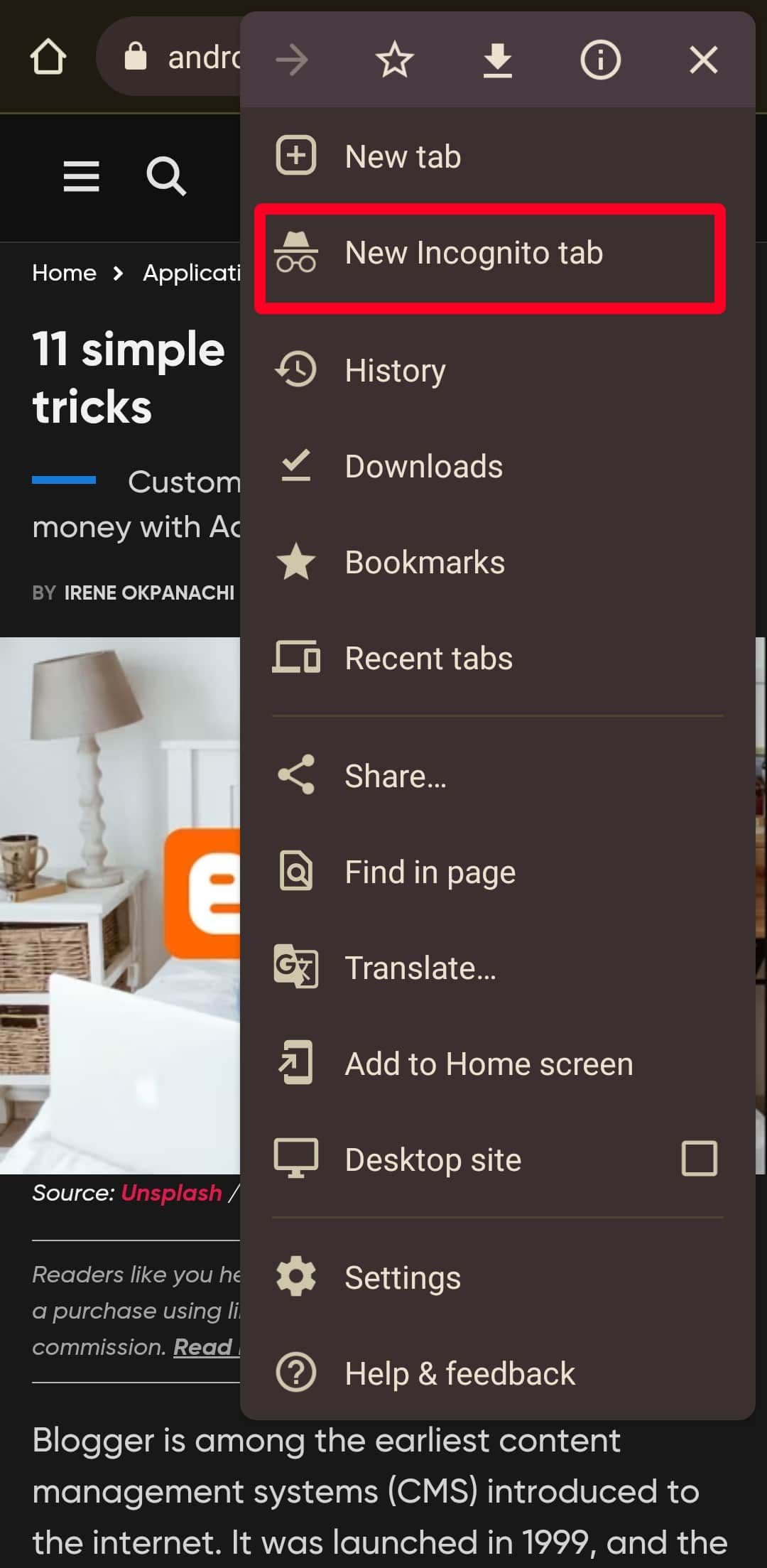
On the Chrome mobile app, tap the
three-dot icon
in the upper-right corner. Select
New Incognito tab
.
Remove your
Google account
Removing a Google account from your mobile device is different from logging out of Gmail. When you log out, you temporarily give up access to only Gmail and don’t lose any data. But if you remove your Google account, you disconnect it from every Google product or service associated with it.
You lose access to Google Workspace apps, settings, and the Play Store, among other features. However, it should fix any authentication issues, such as repeated login failures, two-factor authentication errors, and sync problems.
Removing Google accounts from your device doesn’t delete your data permanently. If you add your account again, you can access every wiped information and Google services. Back up the device beforehand so that you don’t lose unsaved files and settings.
Turn off DND and Battery saver modes
DND mode is a popular feature on most devices. It blocks alerts so that you can focus on important tasks without distractions. If you activate it, you don’t see alerts from Gmail, even if you allow notifications for the app. Likewise, battery or power saving mode stops you from getting notifications. It restricts background processes that consume battery
life
. Deactivate both modes to receive Gmail notifications.
If they’re inactive, it’s possible you revoked Gmail’s notification permissions. Here’s how to activate them again:
-
From your Home or Apps screen, long press
Gmail
. -
Tap the
information icon
. It’s the
letter i inside a circle
. -
Select
Permissions
.
-
When you turn off notifications, they appear under the
Not allowed
section. Tap
Notifications
, then tap the
toggle switch
to activate them.
Check your internet connection
A weak internet connection can affect sending or receiving emails, especially if they include large attachments. They take longer than normal to deliver to the recipient. If it happens to you, switch to a different Wi-Fi connection or mobile data. If the problem persists, reset your network settings.
A virtual private network (VPN) can also interfere with your Gmail experience. Most times, Google services don’t work well with VPN connections. If you use one, you may fail CAPTCHA tests or two-factor authentication when trying to access your account. Deactivate them to restore your connection.
Cross-check email addresses
Google may block or reject an email you sent for the following reasons:
-
The recipient doesn’t exist:
The receiver may have deleted their account, or you typed the wrong email address. -
You’re sending emails to multiple recipients:
If you frequently add many people to the Cc or Bcc fields and send bulk emails, Google may flag them as spam. -
Google can’t connect to recipient server:
Gmail relies on server-to-server communication. If your server can’t establish a connection with the recipient, your email won’t be delivered.
If Gmail keeps telling you that the recipient’s email address doesn’t exist or it can’t connect to their server, check the address. It’s possible you made a spelling error while typing it. If it’s correct, send your message to another one of their email addresses. You could also reach out to them on other platforms to get a functional email or forward your message directly.
However, if Google or people flag your email as spam, create a Google group. It’s an online environment where multiple users within organizations, teams, or classes discuss common interests. You can send emails to one unique address, and everyone receives it. This way, Google doesn’t count it as spam. Here’s how to create a group and send bulk emails:
-
From a PC browser, visit
groups.google.com
. -
Click
Create Group
in the upper-left corner.
-
Fill in the group name, email address, and description. Then click
Next
.
-
Configure who has access to what in the group. Then click
Next
.
-
Add the members to invite and type a welcome message. Then click
Create Group
.
-
To email everyone, click the group you created to open it.
-
Click
New conversation
in the upper-left corner.
-
Type the email subject and body. Then click
Post message
.
-
Alternatively, compose a message in Gmail and add your group address in the
Cc
or
Bcc
field. Then send it.
Secure your account
If someone accessed your Gmail account without permission, there’s still time to secure it. While you’re logged in, change your password. Google signs you out of every device except the primary one you use for 2FA and apps you gave account access to.
If you’re logged out of the account and can’t sign in, visit the
account recovery web page
to retrieve it. Google asks you security questions to prove your identity. It may also prompt you to apply a code sent to your recovery email or phone number or from your authenticator app.
While doing so, contact your bank and other financial institutions you frequently transact with. If you saved payment methods in Google Pay and Chrome or have emails containing sensitive information, inform them of the security breach so that they don’t authorize account activities without your permission.
Safelist emails
Gmail’s filter system uses machine learning to reduce spam in your inbox. Sometimes, it incorrectly flags emails. You could wait for days and wonder why you’re not receiving any, not knowing that it’s sitting in the Spam folder. You can safelist emails from trusted individuals. This way, Gmail learns to approve every message from them and bring it to your inbox.
Update the Gmail app
Google regularly releases updates for its apps and services. If the issue you experience is software or bug-related, upgrading the app to the latest version should fix it. You’ll also enjoy new features and enhanced security. Here’s how to do it on the Play Store:
- Open Google Play Store.
-
Search for
Gmail
. -
Tap
Update
. If you only see the
Install
and
Open
options, the app runs the latest version.
Restart your device
As many IT support teams can confirm, you’ll solve many problems if you restart the affected device. Rebooting it works similarly to force stopping an app. In this case, every foreground and background process on the device stops temporarily. The RAM clears up and allows your phone to perform smoothly, especially if many apps are battling for resources.
Seize control of your Gmail inbox
Like every other app, Gmail can be problematic. But the basic troubleshooting steps we provided should resolve them. Other times, issues aren’t technical and revolve around sorting through messy emails. The Google Workspace marketplace provides many add-ons you can pair with Gmail and manage messages easily. You can use read receipt features, handle priority emails quicker, and get interesting email templates.