
Install the Google Play Store on your Amazon Fire Tablet
Related Posts
Finding a good Android tablet is tough, especially if you’re on a budget. While companies like Samsung and Lenovo do their best to convince would-be iPad buyers, no one in tech can beat the bargains that make up Amazon’s Fire lineup. Over the past two years, all three tablets having been updated with improved performance, and along with some modern touches like USB-C, it’s easier than ever to recommend these affordable slates. There’s just one problem: Amazon’s Fire tablet lineup doesn’t support the Google Play Store natively.
These slates run Fire OS, a forked version of Android with a custom home screen, along with the Amazon Appstore for all your software needs. While the Appstore contain popular apps and games, it’s no replacement for the Play Store, especially when looking for Google-owned apps like YouTube, Chrome, and Gmail.
We’ve updated this guide to include some tips on Amazon’s latest Fire tablets — specifically the 2022 Fire 7 and Fire HD 8 — which should help those struggling to install these APKs. Check out that section to learn more.
Here’s the good news: Getting the Play Store on your Fire Tablet is relatively easy, and we’ll walk you through every step of the process. This guide takes you through every aspect of installing Google’s app store on your device, with instructions for models dating back to 2014, up to and including the latest Fire 7 and Fire HD 8 tablets. If you get stuck, take a deep breath and step away for a few minutes. Then, skip to the end of this post to find solutions to common problems we’ve noticed over the years.
Prefer to watch a video? We have a
video guide you can check out
, but it dates back to 2020. While the general process is the same, some of the steps may look slightly different compared to what we have in our always-up-to-date written guide below. If you want the best experience, we recommend sticking with what’s below. The visual guide can be a great supplement if you’re stuck on a step.
What to know before you start
Please read this section carefully.
- Remove your Fire tablet’s microSD card if one is installed unless you use adoptable storage (for example, your SD card storage is merged with your internal storage). If you don’t remove the external SD, the Play Store and its required applications may be automatically installed on it, which can cause issues. Once you finish the installation, put the microSD card back in its slot.
-
You can’t manage a Fire tablet through
Google Family Link
, even after installing the Play Store. As an alternative, you can
set up a Child Profile on your Kindle Fire
.
-
Apps installed through the Play Store
might not work with the Amazon Kids+ plan
. -
Some apps hide from the Play Store on Fire tablets because Fire tablets are
not SafetyNet-certified by Google
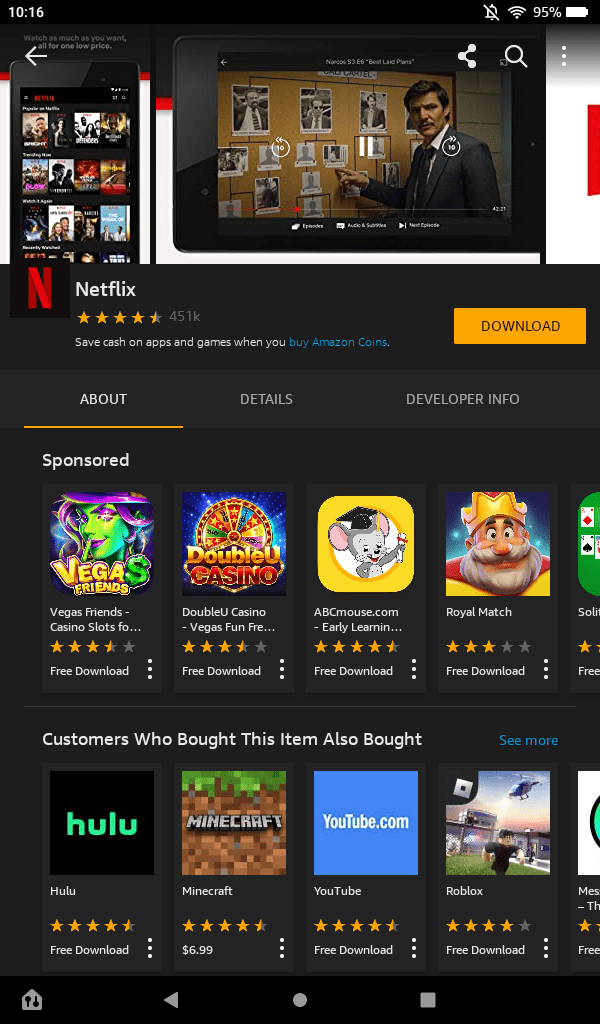
. Netflix is an excellent example. For those applications, look in the Amazon Appstore or
download them from APKMirror
.
Enable installation from unknown sources
You’ll need to enable the apps you want to install from outside the Amazon Appstore to get started. This action allows you to open and install applications from downloaded APK files, which is how you’ll get the Play Store running. Only download apps from trusted sources, as sideloading is an easy way to subject yourself to vulnerabilities. We’ll be installing from APK Mirror, a trusted source for APKs across the web that was started by AP’s own founder, Artem Russakovskii.
-
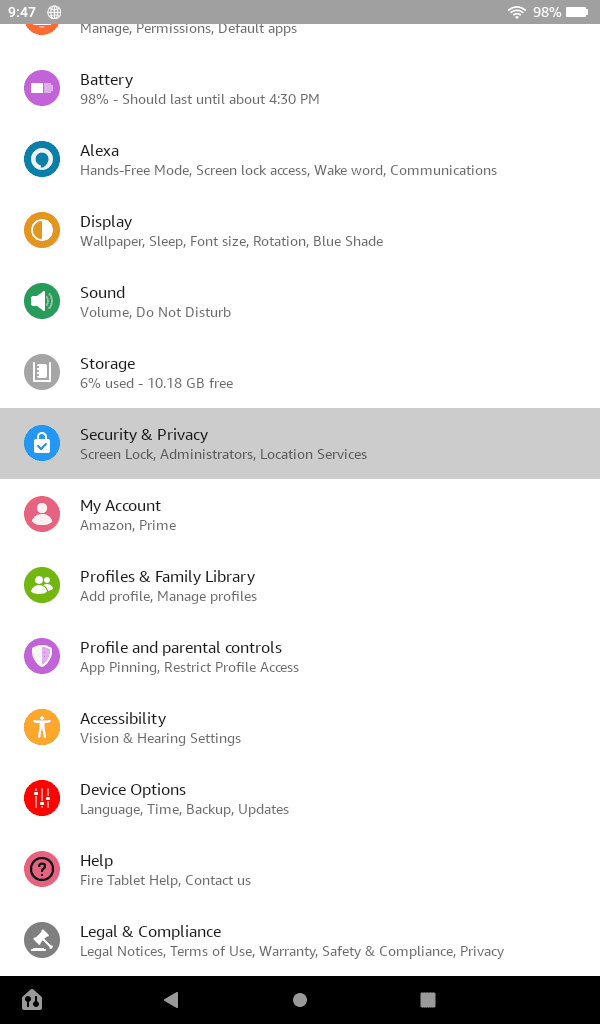
Go to the main Home page on your home screen and tap the
Settings
icon, then select the
Security & Privacy
category. Older models may just say
Security
.
-
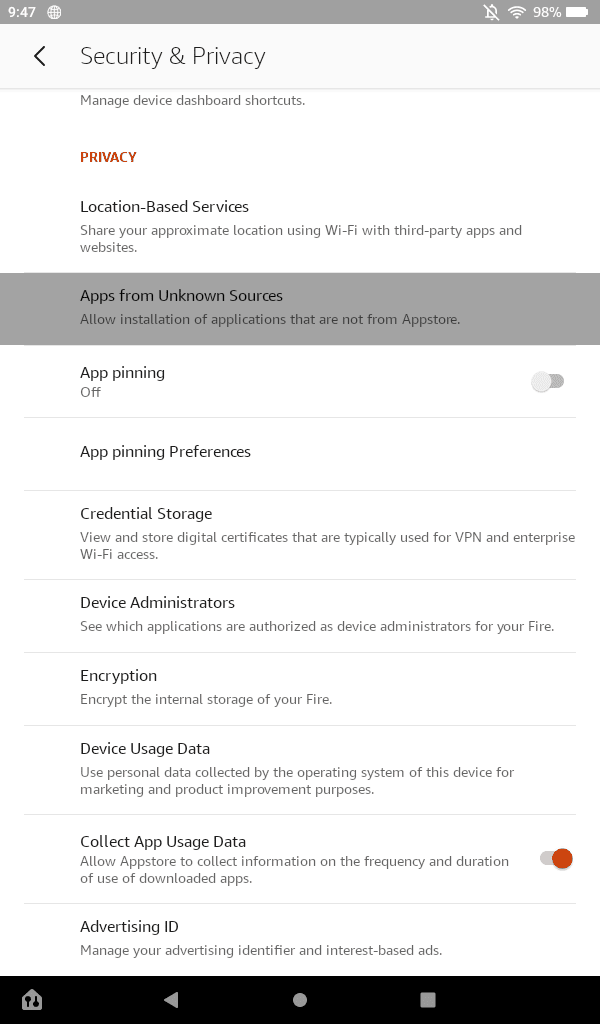
Tap on the
Apps from Unknown Sources
section.
-
Enable
Apps from Unknown Sources
for Silk browser.
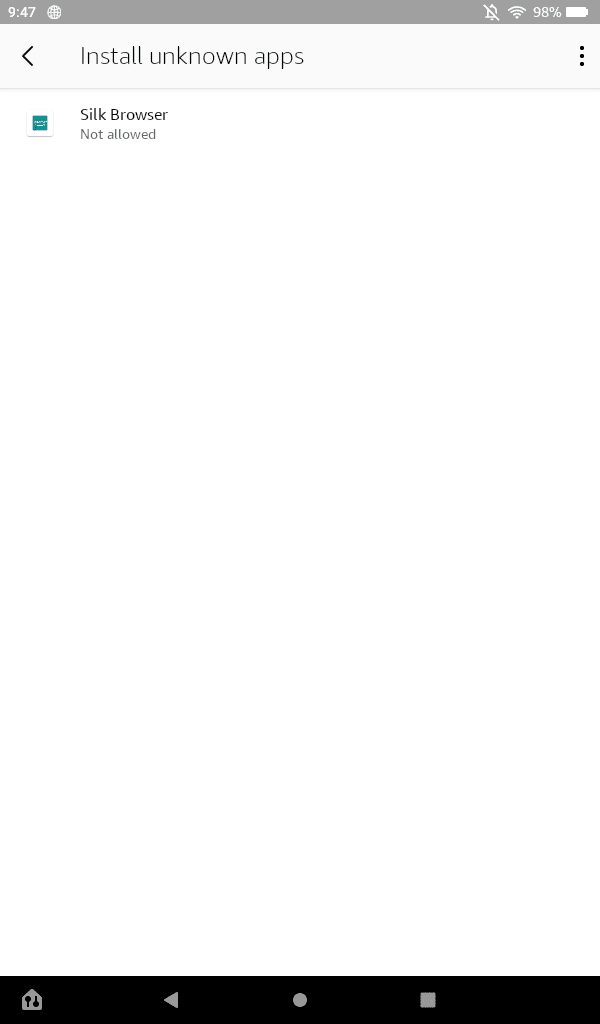
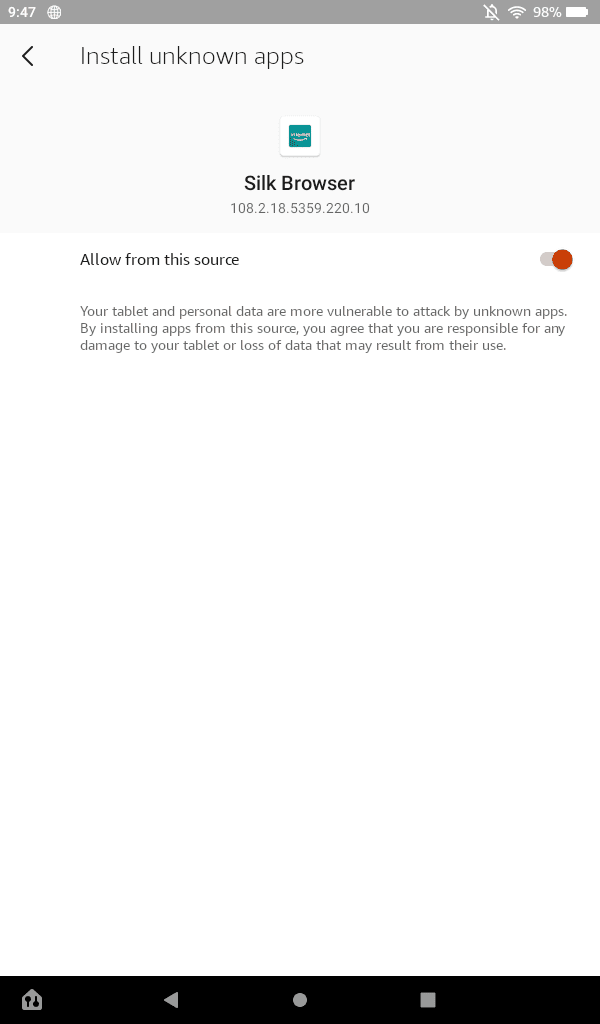
On older models running legacy software, enabling Apps from Unknown Sources might just be a single toggle, not a per-app choice. This actually removes the third step above; simply enable the permission in step two to continue.
Now you’re ready to download and install the APKs needed to get the Google Play Store running.
Downloading the necessary apps for the Google Play Store
The next step is to download the proper APK files for the Google Play Store. You will install four applications: Google Account Manager, Google Services Framework, Google Play Services, and Google Play Store. The first three apps handle basic account services and add APIs, while the last app is the store.
Because different Fire tablets run different versions of Android with varying hardware (ranging from Android 5 to Android 11), the exact APKs you will install depend on the Fire tablet model. If you’re unsure which model you have, figuring it out is easy.
-
Open the
Settings
app. -
Tap
Device Options & System
(or
Device Options
). -
Look under
Device Model
. -
You also need the Fire OS version, which is listed in the
System Updates
menu of
Device Options & System
(or
Device Options
).
If you’re reading this on your desktop or phone, open your Fire tablet’s Silk web browser and type
https://bit.ly/apfiretablet
into the address bar. You’ll need to click the following links on your Fire device directly.
For the Google Account Manager and Google Services Framework applications, find the appropriate links for your device from the table below and tap the main
Download APK
button on the linked page. These tables can look confusing, but don’t fret. If you have your Fire tablet generation in hand, figuring out the right version is easy.
It’s important you do not open the files just yet
. There are a few more steps you need to complete. If you see a message about a newer version being available, ignore it. The tablet keeps the apps updated after the installation process is over.
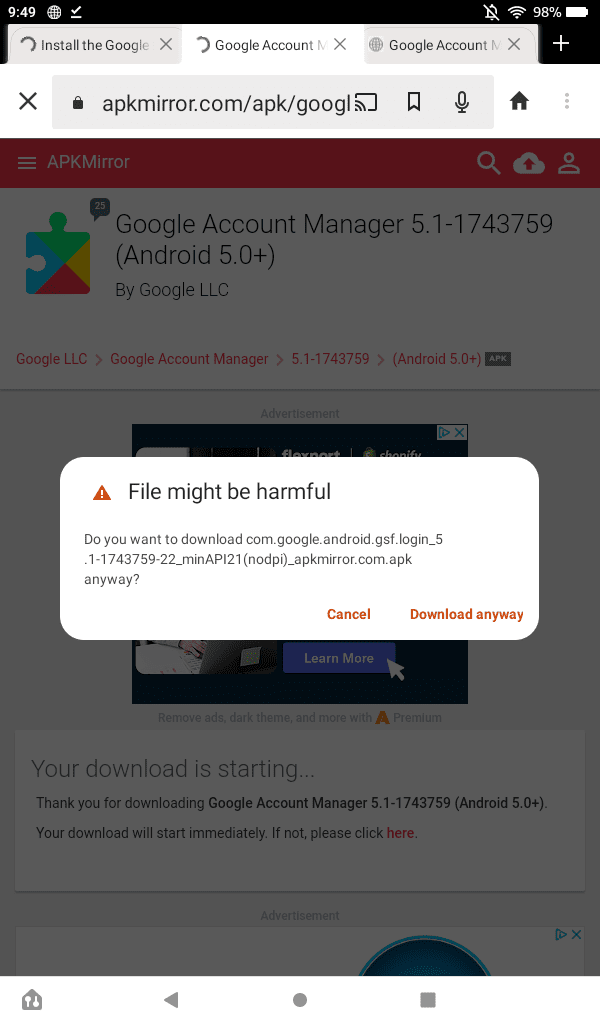
Also, note that, when downloading these APKs from APK Mirror, Amazon’s Silk browser may prompt you with a warning over unsafe files. If you see this pop-up, hit “Download anyway.”
Google Account Manager
|
Fire HD 10 (7th Gen and older) |
|
|
Fire HD 8 (7th Gen and older) |
|
|
Fire 7 (7th Gen and older) |
|
|
Fire HD 6 |
|
|
Fire HDX 8.9 |
Google Services Framework
You’re halfway done. For these last two applications, click the link for your device, then select the version closest to the top of the list which doesn’t have “beta” in the name. Again, don’t open the files and ignore messages about newer versions being available.
Google Play Services
|
Fire 7 and Fire HD 8 (12th Gen, 2022) |
|
|
Fire HD 10 (9th and 11th Gen) Fire HD 8 (10th Gen) |
|
|
Fire 7 (9th Gen, 2019) |
|
|
Fire HD 8 (8th Gen, 2018) |
|
|
Fire HD 10 (7th Gen and older), Fire HD 8 (7th Gen and older), Fire 7 (7th Gen and older), Fire HD 6, Fire HDX 8.9 |
Google Play Store
Installing the Google Play Store
With all of your apps downloaded, it’s finally time to install this software.
-
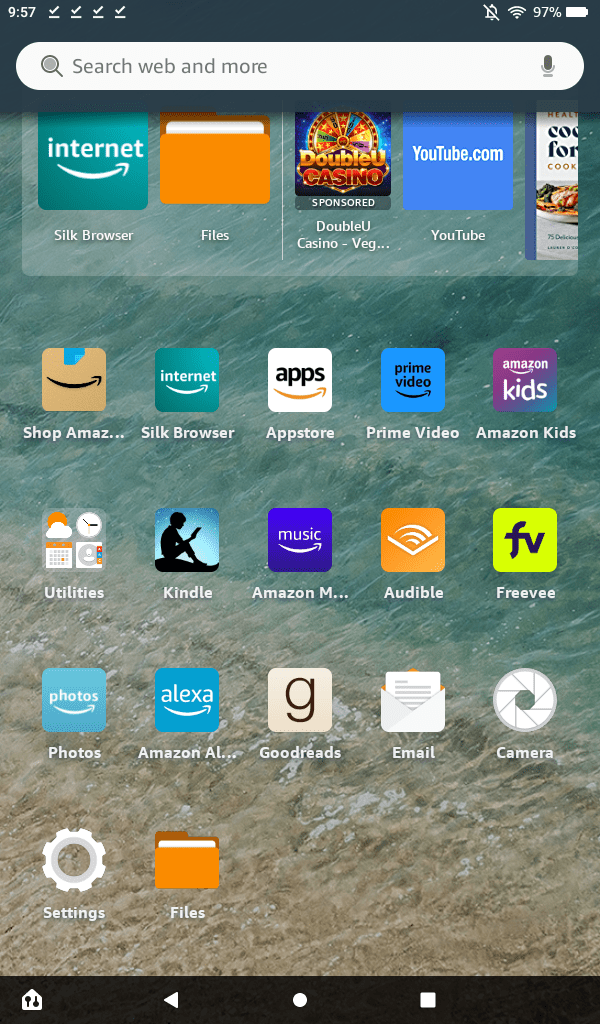
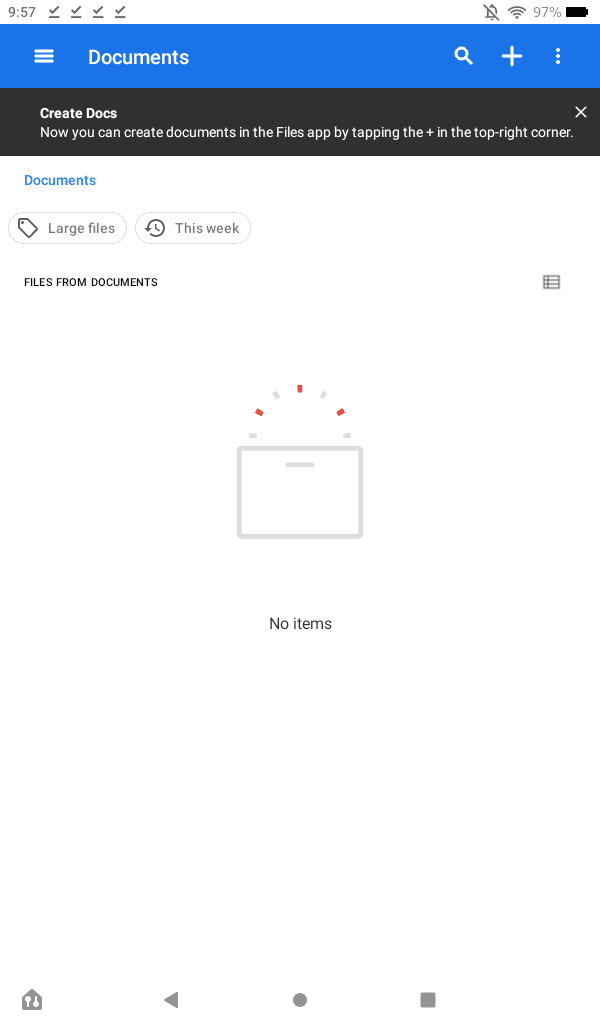
Open the
Files
app on your tablet (on older models, it may also be called
Docs
or
Documents
).
-
Find your device’s
Downloads folder
. By default, your Fire tablet opens to the Documents folder, but by tapping on the triple-lined menu in the top-left, you can find the correct place.
-
You should see all four APK files. If not, go back and see which one you missed (or download all of them for good measure).
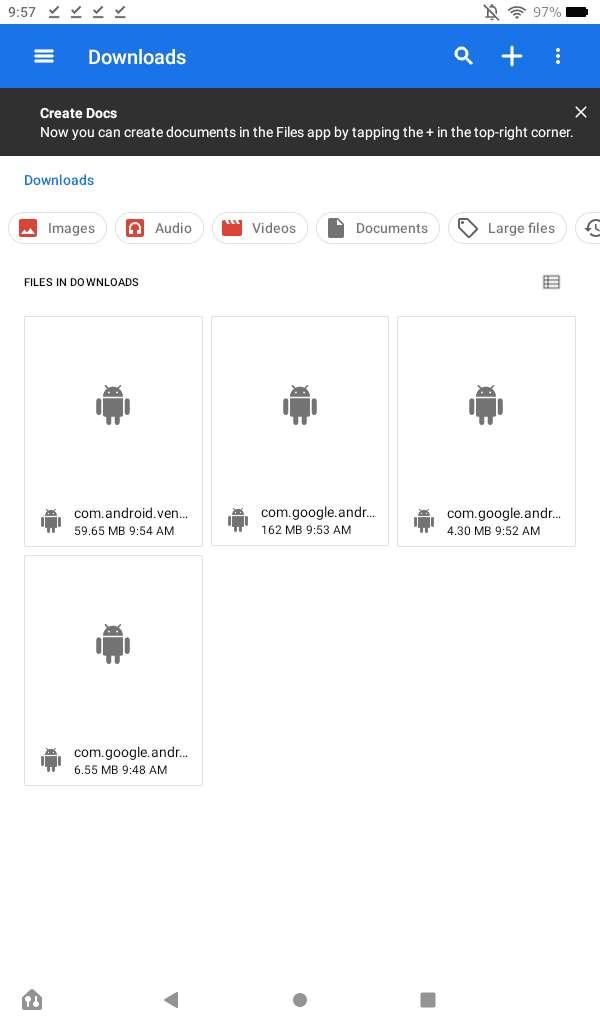
- Switch to the file list view to see the full names of each APK.
-
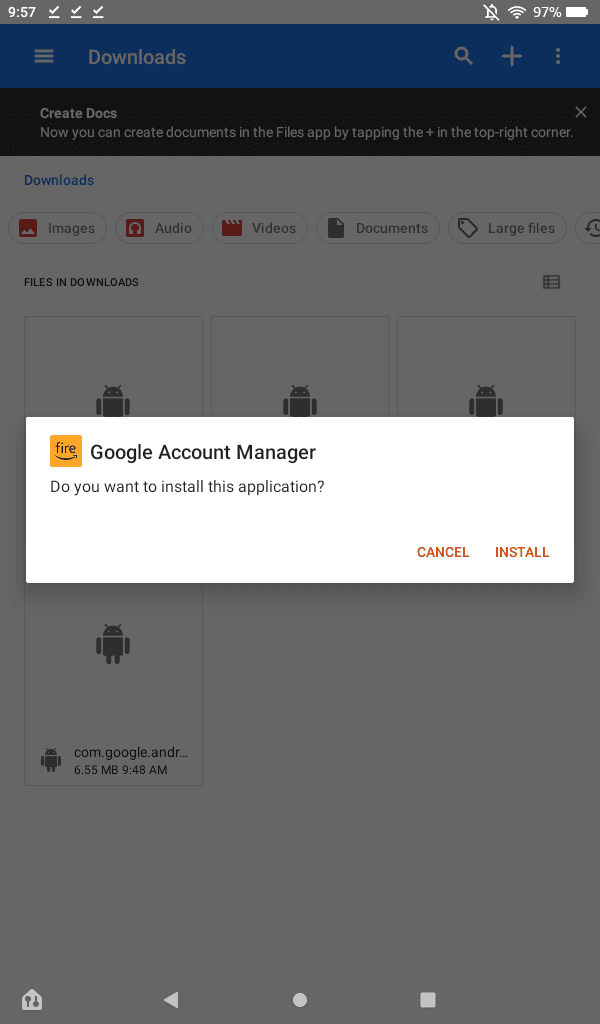
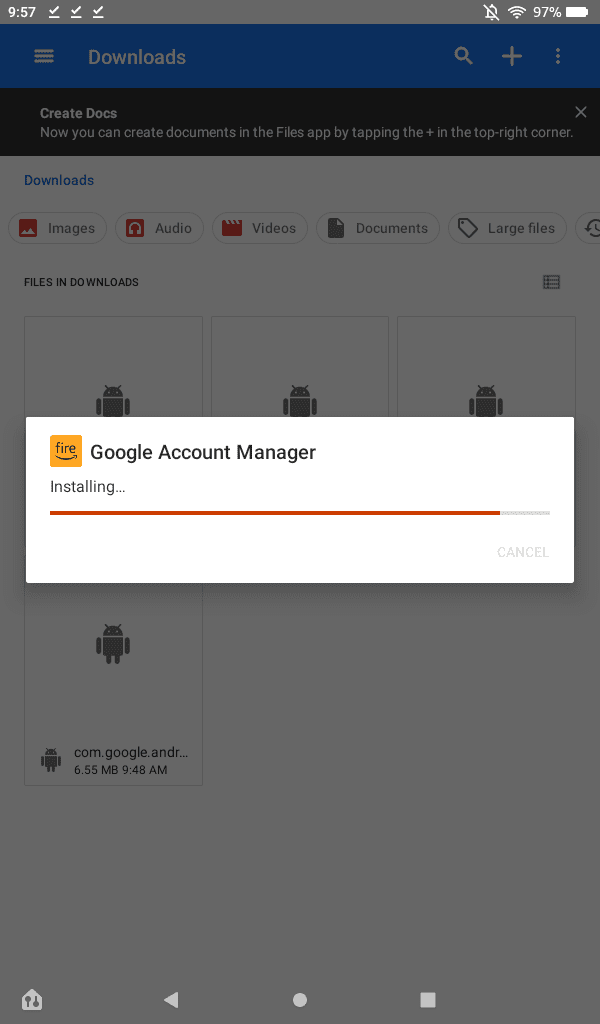
Open the apps in the below order, and when the installation is complete, tap
Done
.
Do not tap Open. The Play Store will not work if apps are installed out of order. If you have an SD card, take it out during these installations.-
com.google.gsf.
login
-
com.google.android.
gsf
-
com.google.android.
gms
-
com.android.
vending
-
com.google.gsf.
-
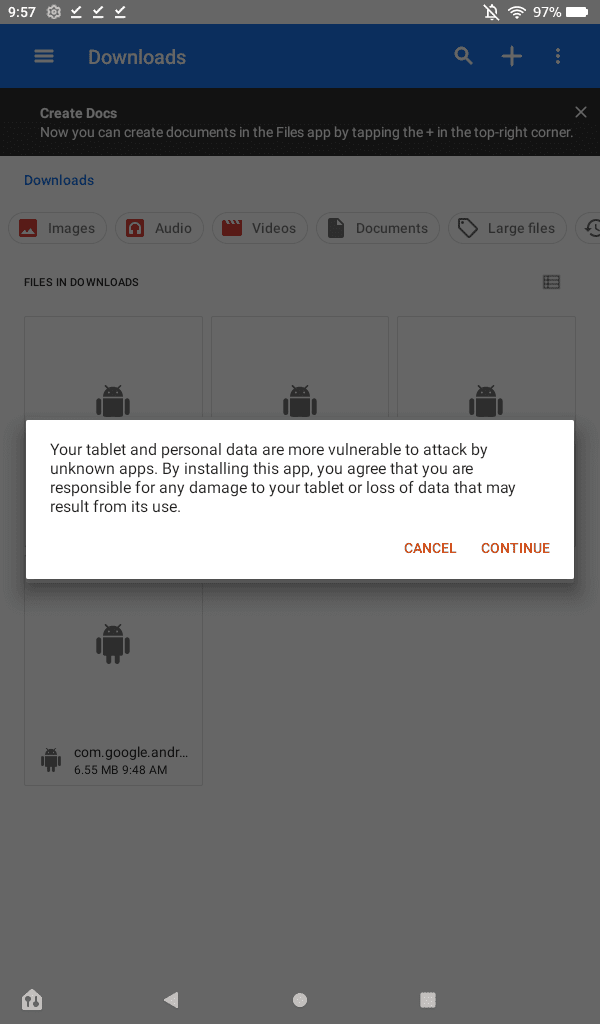
While installing these four apps, you may see a warning about your personal data’s safety because of your reliance on external APKs. Just bypass this message by hitting continue.
-
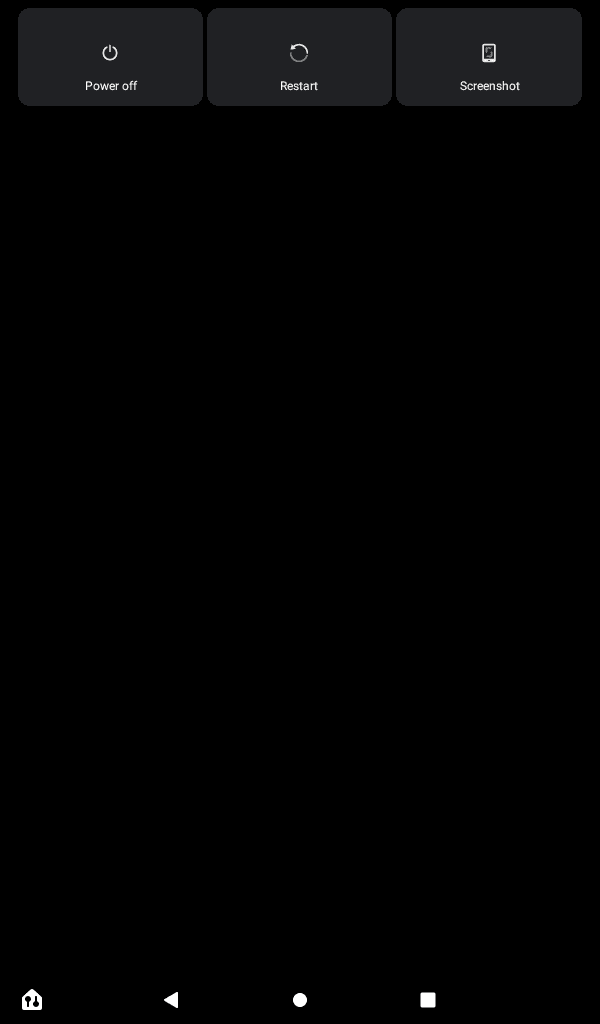
After installing the four apps, hold the power button and tap
Restart
to restart your tablet. Older tablets might only have the option to power off. If so, let the tablet shut down, then press and hold the
power button to turn it back on.
-
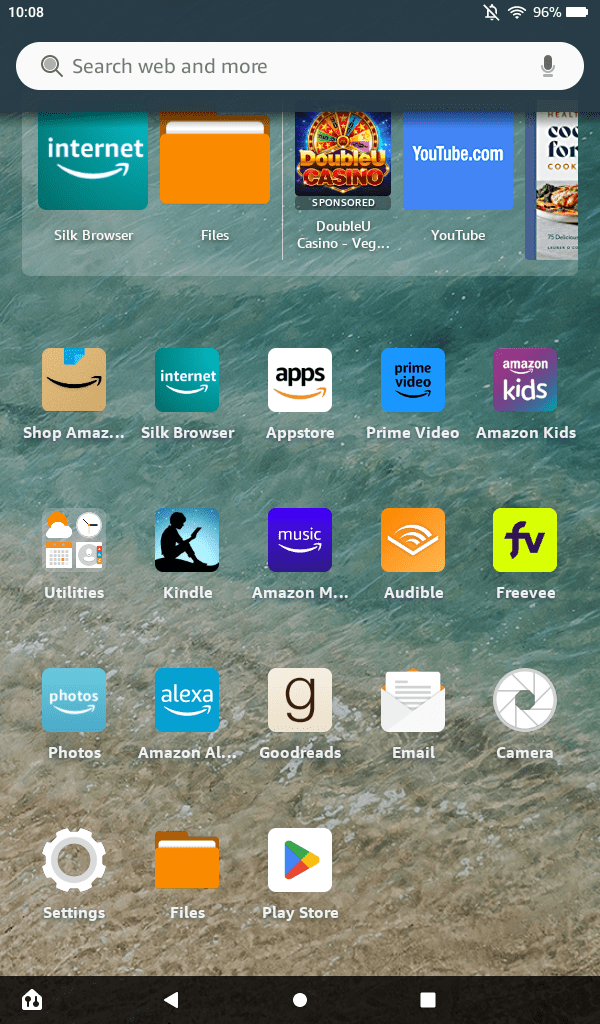
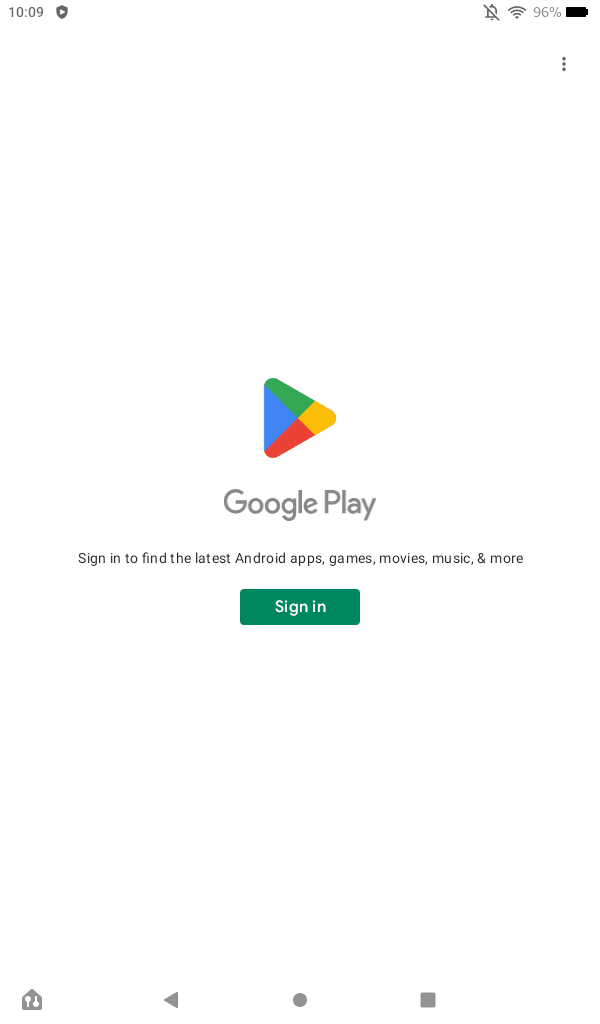
After your Fire tablet has booted up, open the new Play Store app from the home screen. From there, the Play Store asks you to log in with your Google account, after which you can download and install apps.
Known issues with Amazon’s 2022 Fire tablets
In 2022, Amazon updated its Fire lineup with two new tablets: The Amazon Fire 7 and the Amazon Fire HD 8. These devices feature improved performance, new colors, and, in the case of the Fire 7, USB-C charging for the first time. However, installing the Google Play Store seems to be an issue. At launch, neither device seemed capable of running the Play Store, even when following the directions in this guide. This concerned us, but it looks as though whatever issues were here are now fixed.
The 2022 Amazon Fire 7 was the first device that gave us issues, but after updating to Fire OS 8.3.1.3, it seems these installation problems are gone. The Play Store started right up, and we could log in to an account in a minute or so. We can also confirm YouTube runs properly, suggesting that any bugs have been ironed out. To add credibility to this,
users on Reddit
see similar results, just as they did with the Fire HD 8
once that device received its own update
.
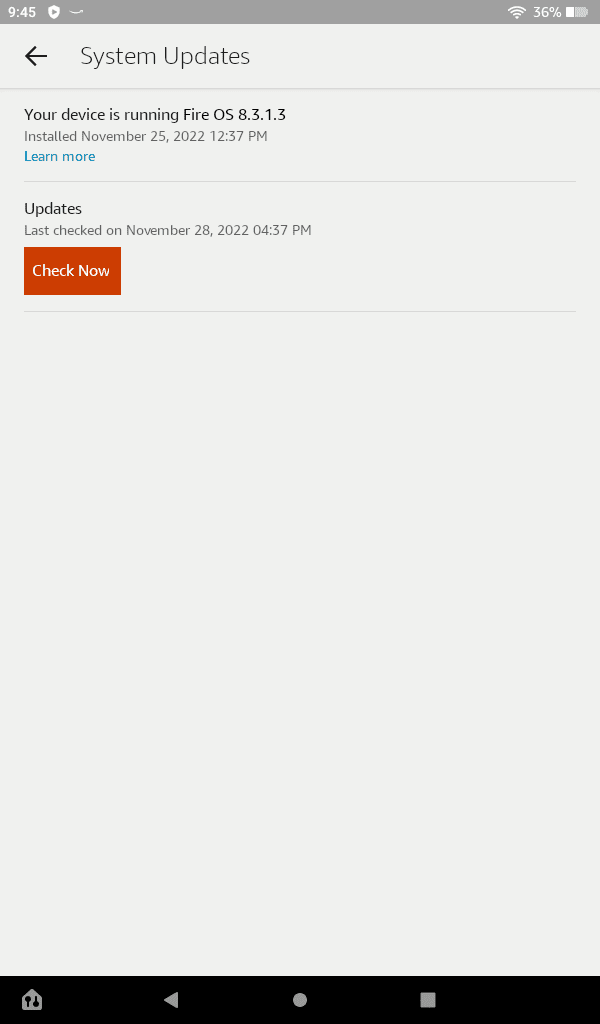
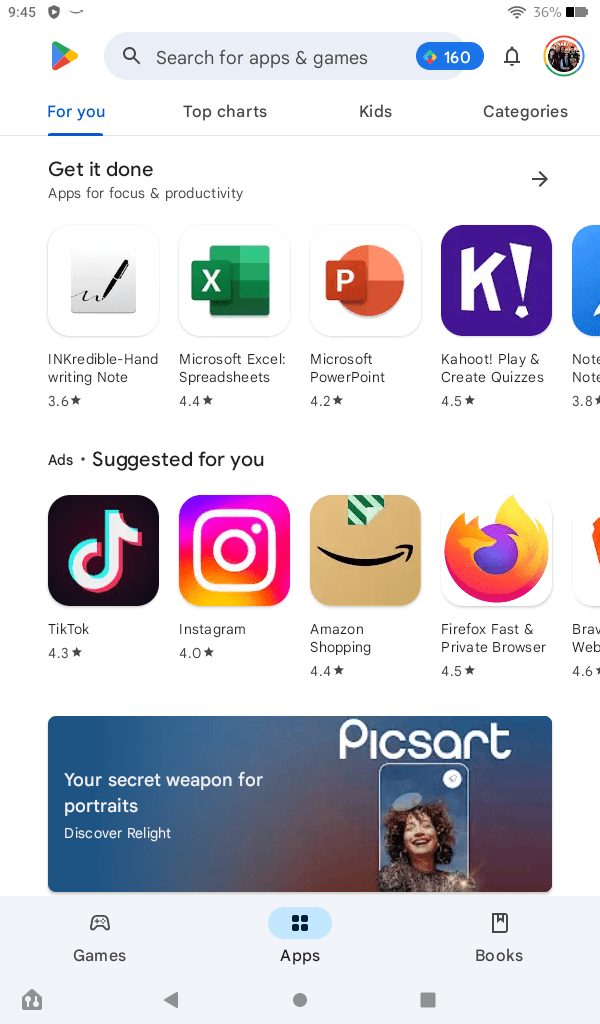
As we update this guide in May 2023, the most recent version of Fire OS for these two devices is Fire OS 8.3.1.8. I factory reset the Fire 7 and re-performed the steps laid out above, and I can confirm that everything is still working as expected. So, if you’re having trouble, make sure your tablet is up to date. It could be the difference between accessing the Play Store after 15 minutes and spending an afternoon filled with non-stop headaches.
How to fix ‘This account already exists on your device’ when signing in
If you get the error “This account already exists on your device” when signing in to Chrome or another Google app, or if the app doesn’t detect your Google account, follow these steps:
- Close the app you’re having issues with (for example, swipe it away in the Recents/multitasking screen).
-
Open the Settings app, tap
Apps & Permissions
, then select
Manage all applications
. These options might have slightly different names, depending on your version of Fire OS. -
Look through the list, find the app that’s having issues, tap it, and select
Permissions
. - Switch all available permissions to On. Enabling the Contacts permission did the trick in our testing, but you might consider enabling everything for good measure.
- Open the app again.
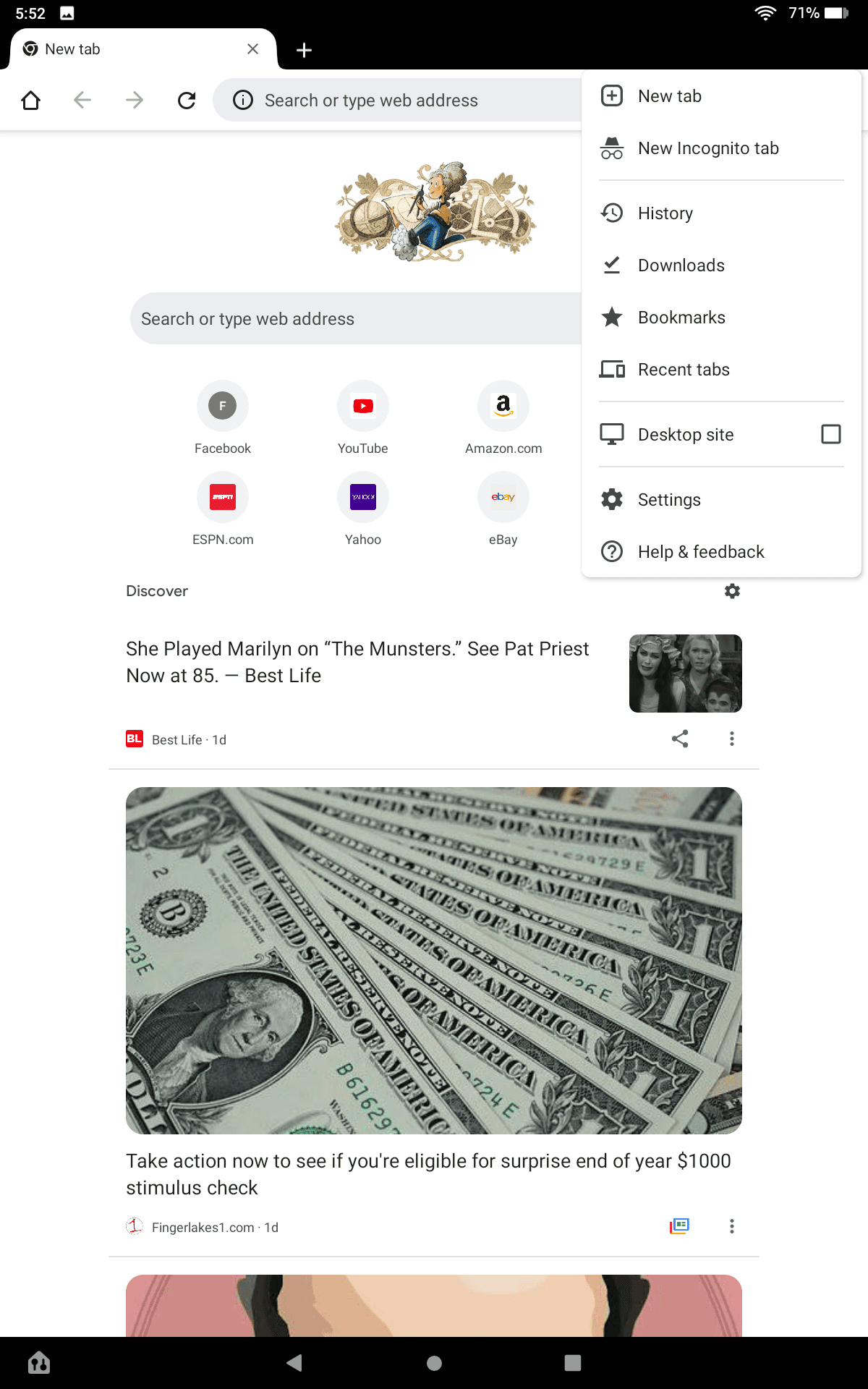
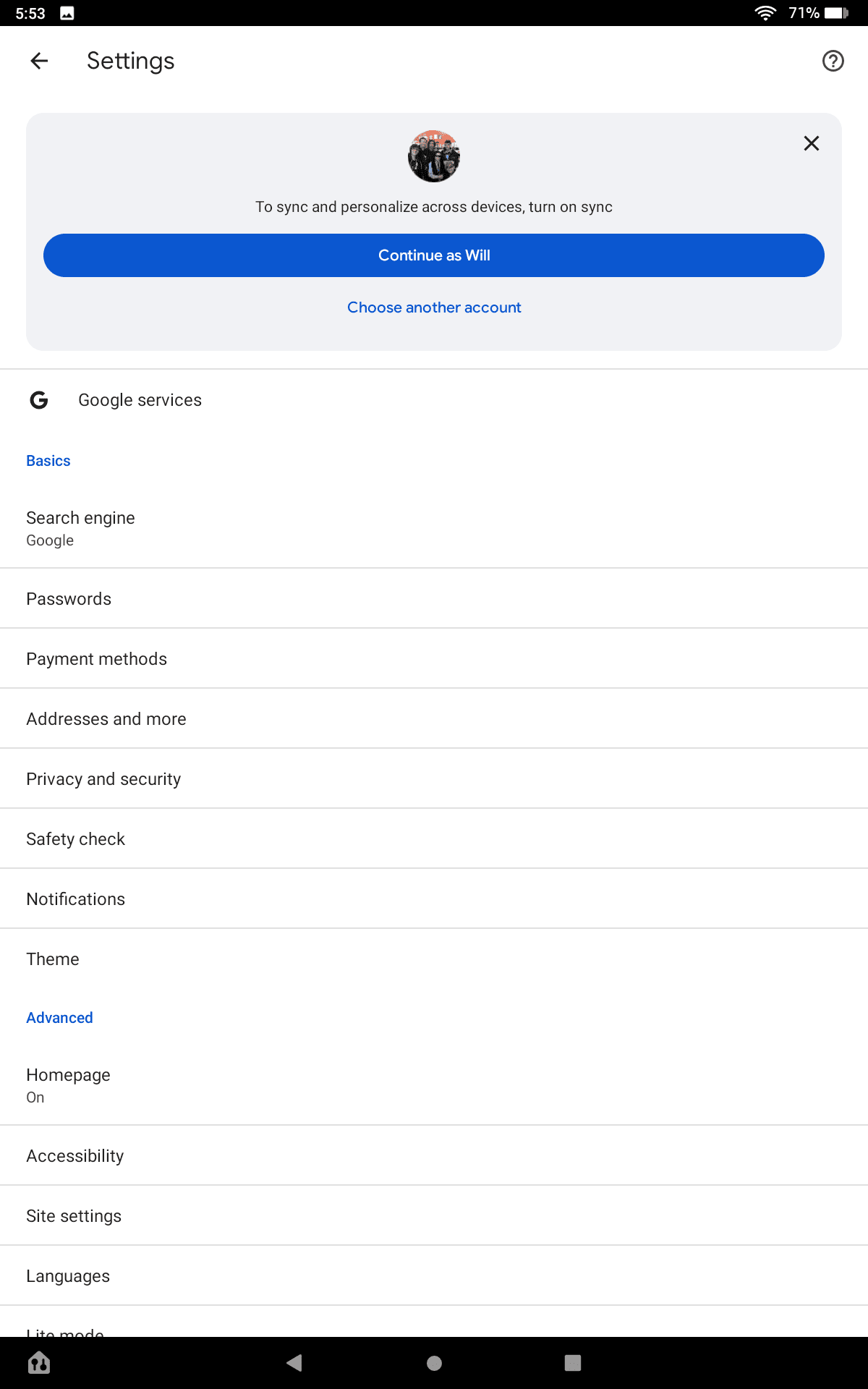
In Chrome, you must also open the browser, tap the
Settings
menu, and tap the
Continue as
button at the top of the screen.
Still having trouble installing the Play Store? Try these troubleshooting tips
If you have a different issue than the one listed above, here are some generic troubleshooting tips.
Reboot your tablet
To get everything settled, restart your tablet.
-
Hold down the power button, and tap the
Power Off
option. - Turn your tablet back on by holding down the power button again.
- Once it has booted up, open the Play Store from the home screen and see if it works as expected.
This is an easy step to miss when you’re setting up the Play Store, and it can go a long way in getting your device back to working order.
Clear app data on your Fire tablet
If you can’t sign in to the Play Store, clear the app’s local data. This resets the Play Store app to its original state and should fix most problems.
-
Open the
Settings
app. -
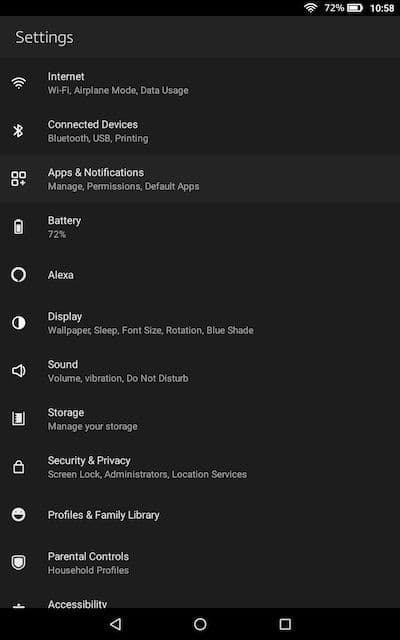
Select the
Apps & Notifications
section (or whatever else has
Apps
or
Applications
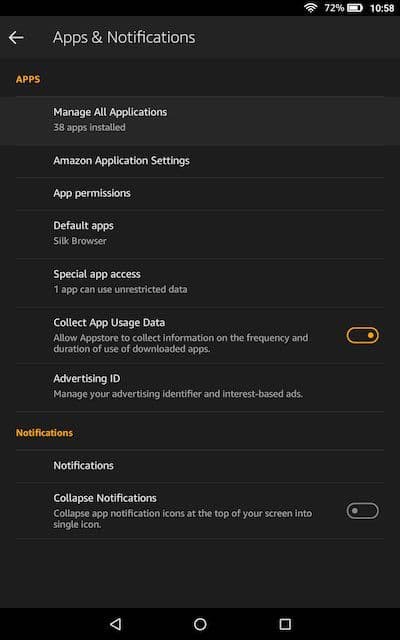
in the name). -
Tap
Manage All Applications
.
-
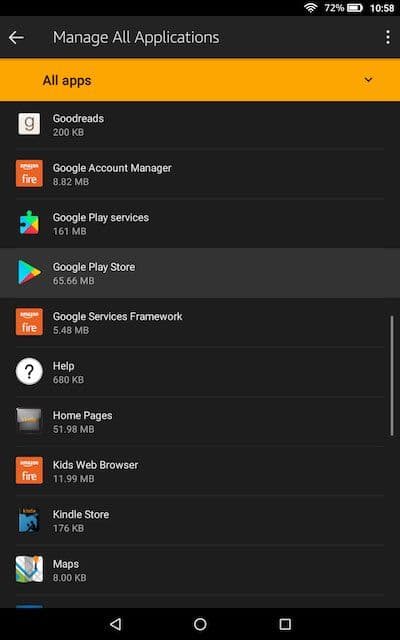
Find the Play Store in the list of apps and tap it.
-
Tap the
Force Stop
button to stop the Play Store from running. -
Tap the
Storage
menu option and tap
Clear Data
(it might also be called
Clear storage
). - Return to the Play Store app and see if your app works as expected.
If that didn’t help, follow the above steps again, but restart your tablet before opening the Play Store. If that didn’t work, force-stop and clear data for Google Play Services and the Play Store.
Reset your Amazon Fire tablet
If you still can’t get the Play Store to work, your best option is to factory reset your tablet and try again. Make sure you don’t restore from a backup when setting up the tablet unless the backup was made before you installed the Play Store.
Improve your Amazon tablet’s performance even more
Fire tablets aren’t the fastest devices in the world, but you might be able to make yours marginally faster with a few easy steps. Check out our full Fire tablet performance guide for the instructions.
